

Custom roles are only available on Lightdash Enterprise plans.For more information on our plans, visit our pricing page.
Overview
Lightdash provides two types of roles:- System roles: Pre-defined roles (like Admin, Developer, and Viewer) that come with a standard set of scopes. For more on what each one can do, check our default system roles permission matrix.
- Custom roles: Roles you define yourself by picking the exact scopes you need.
- Organization-level custom roles can include both organization-only scopes and project scopes, so an org-level custom role can mirror the built-in system org roles and apply project permissions across every project in the organization.
- Project-level custom roles can only include project scopes — organization-only scopes cannot be added to a role that is applied to a project.
How additive permissions work
Custom roles can be created at either the project level or the organization level, but permissions are always additive. If a user has permissions granted at the organization level, those permissions combine with any permissions granted by a custom role at the project level — they cannot restrict or override each other. For example, Organization Editors, Developers, and Interactive Viewers all have the “Manage Google Sheets” permission by default. If you create a custom project role with “Manage Google Sheets” toggled off, users with any of those org roles will still be able to export to Google Sheets because the permission comes from their org-level assignment.Restricting permissions with custom roles
To use custom roles to restrict what users can do in a specific project, you need to start from a lower org-level role:- Downgrade users to Organization Viewer or Organization Member. Neither of these roles includes permissions like Google Sheets export, explore access, or scheduled deliveries.
- Create a custom project role with only the specific permissions you want to grant (e.g., explore data, view dashboards, schedule Slack/email deliveries).
- Assign the custom role to those users or groups at the project level.
Creating Custom Roles
Access Custom Roles Settings
- Navigate to Settings → General Settings → Custom Roles
- You’ll see a list of existing custom roles in your organization
Create a New Role
- Click Create New Role
- Select the role type — Organization or Project. This determines whether the role will be applied to a user or user group at the organization level or the project level. If you select Organization, both organization-only scopes and project scopes will be available. If you select Project, only project scopes will be available — organization-only scopes cannot be added to a project role. Once a role type has been selected, it cannot be changed — you’ll need to create a new role if you want a different type.
- Choose a Preset that matches the role’s purpose, or select Start from scratch. The preset list only shows options compatible with the selected role type.
- Review and edit the Role Name, optional Description, and selected scopes. Choosing a preset fills in these fields and automatically selects any scope dependencies.
- If you start from scratch, select the specific scopes (permissions) you want to include:
- View permissions: Allow users to see content (dashboards, charts, spaces)
- Create permissions: Allow users to create new content
- Manage permissions: Allow users to edit, delete, or administer content
- Click Save to create the role
Role presets
Presets provide a starting point for common permission sets. Every populated field remains editable, and the saved custom role is independent of the preset. Changes to a preset in a future Lightdash release do not update roles created from it.
The table lists the scopes defined directly by each preset. Lightdash also selects their required dependencies, so the role builder can show additional scopes after you choose a preset. If you change the role type and the selected preset is not compatible with the new type, the picker returns to Start from scratch.
Scope dependencies
Many scopes depend on other scopes to work correctly — for example, most project scopes requireview:Project. When building or editing a role, the role builder shows each scope’s dependency status:
- Green check mark — all dependencies are met.
- Orange triangle — some dependencies are met. The scope will still function, but certain aspects of the permission will not work.
- Red circle — none of the dependencies are met.
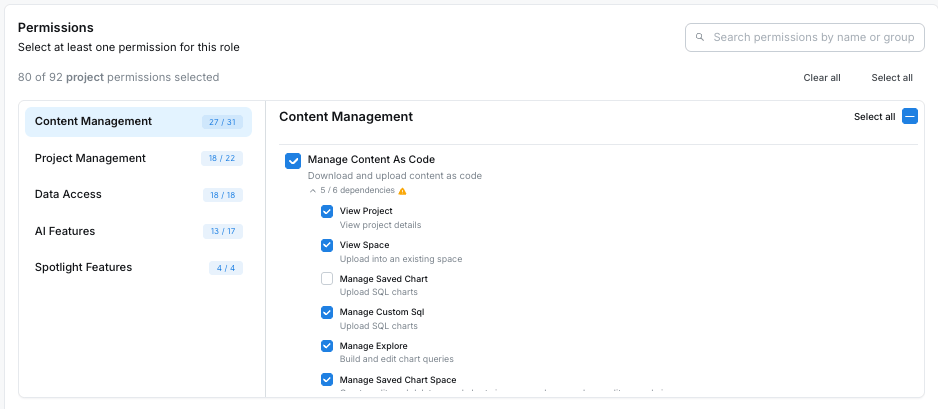
- Selecting a scope automatically selects its required dependencies.
- Deselecting a scope does not auto-deselect its dependencies. Many scopes (like
view:Project) are required by lots of other scopes, so Lightdash leaves them in place to avoid silently breaking other selected scopes.
Duplicate an Existing Role
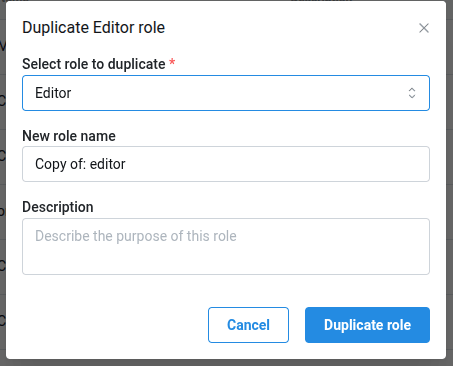
If you want to create a role similar to an existing one:- Find the role you want to duplicate (system role or custom role)
- Click the ⋯ menu next to the role
- Select Duplicate Role
- Select the role type — Organization or Project. This determines whether the duplicated role will be applied at the organization level or the project level, and which scopes are available. Once selected, the role type cannot be changed.
- Enter a new name for the duplicated role
- Modify the scopes as needed
- Click Save
Assigning Custom Roles
Custom roles are assigned at the project level to provide granular access control:Assign to Users
- Go to Project Settings → Access
- Find the user you want to assign a role to
- Select the custom role from the dropdown
- The user will now have the permissions defined in that custom role for this project
Assign to Groups
- Go to Project Settings → Access
- Find the group you want to assign a role to
- Select the custom role from the dropdown
- All members of the group will inherit the custom role permissions for this project
Assigning multiple roles (role sets)
By default every user or group holds one role per level: one organization role, and at most one role per project. On Enterprise plans with custom roles, each of those single roles becomes a role set:- at most one system role — the base (
viewer,editor,admin, …), or none; - any number of custom roles of the matching level (organization or project), added on top.
Eligibility
Multiple roles are part of custom roles: they are available on any Lightdash Enterprise plan with custom roles enabled — no separate enablement is needed. Without custom roles, the role pickers, API endpoints and provisioning integrations behave exactly as before, with one role per level. Any extra roles that were assigned while custom roles were enabled stay effective if custom roles are later switched off — only the ability to manage sets is gated.In the UI
Once enabled, the single role dropdown becomes a role picker on:- Settings → Users & groups → Users — the organization role set of each member;
- Project settings → Project access → Users — a member’s direct project role set;
- Project settings → Project access → Groups — a group’s project role set.
Via the API
Threev2 endpoints read and replace a whole set atomically. They return 403 when custom roles are not enabled for the organization.
The body and the response share one shape —
systemRole is a system role name or null, customRoleUuids lists custom roles of the matching level:
PUT replaces the whole set: roles you leave out are removed. Requests are rejected with 400 when the set is empty or contains a role of the wrong level, and with 403 when a role belongs to another organization, when the caller could not grant one of the requested roles themselves, or when the change would leave the organization without an active admin.
The existing single-role endpoints keep working. Their responses report the primary role of the set (the system role, or the first custom role when there is no system role) plus a hasMultipleRoles: true flag when the assignment holds more roles, and a single-role write replaces the whole set with that one role — so an older client or script that assigns a role clears any extras. Use the …/set endpoints from clients that need to keep sets intact.
SCIM and users as code
- SCIM represents every role in a set as one entry of the standard
rolesarray — see User Role Provisioning. - Users as code carries extra organization custom roles in an
additionalRoleslist — see Users as code.
Troubleshooting multiple roles
403 Custom roles are not enabledon the…/setendpoints — custom roles are not enabled for the organization; single-role behaviour applies.400 A role set must contain at least one role— send at least one system or custom role, or use the remove-access endpoint / trash action to drop the assignment.- A user lost their extra roles — a single-role write (an older client, script, or IdP payload) replaced the set. Re-assign the extras with the picker or the
…/setendpoint. - A custom role in the set does not seem to restrict anything — sets are additive; check whether a system role sits in the same set or at the organization level. See How additive permissions work.
- Changes not visible yet — the affected user may need to refresh; permissions rebuild on their next request.
Scope reference
Content-as-code scopes
Four scopes control access to content as code, the CLI workflow for managing charts and dashboards as YAML files. They form a read → narrow-write → write → manage ladder. Download content as code (view:ContentAsCode) lets a user pull existing charts and dashboards as YAML via lightdash download. It does not allow pushing changes back. This is the common “let people pull templates” grant.
Upload content as code to own previews (manage:ContentAsCode@self) is a narrow upload right: users can run lightdash upload only against preview projects they created themselves. This is the intended day-to-day scope for non-Developer users in CI/CD-style workflows where they need to validate their own preview but shouldn’t push to shared projects. Pair it with view:ContentAsCode so they can still pull from shared projects.
Upload content as code (create:ContentAsCode) grants chart, dashboard, and SQL-chart uploads across any project the role applies to, without the broader scheduled-delivery, alert, and Google Sheets upload rights that manage:ContentAsCode includes. This is the scope built-in Editors hold — it unlocks lightdash upload for charts and dashboards (and the AI agent / MCP content tools that create or edit the same content) while still enforcing the same space-level access checks that the UI applies. Writing SQL charts still requires manage:CustomSql; adding or changing custom SQL dimensions still requires manage:CustomFields; adding or changing custom SQL table calculations still requires manage:CustomSqlTableCalculations. Custom SQL is diffed against the persisted chart, so re-uploading a chart whose SQL hasn’t changed passes without those extra scopes.
Download and upload content as code (manage:ContentAsCode) grants everything in create:ContentAsCode plus the ability to upload scheduled deliveries, alerts, Google Sheets uploads, and space/permission mutations via content as code. This is the scope built-in Developers and Admins hold. It implies view:ContentAsCode, create:ContentAsCode, and the @self upload right.
Use download-only to let a user pull production YAML for local development, diffing, or inspection without giving them the ability to overwrite production content. Combine with a controlled promotion path (e.g., CI/CD running with a service account that holds the manage scope) so writes only land via the pipeline.
Restrict developers to preview uploads (agentic development workflow)
A common pattern for agentic development of dashboards and content as code is to let developers iterate freely on their own preview projects while preventing directlightdash upload to production. Promotion to production then happens through a reviewed CI/CD pipeline instead of an individual’s CLI, or through promoting content in the UI.
To set this up:
- Clone the built-in Developer role to create a custom role (for example,
Developer (no prod upload)). - Remove the Download and upload content as code (
manage:ContentAsCode) scope from the cloned role. - Add the Download content as code (
view:ContentAsCode) and Upload content as code to own previews (manage:ContentAsCode@self) scopes. - Assign the custom role to the user at the project level on the production project.
- Run
lightdash downloadagainst the production project to pull YAML for local editing. - Run
lightdash previewandlightdash uploadagainst their own preview projects to validate changes. - Receive a
403when attemptinglightdash uploadagainst the production project — production writes must go through the promotion pipeline.
Preview-edit scopes
Four@self scopes let a user edit content only inside preview projects they created themselves, without granting any edit rights in production:
- Manage dashboards in own previews (
manage:Dashboard@self) - Manage saved charts in own previews (
manage:SavedChart@self) - Manage spaces in own previews (
manage:Space@self) - Explore and query data in own previews (
manage:Explore@self)
- The user is view-only in the production project.
- They create a preview project from production — content and access are copied across.
- Inside their own preview they can freely create, edit, and delete dashboards, charts, and spaces, and use the Explorer to build new charts.
- A reviewer with the appropriate rights promotes the changes back to production.
@self modifier, granting manage:Dashboard (or the chart/space/explore equivalents) would also grant those rights in the production project. With @self, the rule only takes effect when both conditions hold:
- The project is a preview project.
- The current user is the user who created that preview.
These scopes still respect space access. A
manage:Dashboard@self or manage:SavedChart@self grant only applies inside spaces the user can already see (public spaces, or private spaces they’re a member of). manage:Space@self lets the user create new spaces and manage spaces they can see, but does not expose private spaces they weren’t a member of in production. manage:Explore@self is project-wide inside the preview, matching how Explore works elsewhere.Let view-only users build in their own previews
To set up the “view-only in production, edit freely in own preview” workflow:- Downgrade the user’s org role to Viewer, Interactive Viewer, or Member so production rights come from the project-level role.
- Create a custom role (for example,
Preview Builder) with:- The view scopes the user needs in production (e.g.
view:Dashboard,view:SavedChart,view:Space,view:Project). create:Projectso they can create preview projects.- All four preview-edit scopes:
manage:Dashboard@self,manage:SavedChart@self,manage:Space@self,manage:Explore@self.
- The view scopes the user needs in production (e.g.
- Assign the custom role to the user at the production project level.
Data app scopes
Three scopes control data app creation and iteration. They cover both the in-product app builder andlightdash upload --apps from the CLI — the check is the same in both surfaces.
Create data apps (create:DataApp) lets a user create new data apps in any project the role applies to, including production. This is the scope built-in Editors, Developers, and Admins hold. It also grants the “own personal apps” rights (view:DataApp@self, manage:DataApp@self) so users can iterate on apps they created.
Create data apps in own previews (create:DataApp@preview) is the preview-only counterpart. It lets a user create data apps only inside preview projects they created themselves — not in production, and not in previews created by teammates. Pair it with create:Project@preview so the user can spin up the preview in the first place, and with manage:DataApp@preview so they can iterate on the apps they uploaded.
Manage data apps in own previews (manage:DataApp@preview) lets a user edit and delete data apps inside preview projects they created themselves. Included alongside create:DataApp@preview in the built-in Developer role.
Without the @preview modifier, granting create:DataApp also grants app creation in production. With @preview, the rule only takes effect when both conditions hold:
- The project is a preview project.
- The current user is the user who created that preview.
create:DataApp@preview attempting lightdash upload --apps against production (or a colleague’s preview) receives a 403.
Restrict data app uploads to previews (agentic development workflow)
To let developers build and iterate on data apps in their own previews via the CLI without allowing directlightdash upload --apps to production:
- Clone the built-in Developer role to create a custom role (for example,
Developer (no prod data app upload)). - Remove the Create data apps (
create:DataApp) scope from the cloned role. - Keep the Create data apps in own previews (
create:DataApp@preview) and Manage data apps in own previews (manage:DataApp@preview) scopes — the built-in Developer role already includes them. - Assign the custom role to the user at the project level on the production project.
- Run
lightdash previewto spin up their own preview from production. - Run
lightdash upload --appsagainst their own preview to iterate on data apps. - Receive a
403when attemptinglightdash upload --appsagainst the production project or a teammate’s preview — production data app changes must go through the promotion pipeline.
SQL-related scopes
Three scopes control different SQL-authoring features. They are independent — granting one does not grant the others. Manage Sql Runner controls access to the SQL Runner, which lets users write and run ad-hoc SQL queries directly against your data warehouse. It also controls the ability to create virtual views and write back dbt models from SQL Runner queries. Manage Custom Sql (description: Save SQL charts) controls the ability to save the output of a SQL Runner query as a saved chart. Users with this scope can save SQL charts; without it, they can still run queries in SQL Runner but cannot persist the output. This scope does not grant access to custom SQL dimensions in Explore. Manage Custom Fields (description: Create and edit custom dimensions) controls the ability to create and edit custom SQL dimensions inside the Explore view. Custom SQL dimensions let users add calculated fields to an existing table using raw SQL. This scope does not grant access to the SQL Runner.Managing custom roles as code
Custom roles can be downloaded from and uploaded to a Lightdash instance as YAML files via the CLI, alongside charts, dashboards, and other content as code. This is useful for version-controlling your organization’s roles, reviewing changes in pull requests, or copying a role between instances. Unlike most content as code (which is project-scoped), custom roles are organization-scoped. Downloads and uploads use the--organization mode of the CLI and require organization admin permissions.
Download roles
Run the download in organization mode from your working directory:lightdash/custom-roles/*.yml. System roles are not included.
Upload roles
Edit or add YAML files underlightdash/custom-roles/, then run:
YAML format
Malformed files, unknown scopes, and scopes that aren’t allowed at the role’s level are rejected per file with the file path and error message; other files continue to process. The CLI exits with a non-zero status if any file fails validation.
For the full workflow, including examples and CI/CD integration alongside charts and dashboards, see Custom roles as code.
Troubleshooting
Custom role doesn’t restrict a permission (e.g., Google Sheets export)
Custom roles can only add permissions—they cannot remove permissions granted by the user’s organization role. If you toggled off a scope in a custom role but the user still has access, their org role is granting that permission. To fix this: Downgrade the user’s org role to Viewer or Member, then use a custom project role to grant only the specific permissions they need. See Restricting permissions with custom roles above.Users can’t see expected content
- Verify the custom role includes the necessary view scopes
- Check that the role is assigned at the project level where the content exists
- Remember that organization-level permissions may override custom role limitations
Role Changes Not Taking Effect
- Users may need to refresh the page for role changes to take effect
- Verify the role was saved successfully and assigned to the correct users/groups
Managing Existing Custom Roles
Edit a Custom Role
- Go to Settings → General Settings → Custom Roles
- Click on the role you want to edit
- Modify the name, description, or scopes
- Click Save - changes will apply to all users and groups assigned this role
Delete a Custom Role
- First, ensure no users or groups are assigned this role
- Go to Settings → General Settings → Custom Roles
- Click the trash icon next to the role
- Confirm the deletion
Deleting Roles: Once deleted, a custom role cannot be recovered. You can’t remove a role that is currently assinged to users or groups.