

What is Lightdash YAML?
Lightdash YAML defines your semantic layer in standalone model files that point to existing tables in your warehouse. You can build metrics, dimensions, charts, dashboards, and AI agents without installing dbt or maintaining a dbt project. You can connect the project through GitHub or Bitbucket Cloud so Lightdash compiles and refreshes it from your repository, or deploy local files with the CLI. A GitHub connection also lets you write custom fields and AI-proposed changes back to the repository as pull requests. This page covers the project layout, model setup, repository connection, and write-back support.Choose a semantic layer format
Use the dbt integration when your semantic definitions live in a dbt project. Use Lightdash YAML when your warehouse tables already exist and you want to define the semantic layer independently of dbt. Lightdash YAML describes those tables; it does not build or transform them. The formats share Lightdash’s metric and dimension concepts, but they use different file structures. Native model files have a top-leveltype, name, and sql_from; dbt model files use dbt’s model and meta structure. Changing the connection’s format does not convert your files.
Project layout
Keeplightdash.config.yml in the project directory, with model files under models/:
.yml and .yaml files recursively. It also supports lightdash/models/ when there is no models/ directory; if both exist, only models/ is used. Each model needs a unique name and a type of model, model/v1beta, or model/v1.
The model name does not need to match its filename. Lightdash tracks the source path so write-back updates the original file, including models nested in subdirectories. Keep native model files inside the configured project directory.
Recommended: build with an AI coding agent
The fastest way to get started with Lightdash YAML is to let an AI coding agent (Claude Code, Cursor, etc.) do the heavy lifting for you.1
Install the Lightdash CLI
Follow the CLI installation guide and authenticate with Lightdash.
2
Install Lightdash skills
Run
lightdash install-skills to teach your coding agent everything it needs to know about building in Lightdash, from writing YAML models to creating metrics and deploying.3
Ask your agent to build your project
Prompt your coding agent to:
- Create your
lightdash.config.ymland YAML model files based on tables in your warehouse - Generate dimensions and metrics for those models
- Deploy your project to Lightdash with
lightdash deploy --create --no-warehouse-credentials
Define your models
Prerequisites
Before you begin, make sure you have:- The Lightdash CLI installed
- Authenticated with Lightdash
- Credentials for your data warehouse (e.g., Snowflake)
- Tables in your warehouse that you want to explore
Step 1: Create your project configuration
At the root of your project, create alightdash.config.yml file to specify your warehouse type:
snowflake with your warehouse type (e.g., bigquery, databricks, redshift, postgres, trino).
Step 2: Create your first model
Define the table insql_from, then add dimensions and metrics using the native model structure below.
Create a directory structure for your Lightdash project:
models/users.yml:
- Set
sql_fromto the fully qualified name of your table (e.g.,DATABASE.SCHEMA.TABLE) - Update the dimensions to match the columns in your table
- Add metrics that make sense for your data
Step 3: Validate your YAML
Runlightdash lint to check your YAML files for errors before you deploy:
warehouse.type in lightdash.config.yml to compile SQL for your warehouse. Compilation does not create the physical tables or confirm that every physical column exists.
Step 4: Deploy your project
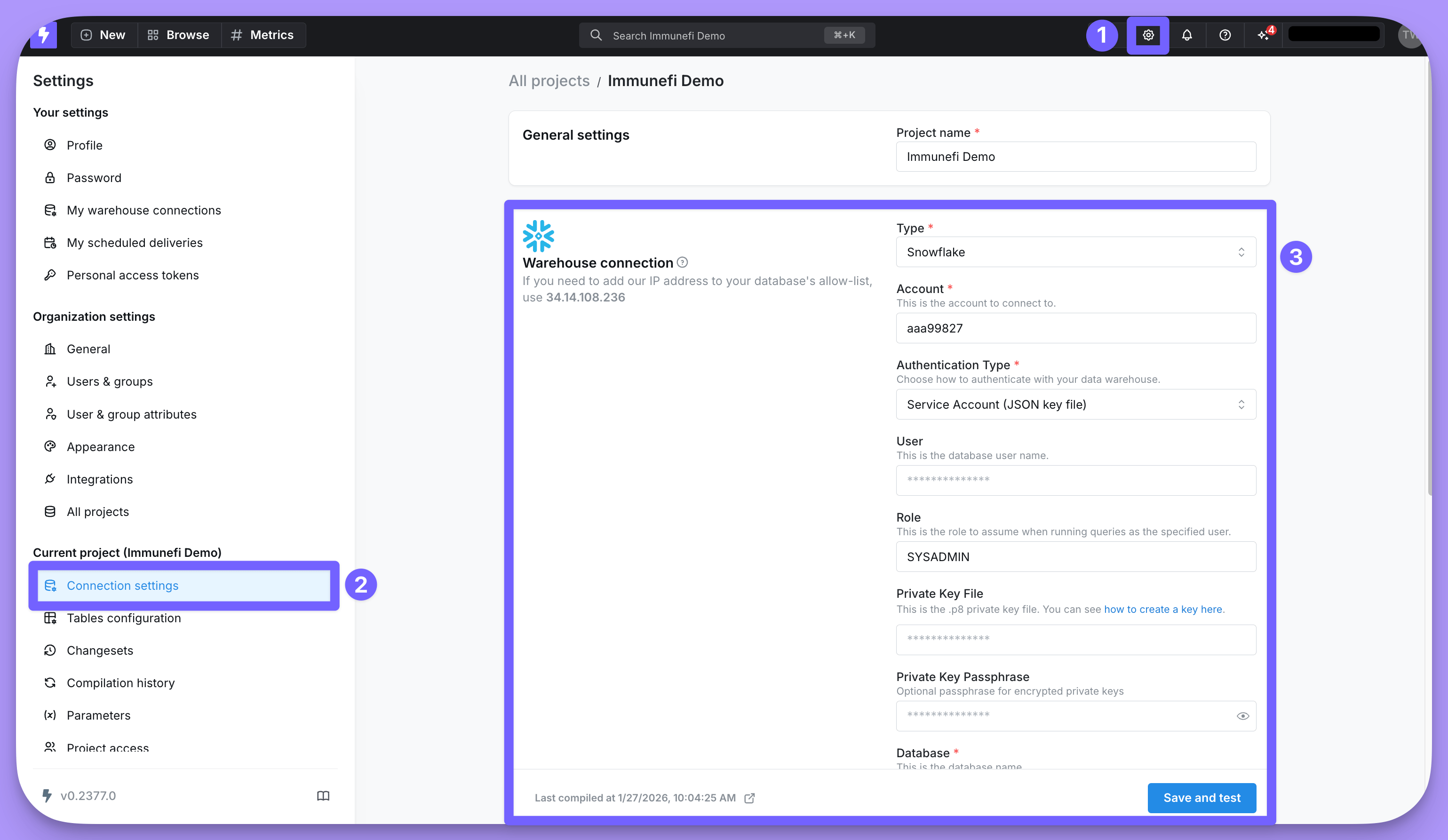
Choose GitHub or Bitbucket Cloud to have Lightdash compile the committed files, or create a project from your local files with the CLI:--no-warehouse-credentials, the CLI does not read a dbt profile or send warehouse credentials. Configure the created project’s warehouse connection in Lightdash before querying it:
- Go to Settings
- Under Current project, click Connection settings
- Configure your Warehouse connection with your database credentials
Step 5: Update your project
After your initial deployment, you can edit your.yml files and redeploy changes:
Connect through GitHub or Bitbucket Cloud
You need permission to manage the project’s connection and access to the repository. Use the GitHub connection settings or Bitbucket Cloud connection settings for authentication. To use AI writeback, install the Lightdash GitHub App or configure the Bitbucket API token with writeback permissions.- Commit your configuration and models to GitHub or Bitbucket Cloud.
- Open Settings → All projects → Create new, or Settings → Current project → Connection settings for an existing project.
- Configure the warehouse connection, and choose GitHub or Bitbucket as the project connection type.
- Set Semantic layer format to Native Lightdash YAML.
- Select the repository and branch. Set Project directory path to
/for the repository root, or the directory containinglightdash.config.ymland the model directory. For example, use/analyticsforanalytics/lightdash.config.ymlandanalytics/models/. - Save the connection. Lightdash reads the committed files and compiles them using the project’s saved warehouse connection.
bitbucket.org); Bitbucket Server/Data Center and GitLab are not supported. Native projects cannot be combined with additional dbt sources.
Refresh a Git-connected project
After merging changes to the configured branch, click Refresh models in Lightdash or runlightdash refresh. The server pulls that branch and compiles the YAML using the saved warehouse connection. You do not need dbt or a local checkout to trigger a refresh.
Invalid YAML, invalid model definitions, duplicate model names, or semantic compilation errors fail the native refresh instead of publishing an incomplete model set. Open Compilation history to inspect the result.
To test another branch with a GitHub connection, create a preview project. The preview retains the native semantic layer format.
Write back from Lightdash
In a GitHub-connected native project, users with project Developer permissions or above can open pull requests from the Explore view:- Create a custom metric or dimension.
- Open the field’s menu and choose Write back to project. You can also use the write-back action on the Custom metrics or Custom dimensions section to select several fields.
- Review the YAML preview and click Open Pull Request.
- Review and merge the pull request, then refresh the project.
Supported fields and limits
Metrics with filters that cannot be represented without changing their meaning are rejected. Write-back requires block-style YAML dimensions rather than inline, flow-style lists.
Existing saved charts keep their custom bin dimensions so their ordering is unchanged. Use the written YAML dimension in new charts; add a separate numeric ordering dimension in the model when bin order matters. Custom dimensions are not automatically replaced in saved charts after write-back.
SQL Runner’s Write back to dbt action creates dbt SQL models and is not available for native projects. Native
sql_from definitions point to tables that your warehouse workflow already creates.
AI writeback and Issues
AI writeback can edit native YAML from a chat request in GitHub- and Bitbucket Cloud-connected projects. It validates the edited native models before pushing changes, using the connected warehouse’s SQL dialect without passing warehouse credentials to the sandbox. A validation error prevents the pull request from being opened or updated. Issues uses the same native path for semantic layer fixes. Project context fixes update agent context inlightdash.project_context.yml beside the project configuration. GitHub AI writeback also supports automatic preview projects. For Bitbucket, review and merge in Bitbucket, then refresh the project; see Bitbucket Cloud behavior.
Developing with AI coding agents
If you’re developing with Cursor, Claude Code, or another AI coding agent, you can speed up your workflow significantly.Recommended setup
-
Install Lightdash skills: Run
lightdash install-skillsto give your coding agent everything it needs to build YAML models, create metrics, and deploy to Lightdash. Then ask your agent to create your YAML files, add some metrics, and deploy to Lightdash. - Share your warehouse schema: Give your coding agent access to your warehouse schema so it can generate YAML files that match your actual table structures.
-
Use validation: Prompt your coding agent to always run
lightdash lintafter making any changes to catch errors early.
Next steps
Once you’ve deployed your Lightdash YAML project:- Explore your data in the Lightdash UI
- Create metrics to define your key business calculations
- Set up AI agents to enable natural language queries
- Learn about the semantic layer reference for advanced configuration options