User impersonation is behind a feature flag. Contact support to enable it for your organization.
How it works
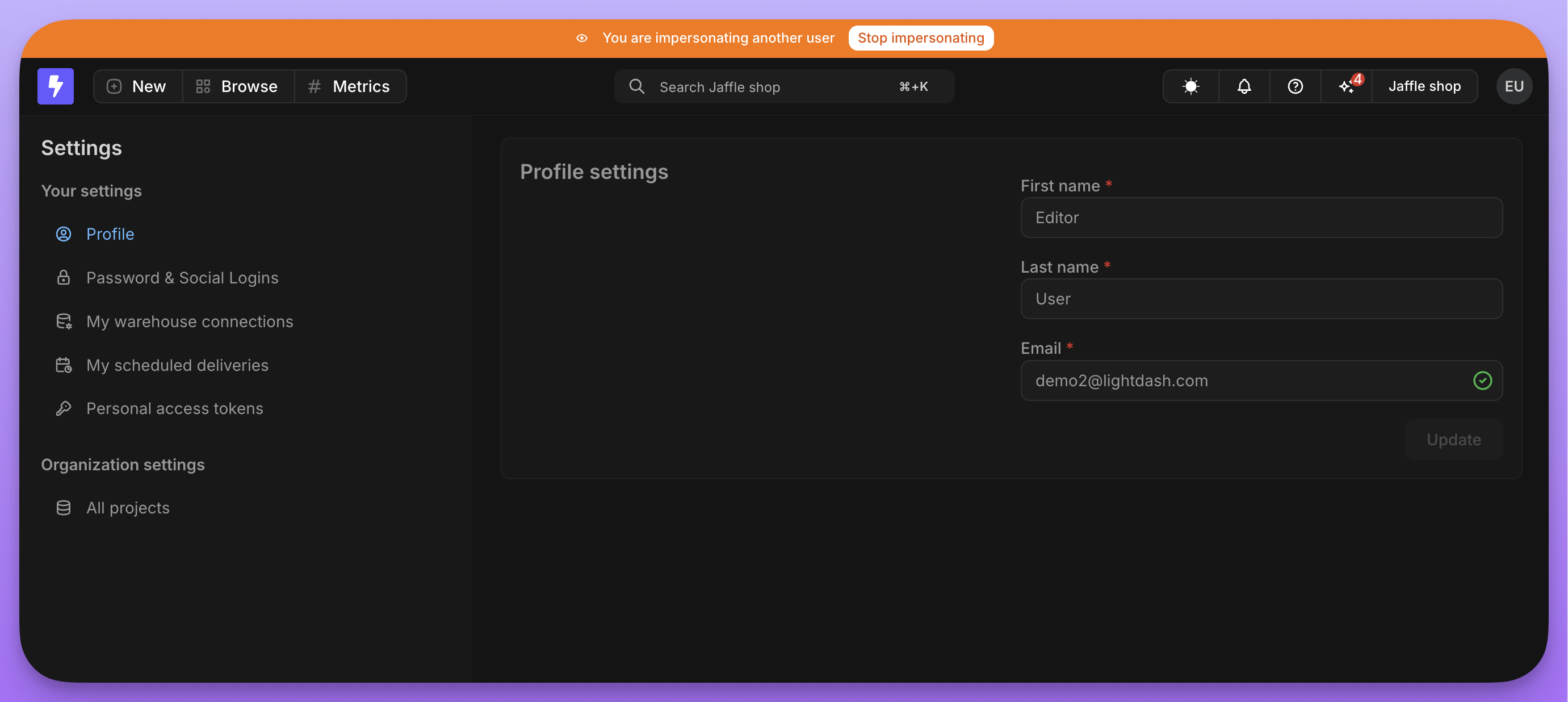
When you impersonate a user:- You see Lightdash exactly as that user sees it, including their permissions, spaces, and data access
- A banner appears at the top of the screen indicating you’re impersonating someone
- All actions are logged for audit purposes—Lightdash logs the start and end of each impersonation session, and every request made while impersonating includes both the impersonating admin’s
userUuidand the impersonated user’suserUuid - Each impersonation session has a hard limit of 15 minutes. After 15 minutes, the session automatically ends and you return to your normal admin view
- You can stop impersonation at any time by clicking the button in the banner
Who can use impersonation
Only organization admins can impersonate other users. You cannot impersonate users outside your organization.Enabling impersonation
If user impersonation is available on your instance, organization admins can enable it from the organization settings. Once enabled, admins will be able to impersonate other users in the organization. This setting can be turned off at any time.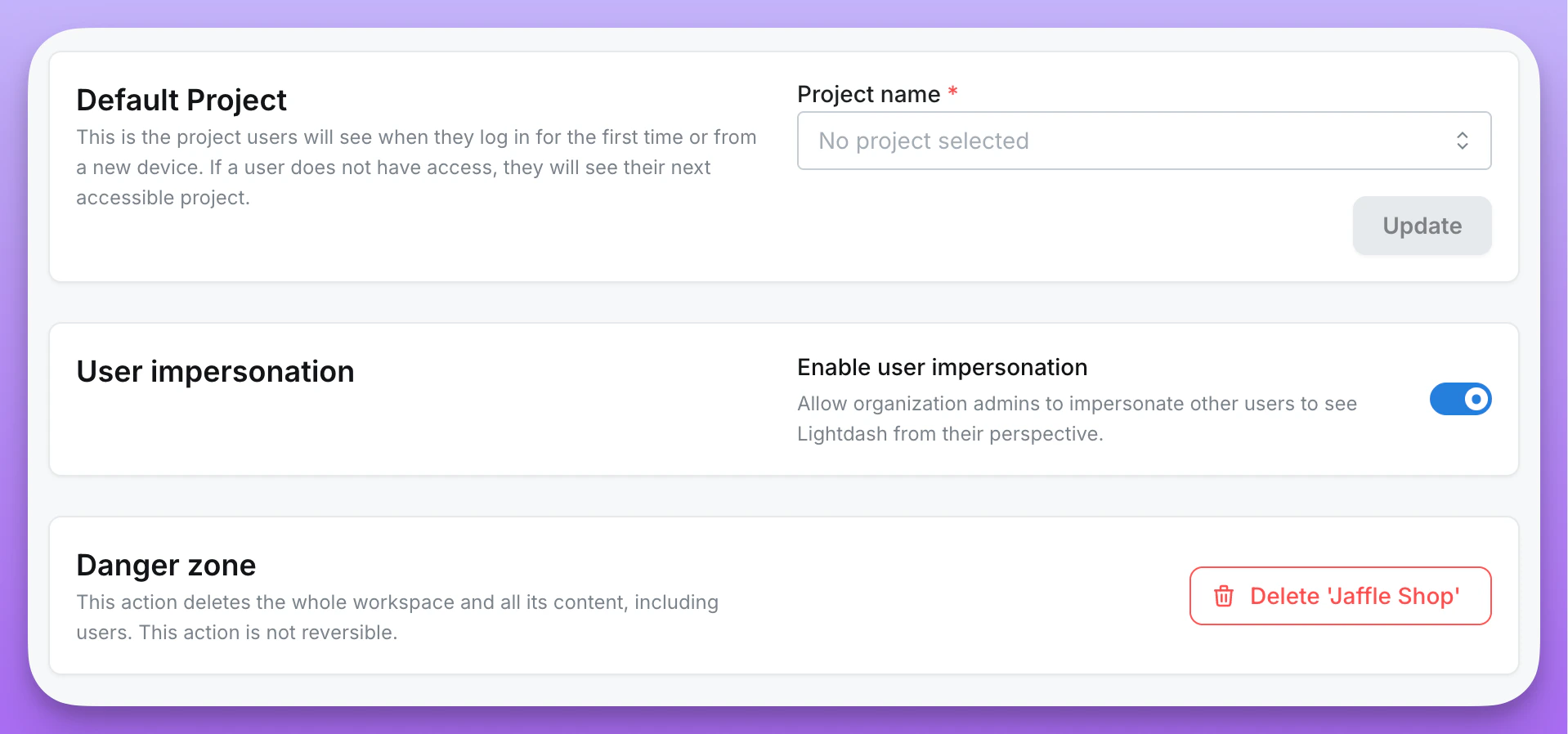
Starting impersonation
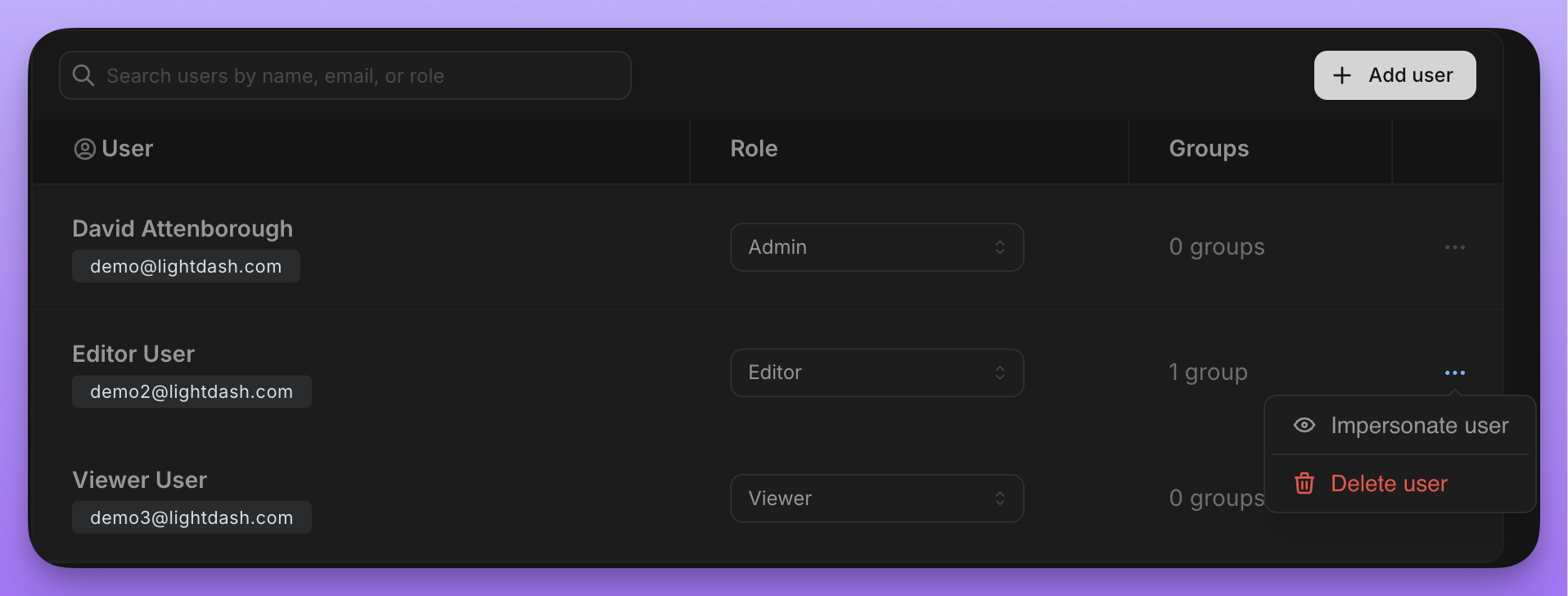
- Go to Settings > Users & Groups
- Find the user you want to impersonate
- Click the … menu next to their name
- Select Impersonate user