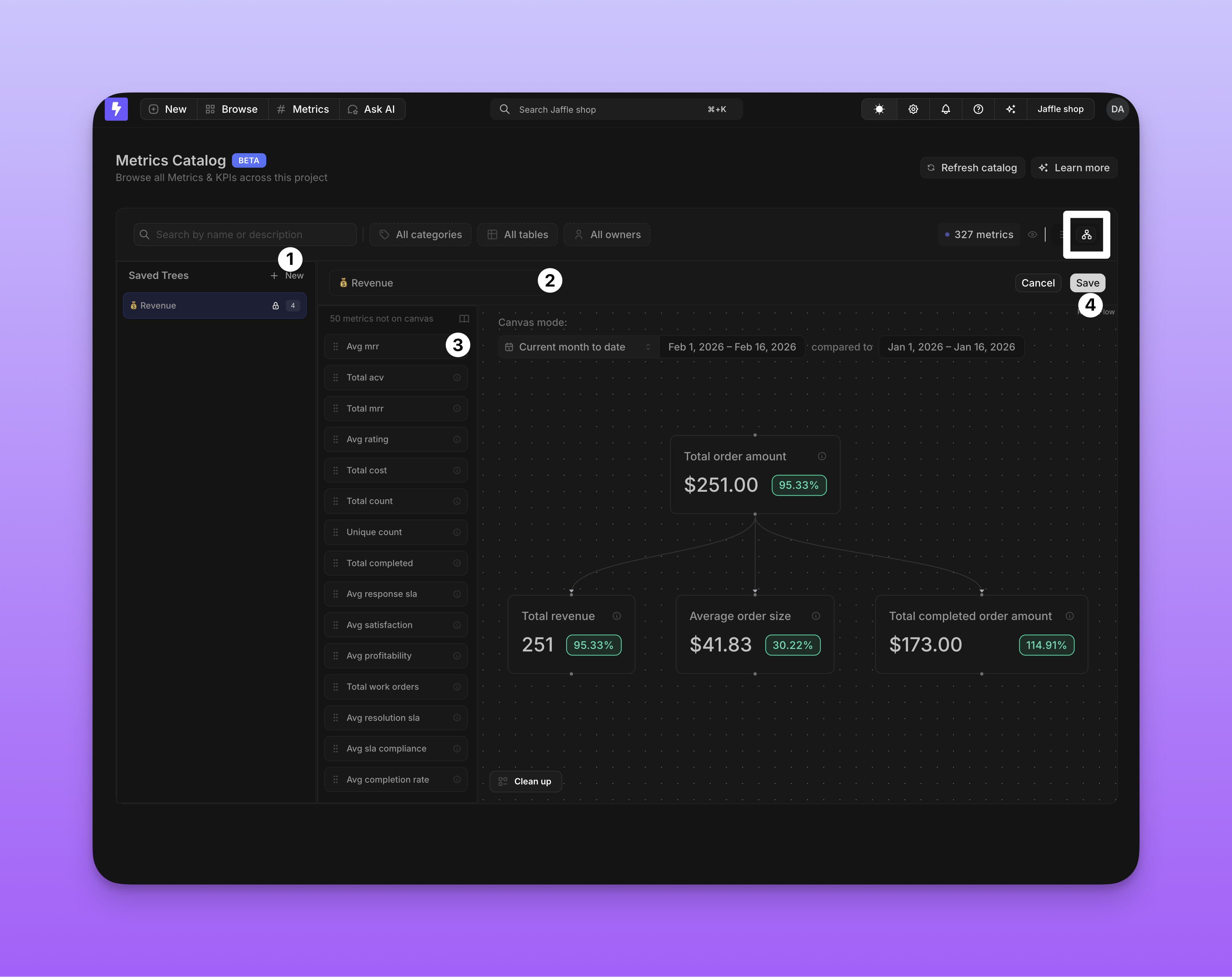
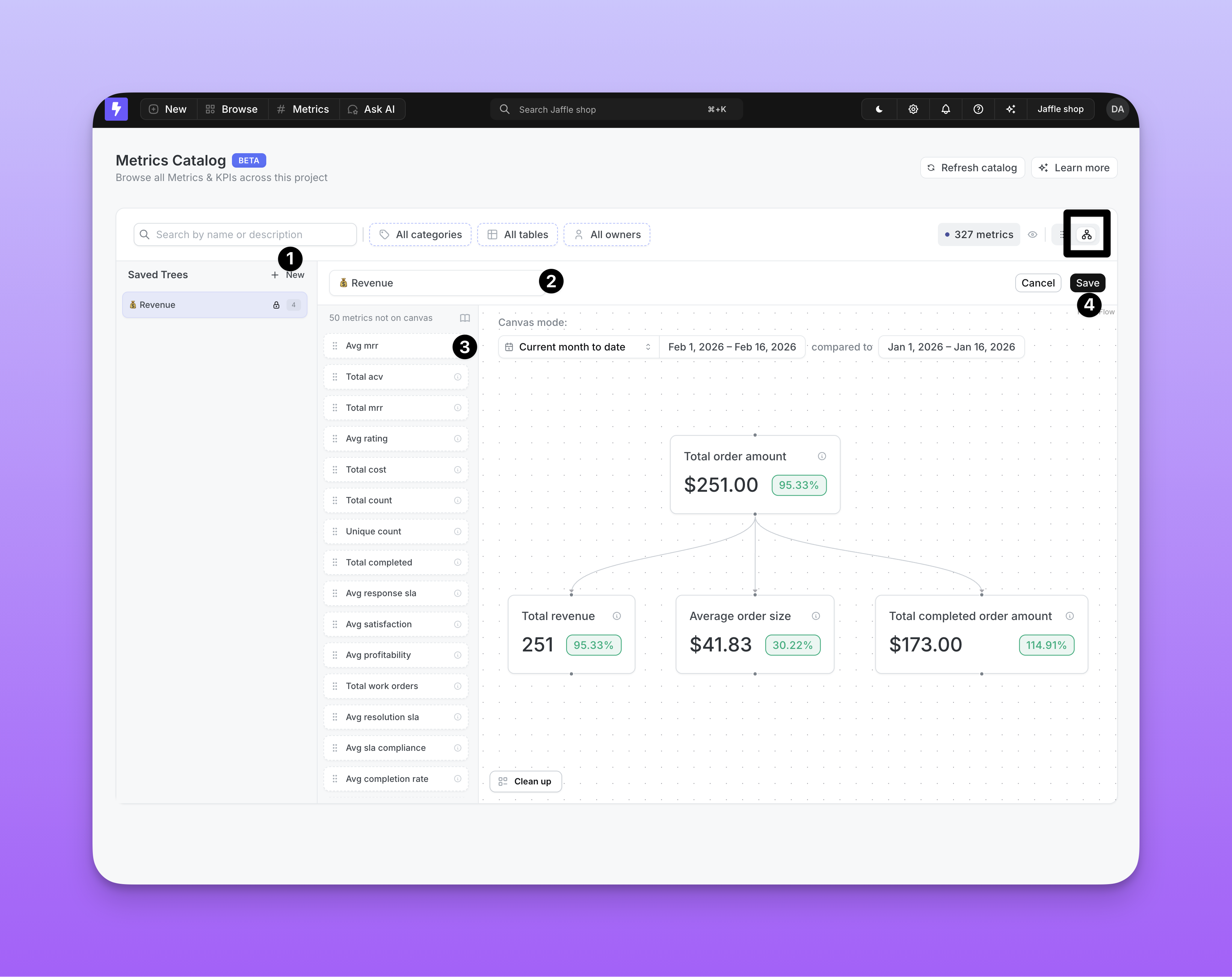
Saved Trees are persistent, shareable diagrams of how your metrics relate to each other. Each tree stores its full layout β€” every node position and every edge β€” so you can return to the same view next session and share the link with teammates. Saved Trees are shared across your team: anyone with access to the project can view them, and users with the right permissions can create, edit, and delete them. You build and view Saved Trees on a canvas: switch to the canvas view using the toggle in the top-right corner of the Metrics page. The Saved Trees sidebar on the left lists every tree in the project.
Saved Trees on the canvas

Creating a Saved Tree

  1. Start a new tree: In the Saved Trees sidebar, click New to enter edit mode, and type a name in the text input at the top of the canvas.
  2. Find your metrics: Use the search bar, categories, or table filters to narrow down the metrics sidebar. Click Load more at the bottom to pull additional metrics from the catalog.
  3. Add metrics: Drag metrics from the sidebar onto the canvas.
  4. Create connections: Drag between node handles to draw edges representing relationships and dependencies. Metrics with drivers defined in .yml get their edges drawn automatically.
  5. Remove nodes: Select a node and press Backspace to delete it.
  6. Save: Click Save. The button is disabled until you provide a name and add at least one node.
When you save, the tree name, node positions, edges, and metric references are all persisted. Click Cancel to discard your work. If you have unsaved changes, a confirmation dialog will appear.
Driver edges are not stored with the tree β€” they are injected automatically whenever matching nodes are present.
To make changes later, open the tree from the sidebar and enter edit mode. Viewers can see trees and connections but cannot make edits.

Collaborative locking

Only one user can edit a Saved Tree at a time. When you start editing, the tree is locked to you. The lock stays active while you work β€” if you stop editing for more than 2 minutes, the lock is automatically released so others can make changes. When a tree is locked by another user, you’ll see an β€œEditing by ” badge in the header, and the Edit and Delete options are disabled until the lock is released. Your changes are automatically saved as a draft while you edit, so if you accidentally close the tab or refresh the page, your work-in-progress can be recovered when you return.

Permissions

ActionAdminDeveloperEditorInteractive ViewerViewer
View a Saved Tree
Create a Saved Tree
Edit a Saved Tree
Delete a Saved Tree