

How verified answers work
- Verify high-quality responses - When your AI agent generates a particularly good chart or dashboard, click the verification icon to mark it as a verified answer. This tells the agent “this is a great example of how to answer this type of question.”
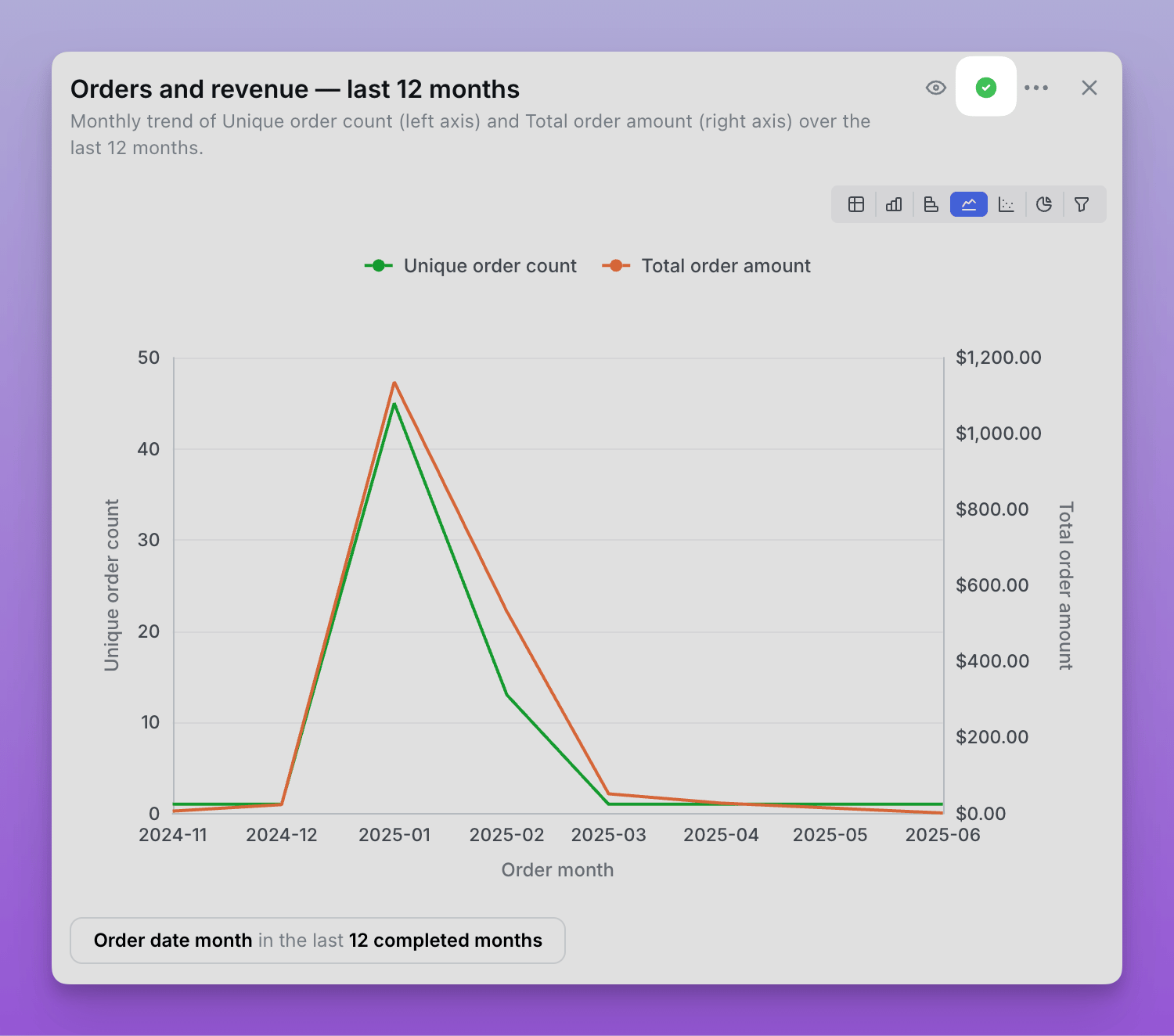
- Agent learns from examples - Your agent references verified answers when responding to similar questions, leading to more consistent and accurate responses
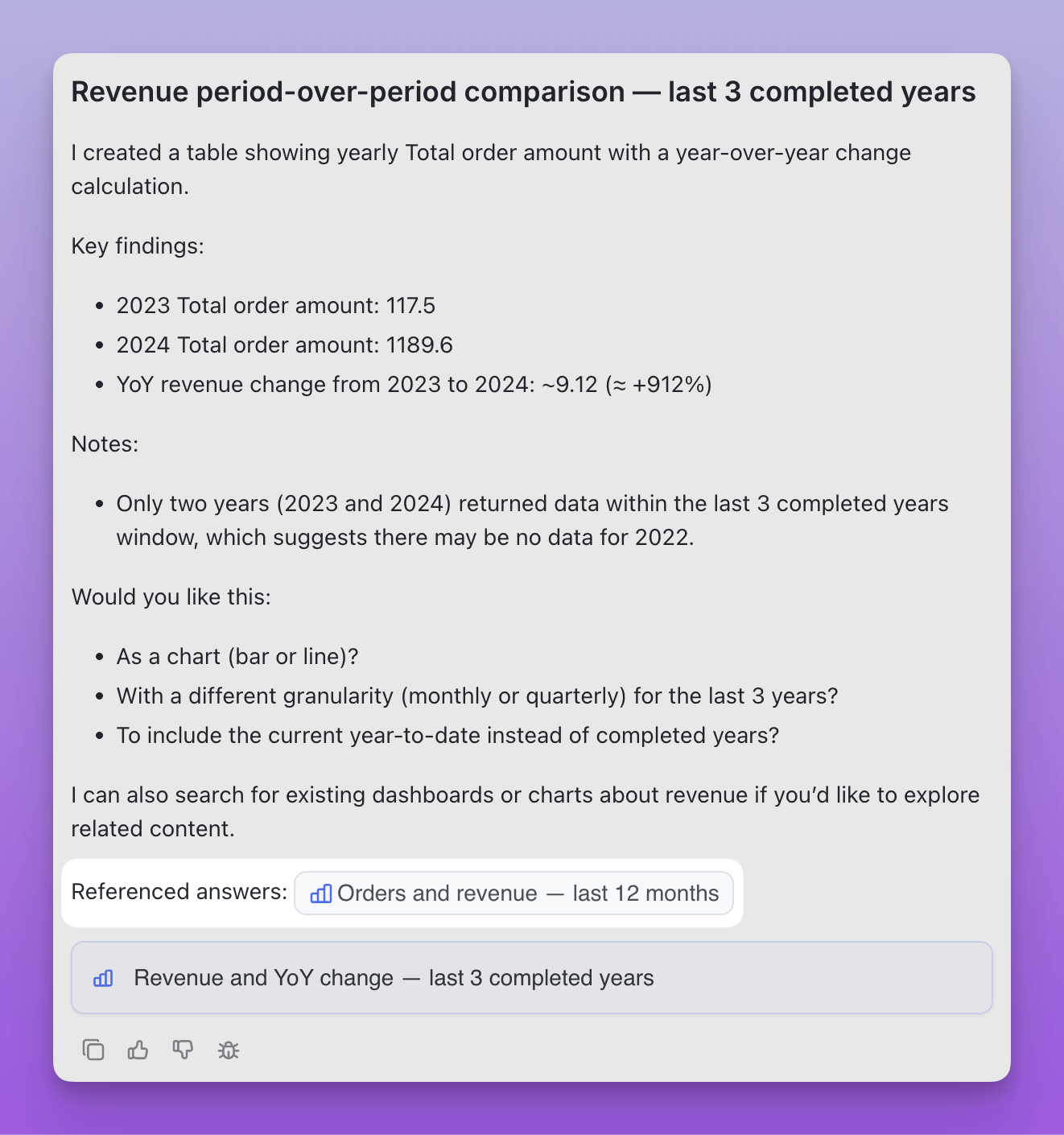
- Suggested questions - When starting a new conversation, users see suggested questions based on your verified answers, making it easier to discover what the agent can do. Note: You need to have more than 6 verified questions before suggested questions will appear.
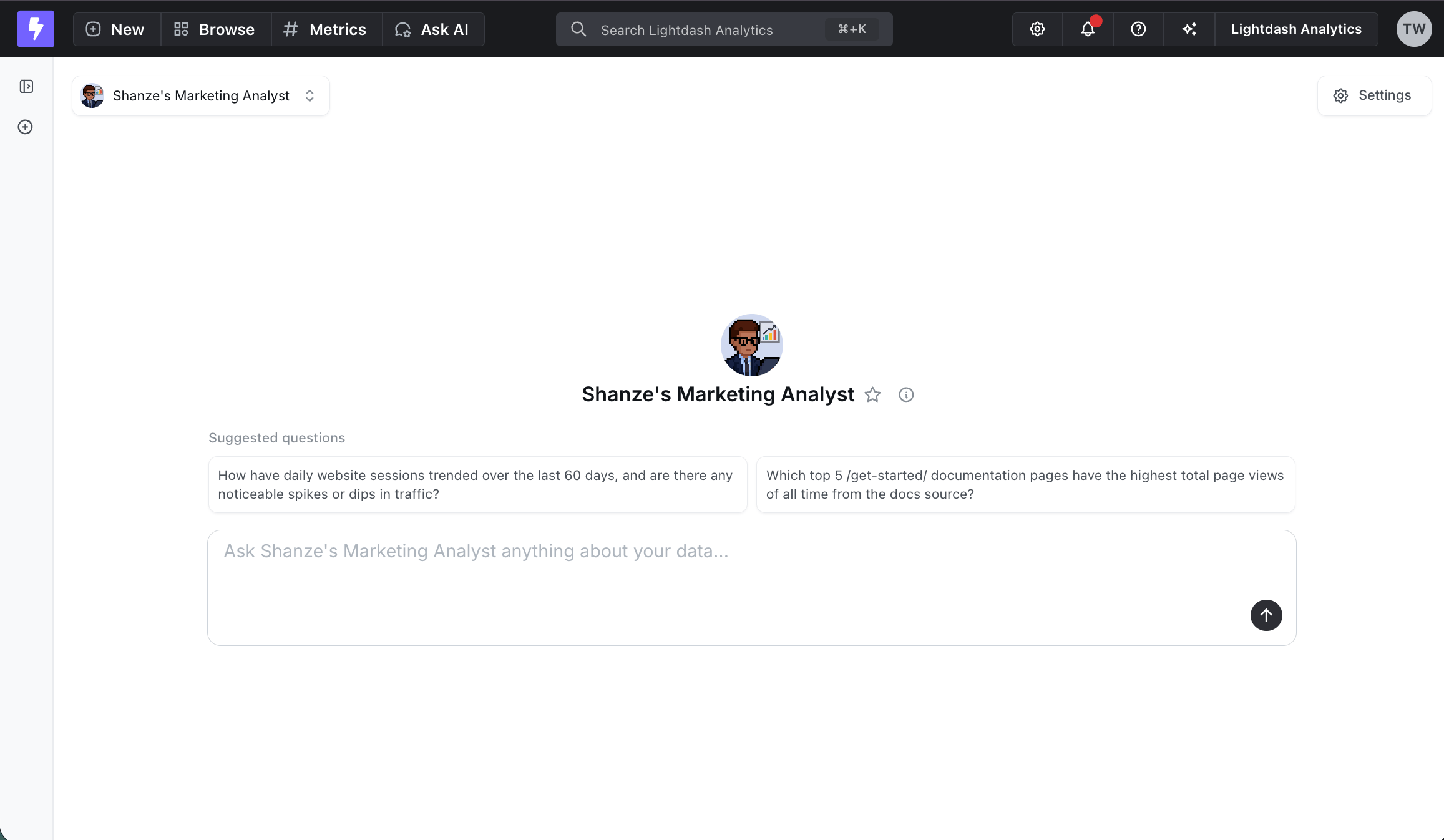
- Slack integration - When your AI agent is integrated into Slack, it automatically references verified answers in its responses. If you ask a question that has already been answered or for which there’s already a chart, the agent will include a link to the verified answer in the Slack response
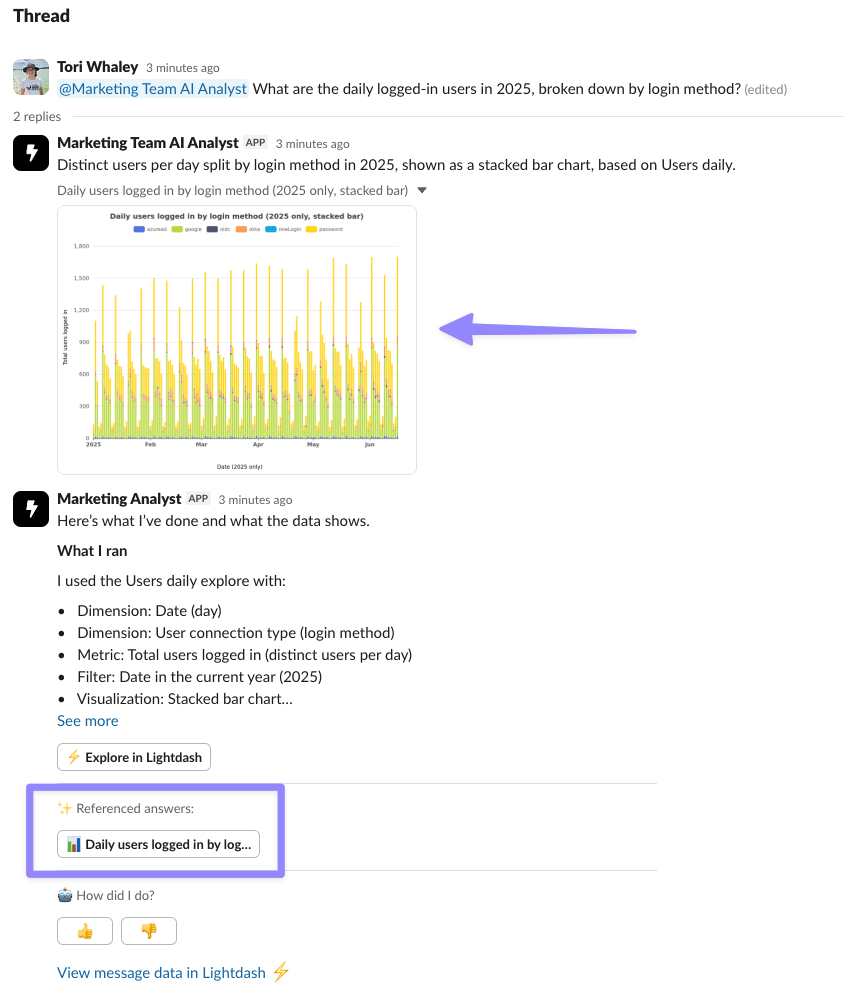
Verified answers become verified content
Verifying an answer doesn’t only train the agent. If the answer has been saved as a chart or dashboard, verifying it also marks that saved chart or dashboard as verified content — it gets the green verified badge and shows up everywhere trusted content does:- The verified badge on the chart or dashboard, in listings, search, and space overviews
- The
list_verified_contentMCP tool, so external agents can discover and build on it - In-product AI retrieval, so agents prefer it when answering similar questions
- Save before you verify. An answer that only exists inside the conversation stays an agent example — it won’t get a badge or appear in MCP until it’s saved as a chart or dashboard. Save it first, then verify.
- The link is one-way. Verifying an answer promotes its saved chart or dashboard to verified content. Verifying a chart or dashboard directly (for example, from project settings) doesn’t reach back and mark the originating answer.
Managing verified answers
Verifying an answer
- In any AI agent conversation, review the generated chart
- Click the checkmark icon in the top right corner of the chart
- The answer is now verified and will be used as a reference example
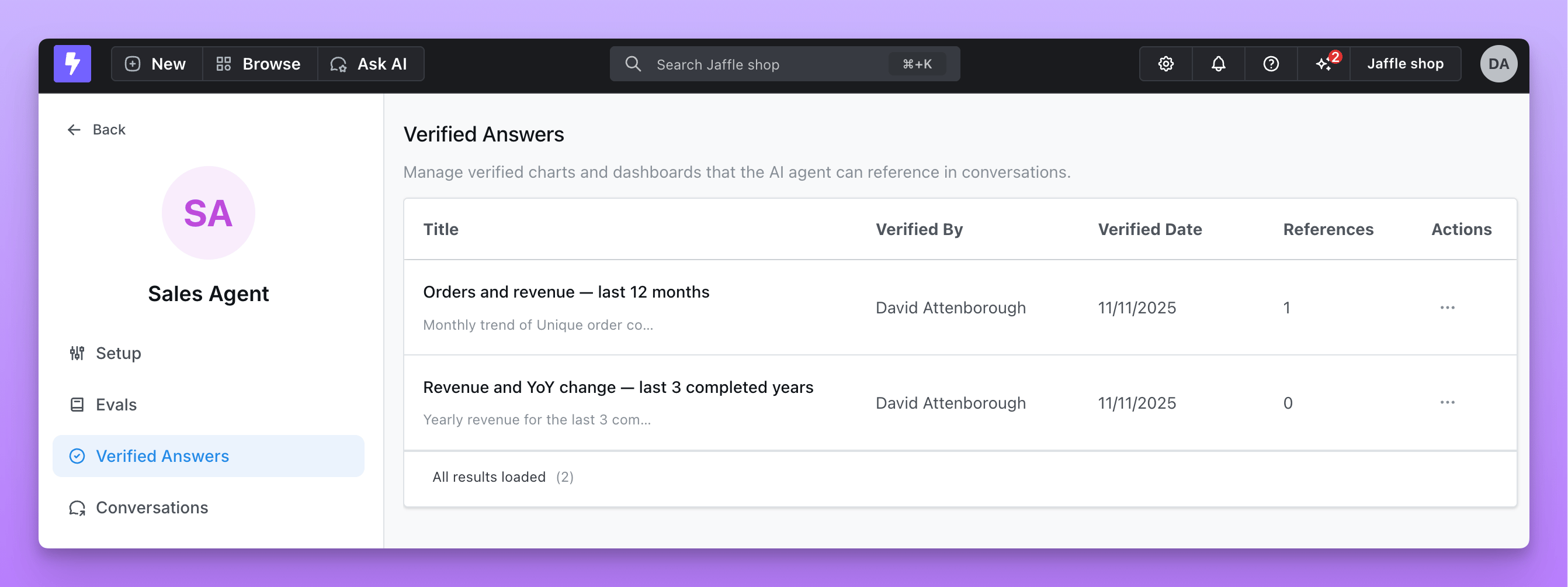
Viewing all verified answers
Navigate to your agent’s settings page and select the Verified answers tab to see:- All verified charts and dashboards
- Who verified each answer and when
- How many times each answer has been referenced by the agent
- Preview of the visualization
Removing verification
If an answer is no longer a good example:- Go to the Verified answers tab in the agent’s settings page
- Find the answer you want to remove
- Click the remove icon
- Confirm removal - the answer will no longer be used as a reference
Who can verify answers?
Only users with the Admin and Developer roles can verify answers.Admin-verified charts and dashboards
Verified answers are one of two trust signals your agent uses. The other is admin-verified charts and dashboards — content that organization or project admins have signed off on as canonical. When an agent searches your project for existing content to reference, it ranks admin-verified charts and dashboards first and surfaces them to the user along with who verified them and when. You don’t need to configure anything: any chart or dashboard verified in project settings is automatically preferred by every agent in that project.How this improves your agent
Verified answers help your agent:- Maintain consistency - Reference proven examples when answering similar questions
- Improve accuracy - Learn from high-quality, verified responses rather than trial and error
- Discover patterns - Understand the types of visualizations and analyses that work best for your data