

Share a draft URL
As you explore data, the URL holds a unique link to your work in progress. Copy it and anyone with access to your Lightdash project lands in the Explore view at exactly the point you’re at. The link gets long when a chart carries a lot of configuration, so use the built-in link shortener to grab a short one.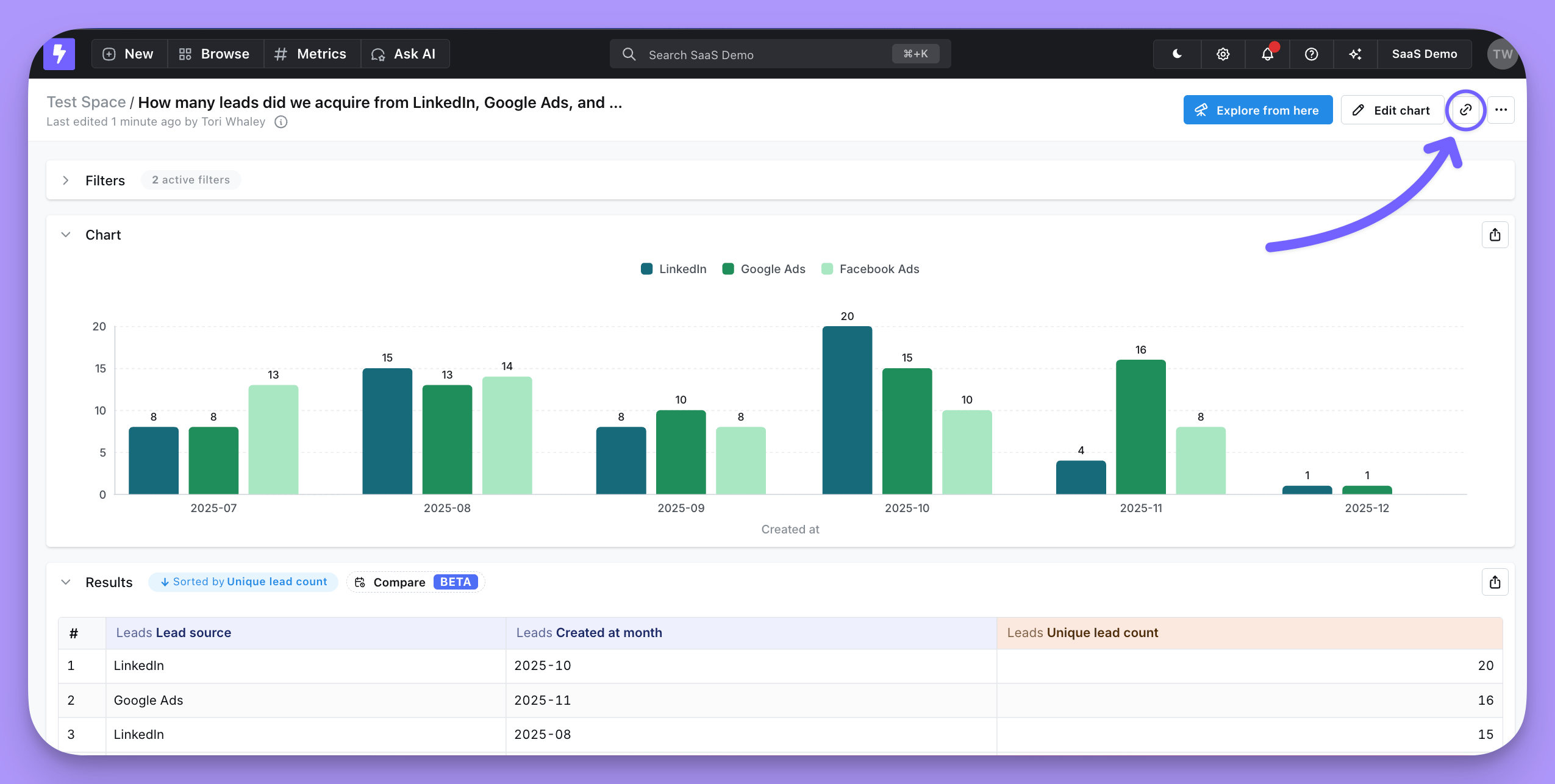
Share a saved chart
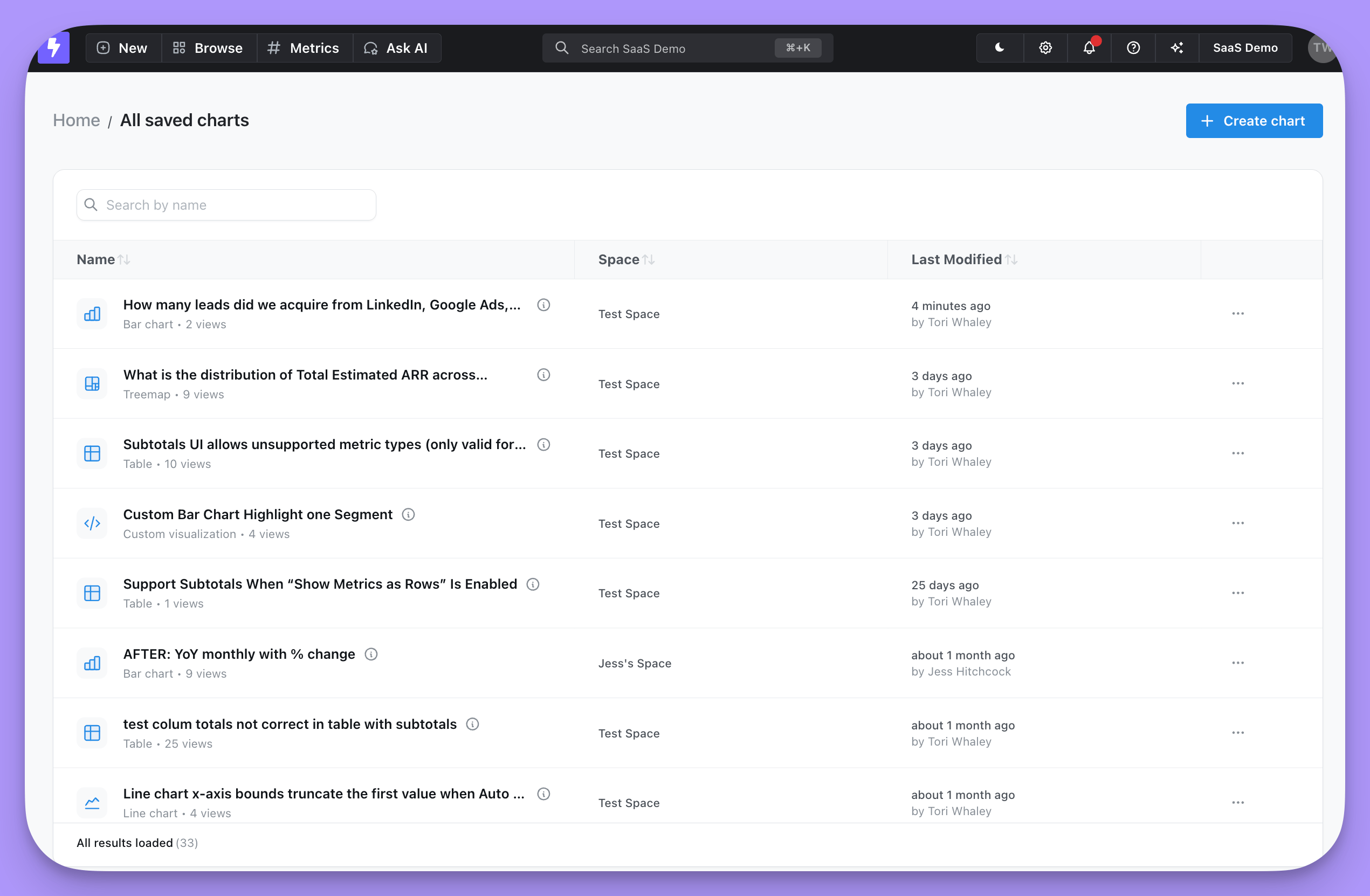
Create a new saved chart, or update an existing one, with the Save chart button on the chart panel. You’ll have the option to save to a space or a dashboard.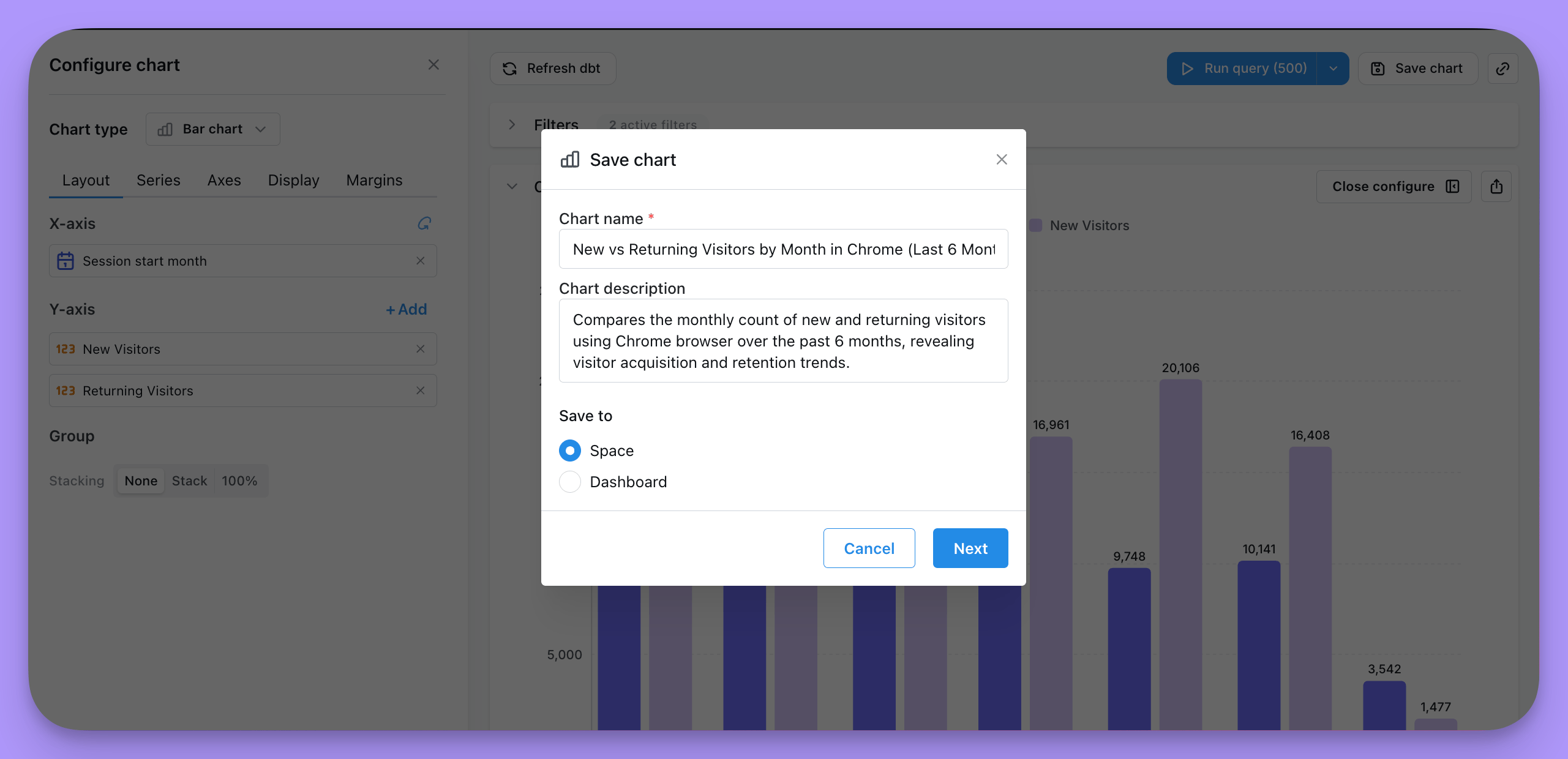
Download results or a chart image
Click the export icon on a chart to download it as JPEG, PNG, SVG, PDF, or JSON, with an opaque or transparent background. You can download the file or copy it to your clipboard.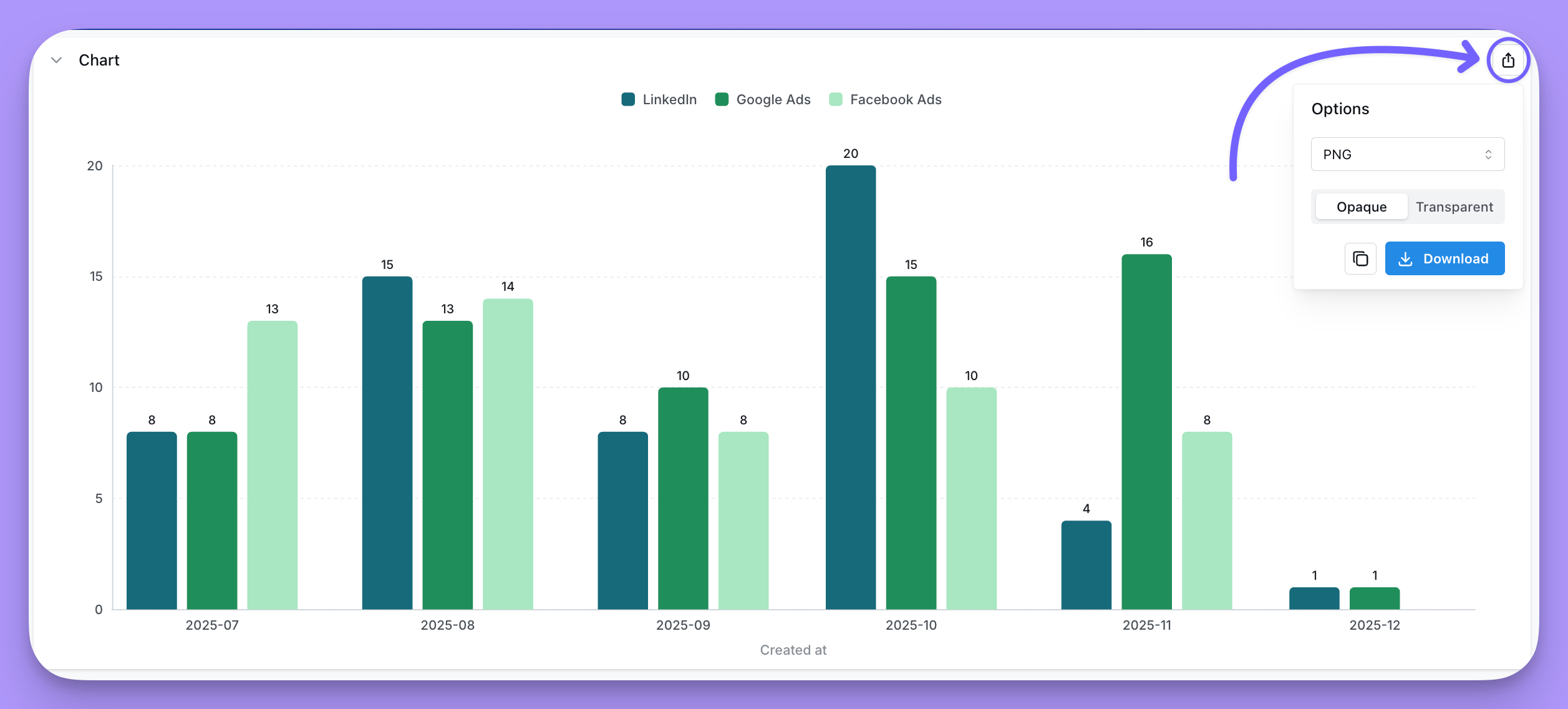
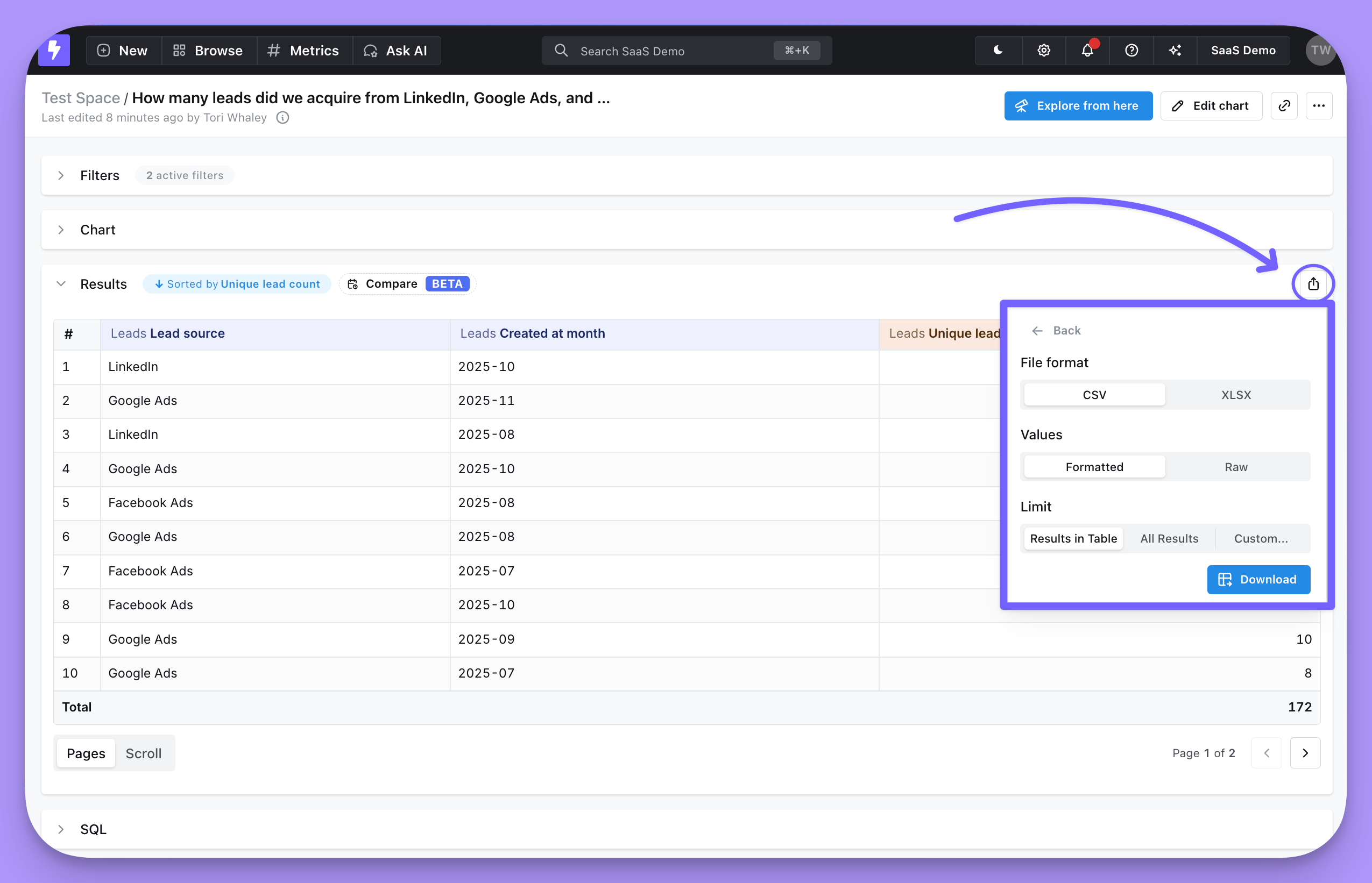
Choosing how many rows an export contains
The download dialog also asks how the values should be written —Formatted keeps the table’s presentation, Raw uses the underlying values — and, for interactive viewers and above, the result scope:
Table rowsexports exactly the rows currently loaded in the table.All resultsruns the query for the full result set.Customexports the number of rows you enter.
All results means as many rows as fit under that cap, and a custom row count above it is reduced to it. Excel files are additionally capped at 1,000,000 rows. Exporting to Google Sheets has no row choice.