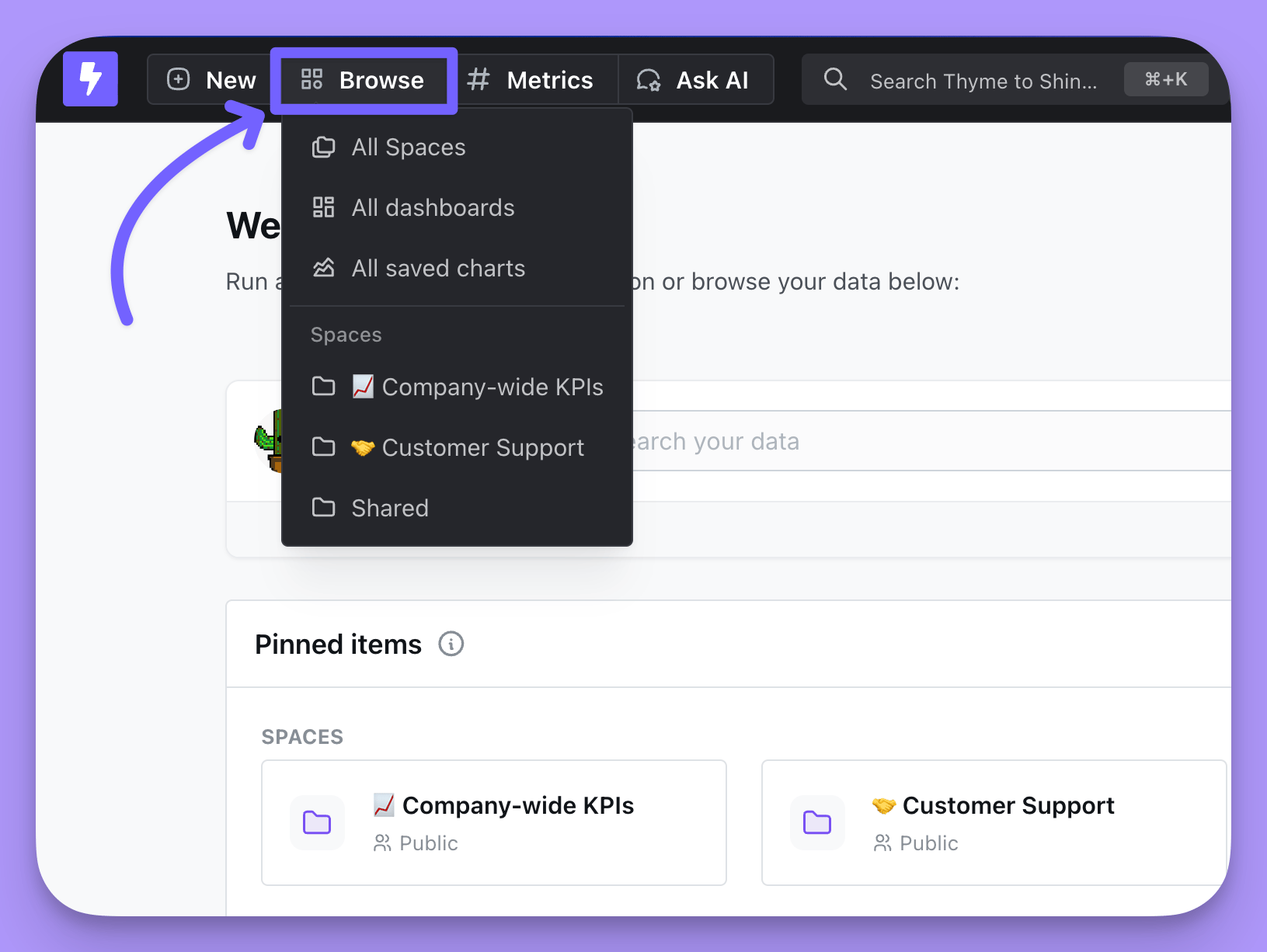
Cmd + K (Mac) or Ctrl + K (Windows, Linux), to open it.
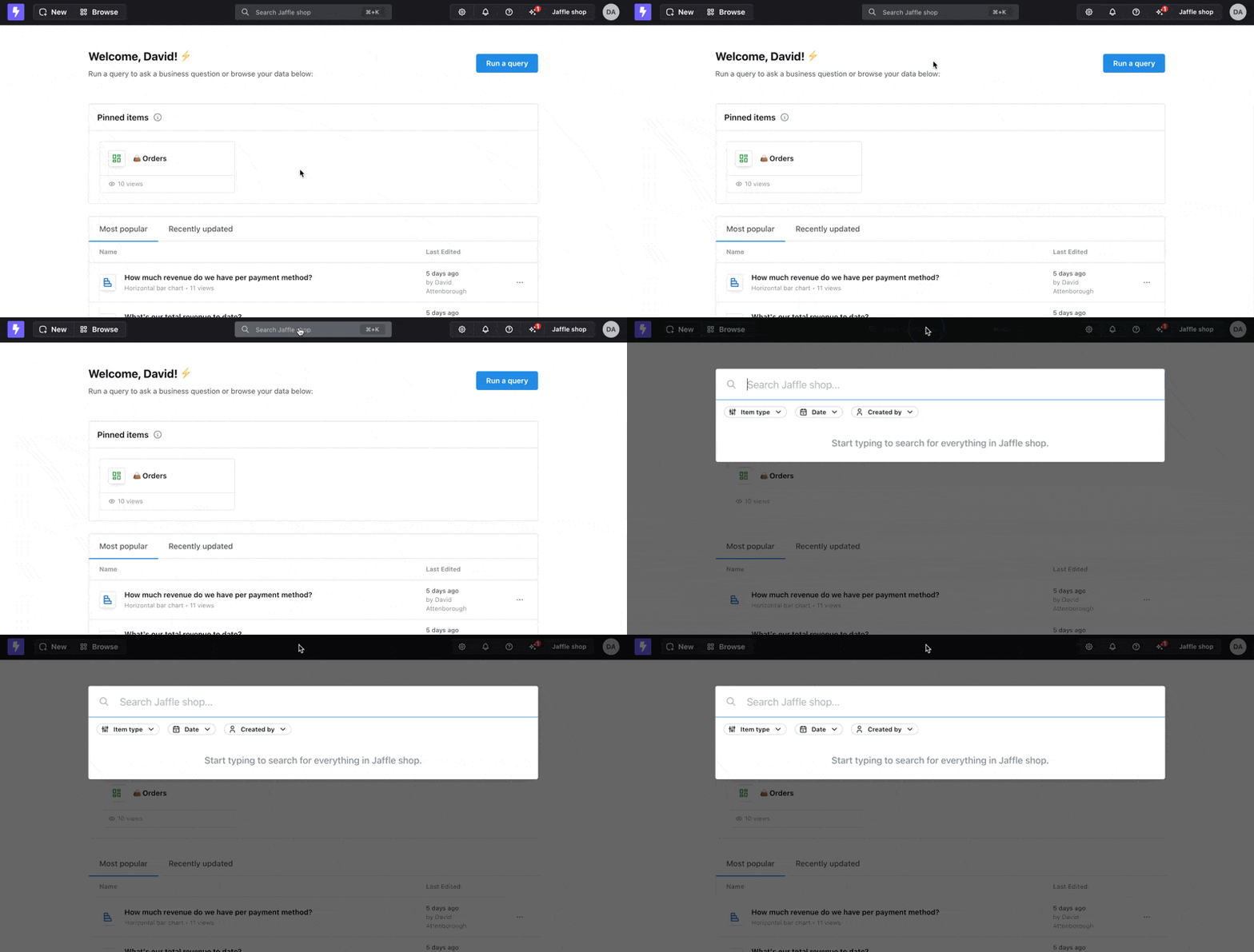
Search filters
Filters in the search bar narrow results without leaving it. Specify a content type, or narrow by date — either a range (“from: January 10, 2024, to: January 20, 2024”) or a single date (“from: January 10, 2024”). You can also filter by the creator of the content, which makes it easy to find items made by a specific teammate, or by verified status to see only verified content. Results are ranked so the trustworthy answer comes first: exact name matches and verified charts and dashboards appear at the top of the list.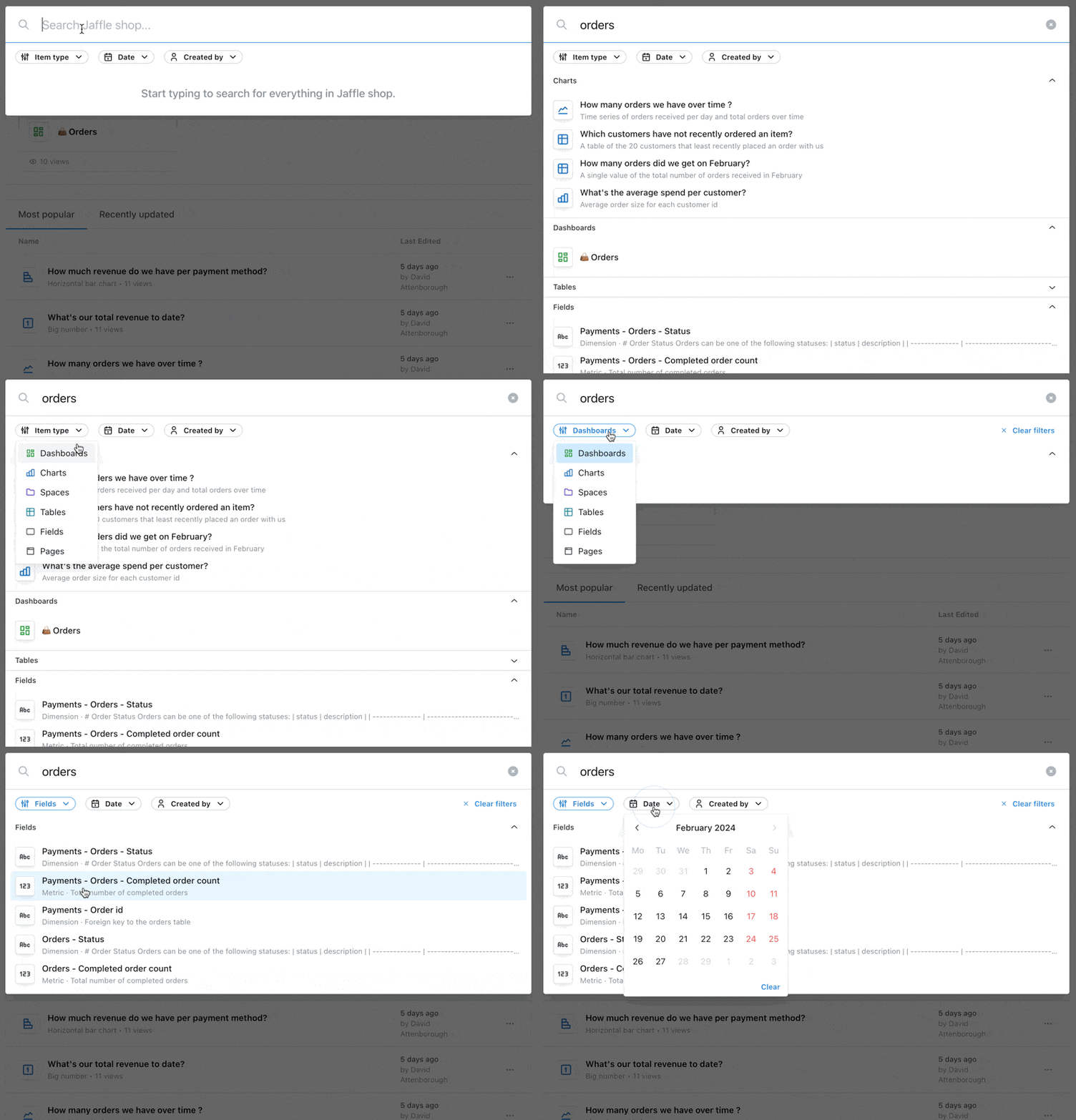
Search groups
Results are organized into groups by content type, and items within each group are sorted by relevance to your query. This makes it quick to pick out the kind of thing you’re after — a chart, a dashboard, or any other entity in the project.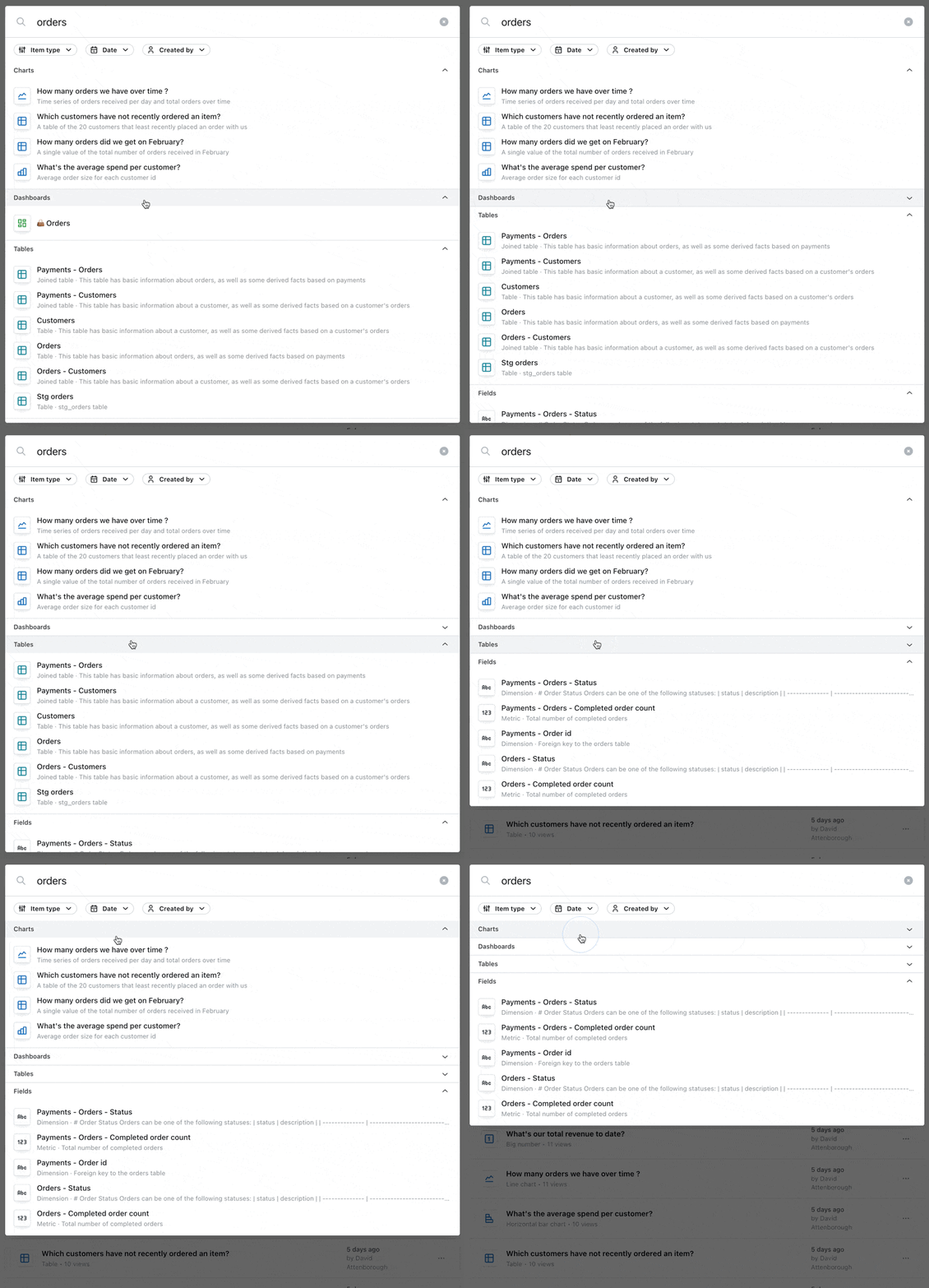
Browsing instead of searching
When you don’t know what you’re looking for yet, browse. Your home page lists recent and pinned content as soon as you land in Lightdash.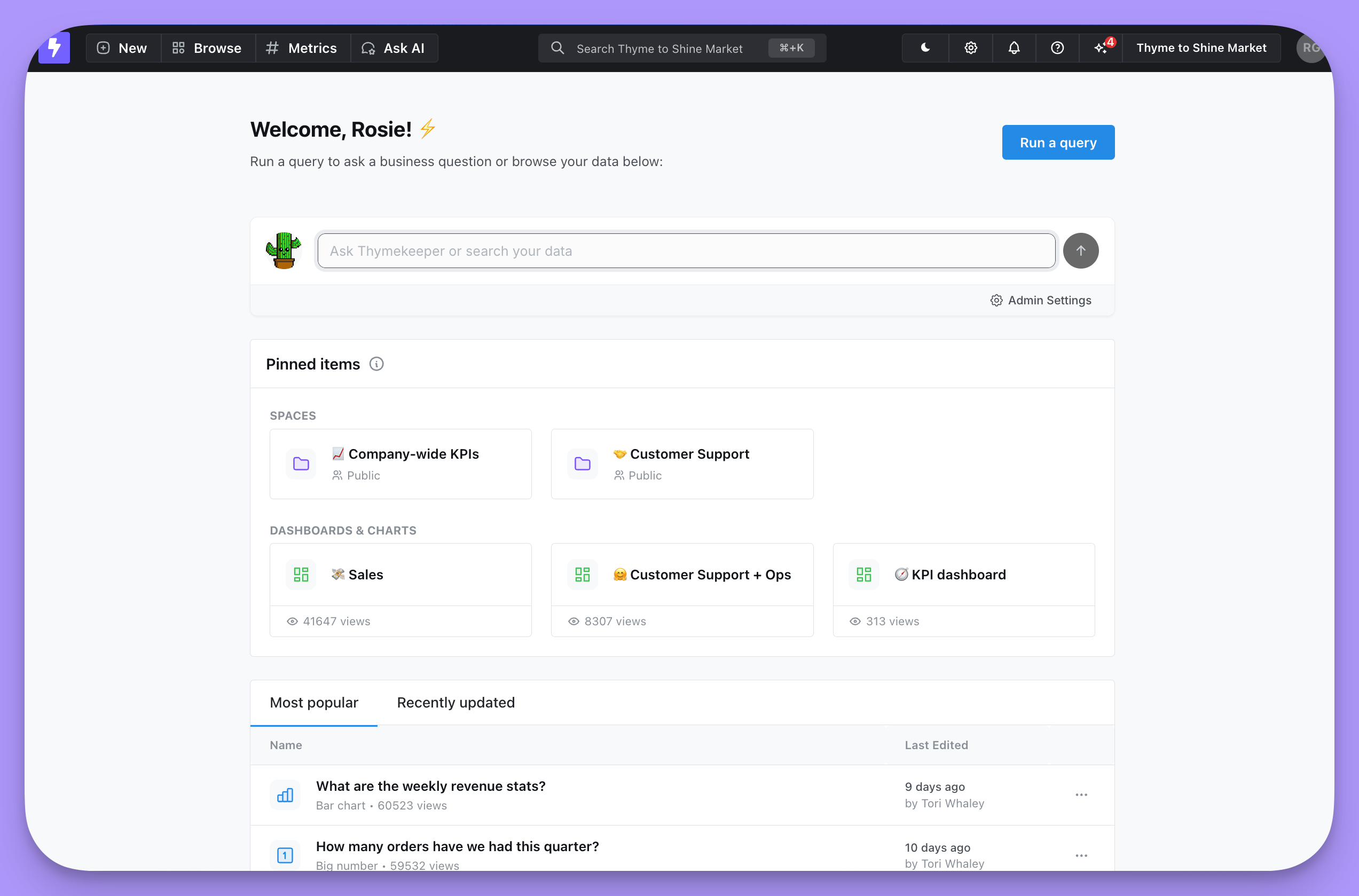
Browse in the navbar lists every saved chart, dashboard, and space you and your teammates have made in the project.