

country is equal to France.
This page covers how filters combine, the filter types available on each kind of field, and the SQL that timestamp and date filters compile to. For adding filters, see filtering in the Explore view and dashboard filters.
Working with filters
These behaviors are the same wherever you’re filtering.Adding more than one filter
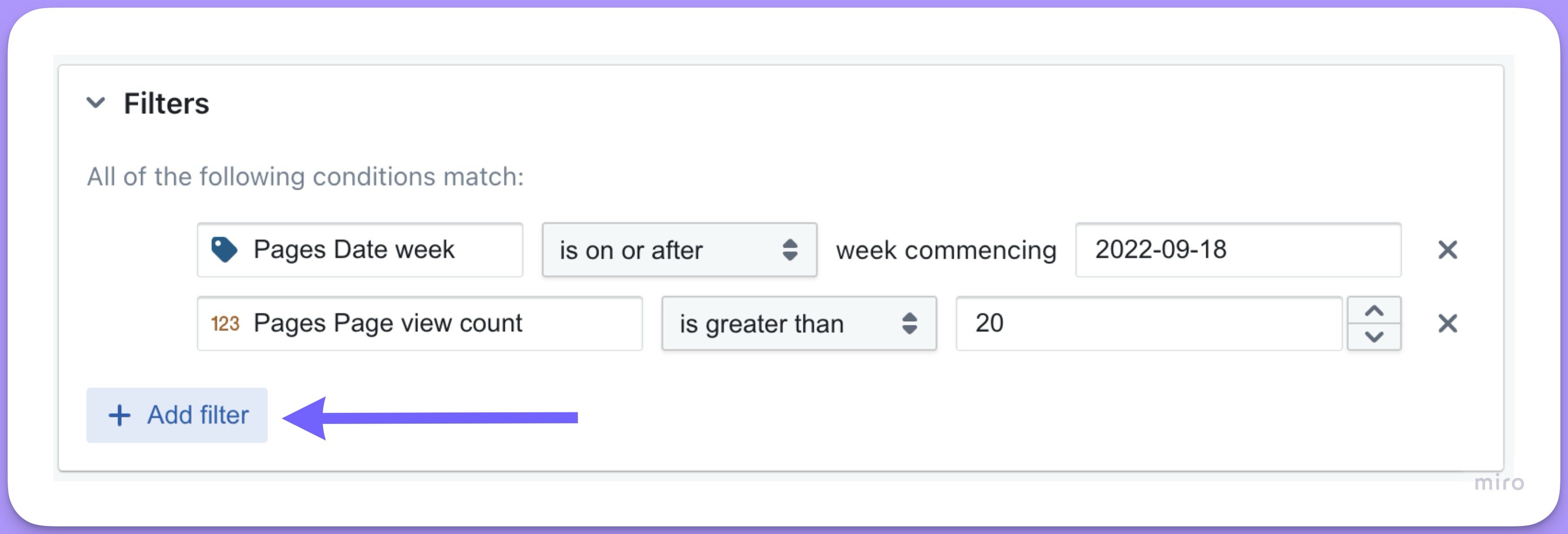
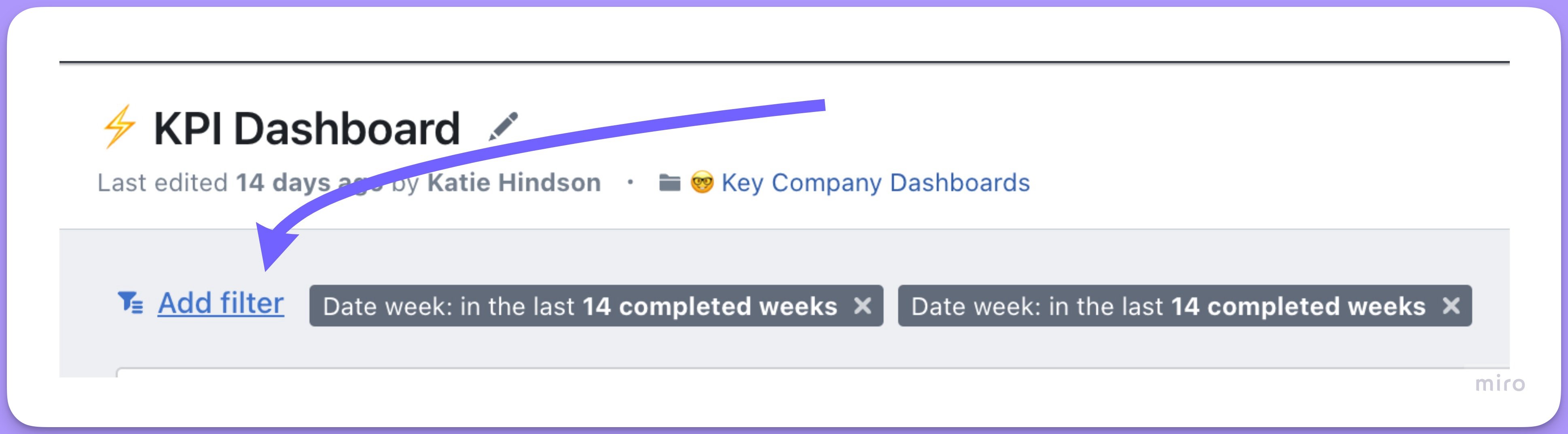
Click+ Add filter to add another condition. In the Explore view:
Matching ALL or ANY of the conditions
With multiple filters, the drop-down menu at the top-left chooses whether all conditions must match or any of them can.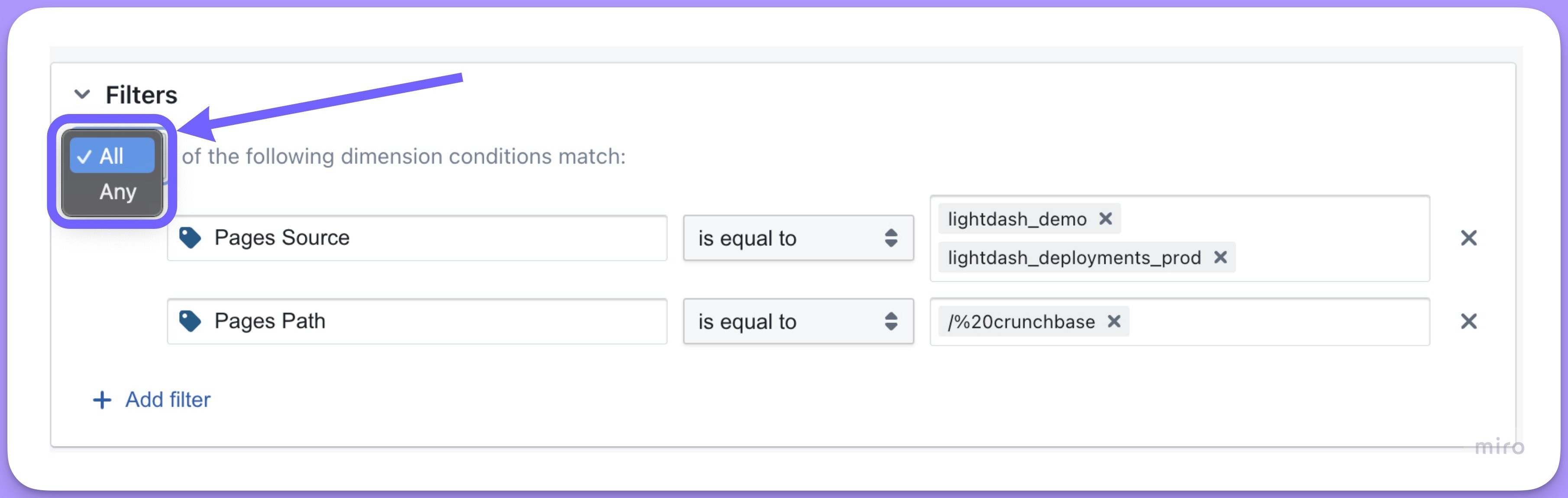
ALL puts an AND between your conditions in the compiled SQL:
ANY puts an OR between them:
Filtering on multiple values
Hitenter between each value to include several in one filter.
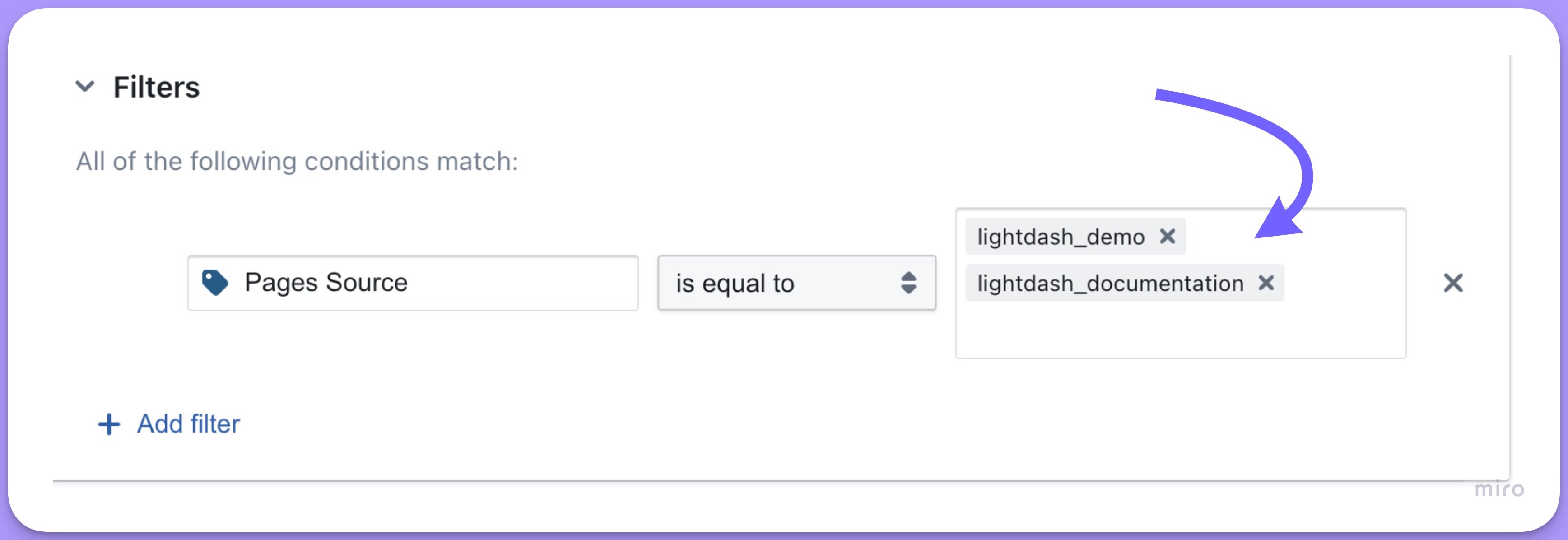
OR in the compiled SQL, so the filter above gives:
Uploading a CSV of filter values
For a long list of values on a string filter — hundreds or thousands of customer IDs or product SKUs — upload a CSV instead of typing each one:- Open the filter dropdown for a string field.
- Click Upload CSV.
- Select a CSV containing your filter values, one value per row or a single column.
Developers can add permanent filters to tables with the
sql_filter YAML option. See table configuration.Filter types
Numeric filters
String filters
Boolean filters
Date filters
Date/Timestamp Filter Reference Guide
The below examples show possible date/timestamp filter combinations and their corresponding SQL outputs. All examples use BigQuery syntax and assume:- Current timestamp:
2025-10-24 15:30:00 - Example field:
orders.created_at - Timezone: UTC
- Week starts on Monday
Timestamp filter examples
Current Period Filters
Current (In The Current)
Past Period Filters
Last N Periods (in the last)
Last N Completed Periods (in the last, Completed)
Future Period Filters
Next N Periods (In The Next)
Next N Completed Periods (In The Next, Completed)
Within Custom Range
Notes
-
Completed periods always:
- Start at the beginning of a period (00:00:00)
- End at the beginning of the next period
- Don’t include partial periods
-
Rolling periods (non-completed):
- Use the current time as the reference point
- Look backward/forward the specified amount
- Include partial periods
-
Current periods:
- Always start at the beginning of the current period
- End at the beginning of the next period
- Example: Current month starts at 1st of the month
-
Week handling:
- By default, weeks start on the default day configured in your database
- You can configure this to a different day in your database connection settings
- Week boundaries are always at midnight (00:00:00)
Date filter examples
Current Period Filters
Current (In The Current)
Past Period Filters
Last N Periods (in the last)
Last N Completed Periods (in the last, Completed)
Future Period Filters
Next N Periods (In The Next)
Next N Completed Periods (In The Next, Completed)
Within Custom Range
Notes
-
Key differences from timestamp filters:
- No time components in any filters
- Single day comparisons use equality (
=) instead of ranges DATE()function used instead ofTIMESTAMP()
-
Completed periods always:
- Start at the beginning of a period
- End at the beginning of the next period
- Don’t include partial periods
- For single days, use equality instead of ranges
-
Rolling periods:
- Use the current date as the reference point
- Count in full days (N days forward/backward)
- Include the current date in the range
-
Current periods:
- For single day: use equality
- For longer periods: use standard ranges
- Example: Current month is all days from 1st to last day
-
Week handling:
- Weeks start on Monday by default
- Can be configured to start on Sunday
- Full days only, no time components