

Requires the
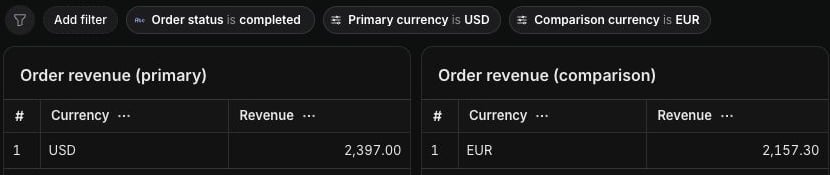
dashboard-controls feature flag. For Cloud, contact support. For self-hosted instances, add dashboard-controls to LIGHTDASH_ENABLE_FEATURE_FLAGS.- Two Order revenue tiles compare the same chart in different currencies.
- A Payment revenue tile uses a currency parameter from another model.
- An Order status filter limits the comparison to completed orders.
USD, EUR, and GBP.
Set different values on two copies of a chart
Give each copy its own control to compareUSD and EUR side by side.
1
Add the first control
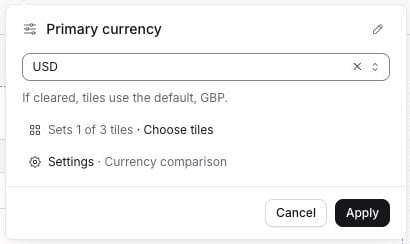
Open Edit dashboard → Add → Parameter and choose Reporting currency. Set USD and use Rename to name it Primary currency. Both order tiles now use USD.
2
Choose its tiles
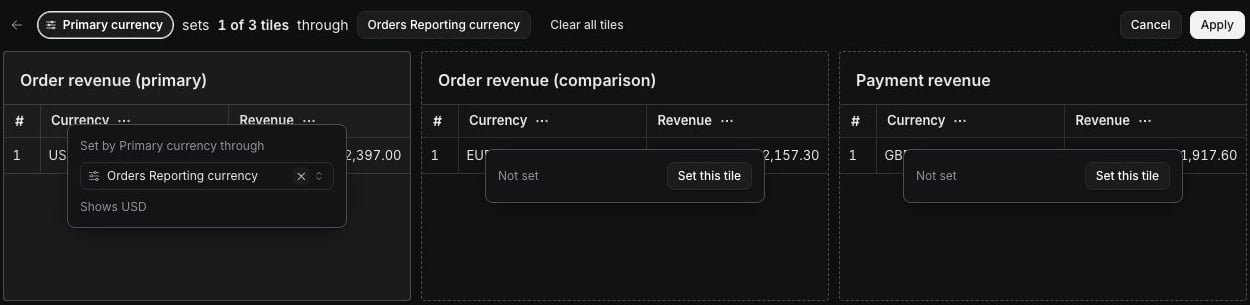
Click Choose tiles. On the comparison Order revenue tile, clear the selected parameter, then click Apply. That tile stops using Primary currency.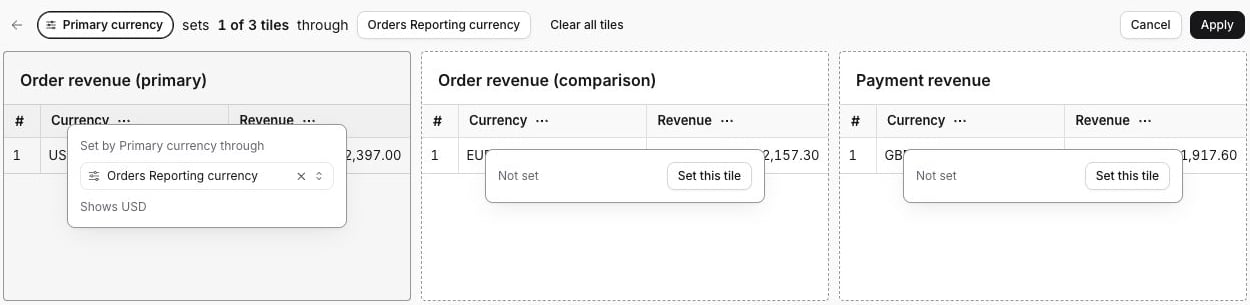
3
Add the comparison control
Add another Reporting currency control, set EUR, and name it Comparison currency. In Choose tiles, click Set this tile on the comparison tile, then select Orders Reporting currency. Click Apply → Save changes.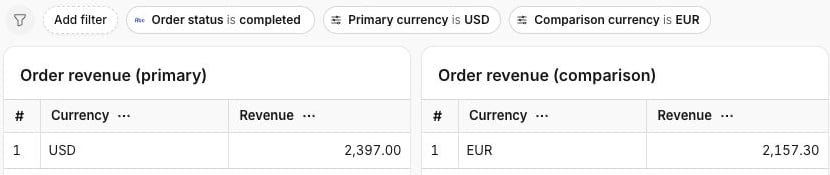
Clear a value or exclude a tile
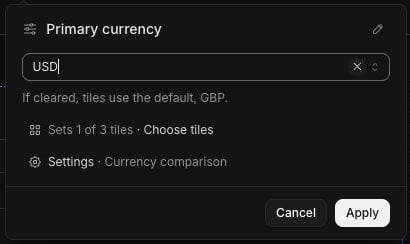
A control’s value and tile assignments are independent. In edit mode, open the control:- To clear its value, click the input’s clear button. Tile assignments stay in place.
- To exclude a tile, open Choose tiles and clear that tile’s selected parameter. Clear all tiles excludes all current tiles.
EUR, and its parameter has a GBP model default. These give different results:
- Cleared value
- Excluded tile
After clearing Primary currency, the first order tile uses the model default, 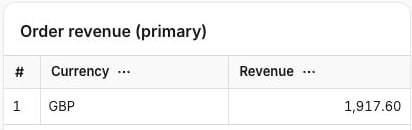
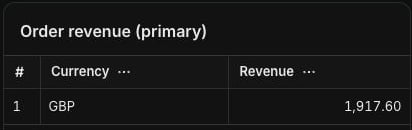
GBP.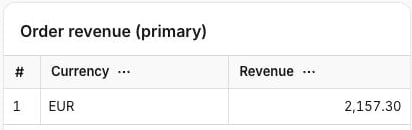
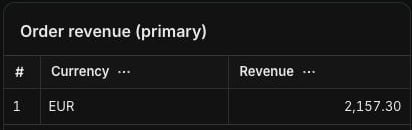
USD and include the first order tile.
Set parameters across models
Use Primary currency to change the order and payment charts together, even though their parameters belong to different models. Parameters can share a control when their type, single or multiple selection, and allowed values match.1
Choose the payment parameter
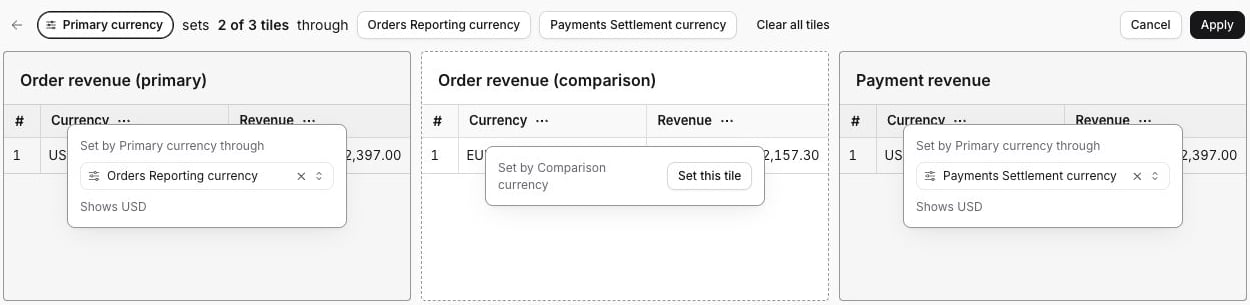
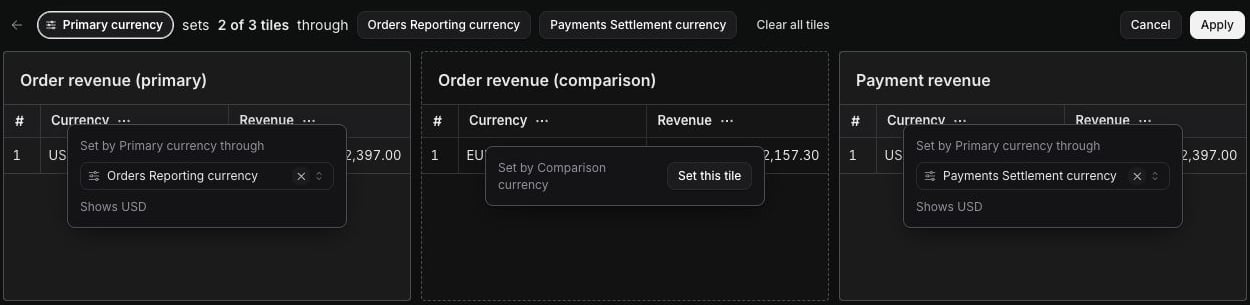
Open Primary currency → Choose tiles. On Payment revenue, click Set this tile and select Payments Settlement currency.
2
Save the assignment
Click Apply → Save changes. Primary currency now sets both models’ parameters. Comparison currency still sets only the second order tile.
Group controls and hide a control from viewers
Keep related inputs together, and hide the fixed comparison value from viewers.1
Group the controls
Create a section called Currency comparison and move Order status into it. For each parameter control, open Settings → Section, choose Currency comparison, and click Apply.
2
Hide the comparison input
In Comparison currency → Settings, turn off Show to viewers. Click Apply → Save changes. Its 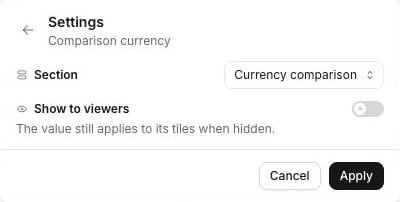
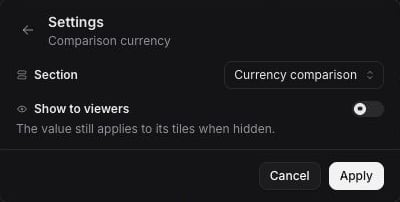
EUR value still applies to the comparison tile.

Save the dashboard as code
The YAML below saves the same dashboard, including its filter, section, and control assignments. Save it aslightdash/dashboards/revenue-comparison.yml, adapting the chart and space slugs, parameter keys, and filter field references to your project. Use the standard download and upload commands.
With dashboard-controls enabled, downloads use these references:
- A section’s
slugidentifies it. A filter or control’ssectionSlugplaces it in that section. - Each
tileSlugidentifies one tile, so copies of the same chart can receive different values.
Revenue comparison
all for every matching tile, except to exclude named tiles, or only for an exact list. only: [] assigns no tiles.