

Before you start
- Live data sources enabled for your organization. See Live data sources.
- Admin role in the Lightdash project.
- Your PostHog region, US Cloud or EU Cloud. Check the address you use for PostHog:
us.posthog.comoreu.posthog.com. - One of these PostHog credentials:
- An account on the PostHog project, to use Sign in with PostHog. This option appears only when your Lightdash instance has a PostHog sign-in app configured.
- A personal API key with the Query Read scope, and the project ID: the number after
/project/in your PostHog URL.
Connect PostHog
- On the nav bar, click Browse → Semantic Layer.
- In the sidebar, select Live data sources, then click Add.
- Select PostHog.
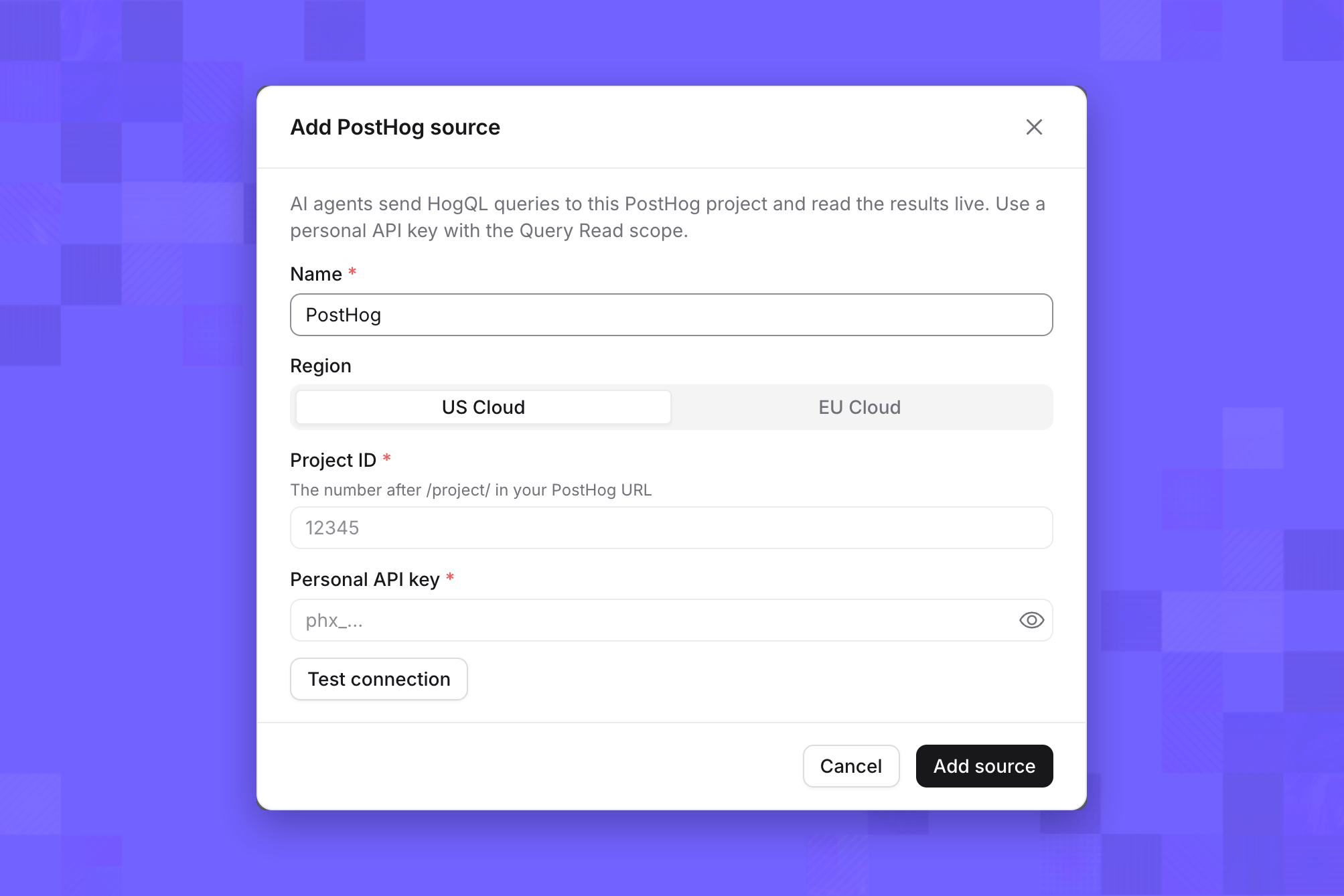
- Enter a Name, such as
PostHog. People see this name in Explore and agents use it to refer to the source. - Choose your Region.
- Connect with one of:
- Sign in with PostHog: sign in, then pick the project. Lightdash asks for query access only.
- Personal API key: enter the Project ID and Personal API key, then click Test connection.
- Click Add source.
Dimensions
Metrics
Lightdash also adds the event properties and person properties defined in your project as dimensions, up to 2,000. Internal PostHog properties are left out. Use Refresh fields on the source’s page after you add properties in PostHog, and turn In use off for anything people or agents shouldn’t query. See Dimensions and metrics.
Supported features
Limits
Funnels, retention and user paths aren’t available from the PostHog source. Ask for events or unique users by event, date or property instead.
Example questions
- “Daily unique users who triggered
signed_upover the last two weeks.” - “Top 10 pathnames by pageviews this month.”
- “Unique sessions by country and device type last week.”
Troubleshooting
PostHog rejected the API key. Check that the region matches your PostHog project: a key from an EU project is rejected by US Cloud, and a key from a US project is rejected by EU Cloud. Then check that the key has the Query Read scope and access to the project ID you entered. A property is missing. Click Refresh fields on the source’s page, then check that the property’s dimension is In use. Property names must start with a letter,_ or $, and contain only letters, numbers, _ and $.