

Before you start
- Developer or Admin role in the Lightdash project.
- The project URL, such as
https://abcd.supabase.co, from the project’s Data API settings. Custom domains and self-hosted Supabase work too, over HTTPS. - A secret key that starts with
sb_secret_, from the project’s API Keys settings. Publishable keys can’t read the table’s columns, and legacy JWT keys return no rows. A secret key bypasses row level security, so the source reads every row of the table. - The table or view’s name, in a schema the project’s Data API settings expose. Each source reads one table: add a source for each table you want to query.
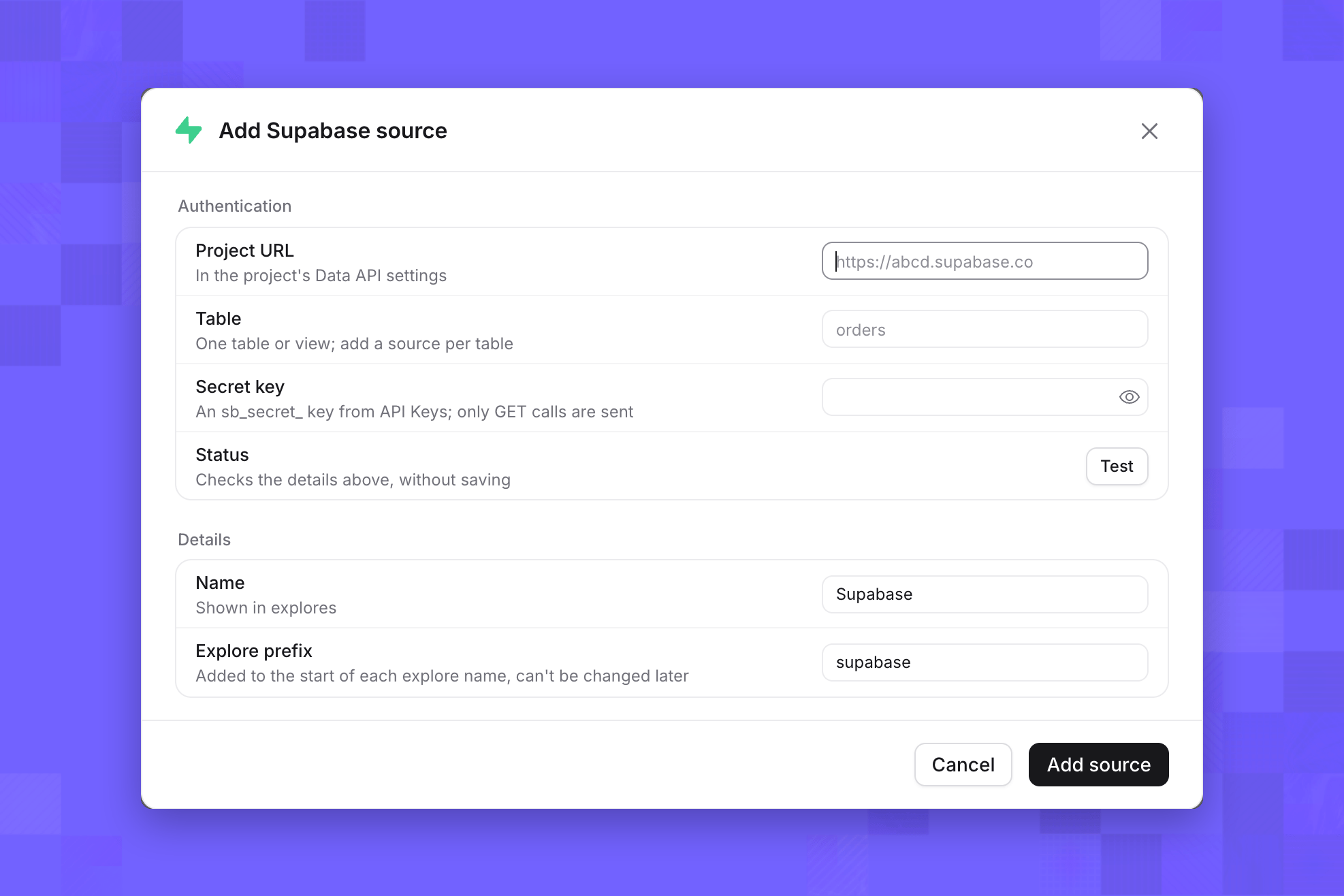
Connect Supabase
- On the nav bar, click Browse → Semantic Layer.
- Click Add → Live data source.
- Select Supabase.
- Enter the Project URL. You can also paste the URL ending in
/rest/v1or the bare project ref. - Enter the Table and the Secret key, then click Test. The test reads one row of the table.
- Under Details, check the Name. People see the name in Explore and agents use it to refer to the source.
- Click Add source.
GET requests, so the source can’t change data in Supabase.
Dimensions and metrics
The table has one dimension for each column, read from the Data API when you add the source, up to 200 columns. A column’s label comes from its name, socreated_at reads as Created at, and its description comes from the column’s comment. A new source starts with every column in use. To read the columns again after you change the table, click Refresh at the top of the source’s page.
The table has no metrics. Questions that count, sum or average rows, such as signups per day or revenue by month, don’t work live.
Which filters a column takes depends on its type. Text matching is case-insensitive, and dates and timestamps are compared in UTC.
Supported features
Limits
Supabase publishes no Data API rate limit, but each read uses the project’s database compute. When more rows match than a query reads, Lightdash shows the first ones in the sort order you picked, so filter large tables.
Example questions
- “Which records were created in the last 7 days, newest first?”
- “Show the 50 most recent orders with their status and amount.”
- “Which customers have a status of churned or paused?”
- “Which users have never logged in?”
- “Show orders over 1,000 placed between two dates.”
- “Which subscriptions renew in the next 14 days?”
Troubleshooting
Supabase rejected the API key. Use a secret key that starts withsb_secret_, from the project’s API Keys settings, and update the source.
Supabase has no table or view with this name in the exposed schema. Check the table name, and that its schema is exposed in the project’s Data API settings. The message lists tables the key can see.
Supabase couldn’t read the table. Check the filter values, such as a date or number filter on text.
Supabase is limiting requests. Wait the time the message gives and run the query again.