

Beta Data apps are free to use for now; pricing after general availability is to be confirmed. What Beta means.
Creating a new app
You create a new data app from the ‘New’ menu in the navigation bar.Choosing a template
Every new app starts from a template. The template you pick tells the agent what kind of layout you have in mind and sets up some of the built in interactions:- Dashboard - a single-page layout with multiple charts and KPIs, optimized for at-a-glance reading.
- Slide show - a presentation-style app you can step through, useful for narratives or executive reviews.
- PDF report - a print-friendly layout designed to be exported as a PDF.
- Custom - start from a blank prompt with no layout assumptions.
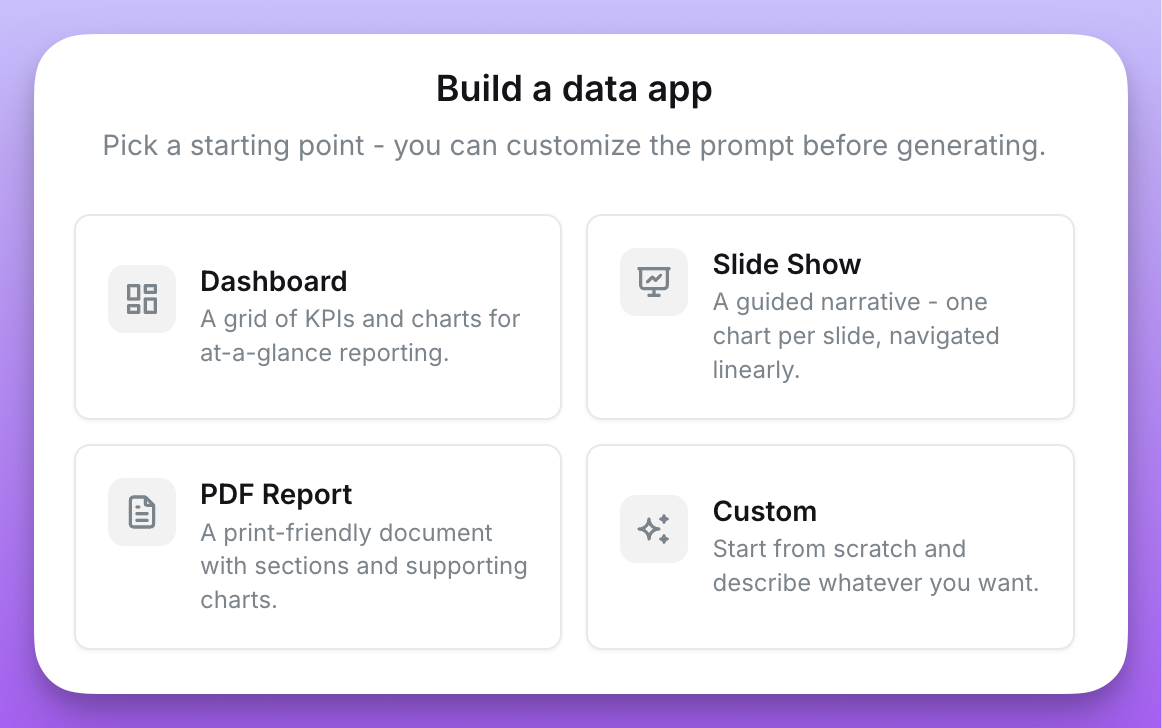
We encourage you to try out Custom apps to make something wildly different - the sky is the limit!
Adding context
The more context you give the agent, the better the result. You can attach several types of context to your prompt:- Charts - pick existing saved charts to give the agent a working metric query it can reuse. The agent gets the structure of the query (the dimensions, metrics, filters, and table) so it knows exactly which fields to use.
- Dashboards - attach a dashboard to pull in every query on it at once.
- Images - upload screenshots, mockups, or design references. Images are one of the fastest ways to nail the visual style you want.
- Screenshots of the running app - the preview panel has a Screenshot button that captures the current state of the running app and attaches it as context to your next prompt. Use it when you want the agent to react to what you’re looking at right now (“make this header smaller”, “the spacing here is off”) instead of describing it from scratch.
- Sample data - each chart and dashboard chip has an Include sample data toggle. When you turn it on, Lightdash runs the query and passes the first 10 rows to the agent so it can make better decisions about formatting, content, and copy. Sample data is opt-in per resource because rows can be sensitive - the agent will see whatever you send it.
-
Live-linked charts - each chart chip also has a Link toggle next to Include sample data. When Link is off (the default), the agent embeds a frozen copy of the chart’s metric query into the app - later edits to the chart in Lightdash won’t flow through. When Link is on, the app runs the chart live by its UUID on every load, so changes made to the saved chart in Lightdash (metric swaps, filter tweaks, additional dimensions) show up in the app on the next refresh. Linked charts still respect the viewer’s permissions and appear in the Queries tab of the inspector like any other query. Link is not yet supported for embedded apps that authenticate via JWT.
Dashboard filters propagate to linked charts inside a data app tile the same way they propagate to any other chart on the dashboard: filters that reference a field on the linked chart’s explore narrow the chart, and filters that reference fields outside that explore are silently ignored for that tile. This propagation is handled by the dashboard itself, so existing data apps pick it up without regeneration.
Interactive filter controls, downloads, and drill-downs on linked charts work end-to-end. When a user changes a filter control the app is wiring into a linked chart, the chart re-runs against Lightdash with those filters ANDed onto the chart’s own filters - the query can only narrow, never widen or replace what the saved chart defines. Filters on a linked chart apply to dimension fields only (metric-threshold filters need to live in the saved chart itself). Downloading a linked chart’s results and drilling into an underlying row both work the same way they do on any other Lightdash chart, and drill-downs from a filtered linked chart inherit the active filters so you drill into the rows you’re actually seeing.
Interactive controls, downloads, and drill-downs for linked charts ship to newly generated data apps. Existing apps aren’t retroactively upgraded — regenerate or ask the agent to rebuild the affected section to pick up the new behavior.
Choosing a model
Next to the send button, a model picker lets you choose which model runs the generation. The available models depend on the coding agent configured for your Lightdash instance. With Claude:- Sonnet (default) - balanced quality and speed; the right choice for most apps.
- Opus - highest quality, best for complex apps or when you want the agent to make more nuanced design decisions. Slower.
- Haiku - fastest, useful for small tweaks where you don’t need the full reasoning of the larger models.
- GPT-5.6 Terra (default) - balanced quality and cost.
- GPT-5.6 Sol - highest quality for complex generation and design work.
- GPT-5.6 Luna - lowest cost for smaller apps and targeted iterations.
Iterating on your app
Every prompt you send creates a new version of the app. The agent works from the current app source, so follow-up prompts like “make the header smaller” or “swap the bar chart for a line chart” land as targeted changes instead of full rewrites. If a build is taking too long or going in the wrong direction, you can cancel it and try a different prompt.Restoring an earlier version
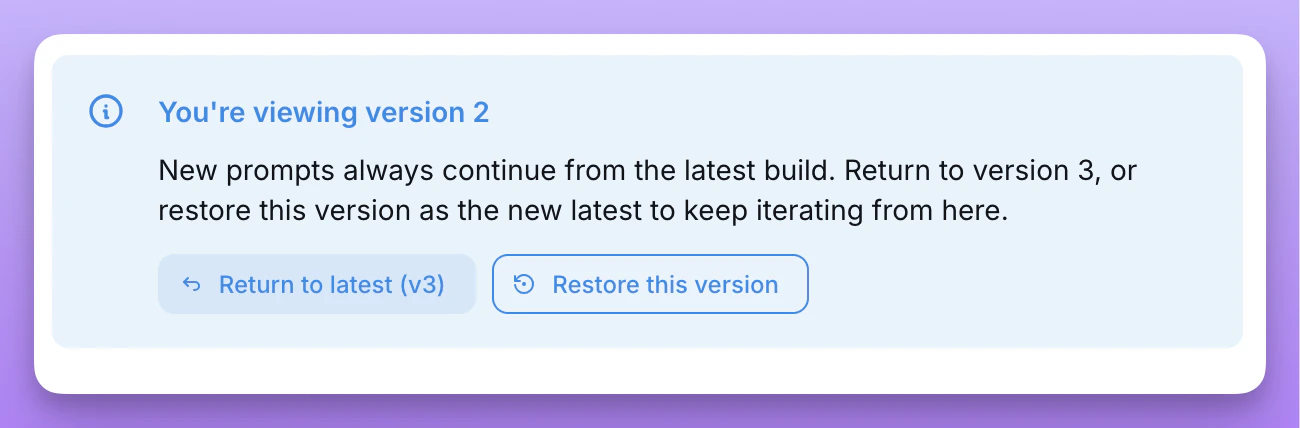
If a recent prompt took the app in the wrong direction, you can roll back to any earlier ready version and keep iterating from there.- Click an earlier version in the version timeline to preview it.
- In the callout in the bottom left, click Restore this version.
- Confirm in the dialog.
Duplicating an app
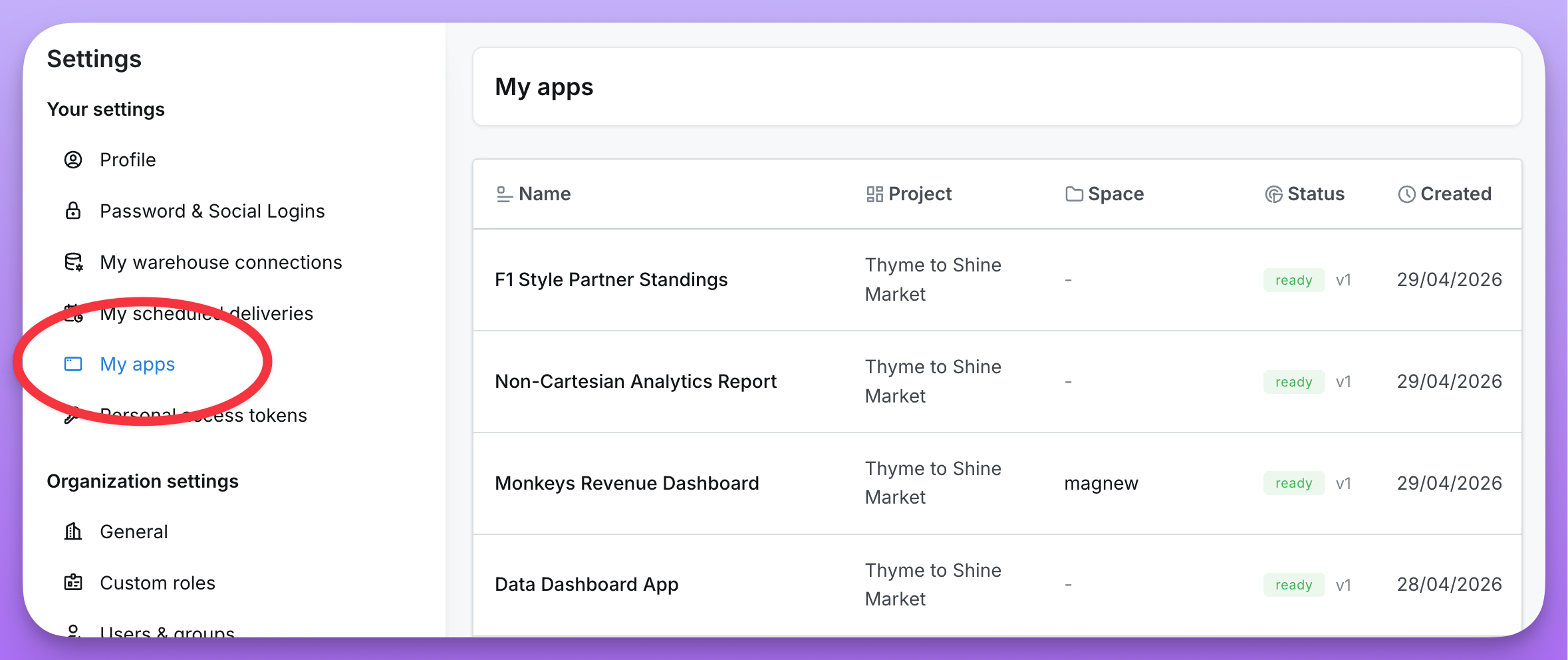
If you want to fork an app - to experiment with a different direction, use it as a starting point for a new app, or grab a personal copy of something a teammate built - you can duplicate it. You can duplicate any app you can view. The duplicate lands in your Settings > My apps as a personal app you own, regardless of where the original lives. The original is untouched. To duplicate an app:- From the apps list, open the ⋯ menu on any app card and select Duplicate.
- Or, from inside an app, open the ⋯ menu in the chat header and select Duplicate.
- The generated app code (the version you see in the preview).
- The template the source app was built from.
- Any chart and dashboard resource references attached to the source app.
- Prior version history - the duplicate starts fresh at v1.
- Images attached to earlier prompts.
- Pending clarifications from in-progress builds.
- The running sandbox - a fresh sandbox spins up on your first prompt.
Network inspector
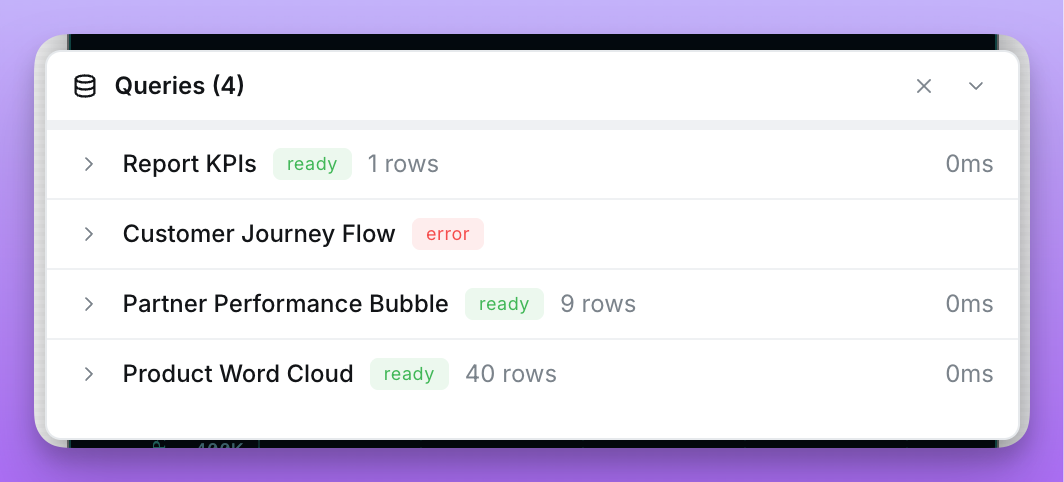
The inspector is a tabbed network panel that captures everything the running app talks to. Open it from View network in the preview header.- Queries - every metric query the app runs against your semantic layer, including the underlying query definition, the fields it’s pulling, and the rows it gets back. Live-linked charts show up here too. Use it to verify the app is asking for the right data, debug unexpected numbers, or sanity-check performance.
- Requests - every external fetch the app makes at runtime through a linked external connection, with the method, path, status, response, and round-trip duration. Use it to confirm the app is calling the right endpoint and that the response shape matches what the UI expects. The inspector only ever sees the connection alias and path - credentials are injected server-side, so they’re never displayed here.
- Open in Explore - opens the query in a full explore view so you can pivot on it, tweak filters, or dig into a single number.
- Save to Lightdash - creates a governed table chart from the exact query the app ran. You pick a chart name and a target space; the chart is created via the same flow as saving from an explore, so your normal chart-create permission on the space applies. Save to Lightdash is available on inline app queries; linked charts already live in Lightdash, so the action is hidden there.
Inspect data
The Queries tab has an Inspect data toggle (the database-search icon in the panel’s title bar) that turns on a two-way link between the inspector and what’s rendered in the app:- Hover a query row to highlight every data point in the preview that was rendered from that query - individual bars, table rows, KPI values, chart segments, and cells all light up together, so you can see exactly where a query’s results end up in the UI.
- Click a data point or a query row to pin the selection so you can scroll or interact with both sides without losing the highlight; click again (or press
Esc) to cancel.
Refreshing the preview
The preview header has a Refresh button that reloads the app’s iframe and re-runs every metric query against the warehouse, without starting a new build. Use it when you’ve changed something in your semantic layer (for example, pushed a dbt update) and want to see the new results in the running preview. Refreshing also invalidates the warehouse cache for that app, so every query stays fresh for the rest of the session. See Caching for how results caching works across Lightdash. You’ll find the same Refresh action in the ⋯ menu on the standalone preview page (the full-screen view you get from Continue building).Exporting data
You can ask the agent to add export controls to any table, chart, or KPI in your app — for example, “add a CSV export button to the orders table” or “let me download the revenue chart as XLSX”. Exports run through the same Lightdash backend pipeline used by core charts and dashboards, so file generation, row limits, and raw vs. formatted values all behave consistently with the rest of the product. When the agent wires up an export control, it can offer the user:- File type - CSV or XLSX.
- Row scope - the rows currently loaded in the app, or all matching results for the underlying query.
- Value mode - formatted values (currency, percentages, prefixes/suffixes from your dbt YAML) or raw warehouse values.
Exporting to PDF
You can ask the agent to add a PDF download button to any app — for example, “add a download as PDF button to the header” or “let me export this report as a PDF”. This works especially well with the PDF report template, which is laid out for print, but you can add PDF export to any app. PDF exports are image-based: the app rasterizes the rendered pages in the browser and writes them into a PDF file. The output captures exactly what’s on screen, including charts, tables, and styling, but the text in the PDF is not selectable or searchable. The file is generated in the iframe and downloaded directly — nothing is sent to the Lightdash backend. For text-heavy reports where you need selectable text, use the browser’s built-in Print → Save as PDF option instead.Scheduled deliveries and syncs
An app can be sent on a schedule as CSV, XLSX, or an image, and it can keep a Google Sheet up to date. Both are set up from the ⋯ menu in the app header, and both work differently from a chart or dashboard delivery in one important way: an app doesn’t declare its queries, so Lightdash renders it, captures every query it actually runs, and turns each one into its own file or tab. See Scheduled deliveries and syncs for details.External connections
A data app can also fetch from third-party HTTP APIs — for example, your own product API, a payments provider, or a Google API like BigQuery’s REST endpoint. A project admin registers each API as an external connection (base URL, allowed methods, auth), and app builders link the connections they need. At runtime, requests go through a Lightdash-mediated proxy that injects credentials server-side, so secrets are never exposed to the app code or the browser. See External connections for details.Themes
You can create shared themes to give your data apps consistent styles and instructions across your organization. A theme bundles CSS rules, fonts, images, and askill.md instructions file that the agent uses when building the app. When creating a new app, you can choose which theme to apply, and you can set a default theme for the org.
See Themes for details.
Chart types
Data apps also power reusable custom chart types, which are built and managed in the chart type gallery rather than here. See Custom project charts.Sharing an app
Newly created apps are personal - only you can see them. Apps will initially appear in Settings > My apps. To share an app with your team, add it to a space. Access to a data app is controlled by two things working together: the user’s project role and their space access level.Project role
Your project role determines what you’re allowed to do with data apps anywhere in the project:Project roles can be inherited from organization roles. If you’re an Editor at the organization level, you’re at least an Editor on every project. You can be given a higher role on a specific project, but never a lower one. See Roles in your Lightdash instance for details.
Space access
Once an app is added to a space, the user’s space access level decides whether they can see and edit it within that space:- Users with
Can viewaccess to the space can open the app and interact with it (if their project role allows it). - Users with
Can editorFull accessto the space can iterate on it, rename it, move it, and delete it (if their project role allows editing). - The app respects the same project-level access controls (user attributes, row-level filters) as the rest of your content.
Promoting an app
If you’re building in a preview project, you can promote a data app into the preview’s upstream (production) project once it’s ready. This mirrors how chart and dashboard promotion works: you iterate safely in preview, then push a snapshot to production. To promote an app:- Open the app’s ⋯ menu - either on the app card in a list, or in the chat header inside the app - and select Promote.
- In the confirmation dialog, review whether the action will create a new production app or update the existing linked one, and which space it will land in.
- Click Promote. When it finishes, you’re taken to the promoted app in the production project.
- Manage access on the source data app in the preview project.
- Create permission for data apps in the upstream project.
- The preview project must have an upstream project configured under Settings → Data ops.
Data apps in new previews. When a preview project is created from an upstream production project, every data app in production is duplicated into the preview - so you can open, iterate on, and promote those apps from inside the preview. Iterating on a duplicated app and promoting it updates the original production app rather than creating a new one.
Promoting a dashboard with data app tiles
If you embed a data app in a dashboard and promote the dashboard, every referenced app is promoted alongside it. Each app is created or updated in the upstream project using the same rules as standalone app promotion, and the tile is remapped to point at the upstream app so the production dashboard renders the production copy.Data apps as code
You can download a data app’s source, edit it in your own editor, preview it locally against real data, and upload new versions with the Lightdash CLI. This lets you version app source in git, review changes in pull requests, and move apps between projects or instances. See Data apps as code for the full workflow.Data context and the app model
Data apps don’t ship with their own copy of your data. They run inside a sandboxed iframe with no direct access to the Lightdash API, so every query the app wants to run is proxied through the Lightdash UI hosting the iframe. This means:- Permissions are enforced by Lightdash, not the app. Whoever opens the app sees data based on their own role, group memberships, and user attributes - exactly as if they had run the query themselves in an explore.
- The agent generates code, not data. When the app is being built, the configured coding agent sees your dbt model catalog (tables, dimensions, metrics) and any context you attach to the prompt. It writes queries against your semantic layer; it does not get a dump of your warehouse.
- The agent can see anything you attach. Charts, dashboards, images, and sample data you include in the prompt are passed to the agent as context. Don’t include data you wouldn’t be comfortable sending to the model.
Getting better results
- Iterate. Most apps get substantially better after a few rounds of iteration. Start with the rough shape, then refine.
- Use images to lock in style. A screenshot of a dashboard, a brand guideline, or even a hand-drawn mockup goes a long way toward getting the layout, typography, and colors right on the first try.
- Attach sample data when content matters. If the app is making decisions based on what’s actually in your data - picking a chart type, writing copy, or formatting values - turn on sample data for the relevant charts. Just remember the agent will see the rows you share.
- Reference existing charts and dashboards. Pointing the agent at a working metric query is faster and more reliable than describing the query in prose.
- Use the network inspector early. If something looks off, check the queries and external requests the app is running before tweaking the prompt.
Troubleshooting
”Breaking Browser Locker Behavior detected” error
If the app preview fails to render and you see a “Breaking Browser Locker Behavior detected” error, this is a false positive from a browser extension - most commonly Malwarebytes Browser Guard. The extension tries to detect “browser locker” scam pages, and its heuristic misfires on the data app preview (likely because data apps can produce pop-ups, such as the print/export dialog used by PDF reports). Other legitimate web apps like Vercel’s v0 have hit the same false positive - it’s a known issue on the Malwarebytes side. To fix it, allowlist Lightdash in Malwarebytes Browser Guard:- Click the Malwarebytes Browser Guard icon in your browser toolbar.
- Open Settings → Allow List.
- Add the Lightdash domain you’re using (for example, your Lightdash Cloud subdomain or your self-hosted Lightdash URL).
- Reload the page.