

What you’ll build
A short AI-written takeaway under a chart that the first viewer generates with one click. Lightdash saves it for everyone who picks the same selection, and anyone can edit it. The commentary is labeled AI-generated until someone edits it, and then it shows who edited it.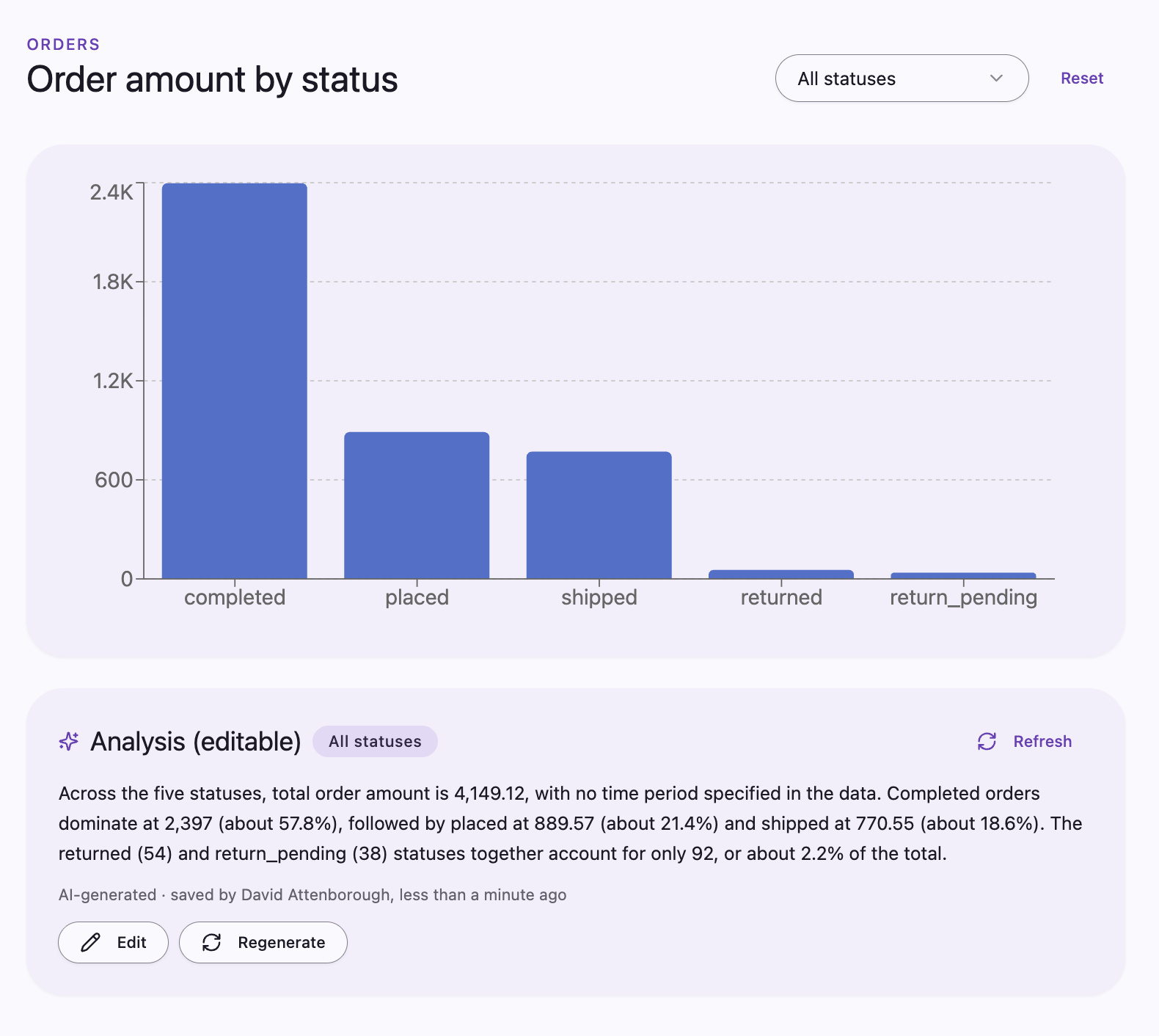
Before you start
- Data apps on your Lightdash instance. See Data apps.
- AI analysis turned on by an organization admin under Settings → Ask AI → AI analysis. See Turn it on.
- Saved app state turned on for your organization. See Saved app state.
- A data app with a chart and a few filters that you can edit, such as a region or period picker. To start from scratch, create an app with the Dashboard template and attach an existing dashboard as context. See Creating a new app.
- A teammate who can open the app, to see the saved text from another account. A new app is personal, so move it into a space they can access.
Copy the prompt
Open your app, copy this prompt, and send it as your next prompt to the app agent. The agent builds a new version of the app that generates the text with an app prompt and saves it in shared storage, one key per selection. Each generation counts toward your organization’s prompt limits. Reading saved commentary doesn’t. Saved commentary doesn’t update when the data does. It’s keyed to the selection, not to the results, so when fresh warehouse data arrives for the same selection, viewers still see the text generated earlier. The generation time tells viewers how old it is, and Regenerate writes it again from the current data.Try it
1
Generate commentary
Pick a selection in the app’s filters and click Generate commentary. A few seconds later, three sentences appear under the chart, labeled AI-generated, with the time they were generated. If the save fails, the text stays visible with an error and a way to retry, so you don’t mistake unsaved text for saved text.
2
Watch the save
Open View network in the preview header and select the Requests tab. With the panel open, change the selection and generate again. A row with an app state badge appears for a
set-shared call on a key that starts with ai-commentary:. See Network inspector.3
Switch selections
Change the filters to a selection nobody has generated commentary for. The Generate commentary button appears instead of text. Switch back, and the saved text returns without generating again.Then change each other control that affects the chart one at a time, such as a tab or a selected data point. Each change should show that context’s own commentary or the Generate commentary button, never commentary from a different selection. If one doesn’t, ask the agent to include that control in how the commentary is saved.
4
Open it from another account
Ask your teammate to open the app from its space and pick the same selection. They see the saved text immediately, without clicking Generate commentary.
5
Edit the text
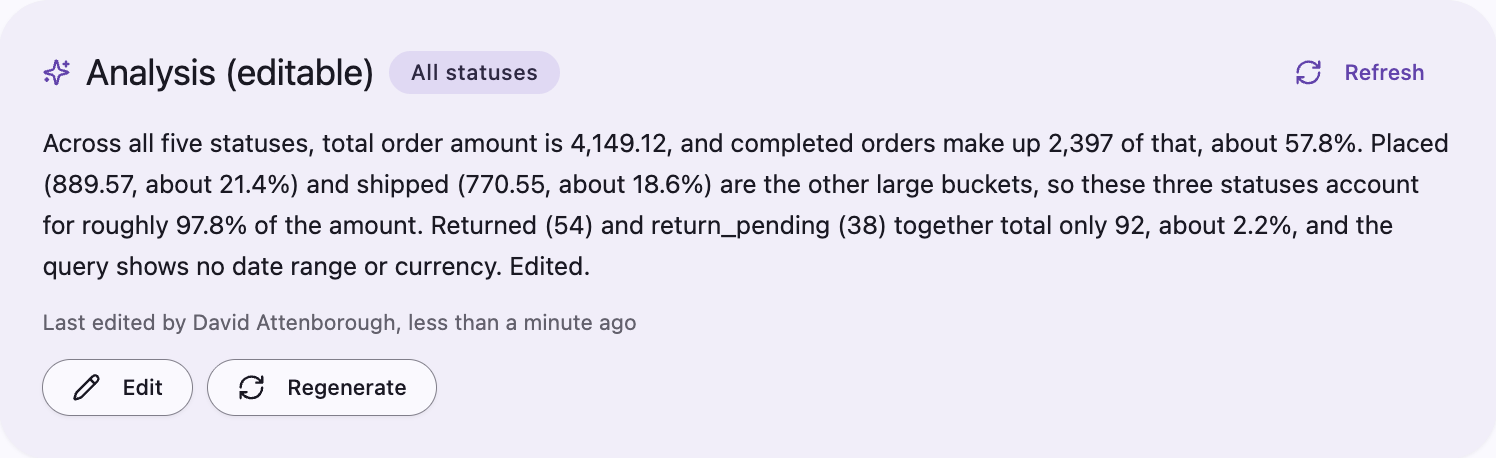
Click Edit, change the text, and click Save.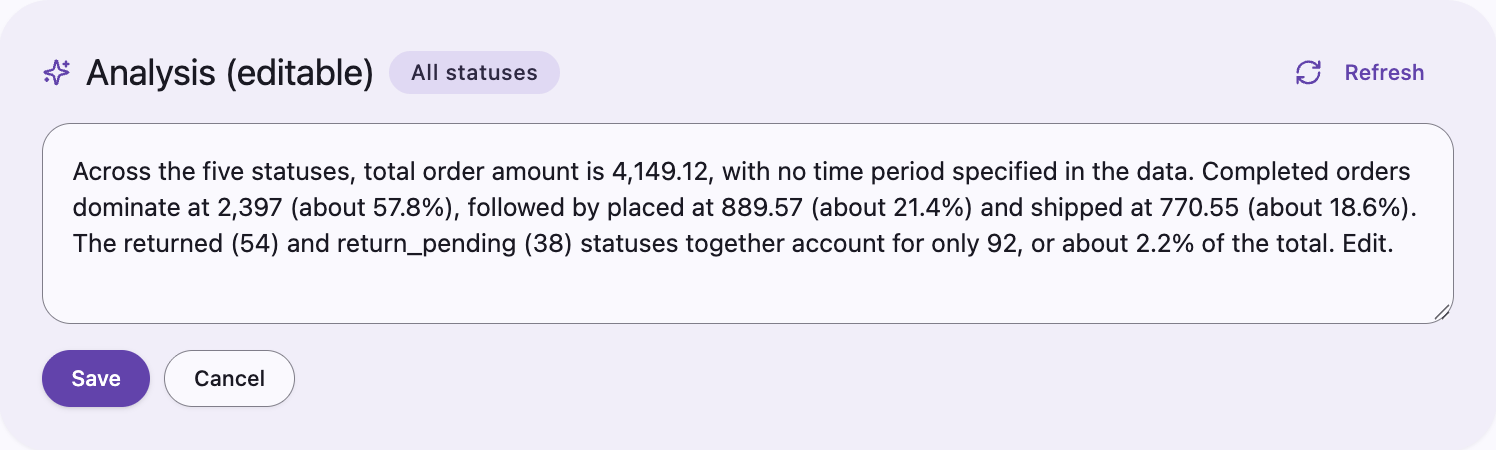
6
Regenerate
Click Regenerate. Because the text was edited, the app asks you to confirm. Confirm, and new AI-generated text replaces the edited version for every viewer of that selection.
7
Review the history (optional)
This step needs permission to manage the app. Open the app’s ⋯ menu and select App state, then select a key that starts with
ai-commentary:. Each version shows who changed it and when, with the text, whether it was edited, and the prompt that generated it. Regenerated and edited versions stay in the history. See See what an app has saved.Make it yours
Send any of these as a follow-up prompt. Write for a specific audience:How it works
- For app code describes app prompts and saved commentary, including who can read the saved text.
- Limits lists the prompt caps that generation counts toward.
- Shared storage explains how shared values are stored and when other people’s changes appear.
- See what an app has saved covers the App state panel and version history.
- Storage limits list how many shared keys an app can hold: 200, shared with the app’s other shared values. Each saved selection uses one key, so count the combinations, not the controls. Twenty regions across twelve periods is already 240 possible selections. Key commentary on fewer controls, or on ones with few choices, and never on free-text search.