

What you’ll build
A comments panel next to each chart where your team posts notes that everyone who opens the app can read, with each comment’s author and time, and a Refresh button to pull in new replies.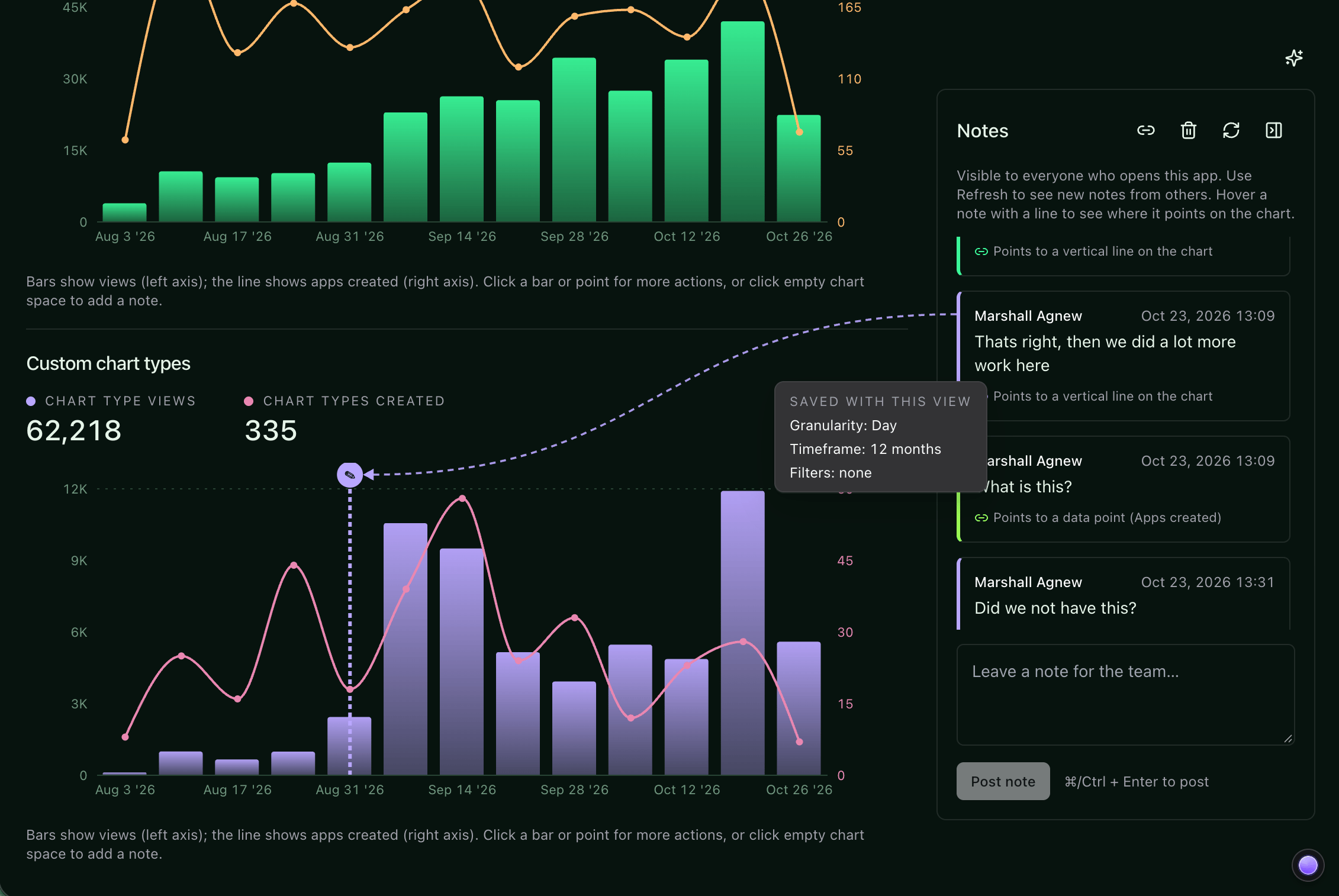
Before you start
- Data apps on your Lightdash instance. See Data apps.
- Saved app state turned on for your organization. See Saved app state.
- A data app with charts that you can edit. To start from scratch, create an app with the Dashboard template and attach an existing dashboard as context. See Creating a new app.
- A teammate who can open the app, to try the comments together. A new app is personal, so move it into a space they can access.
Copy the prompt
Open your app, copy this prompt, and send it as your next prompt to the app agent. The agent builds a new version of the app that keeps the comments in shared storage. Lightdash records every change with its author and time. Anyone who can open the app can change shared values, so “only edit your own comments” is a rule the app’s buttons follow, not a permission Lightdash enforces. Viewers of an embedded app can read the comments but can’t post.Try it
1
Post a comment
Write a comment on one of the charts and post it. It appears with your name and the time, and the text box clears once the comment is saved.
2
Watch the save
Open View network in the preview header and select the Requests tab. With the panel open, post another comment. A row with an app state badge appears for a
set-shared call, with the value size and duration. A save that fails shows an error code instead of ok. See Network inspector.3
Post from another account
Ask your teammate to open the app from its space and post another comment. Comments don’t update live: click Refresh in the comments panel, or come back to the app’s browser tab, to see their comment.
4
Post at the same time
Ask your teammate to post a comment while you post one too. Both comments land. If a save can’t be merged, the Requests tab shows a
conflict error, and the app keeps your draft so you can post it again.5
Edit and delete a comment
Edit one of your comments and save it. Ask your teammate to click Refresh: they see the new text. Then delete the comment and ask them to refresh again: it’s gone for them too.Deleting removes the comment from the app, but earlier versions of the comments key still contain its text. People who can manage the app can read those versions in the App state panel.
6
Review the history (optional)
This step needs permission to manage the app. Open the app’s ⋯ menu and select App state, then select the comments key. Each version shows who changed it, when, and the full list of comments at that point. See See what an app has saved.
Make it yours
Send any of these as a follow-up prompt. Let people close out discussions:How it works
- Shared storage explains what shared values are for and when other people’s changes appear.
- See what an app has saved covers the App state panel, version history, and clearing a key.
- Limits lists how large a saved value can be and how many versions Lightdash keeps.
- Network inspector explains the Requests tab and its app state rows.