

Leaving an organization
Any member of an organization can leave it from their own settings — they don’t need an admin to remove them.Leaving an organization deletes your Lightdash account entirely, not just your membership. An account can only belong to one organization, so there is no other organization for it to remain in. If you’re invited again later, the invite creates a fresh account.
How to leave
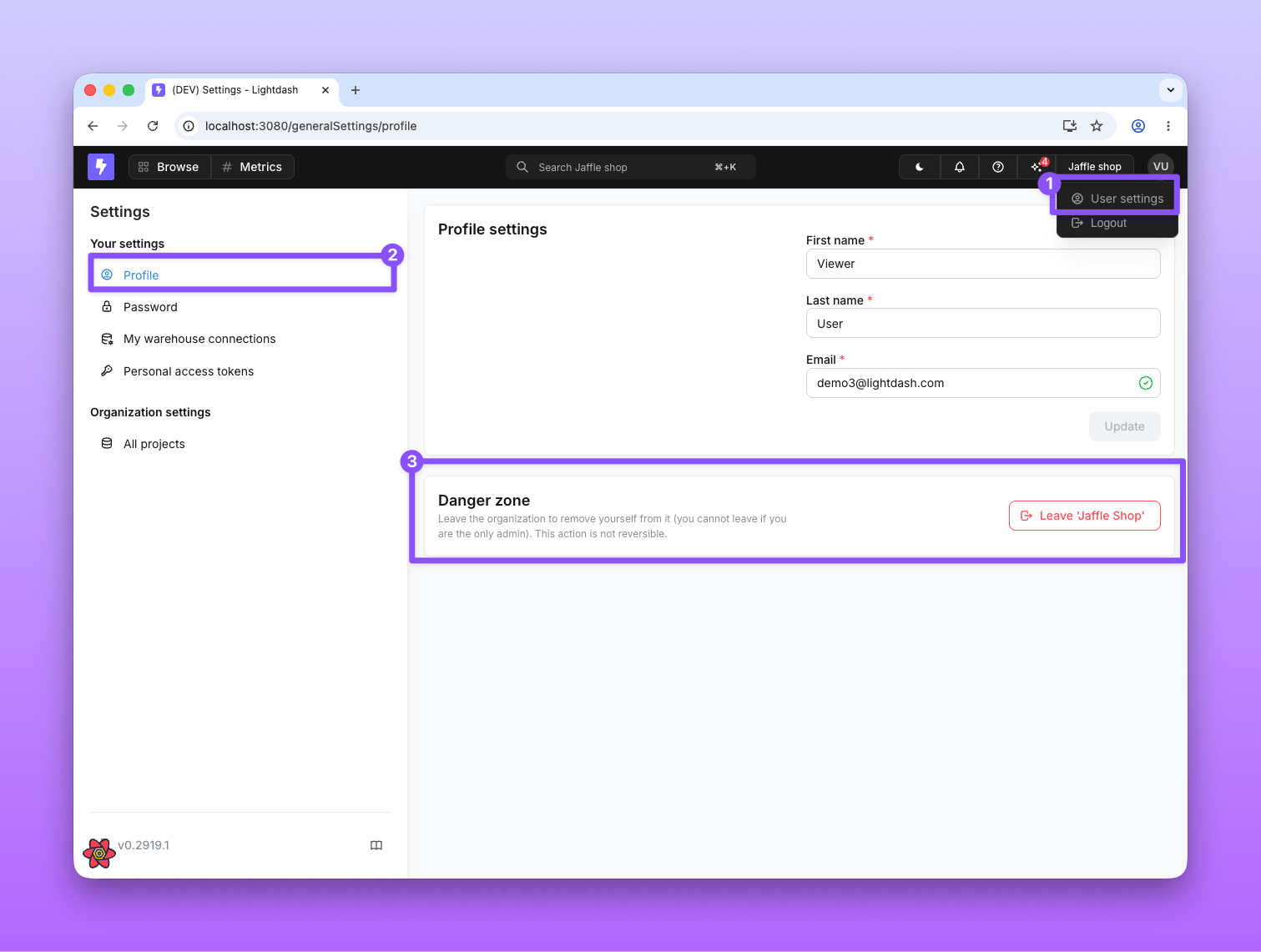
- Open the user menu in the top-right and click User settings.
- Select the Profile tab in the sidebar.
- In the Danger zone card at the bottom, click Leave ‘<your organization>’.
- Type the name of the organization into the confirmation field to confirm.
- Click Leave.
Deleting an organization
Deleting an organization removes the entire workspace and all of its content, including every user, project, chart, dashboard, and space. This is irreversible and there is no recovery path — make sure this is what you want.Who can delete an organization
Only users with organization admin access see the Delete option in the Danger zone.How to delete
- Go to Settings → General.
- In the Danger zone card, click Delete ‘<your organization>’.
- Type the name of the organization into the confirmation field to confirm.
- Click Delete.
There is no undo. Once an organization is deleted it cannot be restored. Before deleting, consider whether leaving the organization or transferring admin to another user would serve your purpose.