

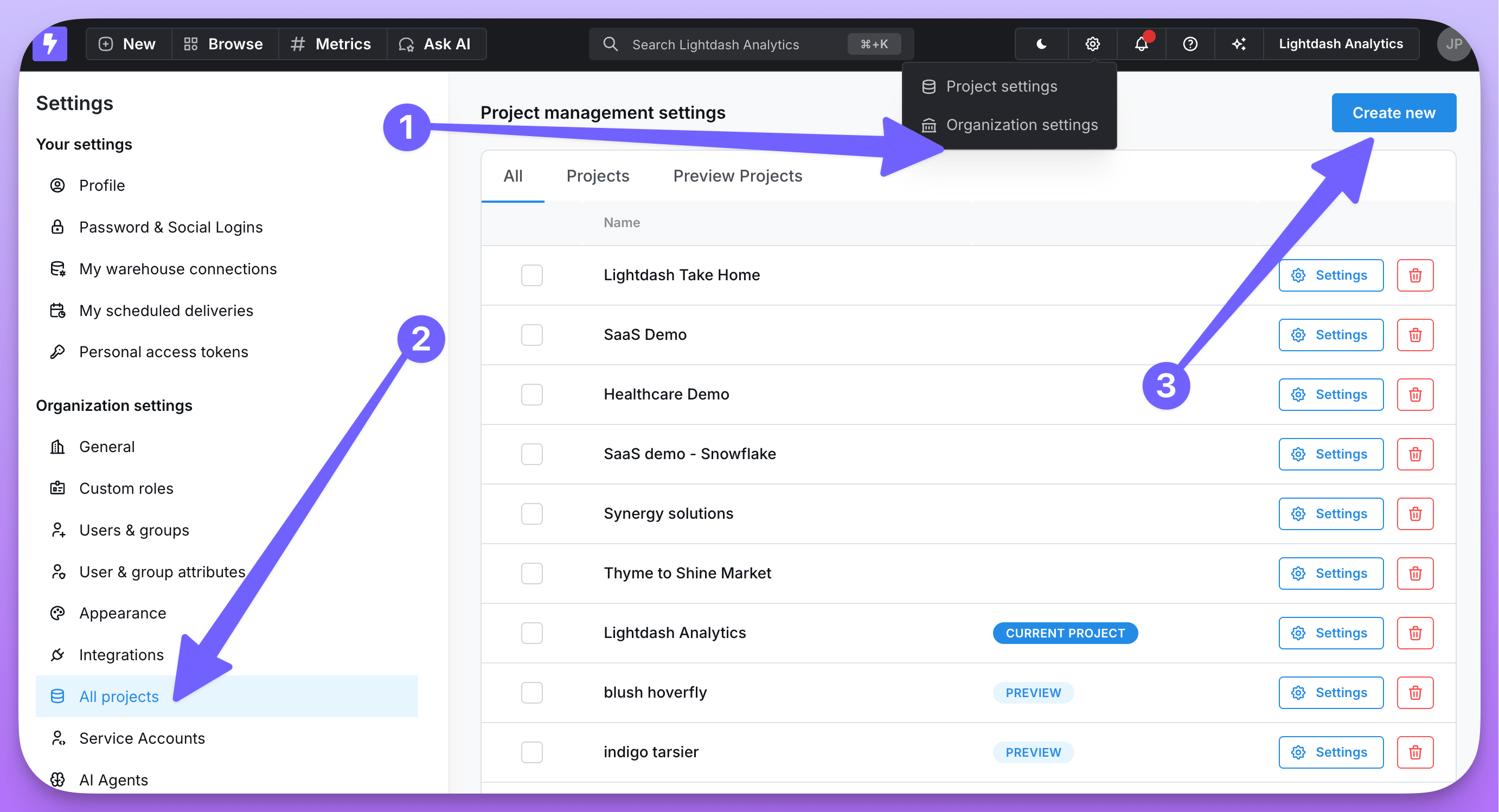
Create a new project
Only users with organization admin permissions can create new projects.
lightdash config rename-project.
Set up project connections
You’ll need to define the warehouse connection for your new project, and the dbt project details if you’re using dbt. Not sure what it all means? Don’t worry, we’ve written a step-by-step guide that will help you out.What each project keeps separate
Each project has its own dbt and warehouse connection, its own content (spaces, charts, dashboards, and scheduled deliveries), and its own project settings. Users, groups, and user attributes belong to the organization and apply across all its projects. Access is set per project, but an organization role above Member applies in every project, so give people who should see only one project the Member organization role plus a project role. See Organization vs. project roles.Switch between projects
Once you’ve got multiple projects set up, you can easily switch or search through the projects in your organization using the drop-down list in the top corner of your screen.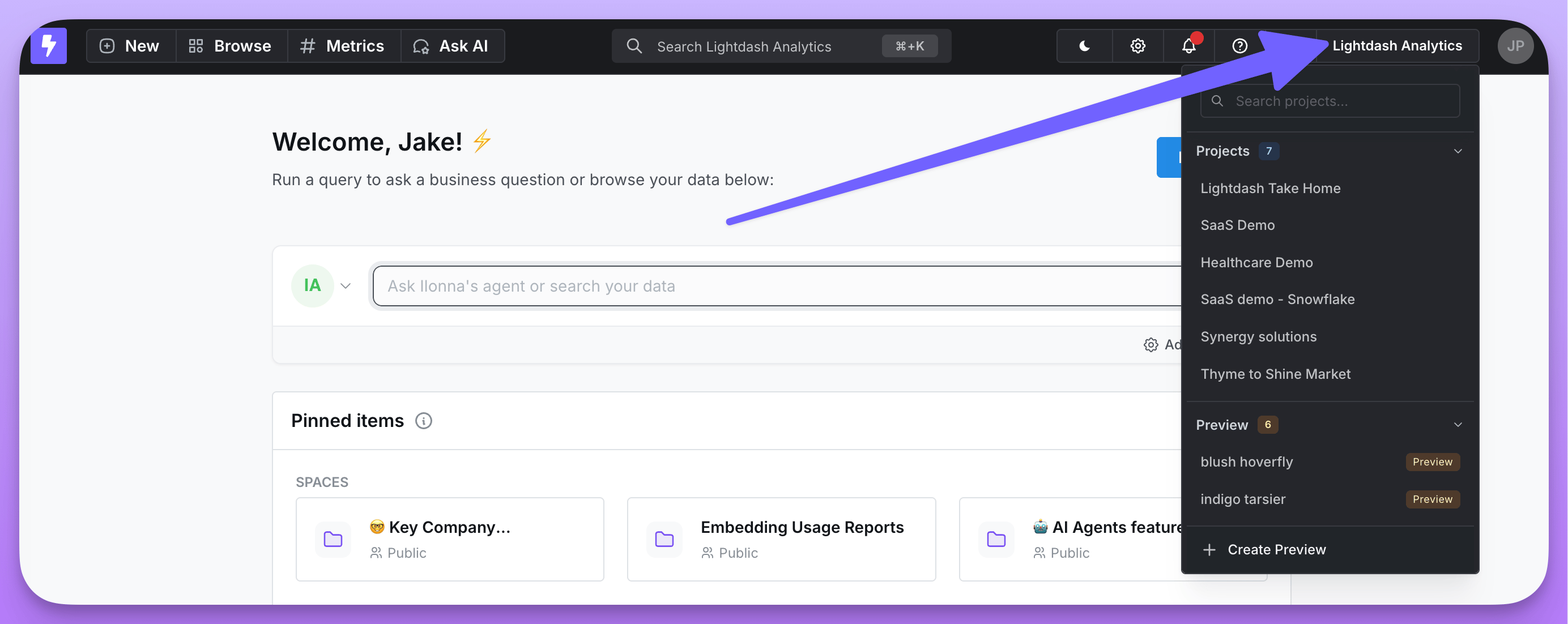
Delete a project
Only users with admin permissions can delete projects. Don’t need a project anymore? That’s okay - you can easily delete projects individually by clicking the trash can icon next to a project on the “All projects” page: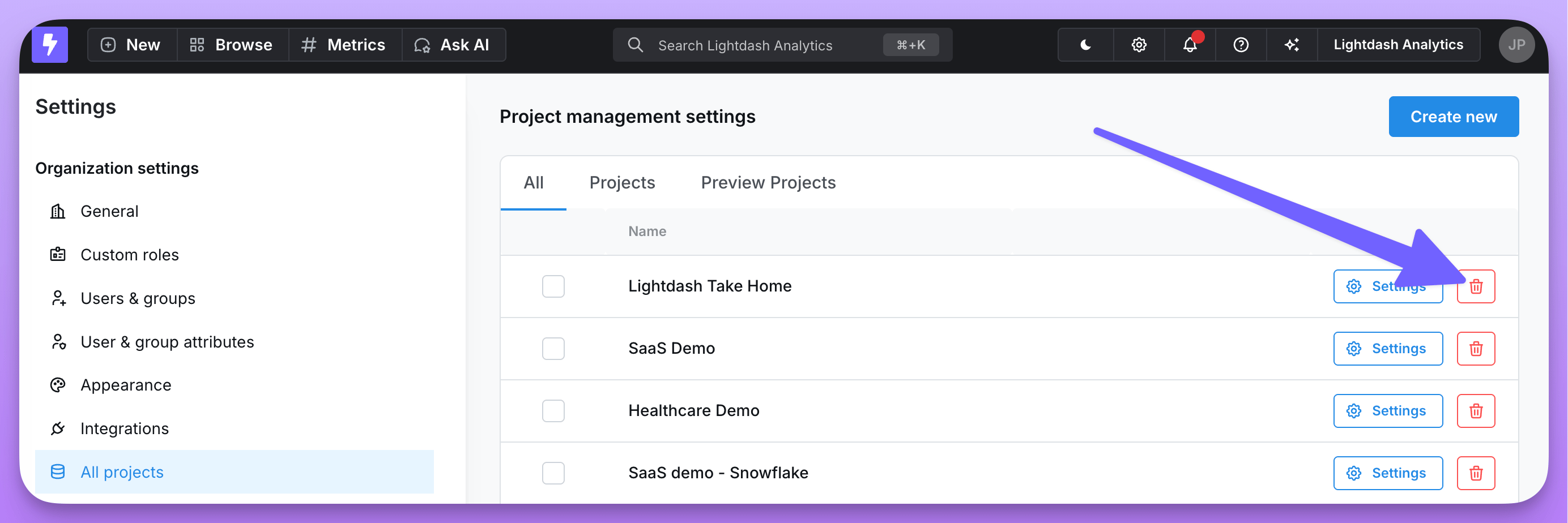
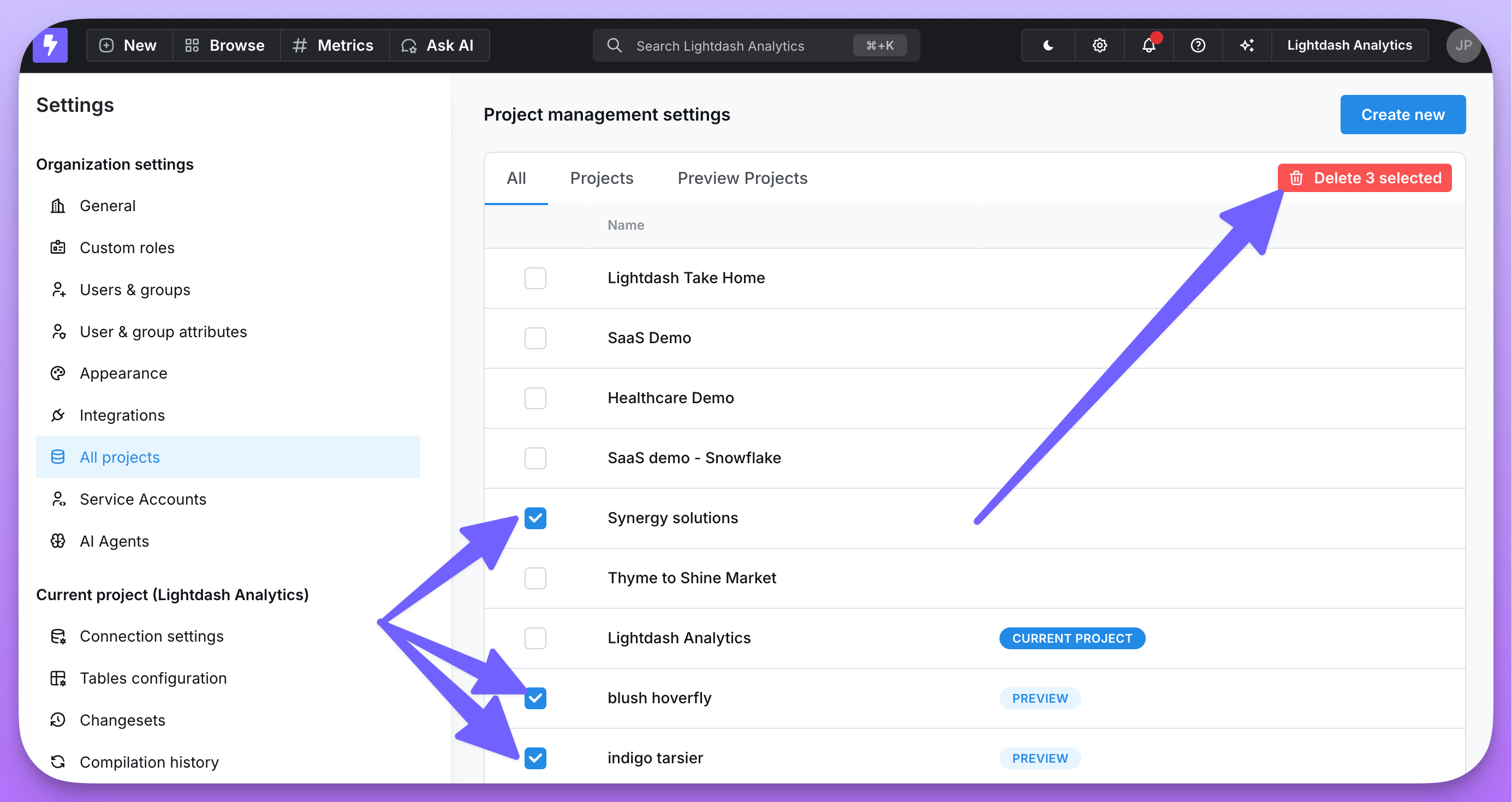
delete when you’re deleting several projects at once.
Deleting a project permanently deletes everything in it, including its spaces, charts, dashboards, and scheduled deliveries. A deleted project doesn’t appear in Recently deleted and can’t be restored.