

How verified answers work
The agent can reference a verified answer when it matches the question, reusing an example your team has checked.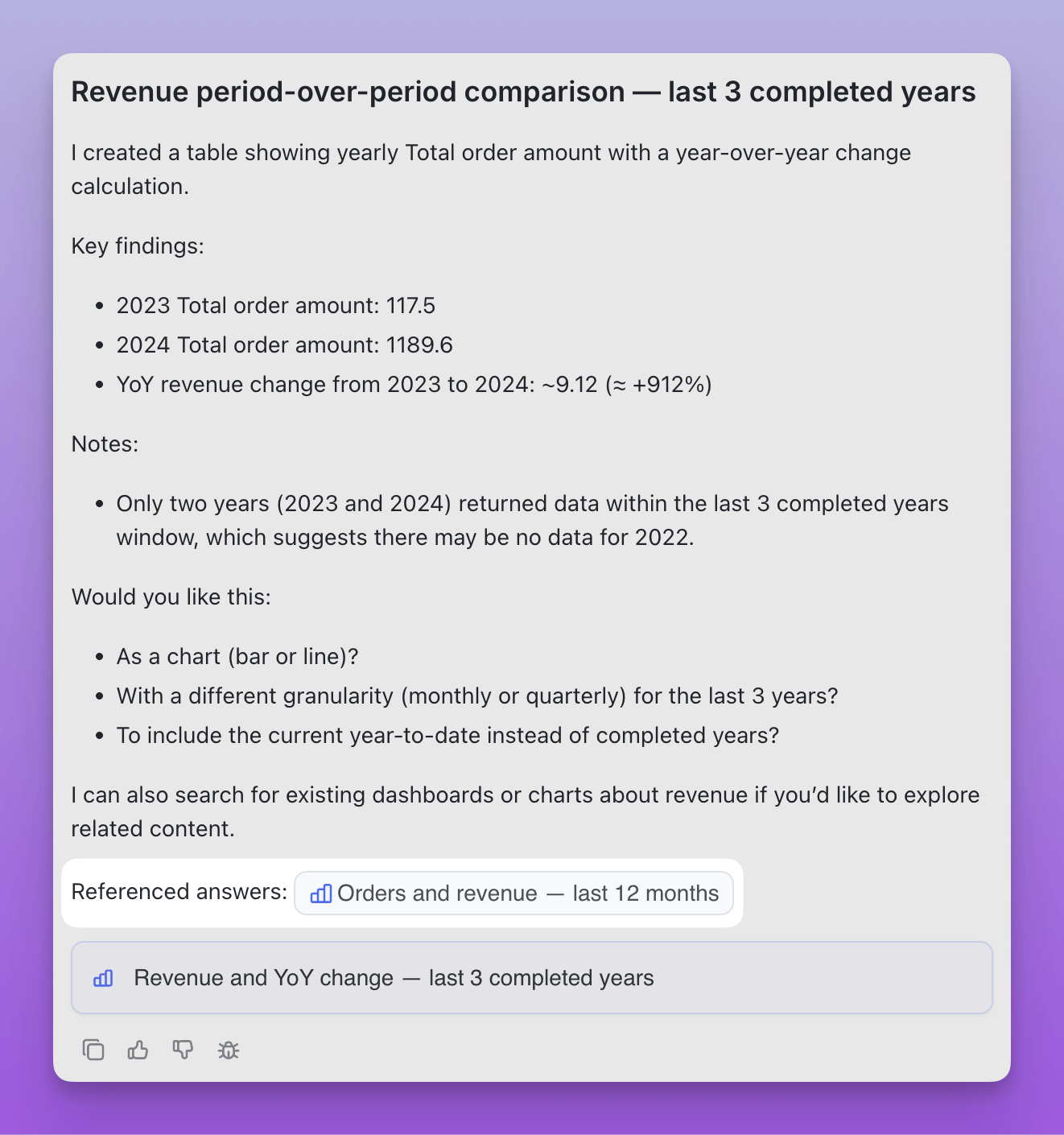
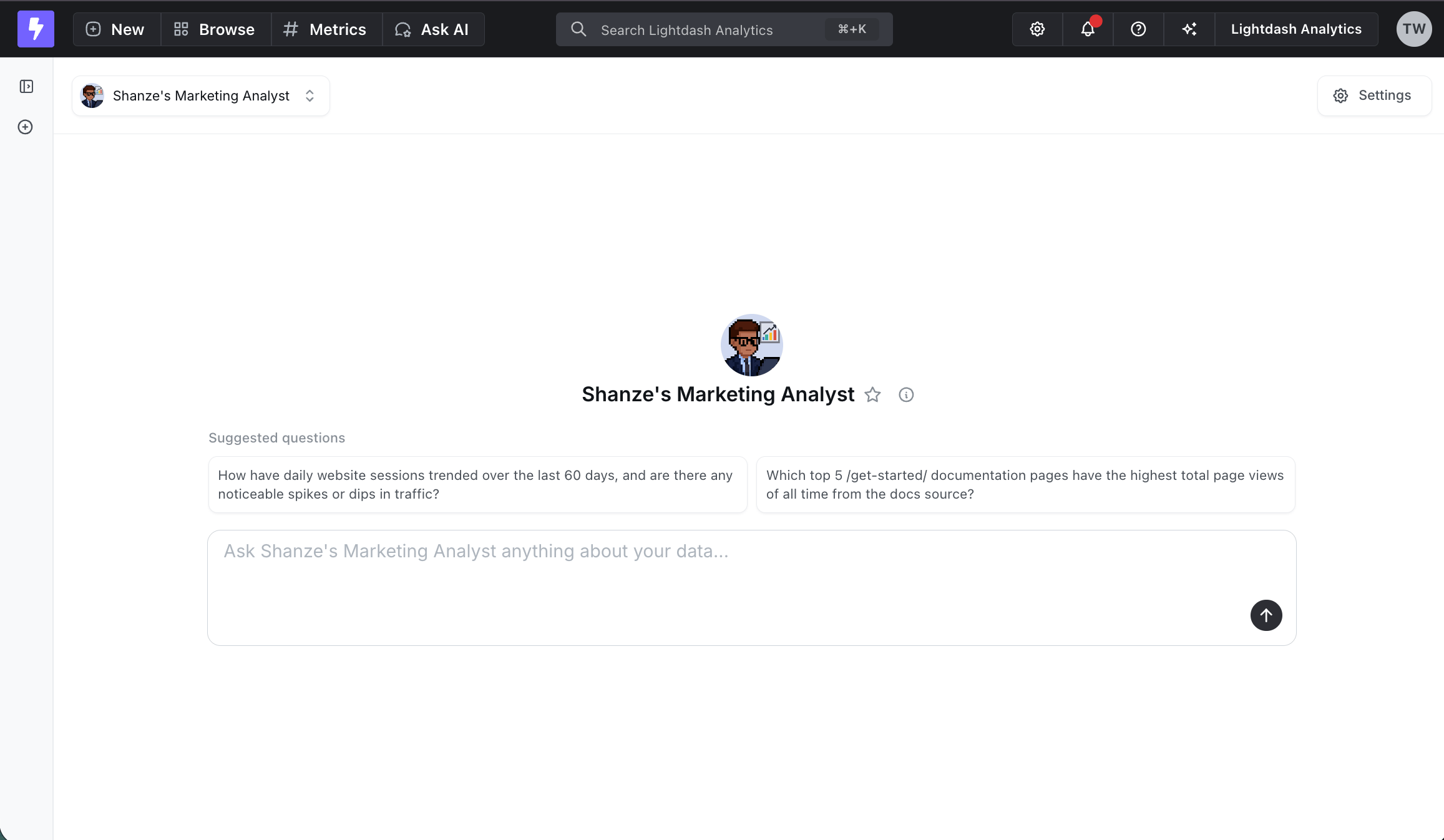
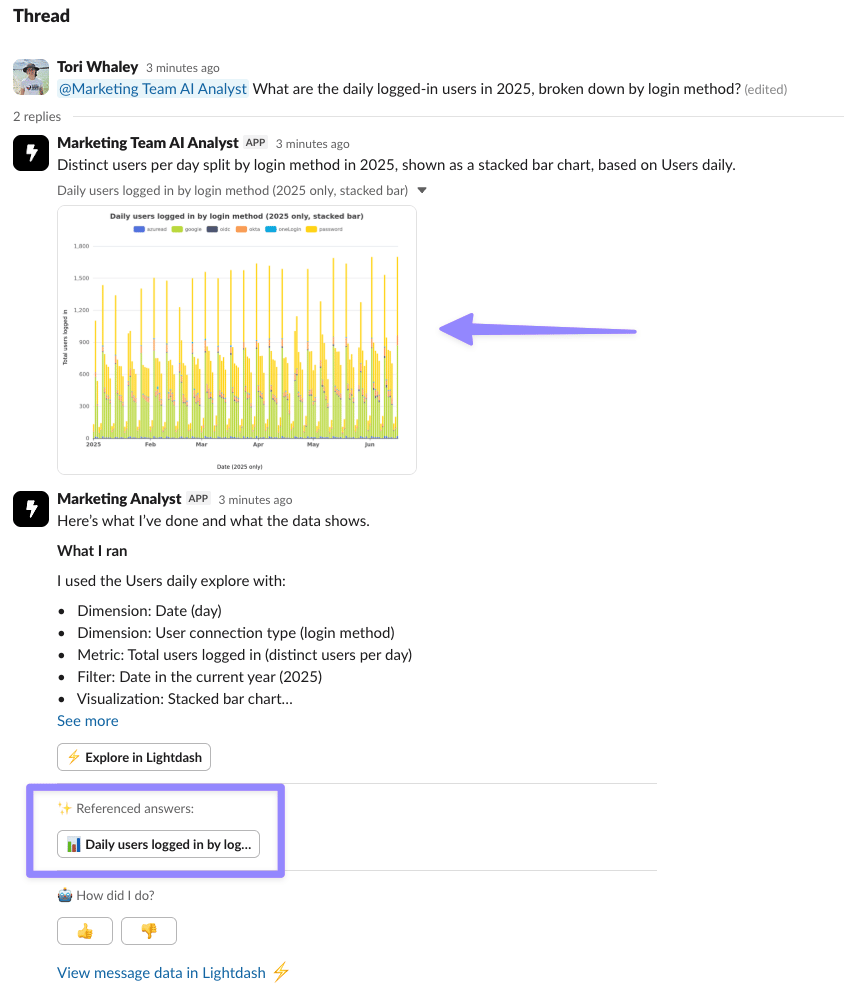
Verified answers become verified content
If the answer has been saved as a chart or dashboard, verifying it also marks that saved chart or dashboard as verified content. The saved content appears in:- The verified badge on the chart or dashboard, in listings, search, and space overviews
- The
list_verified_contentMCP tool, so external agents can discover and build on it - In-product AI retrieval, so agents prefer it when answering similar questions
- Save before you verify. An answer that only exists inside the conversation stays an agent example — it won’t get a badge or appear in MCP until it’s saved as a chart or dashboard. Save it first, then verify.
- The link is one-way. Verifying an answer promotes its saved chart or dashboard to verified content. Verifying a chart or dashboard directly (for example, from project settings) doesn’t reach back and mark the originating answer.
Managing verified answers
Verifying an answer
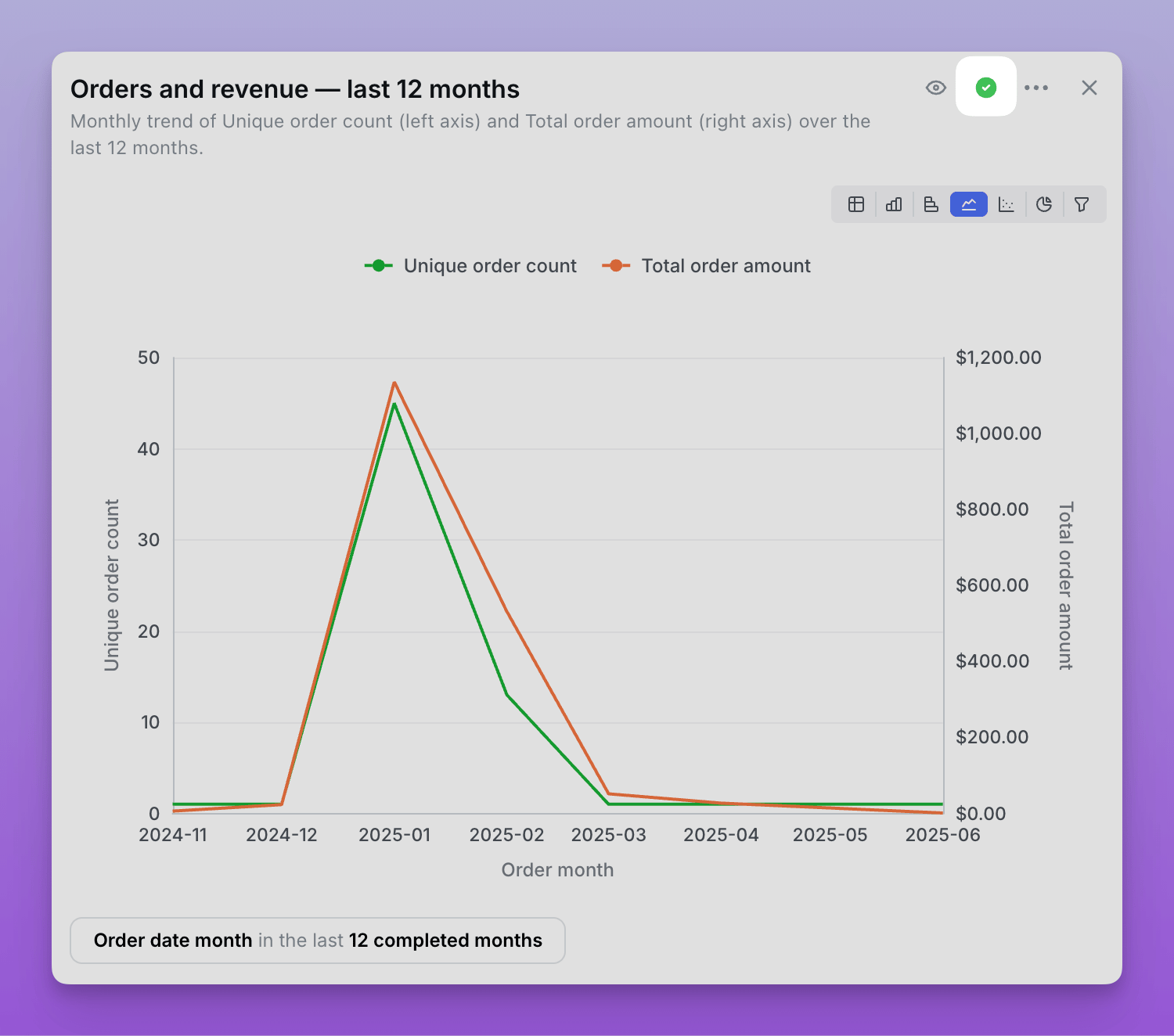
Only users with the Admin or Developer role can verify answers.- In an AI agent conversation, review the generated chart and its query.
- Click the checkmark icon in the top right corner of the chart.
Viewing all verified answers
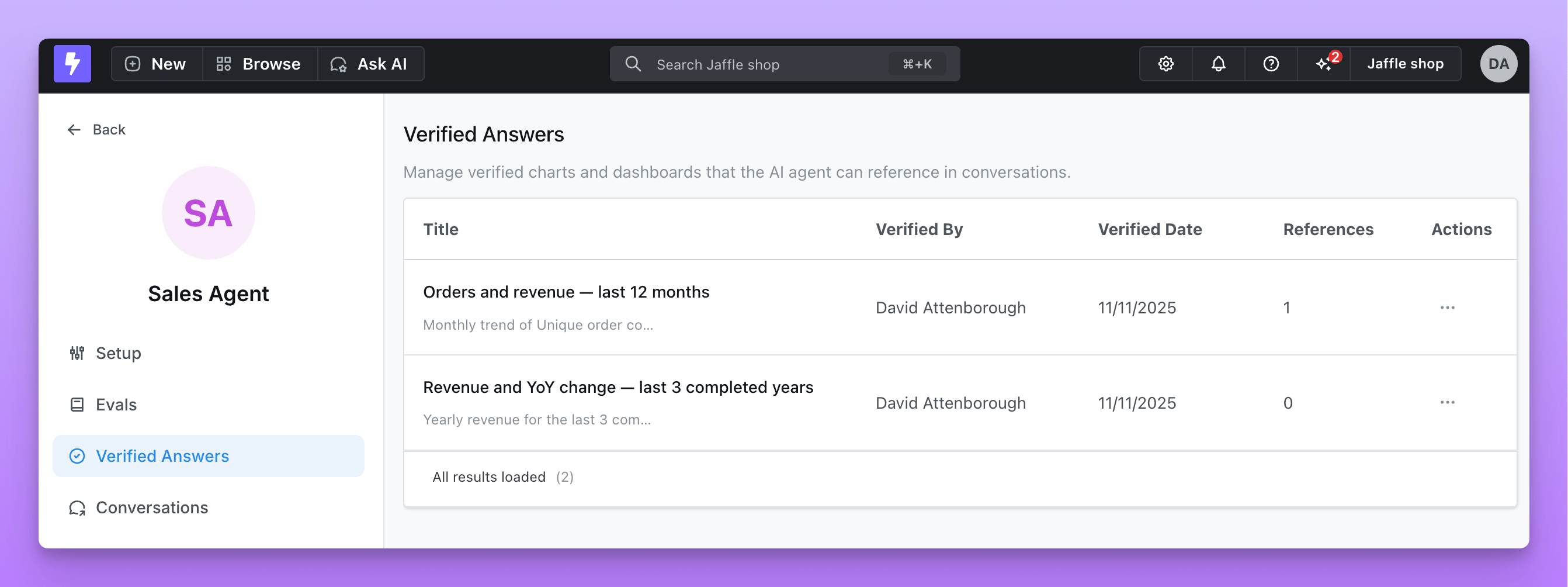
Navigate to your agent’s settings page and select the Verified answers tab to see:- All verified charts and dashboards
- Who verified each answer and when
- How many times each answer has been referenced by the agent
- Preview of the visualization
Removing verification
If an answer is no longer a good example:- Go to the Verified answers tab in the agent’s settings page
- Find the answer you want to remove
- Click the remove icon
- Confirm removal - the answer will no longer be used as a reference