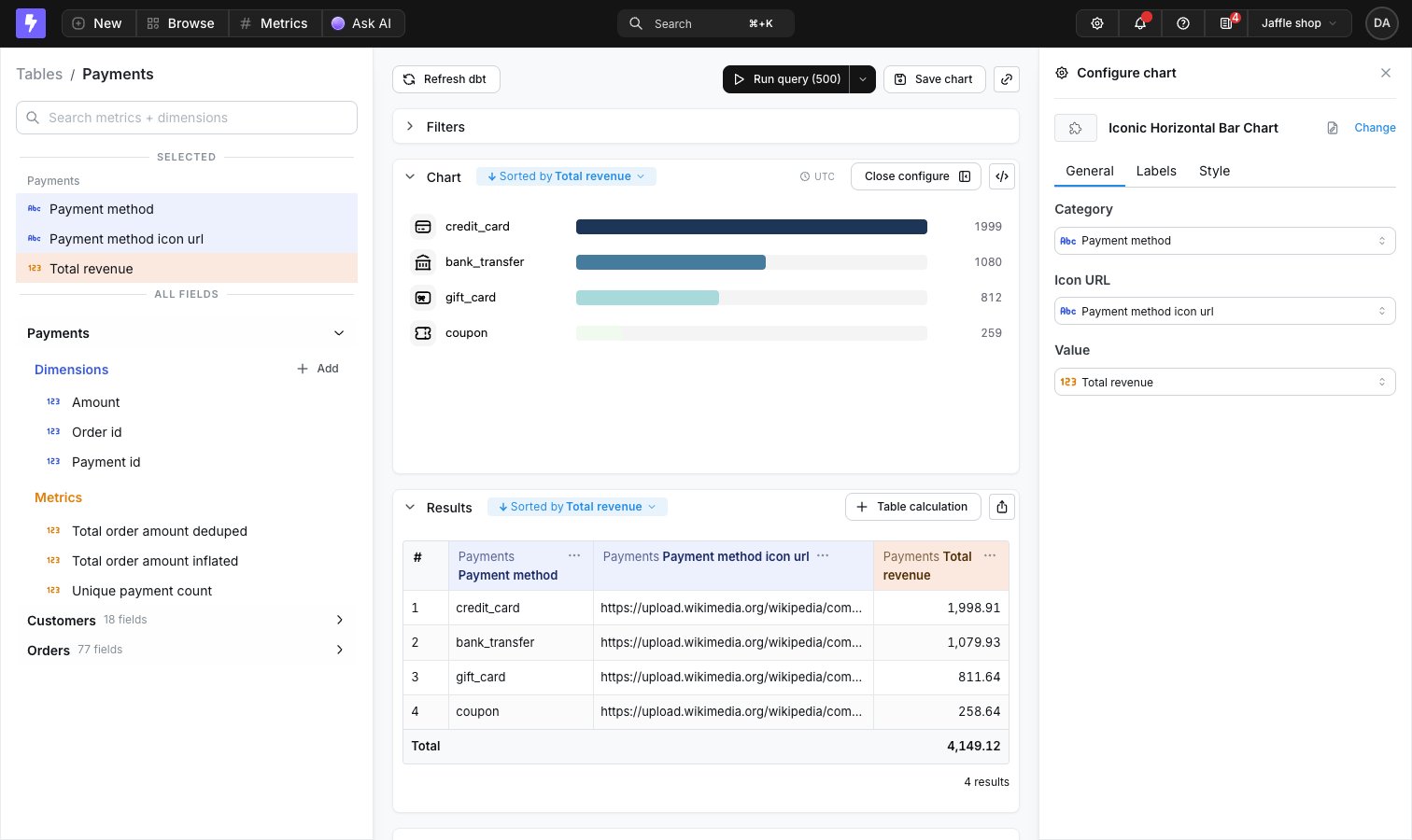
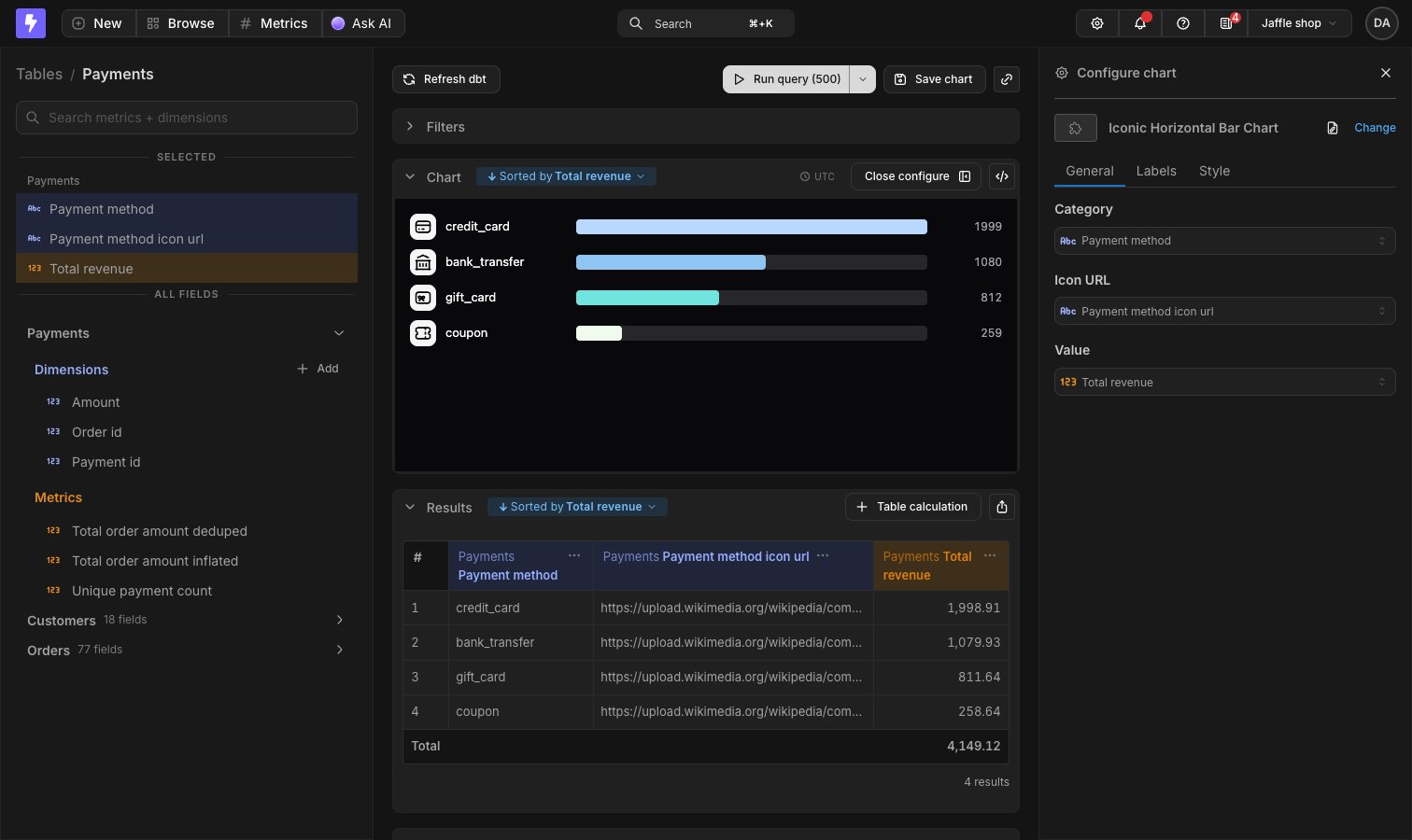
Chart Studio is available on Lightdash Cloud. Self-hosted instances need an Enterprise license and the app runtime configured. It doesn’t need data apps turned on. See Permissions for who can build chart types.
Browsing chart types
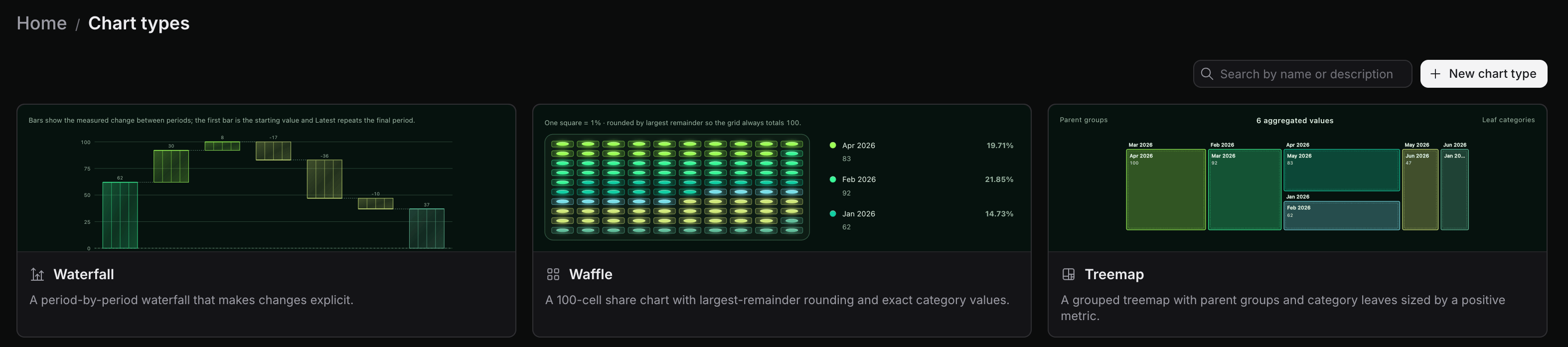
Every chart type in the project lives in Chart Studio. Go to Browse and pick Chart Studio. Each card previews the chart type with sample data. Click a card to see its description, who built it, its inputs, and its current version, and to preview it in the Explorer, edit it, or delete it.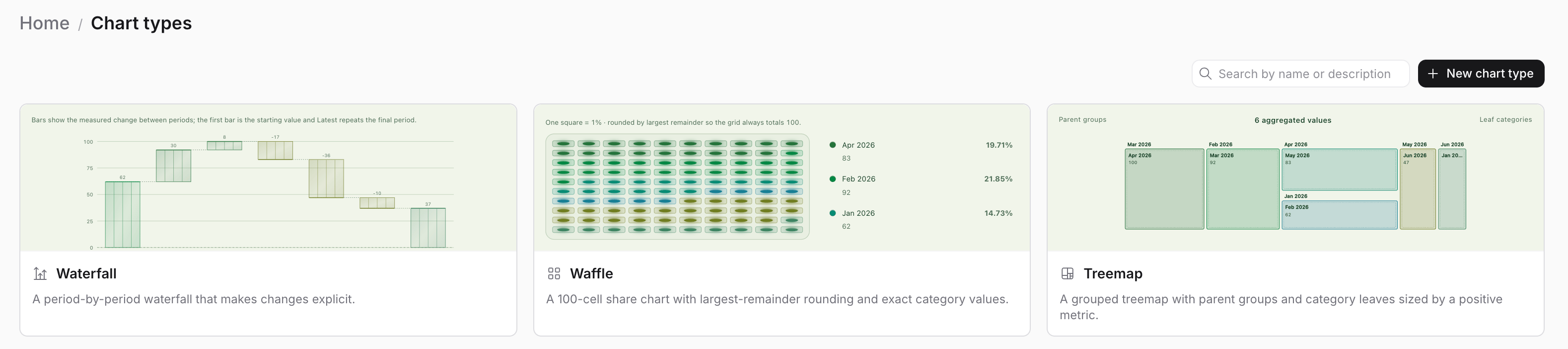
Building a chart type
Build chart types from the Explorer, on top of a query whose results look like the ones the chart type will render against. Working against real data as you prompt makes the preview trustworthy and cuts out the sample-to-real gap you’d otherwise close after the fact.1
Run the query you want to design against
In the Explorer, pick the dimensions and metrics the chart type needs and run the query. The results become Chart Studio’s preview data.
2
Open Chart Studio
Open Configure, click Change, and pick the New chart type tile in the Custom group. Chart Studio opens in the chart panel and the sidebar switches to its generated options.
3
Describe the chart
Type what you want in the prompt bar. Chart Studio builds it and renders it against your query’s real results. The Generated options panel holds the display options the chart type declares, along with a color palette to preview it against. Follow-up prompts create new versions, and History opens a panel where you can view an earlier version or restore it.
4
Name it
Name and describe the chart type in the header. That’s what people see in the gallery and in the chart type picker.
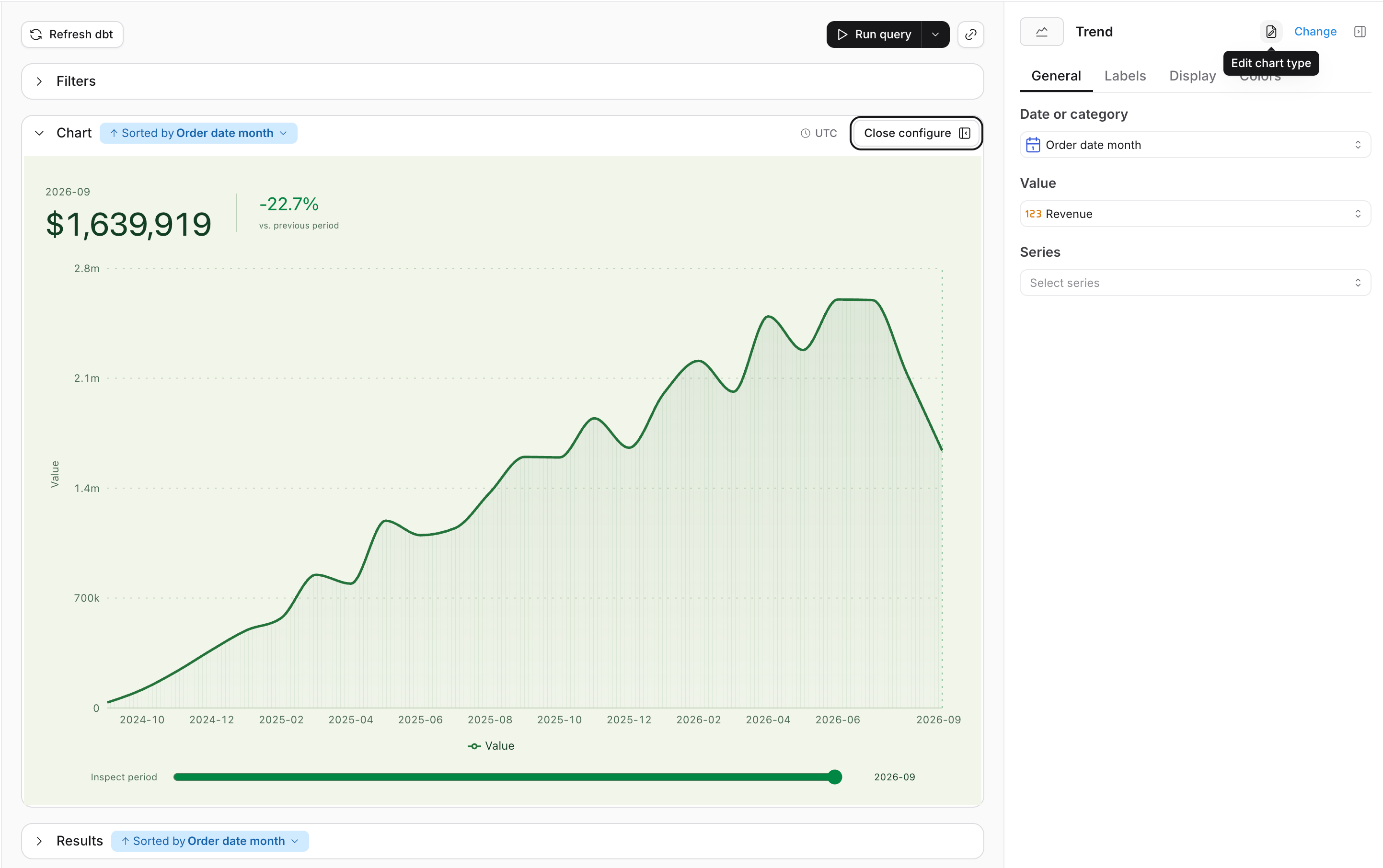
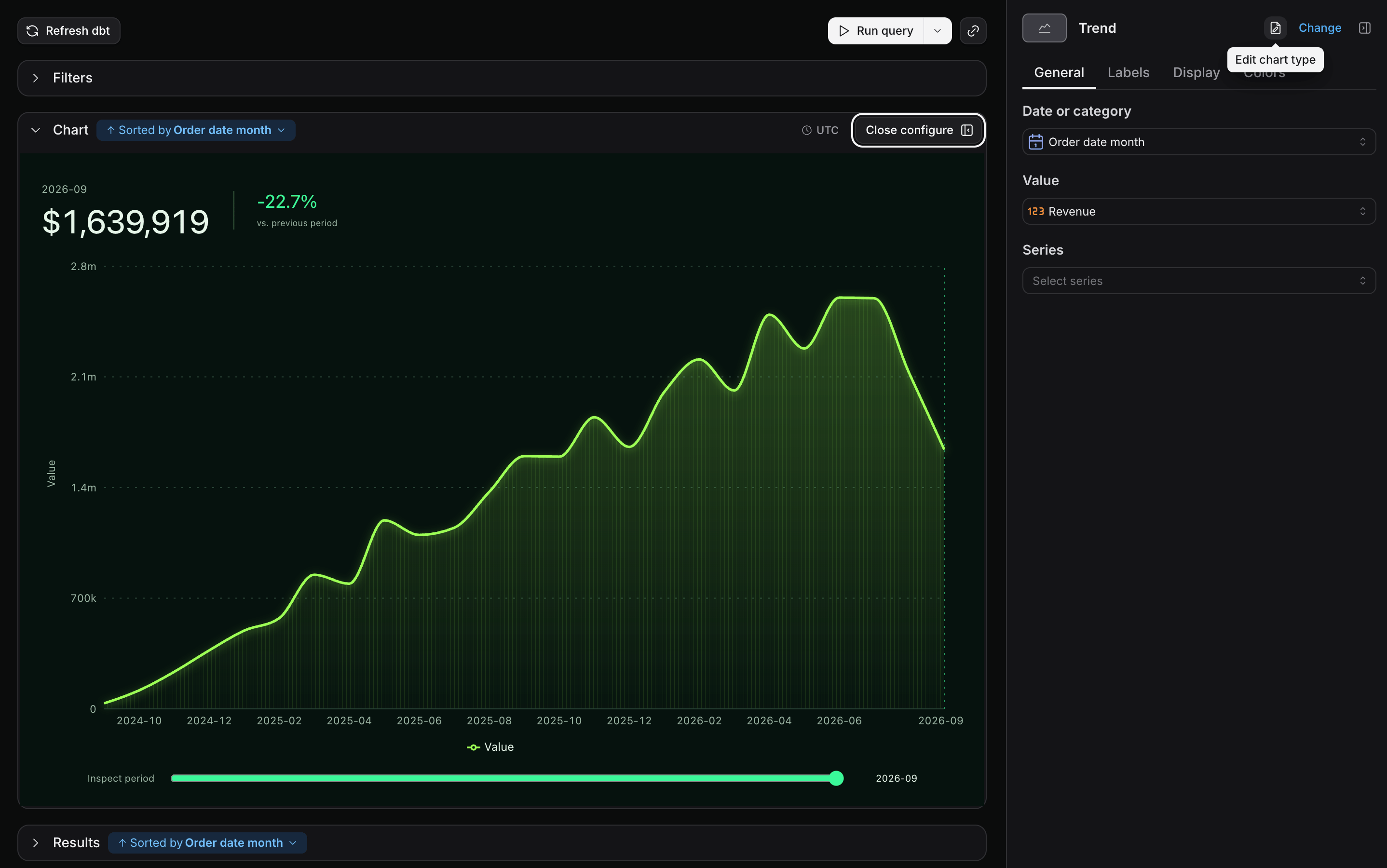
Using a chart type in a chart
1
Run your query
Select the dimensions and metrics your chart needs and run the query. You have to run it before you can pick a custom chart type.
2
Pick the chart type
Open Configure to open the chart sidebar, then click Change. The Custom group at the top of the gallery lists the project’s chart types; click the more tile to see the rest, or search the gallery by name. Only chart types that finished building are listed.
3
Map your fields
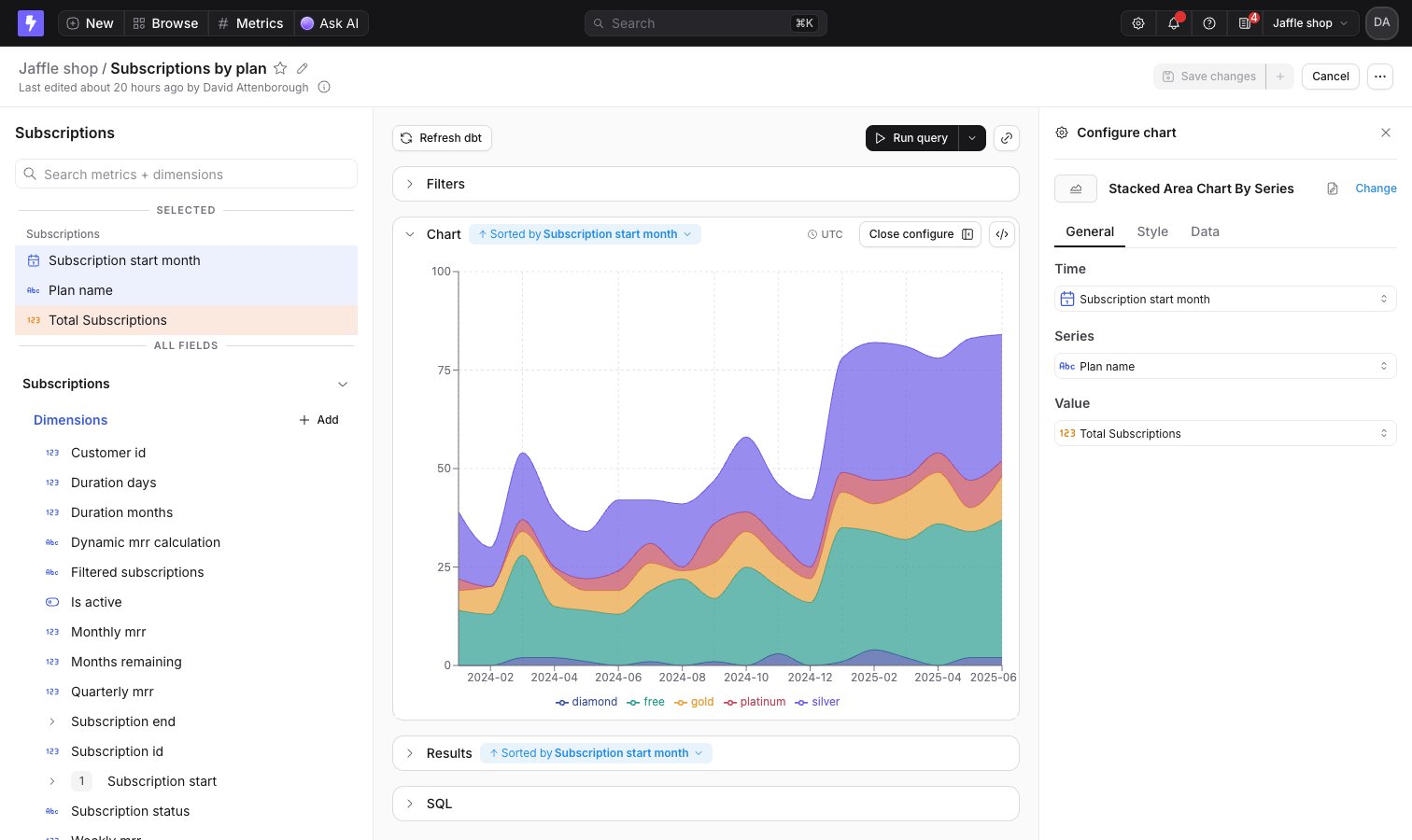
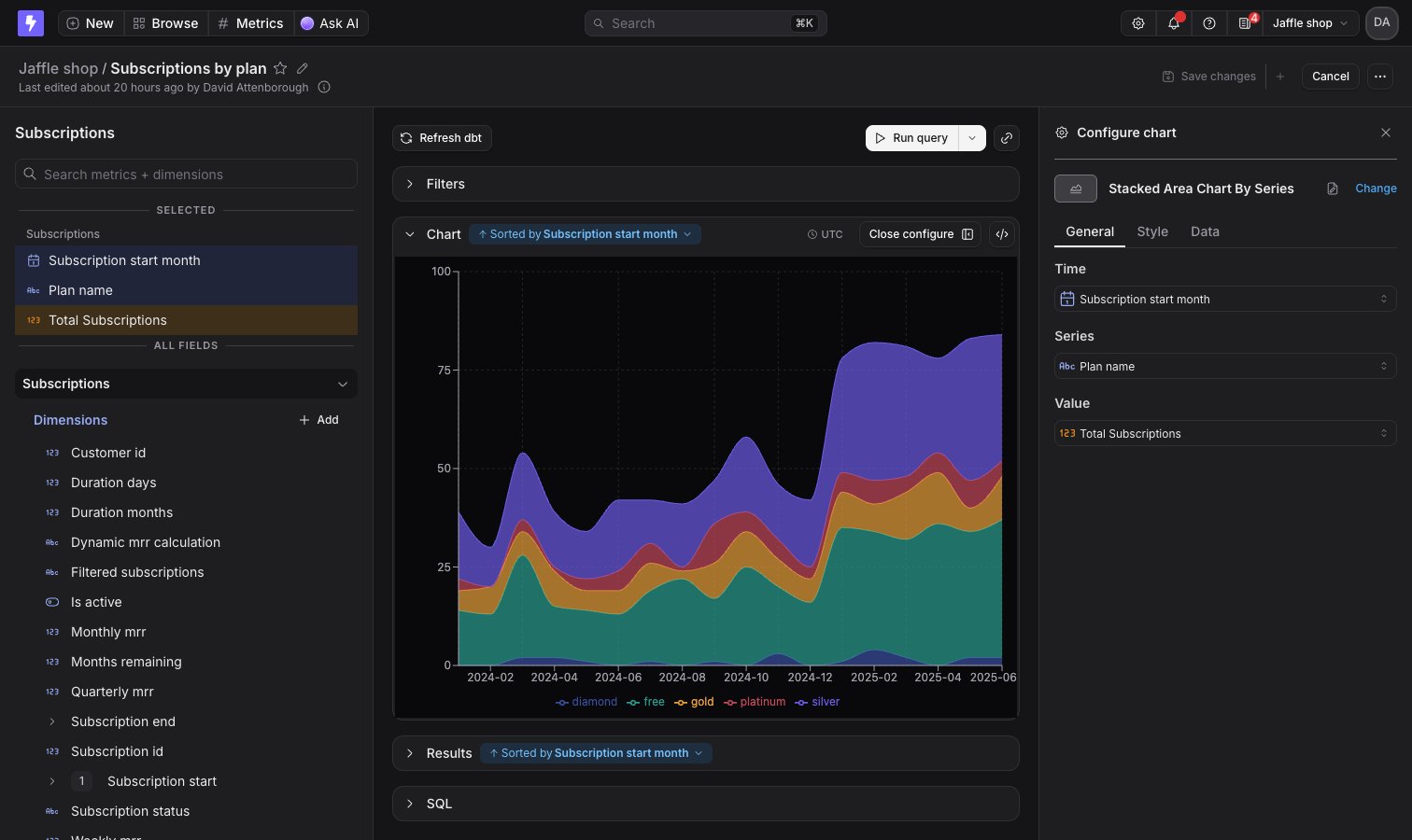
Each of the chart type’s inputs gets a field picker in the General tab, the same as configuring axes on a bar or line chart. Required inputs can’t be cleared. The chart type’s own display options sit in the tabs beside it.
Saving and dashboards
Save the chart like any other chart. The saved chart remembers which chart type it uses, how its inputs are mapped, and which version of the chart type it uses (see Versions and upgrades). Saved charts render in chart view and as dashboard tiles, driven by each surface’s own query - dashboard filters and date zoom apply like any other chart tile. Charts in documents can use the chart type too.Versions and upgrades
Every follow-up prompt in Chart Studio creates a new version of the chart type. A saved chart keeps using the version it was saved with, so changing a chart type never changes the charts that already use it. When you edit a chart and a newer version of its chart type exists, the Configure chart sidebar shows Newer version available. Click Review upgrade to see what changed: inputs and options that were added, renamed or removed, and any change to the color palette.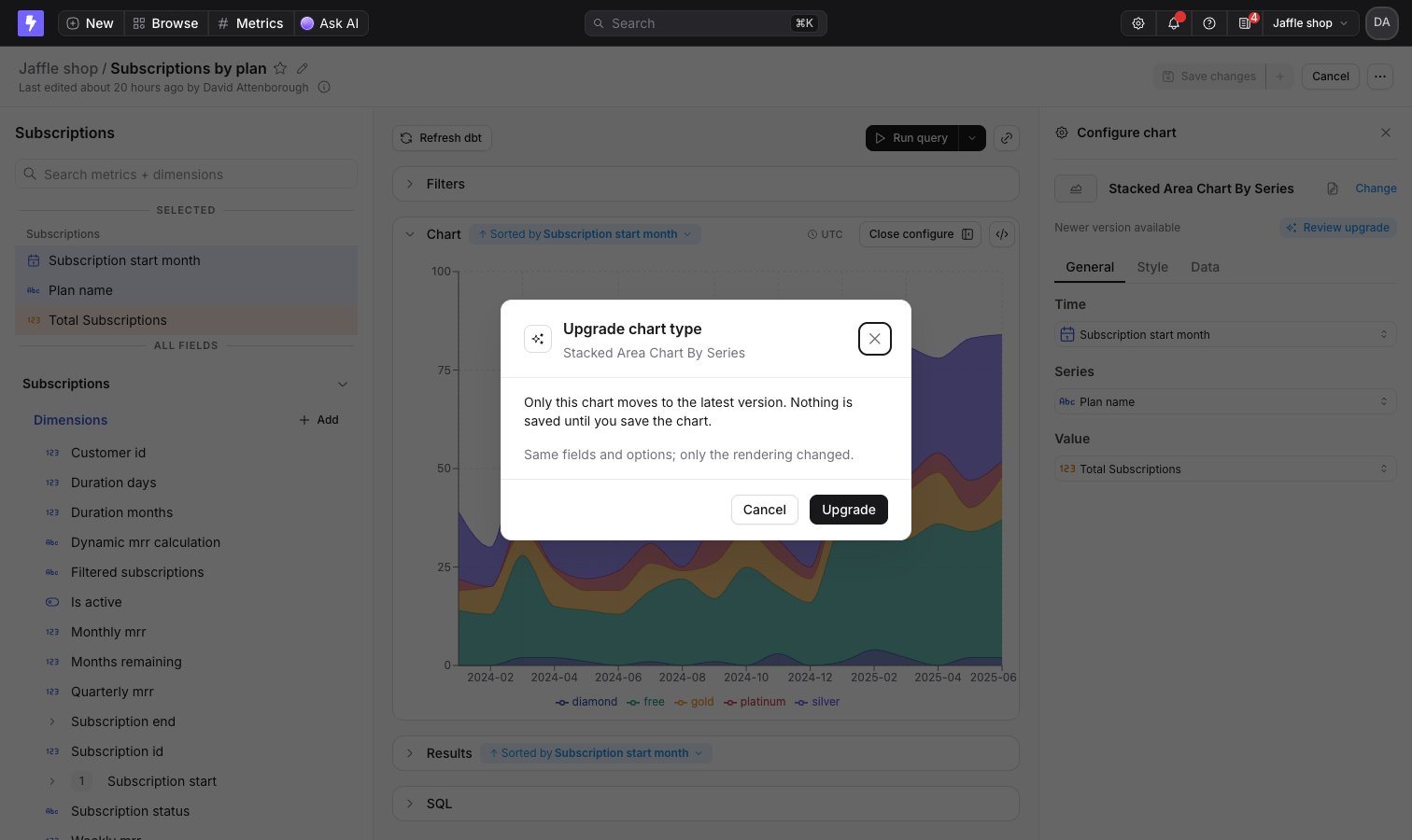
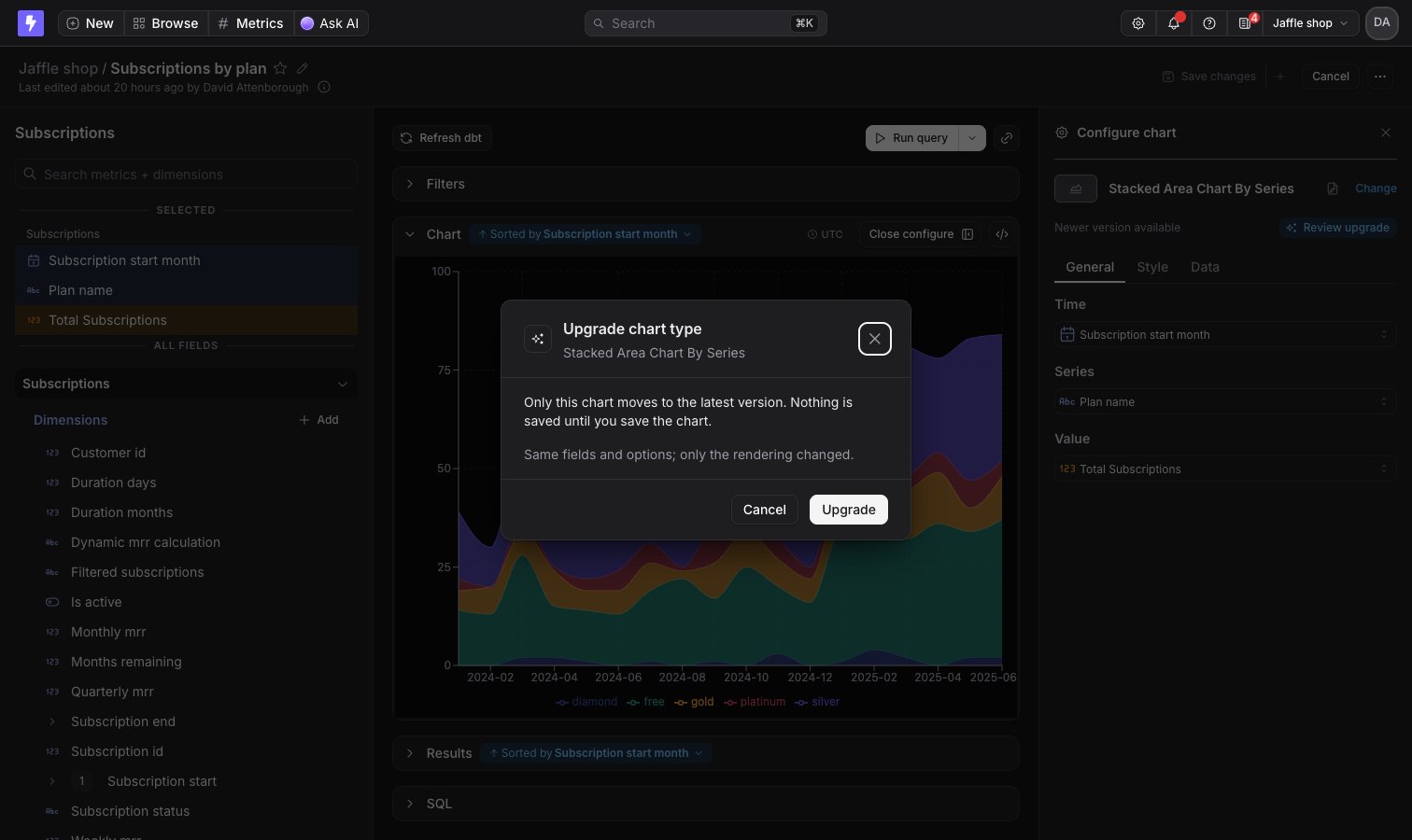
Chart types as code
Chart types round-trip through the CLI as their own resource, separate from data apps. Each one downloads tolightdash/chart-types/<slug>/ as a locally buildable project you can version in git, edit, validate with lightdash apps validate, and upload back:
slug in its lightdash-app.yml manifest, upserted in the target project on upload. The manifest also carries a vizSchema field with the chart type’s declared inputs, so the inputs round-trip with the source.
Saved charts reference their chart type by that slug in chart YAML (the dataAppVizSlug field), which keeps chart files portable across projects and instances:
- Downloading charts brings the chart types they render with along automatically, into
lightdash/chart-types/. - Uploading a chart resolves the slug in the target project. If the chart type doesn’t exist there, the chart upload fails with a message to run
lightdash upload --chart-types <slug>first. - Chart YAML written before slug references carries a
dataAppVizUuidinstead. Uploads accept it, but new downloads always write the slug.
--chart-types flags on lightdash download and lightdash upload for the full flag lists.
Permissions
Chart types are available across the whole project. They don’t live in spaces and can’t be moved into one.- Anyone who can view a chart can see the chart type it renders with.
- Editors and above can build new chart types.
- You can edit and delete the chart types you built. Project admins can edit and delete any of them.
Linking external connections
Linking external connections
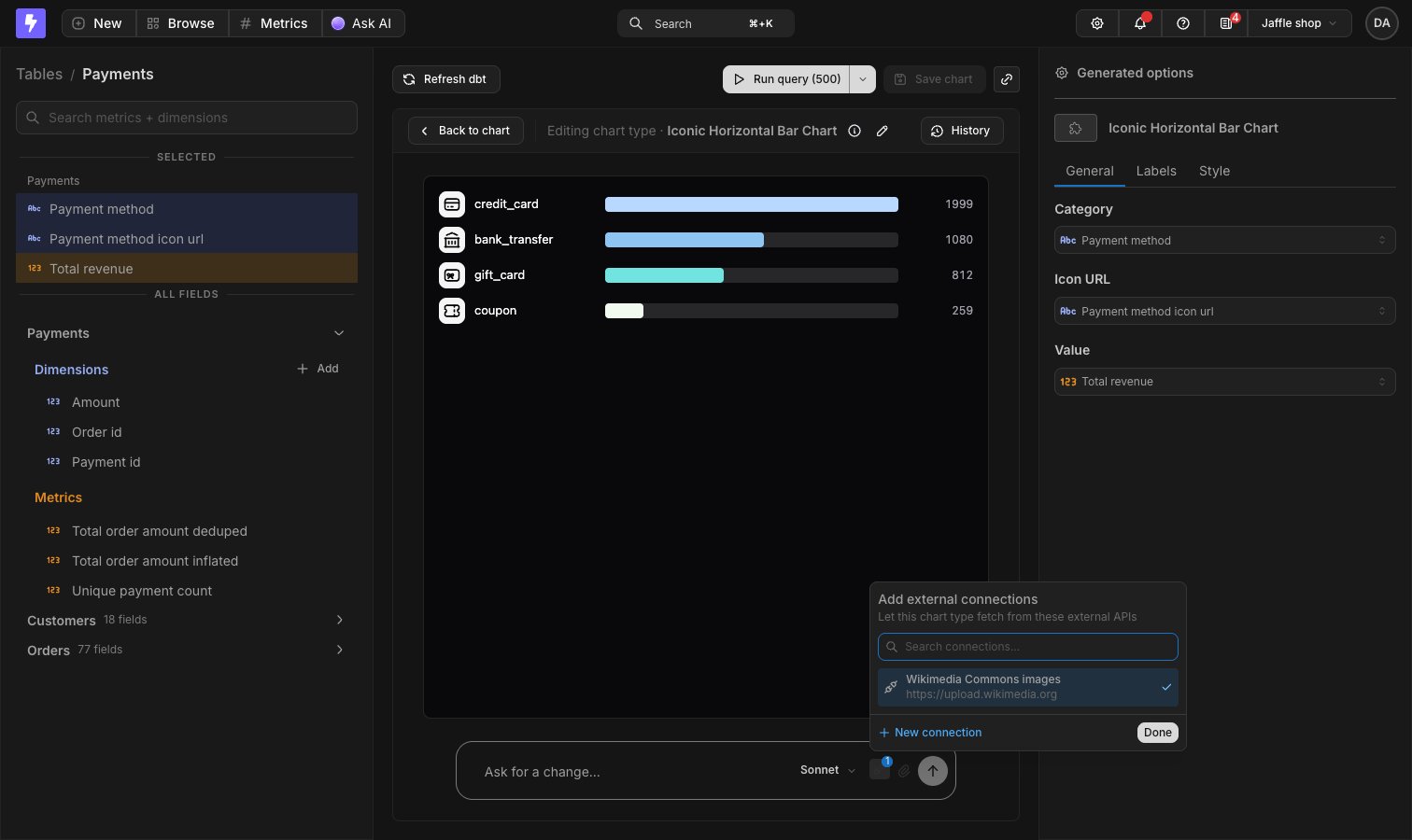
Chart types render in the same sandbox as data apps, so they can only reach the network through external connections. That covers two cases: calling a third-party API while the chart renders, and showing images from a URL field in your results. Without a linked connection, the sandbox blocks images from any other origin.A project admin registers the connection once, then whoever builds the chart type links it from Chart Studio.Once linked, the connection stays with the chart type across versions and everywhere it renders: the Chart Studio preview, the Explorer, saved charts, dashboard tiles, and embedded dashboards. The indicator in the prompt bar counts linked connections. Open it and untick a connection to unlink it. Unlinking only removes the link, so the generated code keeps calling the connection until you build a new version.
1
Register the connection
Go to Project Settings → Data app connections and click Add connection. Enter the Base URL of the host the chart type needs to reach and pick the auth method that host requires. A public image host needs None.
2
Allow images from it
If the chart type shows images, turn on Allow public images in linked apps. Linked chart types can then load images straight from that origin, in
<img> tags or CSS. Leave it off for hosts you only call for data.3
Choose who can link it
Set Who can link this connection? to Data app and chart type builders so editors can attach it from Chart Studio. Admins only keeps it out of everyone else’s picker.
4
Attach it in Chart Studio
Open the chart type in Chart Studio, or start a new one, and click Add external connections in the prompt bar. Tick the connection, then describe the chart, or send a follow-up prompt such as “show the image from the Image URL input”. The link is created when that build runs, so an existing chart type needs at least one follow-up prompt to pick it up.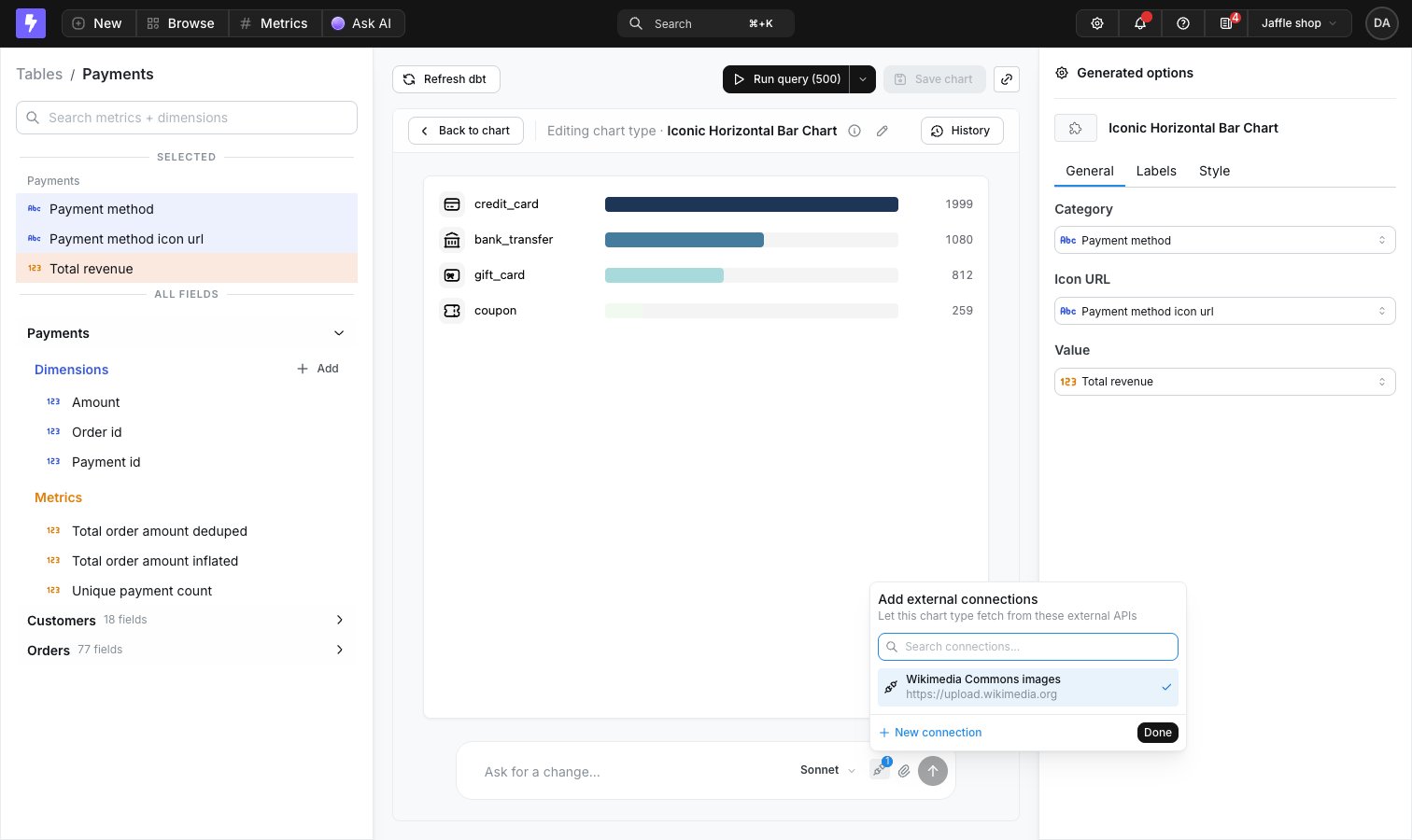
5
Check it in the Explorer
Click Preview in explorer, run a query that includes the image URL field, and map it to the chart type’s input. The images should render.