> ## Documentation Index
> Fetch the complete documentation index at: https://docs.lightdash.com/llms.txt
> Use this file to discover all available pages before exploring further.
# Multiple warehouse connections
> Query more than one warehouse from a single Lightdash project
Experimental Multiple warehouse connections are behind the `multi-connection-projects` feature flag, and the flow and wording on this page may change between releases. Contact [Lightdash support](mailto:support@lightdash.com) to enable it for your organization. Self-hosted instances need an [Enterprise license](/self-host/enterprise-features) and `multi-connection-projects` in `LIGHTDASH_ENABLE_FEATURE_FLAGS`. [What Experimental means](/support/feature-maturity-levels).
Use multiple connections when one project needs data from several databases of the same warehouse type, such as a production database and a read replica. If you only need more dbt projects on the same warehouse, use [multiple dbt sources](/integrations/dbt/projects#connecting-multiple-dbt-sources) instead.
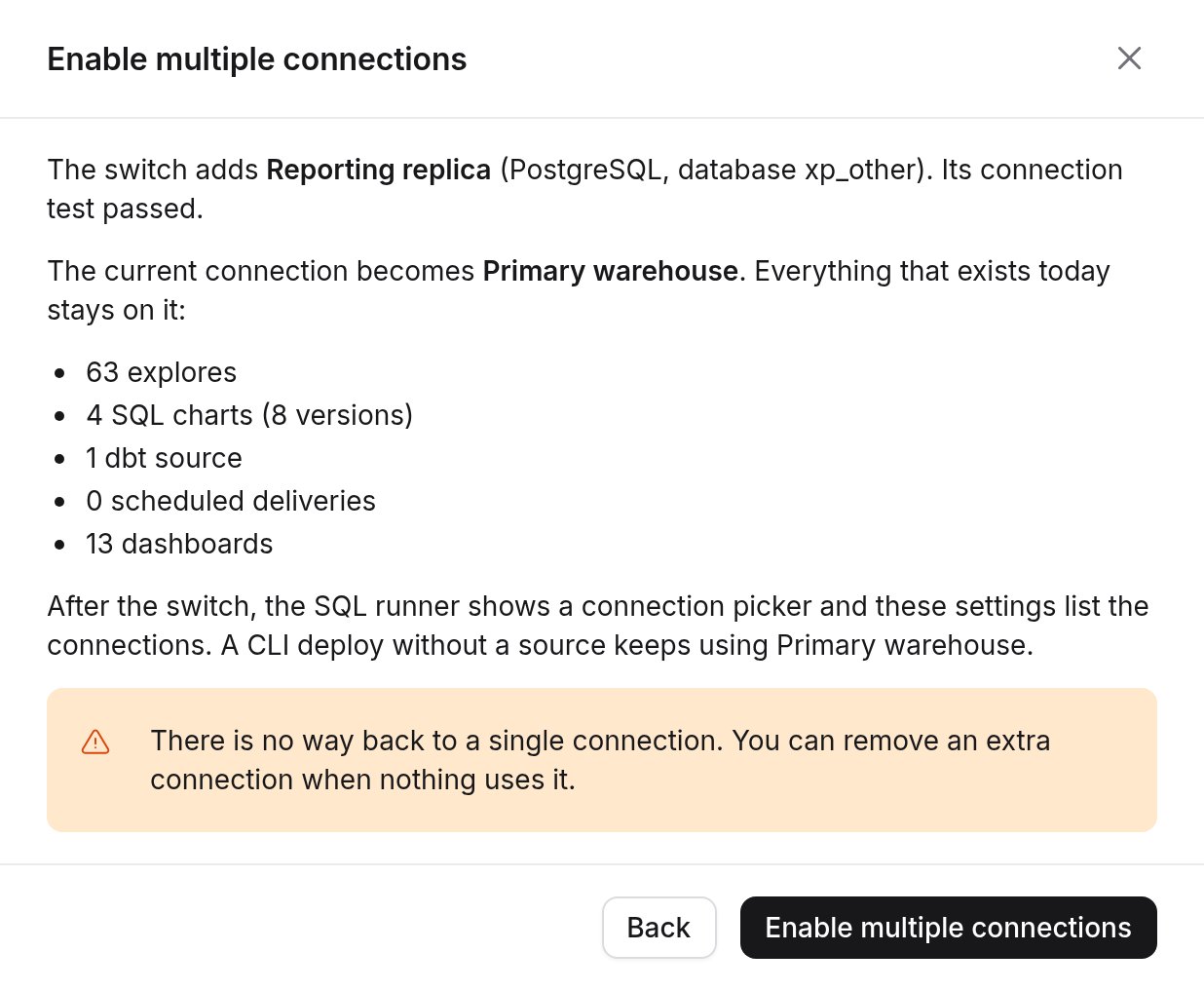
When you switch, the current connection becomes the **primary** connection and everything that already exists stays on it. Each explore, SQL chart and virtual view runs on one connection.
## Requirements and limits
* You need permission to manage the project.
* Only Postgres and Athena projects can switch, and every extra connection uses the primary's warehouse type. You can't change that type while extra connections exist.
* Preview projects can't switch, and neither can a project whose warehouse uses [organization credentials](/workspace-admin/organization-credentials).
* The switch is one way. You can remove extra connections, but the app can't switch the project back.
* One query can't combine tables from two connections.
* When the feature flag is off, no project can switch or add a connection. Projects that already switched keep working.
## Enable multiple connections
In **Project settings → Connection settings**, click **Enable multiple connections** on the **Connections** card. If the button is disabled, its tooltip says why.
 Name the current connection, add the first extra connection, and click **Review the switch**. Lightdash tests the new connection before it shows the review.
 ## Manage connections
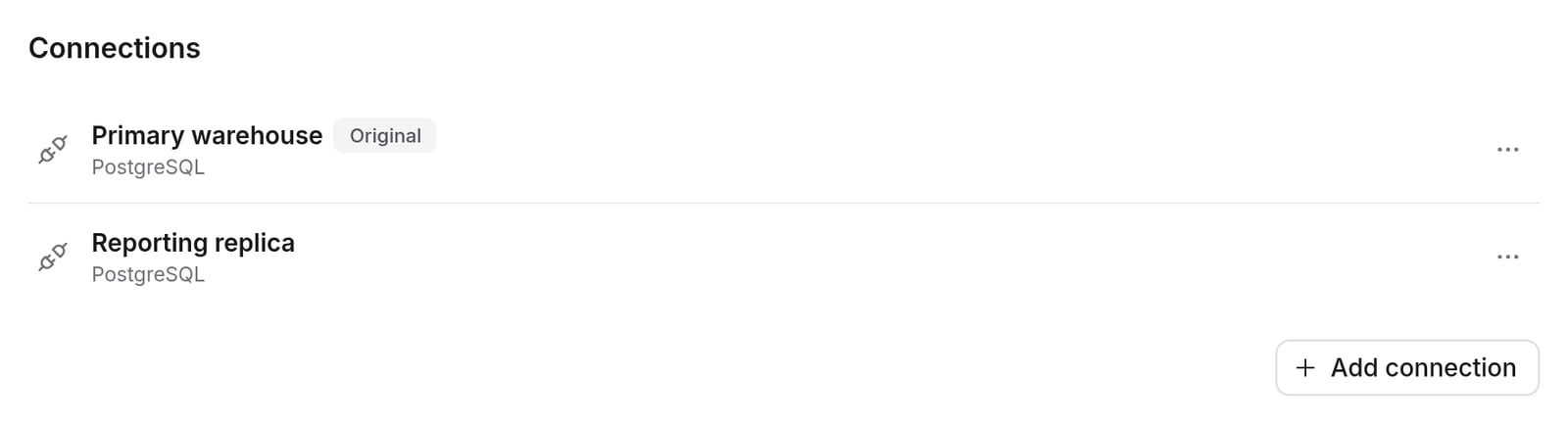 **Edit** applies to extra connections. Edit the primary with the warehouse form on the same page. **SQL runner databases** sets which databases the SQL runner lists for a connection, up to 100.
## Run a dbt source on another connection
The primary dbt source always runs on the primary connection. Each [additional dbt source](/integrations/dbt/projects#connecting-multiple-dbt-sources) can run on any connection, and its explores move on the next compile.
**Edit** applies to extra connections. Edit the primary with the warehouse form on the same page. **SQL runner databases** sets which databases the SQL runner lists for a connection, up to 100.
## Run a dbt source on another connection
The primary dbt source always runs on the primary connection. Each [additional dbt source](/integrations/dbt/projects#connecting-multiple-dbt-sources) can run on any connection, and its explores move on the next compile.
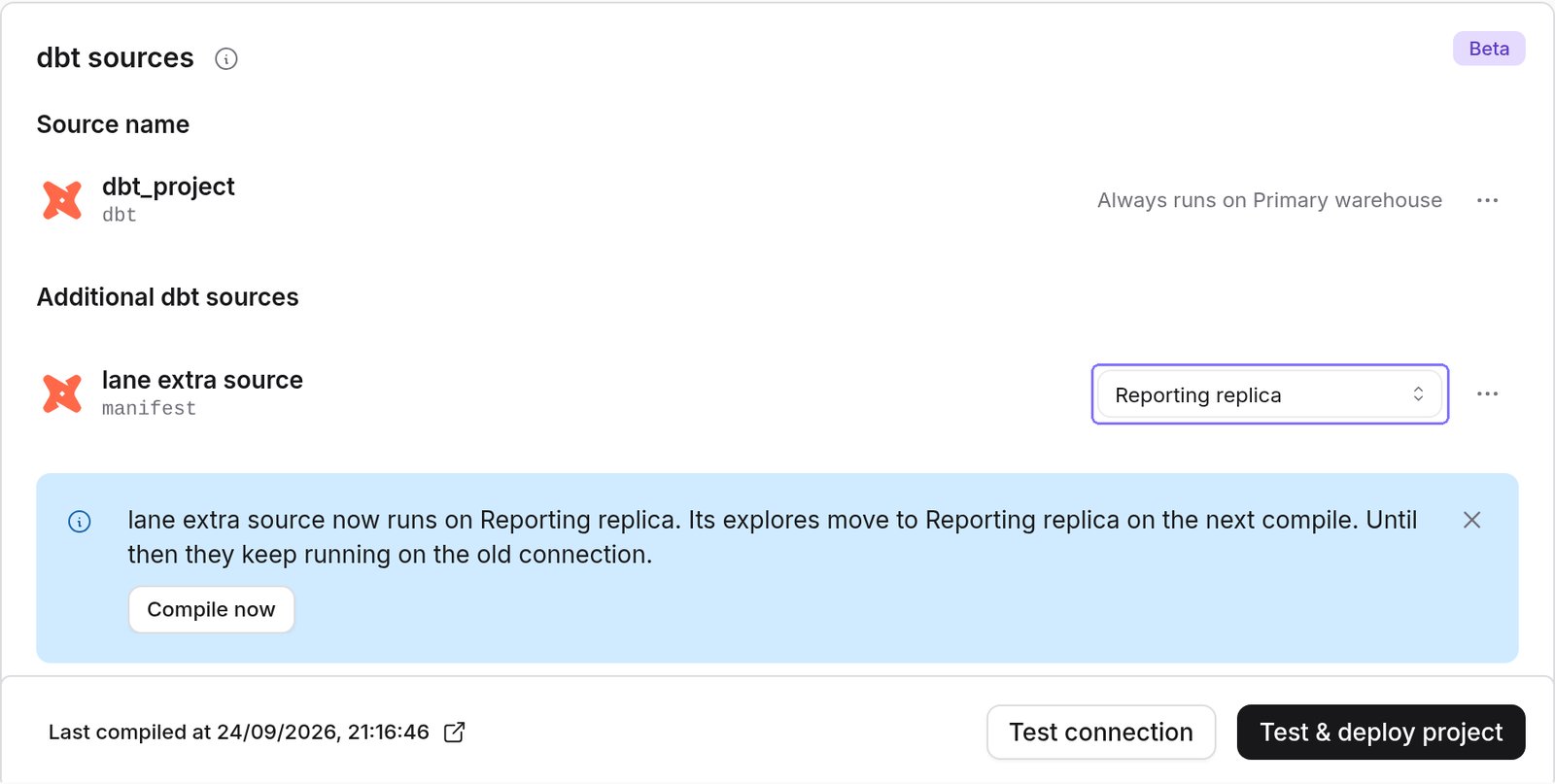 Two connections can't produce explores with the same name. If they do, the compile fails and names both connections.
## Query a connection in the SQL runner
Two connections can't produce explores with the same name. If they do, the compile fails and names both connections.
## Query a connection in the SQL runner
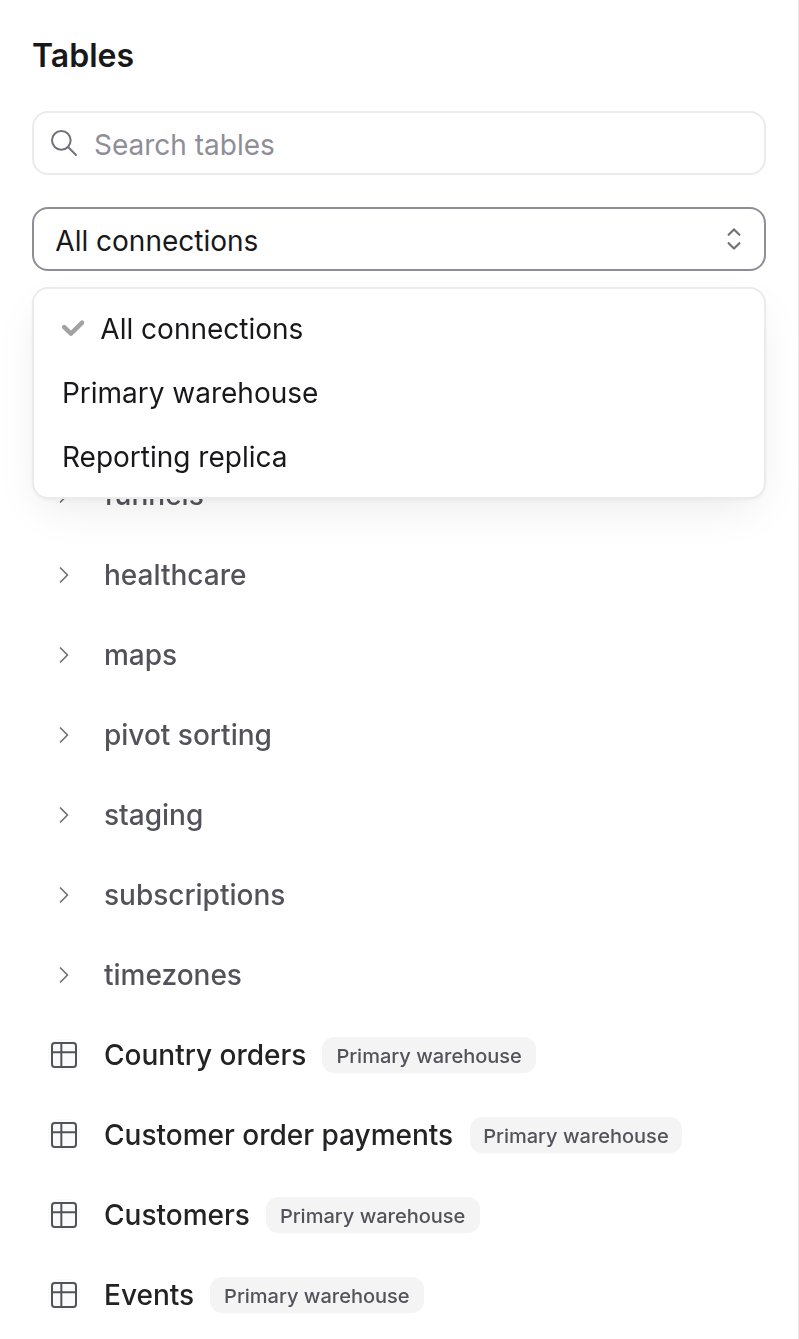
 Queries, saved charts and virtual views use the active connection. The SQL runner remembers your last connection for each project in this browser. Share links keep their connection, and **Open in SQL Runner** from an explore opens on that explore's connection.
To move a SQL chart, open it, pick the other connection and save. Run it first to check that the SQL works there. A virtual view can't move, so create a new one on the other connection.
## Explores, charts and dashboards
Queries, saved charts and virtual views use the active connection. The SQL runner remembers your last connection for each project in this browser. Share links keep their connection, and **Open in SQL Runner** from an explore opens on that explore's connection.
To move a SQL chart, open it, pick the other connection and save. Run it first to check that the SQL works there. A virtual view can't move, so create a new one on the other connection.
## Explores, charts and dashboards
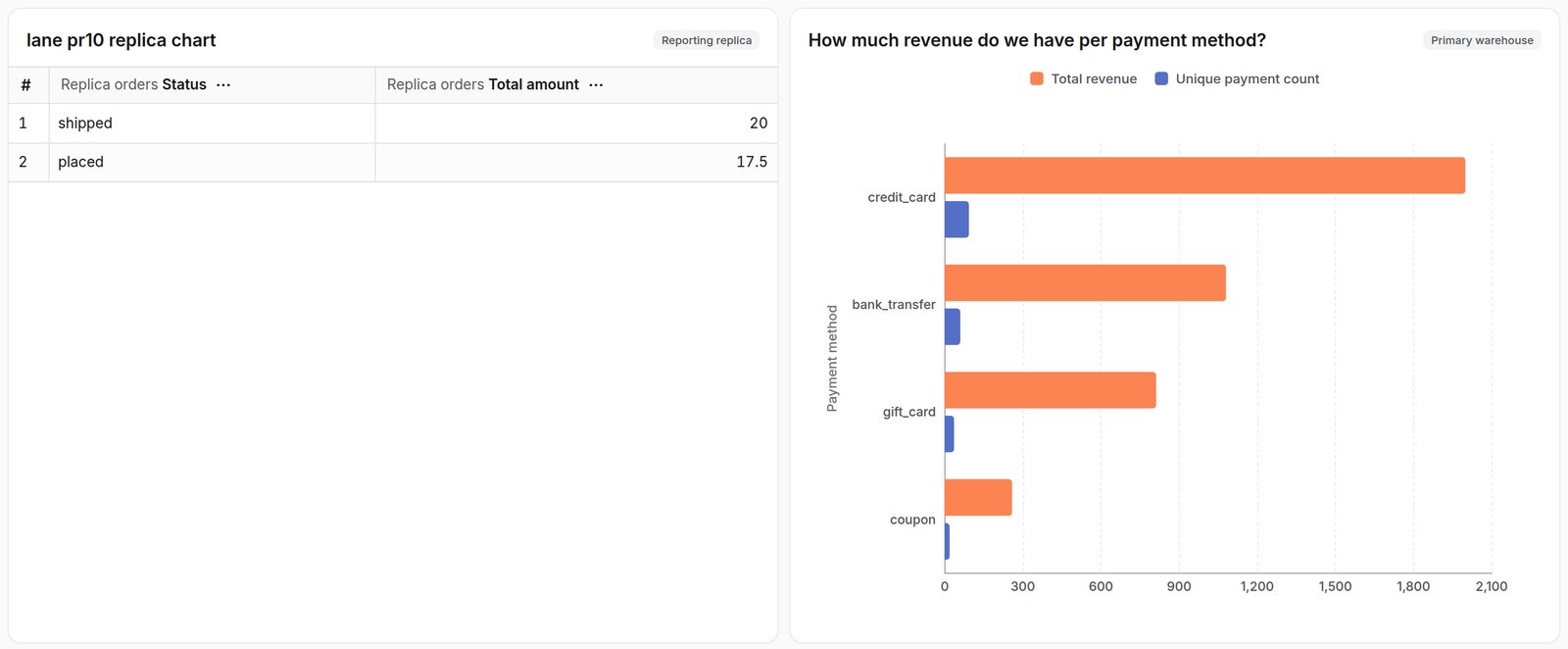
 A dashboard can mix connections. Each tile, with its underlying data, downloads and scheduled deliveries, runs on the tile's own connection. Embedded dashboards run the same way without the connection badges.
 ## Personal warehouse credentials
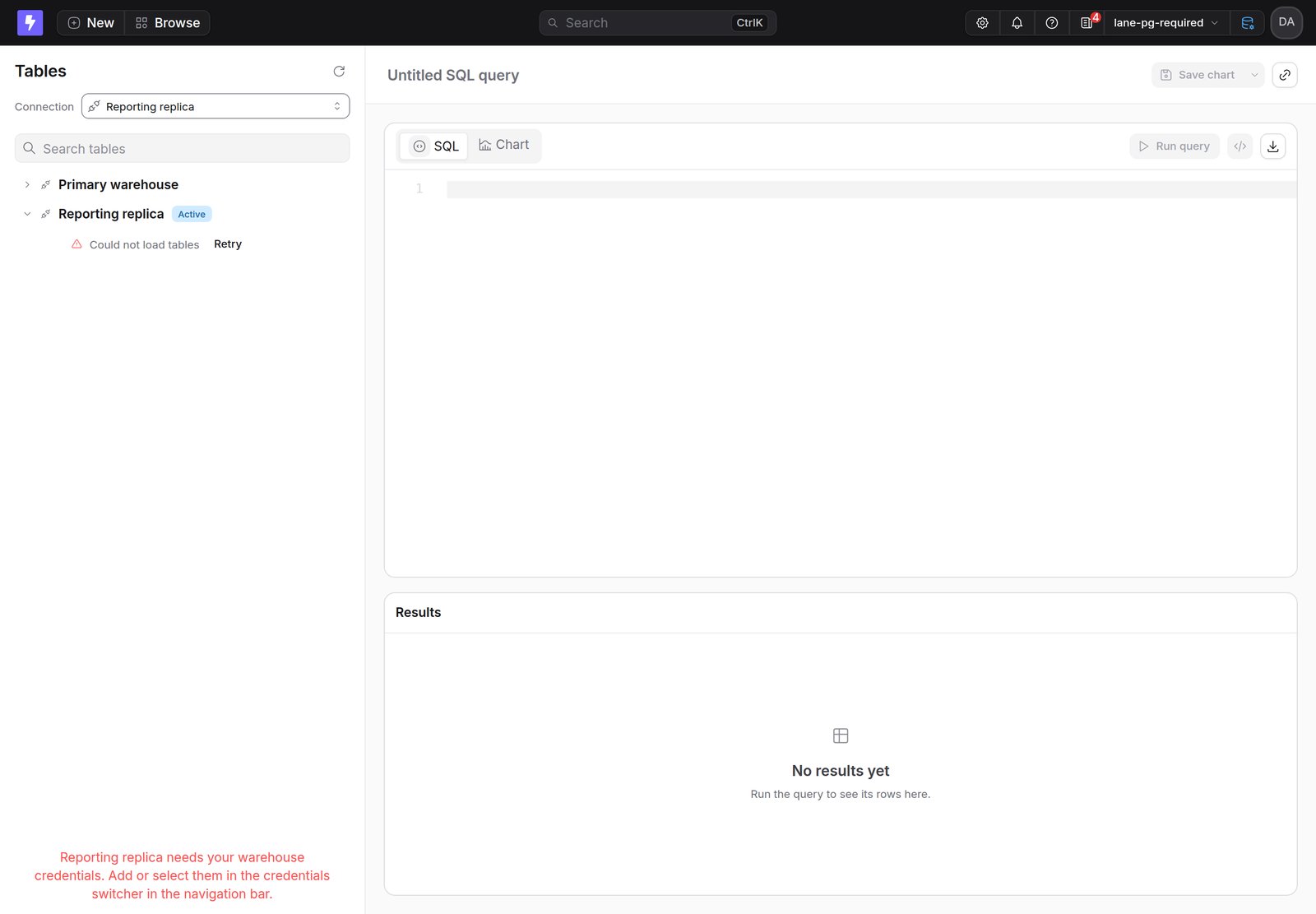
Extra connections follow the primary's **Require users to provide their own credentials** setting. When it is on, people need [personal credentials](/personal-settings/personal-warehouse-connections) for each connection they query, and the credentials switcher in the navigation bar has one section per connection.
## Personal warehouse credentials
Extra connections follow the primary's **Require users to provide their own credentials** setting. When it is on, people need [personal credentials](/personal-settings/personal-warehouse-connections) for each connection they query, and the credentials switcher in the navigation bar has one section per connection.
 ## Deploy from the CLI
`lightdash deploy` without a source deploys to the primary connection. To deploy explores to an extra connection, name the dbt source that runs there:
```bash theme={null}
lightdash deploy --source "Replica models"
```
The other sources keep their explores. `lightdash preview` and `lightdash start-preview` take the same flag, and [`lightdash config set-source`](/workflow/cli/reference#lightdash-config-set-source) stores a default. The deploy stops if your dbt target's database doesn't match the connection. See the [CLI reference](/workflow/cli/reference#lightdash-deploy).
Preview projects copy every connection, and their explores and SQL charts use the copies.
## Content as code and promotion
SQL charts and virtual views on an extra connection download with the connection's name, for example `connection: Reporting replica`. Content on the primary has no `connection:` field.
An upload can't move content to another connection. A file that names another connection, or drops the field, fails:
```text theme={null}
The connection of SQL chart "" is "" and cannot change on upload. Move it in the SQL runner, then download it again.
```
[Promotion](/explore/promote-content) matches SQL chart connections by name and stops if the upstream project has no connection with that name.
## Remove a connection
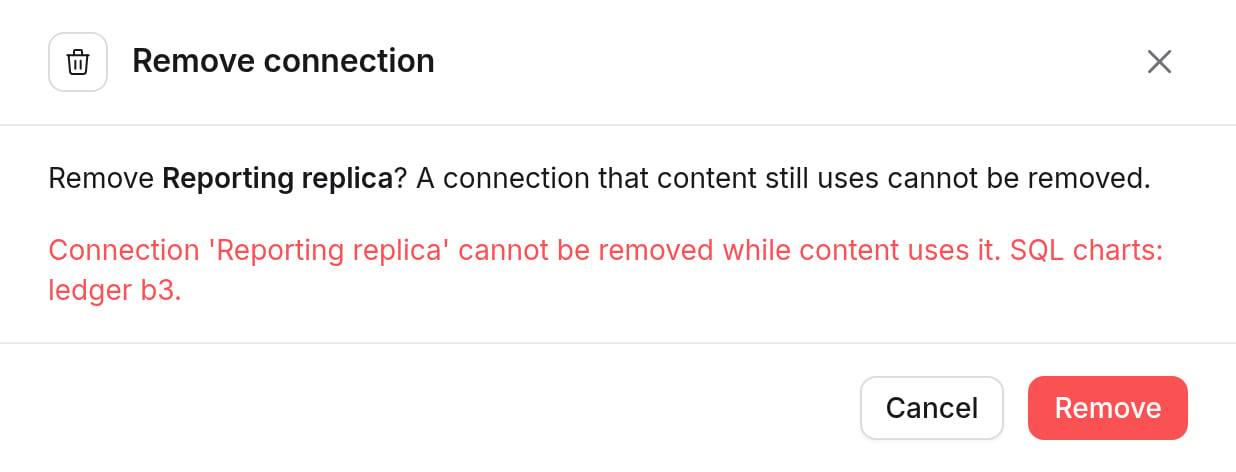
You can remove an extra connection only when no explores, dbt sources, SQL charts or running queries use it. The primary can't be removed. Move that content first, or contact [Lightdash support](mailto:support@lightdash.com) if you can't. When the last extra connection goes, the project works like a single-connection project again.
## Deploy from the CLI
`lightdash deploy` without a source deploys to the primary connection. To deploy explores to an extra connection, name the dbt source that runs there:
```bash theme={null}
lightdash deploy --source "Replica models"
```
The other sources keep their explores. `lightdash preview` and `lightdash start-preview` take the same flag, and [`lightdash config set-source`](/workflow/cli/reference#lightdash-config-set-source) stores a default. The deploy stops if your dbt target's database doesn't match the connection. See the [CLI reference](/workflow/cli/reference#lightdash-deploy).
Preview projects copy every connection, and their explores and SQL charts use the copies.
## Content as code and promotion
SQL charts and virtual views on an extra connection download with the connection's name, for example `connection: Reporting replica`. Content on the primary has no `connection:` field.
An upload can't move content to another connection. A file that names another connection, or drops the field, fails:
```text theme={null}
The connection of SQL chart "" is "" and cannot change on upload. Move it in the SQL runner, then download it again.
```
[Promotion](/explore/promote-content) matches SQL chart connections by name and stops if the upstream project has no connection with that name.
## Remove a connection
You can remove an extra connection only when no explores, dbt sources, SQL charts or running queries use it. The primary can't be removed. Move that content first, or contact [Lightdash support](mailto:support@lightdash.com) if you can't. When the last extra connection goes, the project works like a single-connection project again.
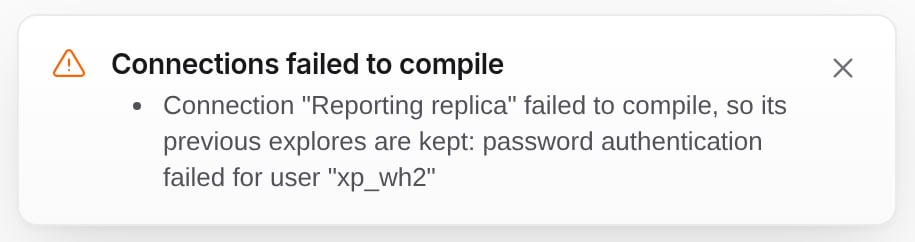
 If an extra connection fails during a compile, its explores stay as they were and a warning names the connection. If the primary fails, the compile fails as usual.