> ## Documentation Index
> Fetch the complete documentation index at: https://docs.lightdash.com/llms.txt
> Use this file to discover all available pages before exploring further.
# Direct access
> Share individual dashboards, charts, and data apps with project members
Enterprise Direct access must be enabled for your organization. Recipients must be active members of the organization with access to the project.
Direct access lets you share individual content with users or groups without sharing its containing space. Use it when someone needs one dashboard, chart, or data app from a restricted space.
This page covers [sharing and revoking access](#manage-direct-access), [roles](#how-roles-combine), [content boundaries](#what-a-grant-covers), [discovery](#find-shared-content), and [access after content or membership changes](#content-and-membership-changes). For automation, see the [access API](#access-api) and [content-as-code](/workflow/content-as-code#direct-access-to-content).
## Manage direct access
You need effective **Full access** to the content to manage its direct assignments. This can come from an organization, project, space, or direct content role. A personal data app's creator can also manage its sharing. **Can edit** alone does not let you manage sharing.
1. Open the dashboard, independently saved chart, saved SQL chart, or data app and select **Share**. On a dashboard, open the three-dot menu (`…`) to find it.
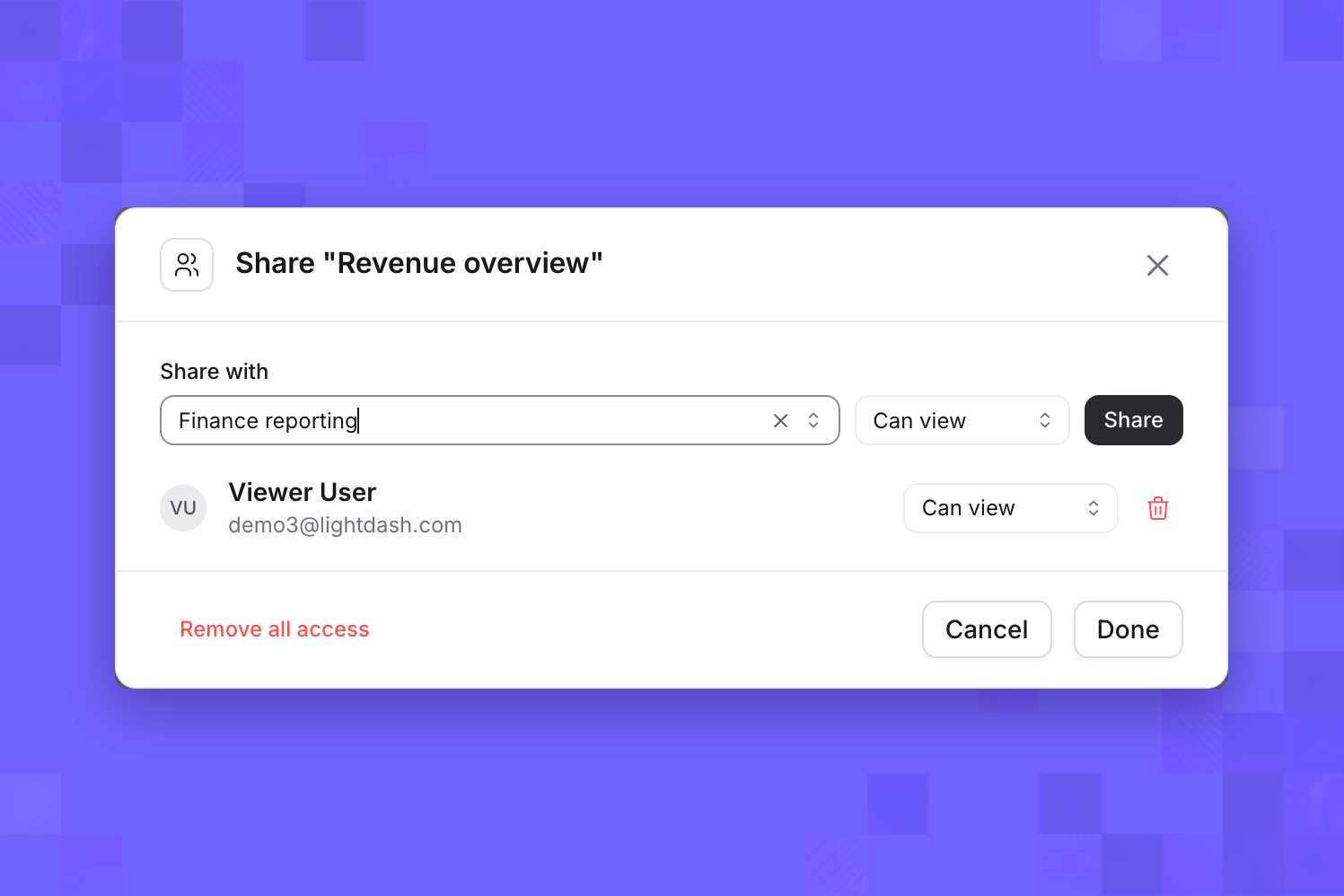
2. In **Share with**, select a user or group. Users must already have project access; groups must have access to the project.
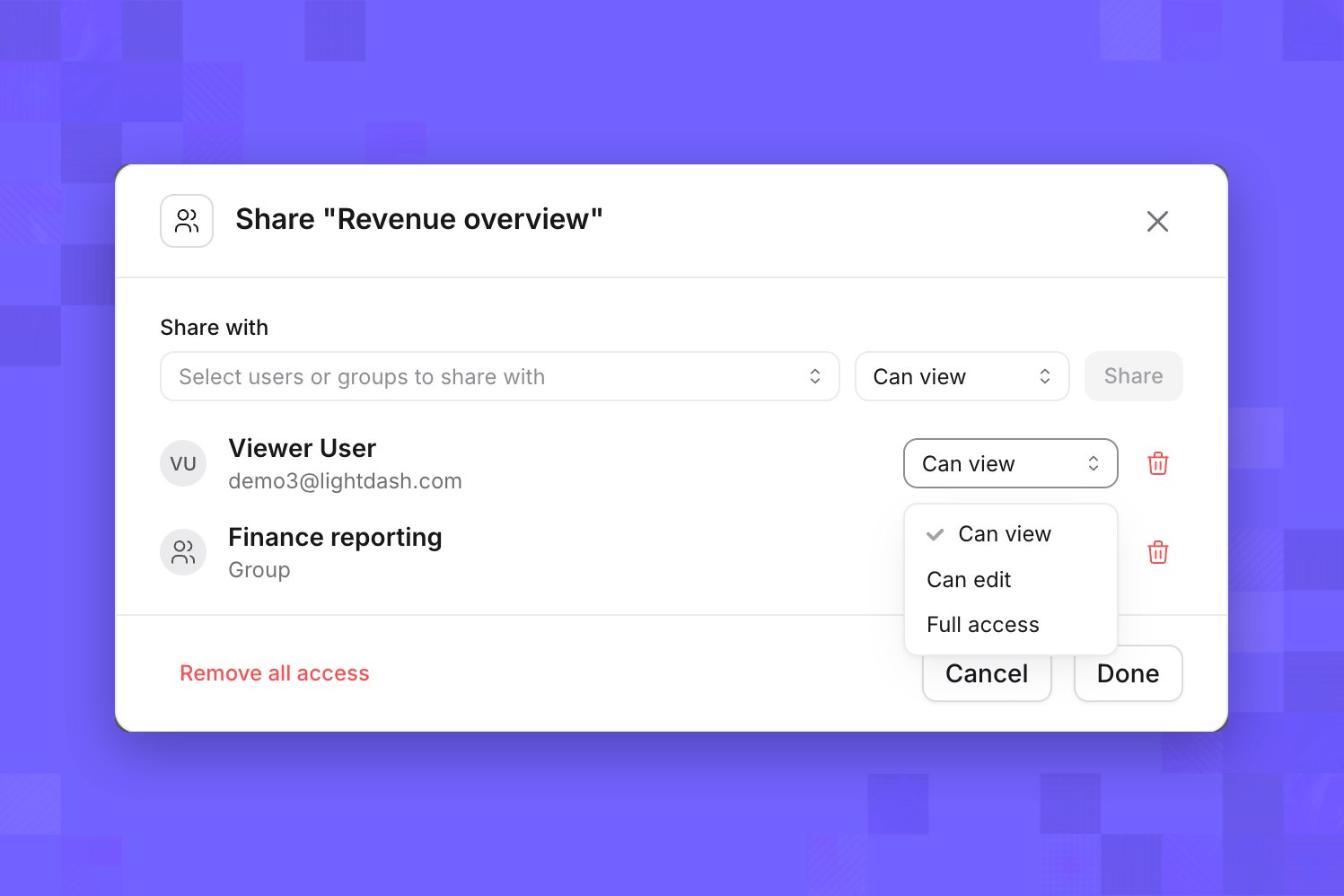
3. Choose **Can view**, **Can edit**, or **Full access**, then click **Share**.
4. Send the recipient the content's URL, or direct them to **Shared with me**.
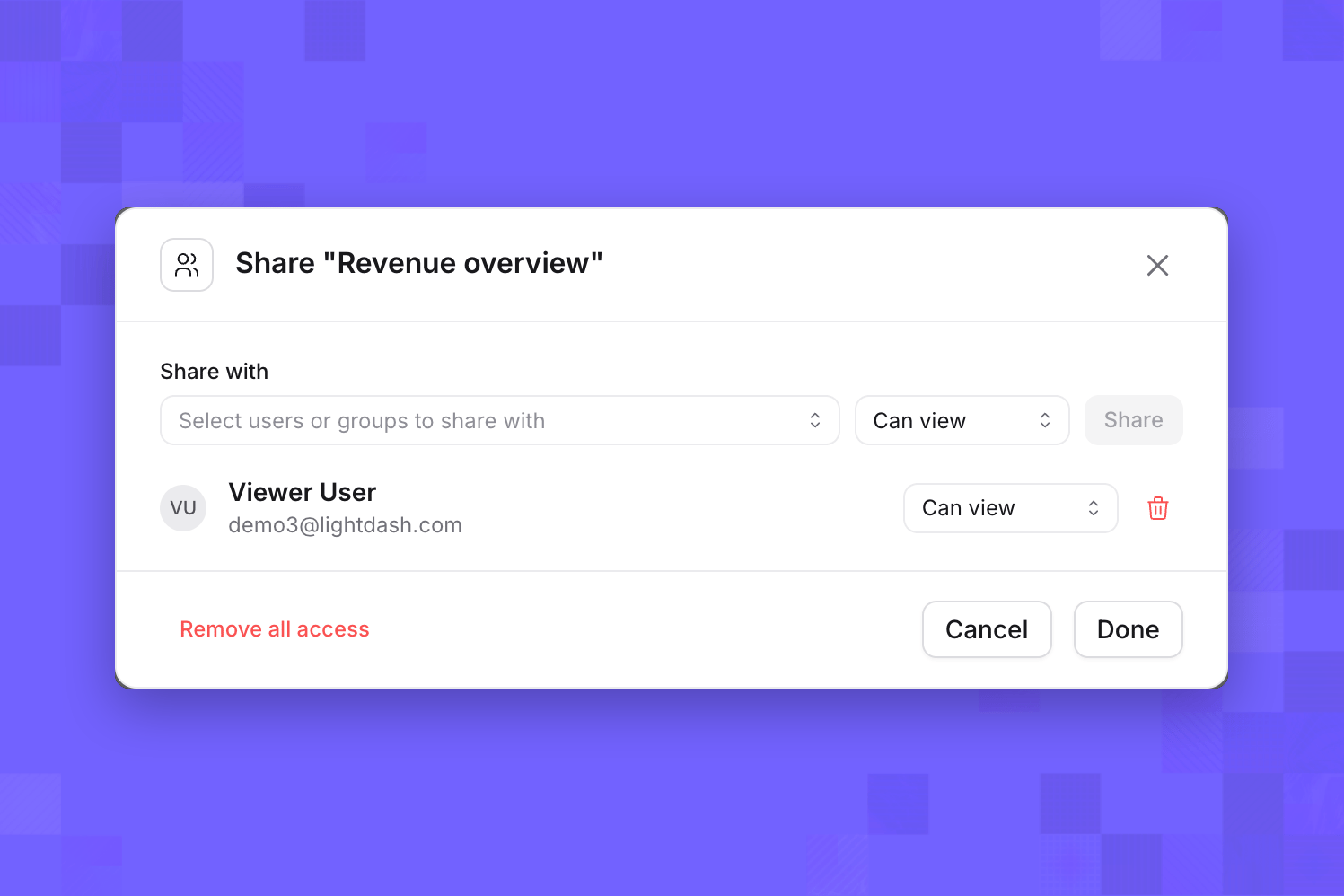 To share with a group, select it in **Share with** and click **Share** with the appropriate role.
 ### Change a role
To change an assignment, choose another role beside the user or group. Changes are saved as you make them; **Done** closes the dialog.
### Change a role
To change an assignment, choose another role beside the user or group. Changes are saved as you make them; **Done** closes the dialog.
 ### Revoke access
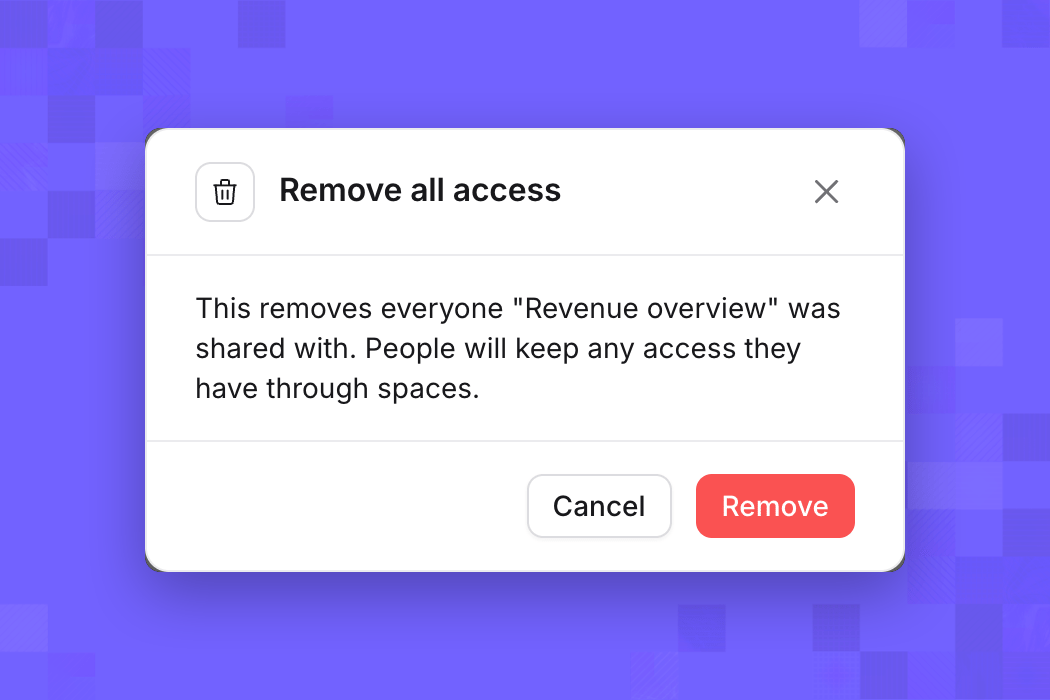
To revoke one assignment, click its **Remove access** trash icon. **Remove all access** removes all direct assignments on this item. Removing your own assignment or all assignments asks for confirmation because you may lose access yourself.
### Revoke access
To revoke one assignment, click its **Remove access** trash icon. **Remove all access** removes all direct assignments on this item. Removing your own assignment or all assignments asks for confirmation because you may lose access yourself.
 The Share dialog lists direct assignments, not everyone who can access the content. Removing an assignment leaves any access the recipient has through another user, group, space, project, or organization role.
## How roles combine
Direct roles add access to one item. They do not reduce permissions from another source or change the user's project role.
| Direct role | Content access |
| --------------- | ------------------------------------------------------------------------------------------- |
| **Can view** | View and interact with the item, subject to the user's project permissions. |
| **Can edit** | View and edit the item, subject to the user's project permissions. |
| **Full access** | Edit the item and manage its direct assignments, subject to the user's project permissions. |
Lightdash combines applicable inherited access, direct user assignments, and direct group assignments. The highest applicable content role wins. For example, a user with **Can view** directly and **Can edit** through a group can edit. Removing the user assignment does not remove their group access.
A content role does not supply missing project capabilities. For example, granting **Can edit** to a project Viewer does not give them access to the Explore view. Custom roles, data permissions, user attributes, and row-level filters still apply. See [roles and permissions](/workspace-admin/roles) for project capabilities.
## What a grant covers
| Content | Boundary |
| --------------------------------- | ------------------------------------------------------------------------------------------------------------- |
| Dashboard | The dashboard and charts saved directly to that dashboard. Manage those charts' access through the dashboard. |
| Independently saved Explore chart | That chart, without granting access to its containing space or other charts. |
| Independently saved SQL chart | That SQL chart. SQL charts owned by a dashboard follow the dashboard's access. |
| Personal or space-backed data app | That app. Queries still run with the viewer's permissions; linked content retains its own checks. |
For example, a **Revenue overview** dashboard in a restricted **Finance** space contains an owned revenue chart and a reusable **Customer detail** chart saved separately. Sharing the dashboard lets the recipient view the dashboard and its owned chart. They still need separate access to **Customer detail**. They cannot browse Finance or open its other dashboards through this grant.
A dashboard grant does not grant access to independent saved charts, saved SQL charts, data apps, or external connections referenced by its tiles. Share independent content separately and check its prerequisites. Direct access also does not expand the data a user can query.
## Find shared content
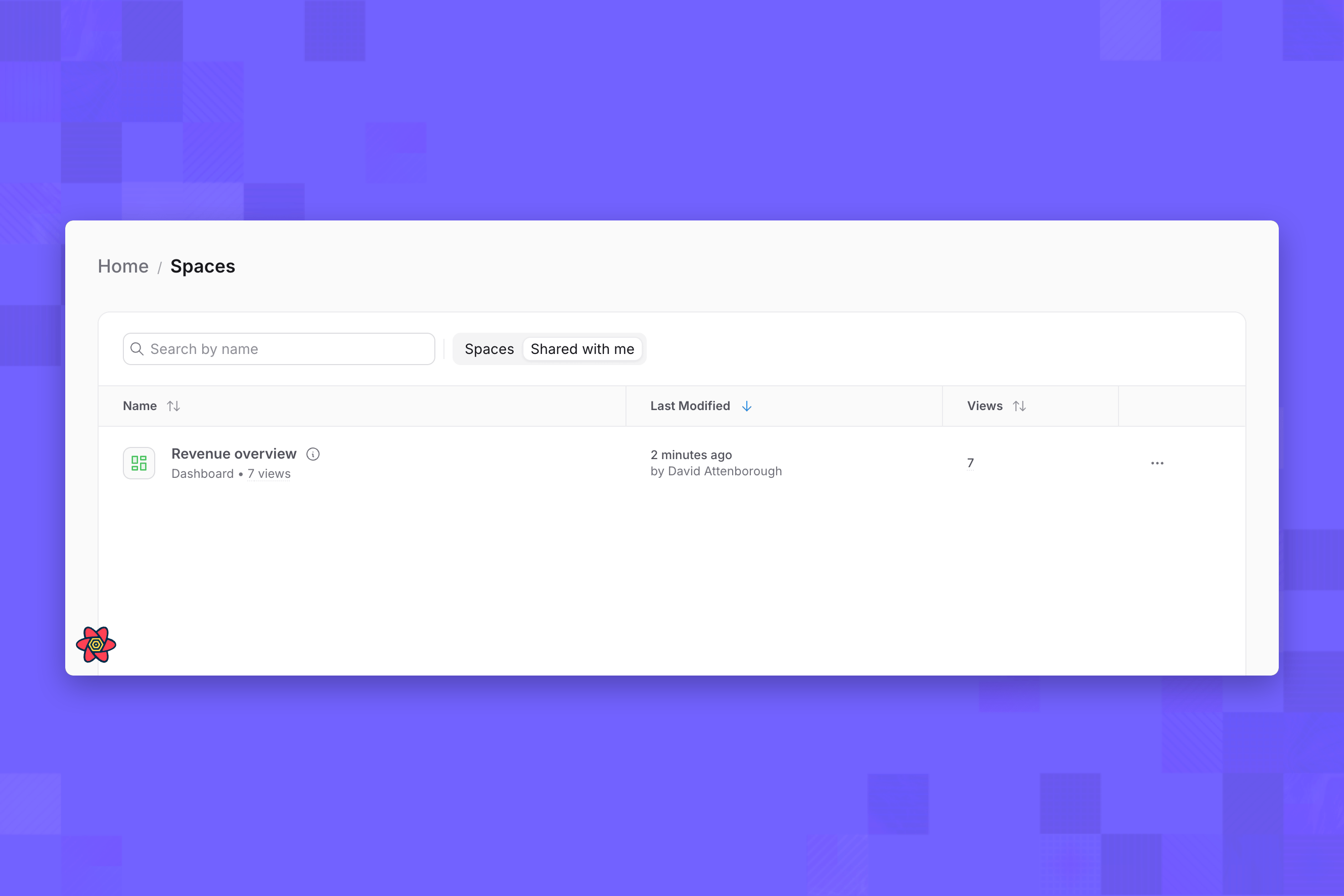
Open the project's spaces page and select **Shared with me** to find content shared directly with you or one of your groups. You can also open a direct URL. Search includes directly accessible content among its supported result types; it does not make unrelated content in a restricted space accessible.
The Share dialog lists direct assignments, not everyone who can access the content. Removing an assignment leaves any access the recipient has through another user, group, space, project, or organization role.
## How roles combine
Direct roles add access to one item. They do not reduce permissions from another source or change the user's project role.
| Direct role | Content access |
| --------------- | ------------------------------------------------------------------------------------------- |
| **Can view** | View and interact with the item, subject to the user's project permissions. |
| **Can edit** | View and edit the item, subject to the user's project permissions. |
| **Full access** | Edit the item and manage its direct assignments, subject to the user's project permissions. |
Lightdash combines applicable inherited access, direct user assignments, and direct group assignments. The highest applicable content role wins. For example, a user with **Can view** directly and **Can edit** through a group can edit. Removing the user assignment does not remove their group access.
A content role does not supply missing project capabilities. For example, granting **Can edit** to a project Viewer does not give them access to the Explore view. Custom roles, data permissions, user attributes, and row-level filters still apply. See [roles and permissions](/workspace-admin/roles) for project capabilities.
## What a grant covers
| Content | Boundary |
| --------------------------------- | ------------------------------------------------------------------------------------------------------------- |
| Dashboard | The dashboard and charts saved directly to that dashboard. Manage those charts' access through the dashboard. |
| Independently saved Explore chart | That chart, without granting access to its containing space or other charts. |
| Independently saved SQL chart | That SQL chart. SQL charts owned by a dashboard follow the dashboard's access. |
| Personal or space-backed data app | That app. Queries still run with the viewer's permissions; linked content retains its own checks. |
For example, a **Revenue overview** dashboard in a restricted **Finance** space contains an owned revenue chart and a reusable **Customer detail** chart saved separately. Sharing the dashboard lets the recipient view the dashboard and its owned chart. They still need separate access to **Customer detail**. They cannot browse Finance or open its other dashboards through this grant.
A dashboard grant does not grant access to independent saved charts, saved SQL charts, data apps, or external connections referenced by its tiles. Share independent content separately and check its prerequisites. Direct access also does not expand the data a user can query.
## Find shared content
Open the project's spaces page and select **Shared with me** to find content shared directly with you or one of your groups. You can also open a direct URL. Search includes directly accessible content among its supported result types; it does not make unrelated content in a restricted space accessible.
 The containing space remains restricted. A direct grant does not let you browse that space, change its settings, or discover its sibling content. Use the shared item itself as your entry point.
## Content and membership changes
| Change | Effect on access |
| ------------------------------------------ | --------------------------------------------------------------------------------------------------------------------------------------------------------------------------------------------------------------------------- |
| Move an item | Direct assignments stay with the item. Its inherited access follows its destination. Moving space-backed content requires the relevant source and destination space permissions; a direct grant alone does not supply them. |
| Duplicate an item | The copy is separate content. Review and configure its sharing; direct assignments on the source are not a sharing policy for the copy. Copying content out of a dashboard can require source-space access. |
| Promote content | Check permissions in the destination project and review the destination item's sharing. A grant in the source project does not confer access to the destination project. |
| Soft delete and restore | Deleted content is unavailable. Where restore is supported, stored assignments can apply again after restoration, subject to current membership and access checks. |
| Permanently delete | The item's direct assignments are removed with it. |
| Change group membership | Group access applies only while the user belongs to the group and the group has project access. Other applicable assignments can still provide access. |
| Remove project access or deactivate a user | Stored direct assignments do not bypass the requirement for active organization and project membership. |
| Revoke an assignment | That assignment stops granting access. Other applicable assignments and inherited roles continue to apply. |
For exports and scheduled deliveries, the user's permissions and access to the originating content still apply. A direct role does not grant unrestricted exporting, scheduling, or access to delivery integrations.
## Direct access, public links, and embedding
Direct access is authenticated sharing with existing project members. Copying a URL does not invite someone to the project or make content public.
[Public dashboard links](/explore/dashboards#share-your-dashboard) and [embedding](/embed) use separate access controls. Direct user or group assignments do not authorize an embed JWT; configure embedded access through the embedding settings and token contract.
## Access API
The project-scoped v2 API manages the same direct assignments as the Share dialog. It requires permission to manage direct access on the target item, including when listing assignments.
The base path is:
```text theme={null}
/api/v2/projects/{projectUuid}/direct-access/{resourceType}/{resourceUuid}/assignments
```
Use `dashboard`, `chart`, `sqlChart`, or `app` for `resourceType`.
| Request | Operation |
| ------------------------------------------------------- | ------------------------------------------------------------------------------- |
| `GET` base path | List stored direct assignments. Inherited and effective roles are not included. |
| `PUT` base path + `/{principalType}/{principalUuid}` | Create or replace one assignment with a JSON body such as `{"role":"viewer"}`. |
| `DELETE` base path + `/{principalType}/{principalUuid}` | Revoke one assignment. An absent assignment is a successful no-op. |
| `DELETE` base path | Remove all direct assignments for the item. |
`principalType` is `user` or `group`; `principalUuid` identifies an existing eligible user or group. API roles are `viewer`, `editor`, and `admin`, corresponding to the three roles above. Requests do not create project membership.
## Troubleshoot access
If someone cannot open shared content, check that direct access is available, their account is active, and they still have project access. For a group assignment, check both their group membership and the group's project access. For a failed tile or linked query, check the independent dependency's access too.
If someone can view but cannot edit, export, schedule, or move content, check their project capabilities and any source or destination space requirements. **Full access** to an item does not make them a project or space administrator.
If someone still has access after you remove an assignment, check their other groups and inherited permissions. Direct access is additive; removing one path does not remove the others.
The containing space remains restricted. A direct grant does not let you browse that space, change its settings, or discover its sibling content. Use the shared item itself as your entry point.
## Content and membership changes
| Change | Effect on access |
| ------------------------------------------ | --------------------------------------------------------------------------------------------------------------------------------------------------------------------------------------------------------------------------- |
| Move an item | Direct assignments stay with the item. Its inherited access follows its destination. Moving space-backed content requires the relevant source and destination space permissions; a direct grant alone does not supply them. |
| Duplicate an item | The copy is separate content. Review and configure its sharing; direct assignments on the source are not a sharing policy for the copy. Copying content out of a dashboard can require source-space access. |
| Promote content | Check permissions in the destination project and review the destination item's sharing. A grant in the source project does not confer access to the destination project. |
| Soft delete and restore | Deleted content is unavailable. Where restore is supported, stored assignments can apply again after restoration, subject to current membership and access checks. |
| Permanently delete | The item's direct assignments are removed with it. |
| Change group membership | Group access applies only while the user belongs to the group and the group has project access. Other applicable assignments can still provide access. |
| Remove project access or deactivate a user | Stored direct assignments do not bypass the requirement for active organization and project membership. |
| Revoke an assignment | That assignment stops granting access. Other applicable assignments and inherited roles continue to apply. |
For exports and scheduled deliveries, the user's permissions and access to the originating content still apply. A direct role does not grant unrestricted exporting, scheduling, or access to delivery integrations.
## Direct access, public links, and embedding
Direct access is authenticated sharing with existing project members. Copying a URL does not invite someone to the project or make content public.
[Public dashboard links](/explore/dashboards#share-your-dashboard) and [embedding](/embed) use separate access controls. Direct user or group assignments do not authorize an embed JWT; configure embedded access through the embedding settings and token contract.
## Access API
The project-scoped v2 API manages the same direct assignments as the Share dialog. It requires permission to manage direct access on the target item, including when listing assignments.
The base path is:
```text theme={null}
/api/v2/projects/{projectUuid}/direct-access/{resourceType}/{resourceUuid}/assignments
```
Use `dashboard`, `chart`, `sqlChart`, or `app` for `resourceType`.
| Request | Operation |
| ------------------------------------------------------- | ------------------------------------------------------------------------------- |
| `GET` base path | List stored direct assignments. Inherited and effective roles are not included. |
| `PUT` base path + `/{principalType}/{principalUuid}` | Create or replace one assignment with a JSON body such as `{"role":"viewer"}`. |
| `DELETE` base path + `/{principalType}/{principalUuid}` | Revoke one assignment. An absent assignment is a successful no-op. |
| `DELETE` base path | Remove all direct assignments for the item. |
`principalType` is `user` or `group`; `principalUuid` identifies an existing eligible user or group. API roles are `viewer`, `editor`, and `admin`, corresponding to the three roles above. Requests do not create project membership.
## Troubleshoot access
If someone cannot open shared content, check that direct access is available, their account is active, and they still have project access. For a group assignment, check both their group membership and the group's project access. For a failed tile or linked query, check the independent dependency's access too.
If someone can view but cannot edit, export, schedule, or move content, check their project capabilities and any source or destination space requirements. **Full access** to an item does not make them a project or space administrator.
If someone still has access after you remove an assignment, check their other groups and inherited permissions. Direct access is additive; removing one path does not remove the others.