> ## Documentation Index
> Fetch the complete documentation index at: https://docs.lightdash.com/llms.txt
> Use this file to discover all available pages before exploring further.
# Support access
> Impersonate a user to reproduce an issue, and control whether the Lightdash support team can do the same
Reproducing a user-specific problem — a permissions gap, missing data, a UI issue only one person sees — usually means seeing Lightdash as that user. Impersonation does that without needing their credentials.
There are two separate consents: your own organization admins impersonating your users, and the Lightdash support team impersonating them. Each is controlled independently, and both are off until someone turns them on.
## How impersonation works
When a user is impersonated:
* The impersonator sees Lightdash exactly as that user sees it, including their permissions, spaces, and data access.
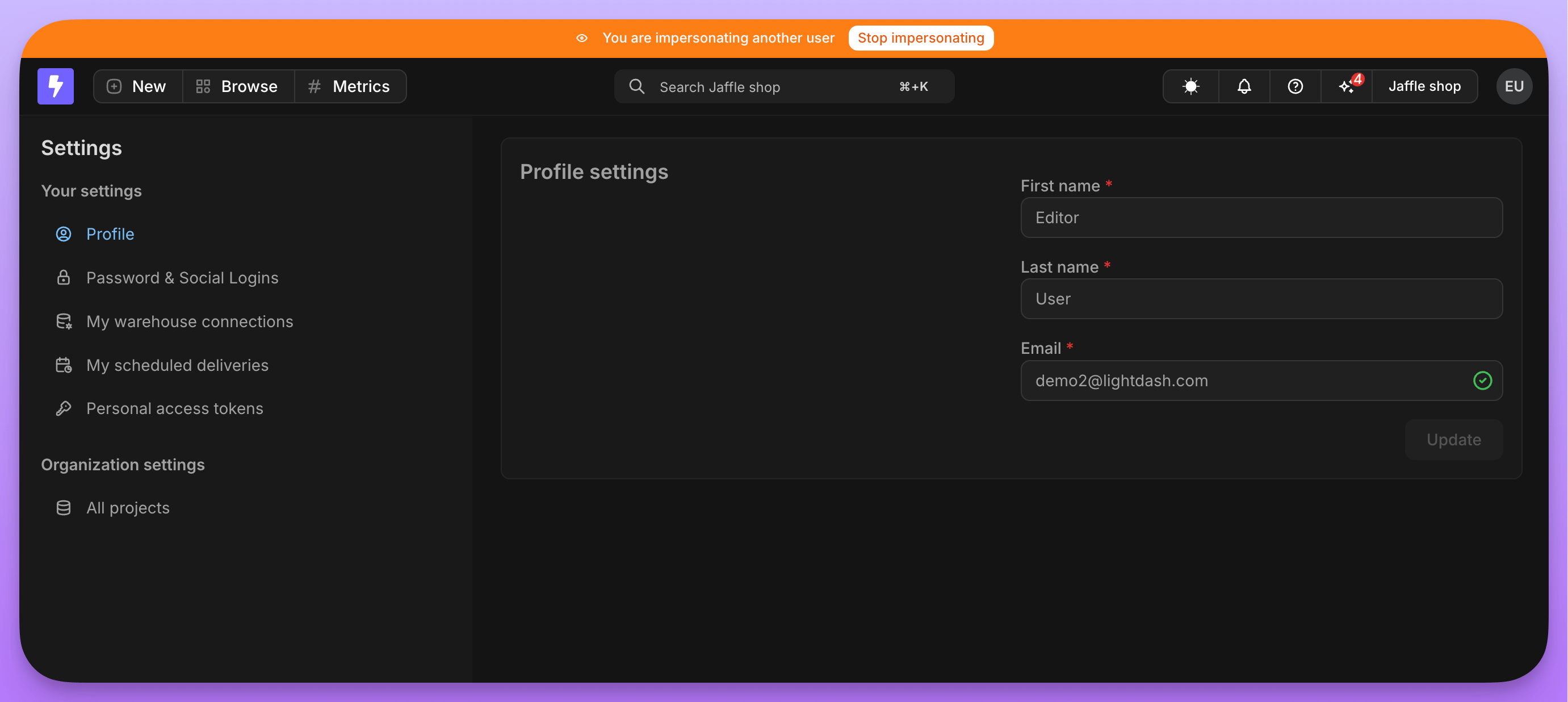
* A banner appears at the top of the screen indicating an impersonation session is active.
* Each session has a hard limit of **15 minutes**, after which it ends automatically.
* The impersonator can stop at any time from the banner.
Every impersonation session is audit-logged and time-limited: Lightdash records when the session starts and ends, and each request made during it carries both the impersonating user's `userUuid` and the impersonated user's `userUuid`.
If the project requires users to provide their own [personal warehouse credentials](/personal-settings/personal-warehouse-connections), queries run with the impersonated user's credentials, including SSO-backed credentials.
## Impersonation by your admins
Impersonation by organization admins is behind a feature flag. [Contact support](mailto:support@lightdash.com) to enable it for your organization.
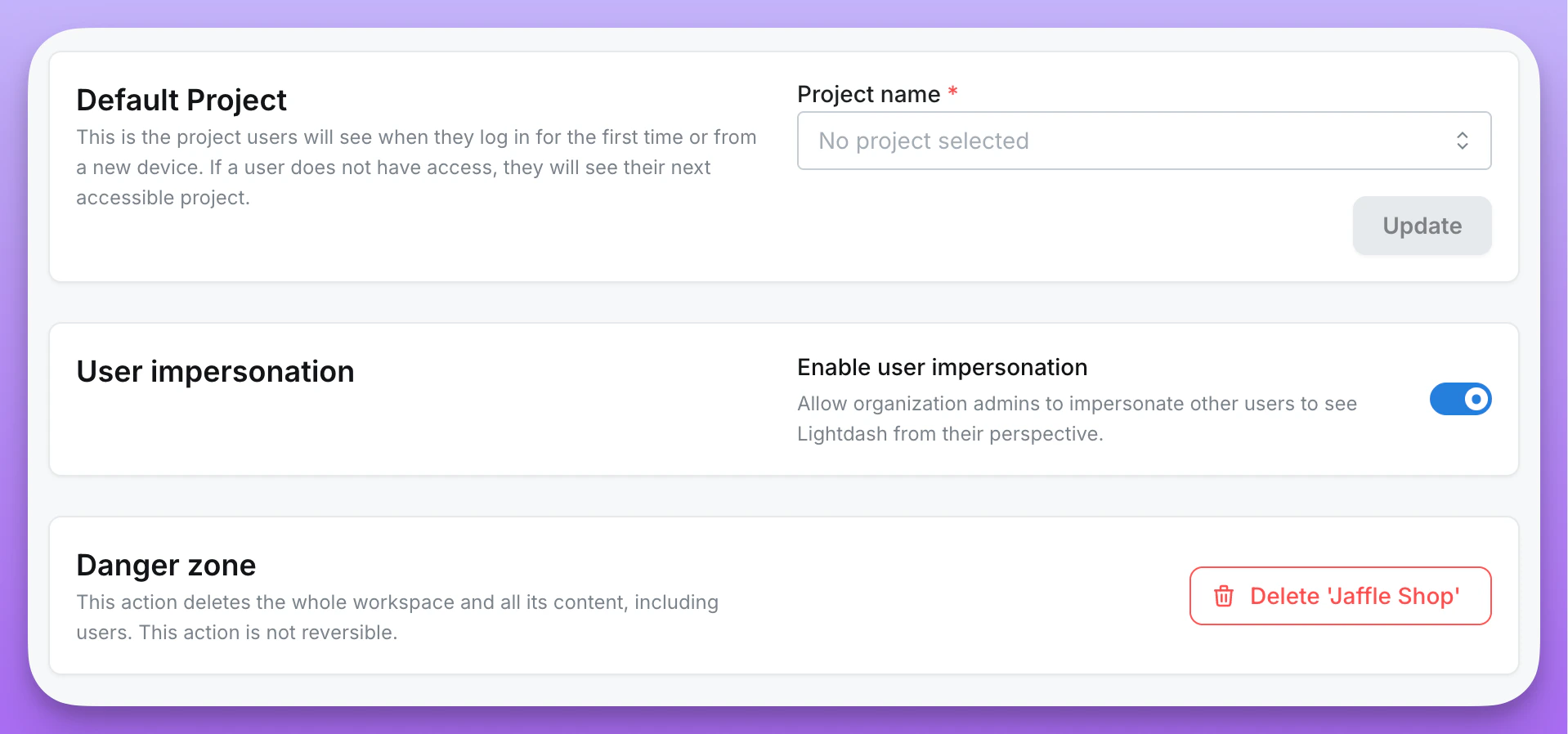
Only **organization admins** can impersonate other users, and only users inside their own organization. Once the feature is available, admins enable it from the organization settings and can turn it off at any time.
 ### Starting a session
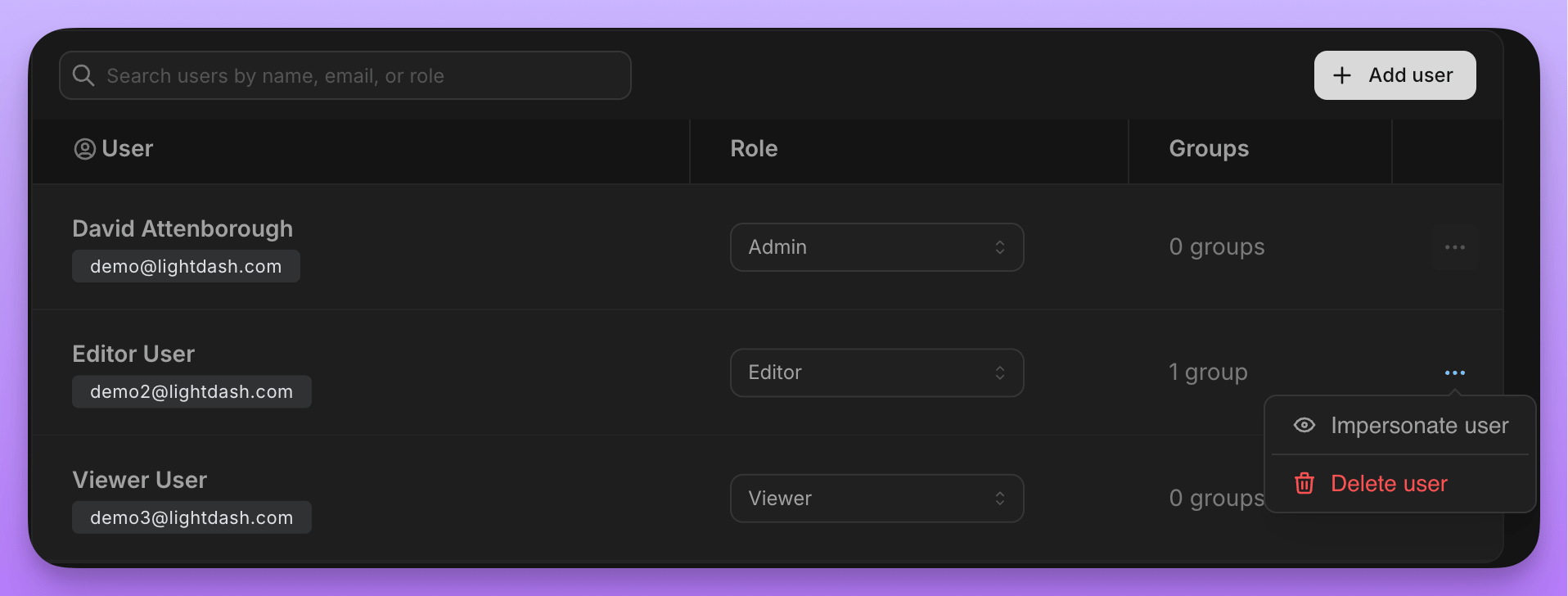
1. Go to **Settings** → **Users & Groups**.
2. Find the user you want to impersonate.
3. Click the **...** menu next to their name.
4. Select **Impersonate user**.
### Starting a session
1. Go to **Settings** → **Users & Groups**.
2. Find the user you want to impersonate.
3. Click the **...** menu next to their name.
4. Select **Impersonate user**.
 You switch immediately to viewing Lightdash as that user, with a banner showing the active session.
 ### Stopping a session
Click **Stop impersonating** in the banner to return to your normal admin view.
## Impersonation by the Lightdash support team
**Lightdash support access** is an organization-wide consent toggle, off by default. Until an admin opts in, the support team cannot impersonate anyone in your organization.
Turn it on when you have an open support ticket and need the team to reproduce a user-specific issue without granting consent each time they investigate. Turn it off once the issue is resolved.
When it is on, support impersonation follows the same mechanics described above. Only **organization admins** can change the setting.
### Enabling support access
1. Go to **Settings** → **General**.
2. Find the **Lightdash support access** card.
3. Switch **Allow Lightdash support to impersonate users** on.
The setting saves immediately. Flip the same switch off to revoke access.
### Stopping a session
Click **Stop impersonating** in the banner to return to your normal admin view.
## Impersonation by the Lightdash support team
**Lightdash support access** is an organization-wide consent toggle, off by default. Until an admin opts in, the support team cannot impersonate anyone in your organization.
Turn it on when you have an open support ticket and need the team to reproduce a user-specific issue without granting consent each time they investigate. Turn it off once the issue is resolved.
When it is on, support impersonation follows the same mechanics described above. Only **organization admins** can change the setting.
### Enabling support access
1. Go to **Settings** → **General**.
2. Find the **Lightdash support access** card.
3. Switch **Allow Lightdash support to impersonate users** on.
The setting saves immediately. Flip the same switch off to revoke access.