> ## Documentation Index
> Fetch the complete documentation index at: https://docs.lightdash.com/llms.txt
> Use this file to discover all available pages before exploring further.
# Configure a Slack integration for self-hosted Lightdash
🛠 This page is for engineering teams self-hosting their own Lightdash instance. If you want to use the Slack integration, go to the [Slack integration](/references/integrations/slack-integration) guide.
In this guide we will show you how you can enable [the Slack integration](/references/integrations/slack-integration) on your on self-hosted Lightdash server.
### Create a new Slack app on your organization
First we will have to create a Slack APP [https://api.slack.com/apps?new\_app=1](https://api.slack.com/apps?new%5Fapp=1)
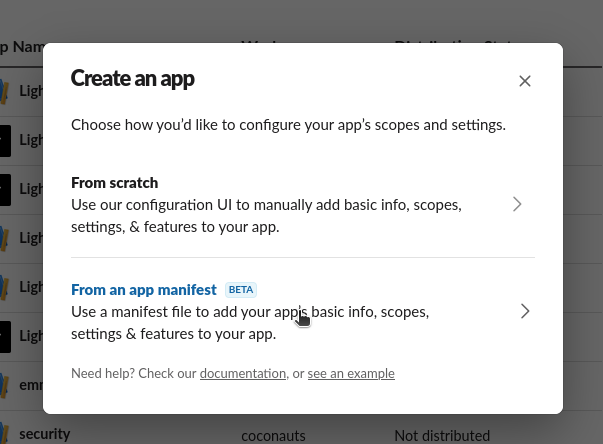
You can select `From an app manifest` to make it easier.
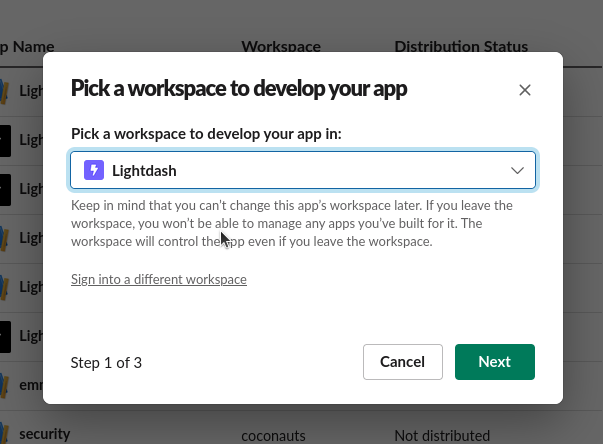
 Then select the workspace you want to enable this into. Later you can `enable distribution` if you want to use a different Slack workspace.
 Then copy this manifest to allow URL unfurls in your app. **Make sure you update `your-lightdash-deployment-url.com` in the manifest below** (for example, `app.lightdash.cloud`).
```json theme={null}
display_information:
name: Lightdash
description: Share Lightdash URLs on your Slack
background_color: '#7262ff'
features:
bot_user:
display_name: Lightdash
always_online: false
unfurl_domains:
- your-lightdash-deployment-url.com
oauth_config:
redirect_urls:
- https://your-lightdash-deployment-url.com/api/v1/slack/oauth_redirect
- https://your-lightdash-deployment-url.com/api/v1/auth/slack/callback
scopes:
bot:
- app_mentions:read
- channels:join
- channels:read
- channels:history
- chat:write
- chat:write.customize
- files:read
- files:write
- groups:read
- groups:history
- links:read
- links:write
- users:read
- im:write
settings:
event_subscriptions:
request_url: https://your-lightdash-deployment-url.com/slack/events
bot_events:
- app_mention
- link_shared
- message.channels
interactivity:
is_enabled: true
request_url: https://your-lightdash-deployment-url.com/slack/events
org_deploy_enabled: false
socket_mode_enabled: false
token_rotation_enabled: false
```
Finally, click on `create`
### Copying credentials
Now copy the following credentials from your new app.
From `Basic Information`
Then copy this manifest to allow URL unfurls in your app. **Make sure you update `your-lightdash-deployment-url.com` in the manifest below** (for example, `app.lightdash.cloud`).
```json theme={null}
display_information:
name: Lightdash
description: Share Lightdash URLs on your Slack
background_color: '#7262ff'
features:
bot_user:
display_name: Lightdash
always_online: false
unfurl_domains:
- your-lightdash-deployment-url.com
oauth_config:
redirect_urls:
- https://your-lightdash-deployment-url.com/api/v1/slack/oauth_redirect
- https://your-lightdash-deployment-url.com/api/v1/auth/slack/callback
scopes:
bot:
- app_mentions:read
- channels:join
- channels:read
- channels:history
- chat:write
- chat:write.customize
- files:read
- files:write
- groups:read
- groups:history
- links:read
- links:write
- users:read
- im:write
settings:
event_subscriptions:
request_url: https://your-lightdash-deployment-url.com/slack/events
bot_events:
- app_mention
- link_shared
- message.channels
interactivity:
is_enabled: true
request_url: https://your-lightdash-deployment-url.com/slack/events
org_deploy_enabled: false
socket_mode_enabled: false
token_rotation_enabled: false
```
Finally, click on `create`
### Copying credentials
Now copy the following credentials from your new app.
From `Basic Information`
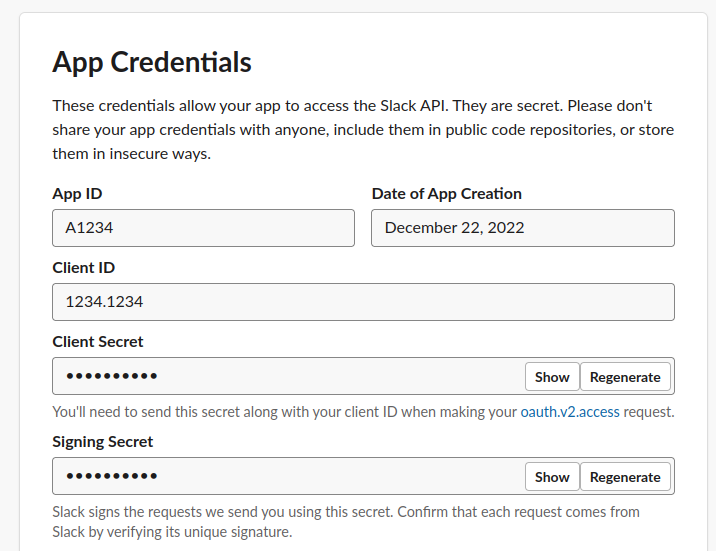 * Client ID
* Client secret (show and copy)
* Signing secret (show and copy)
### Adding credentials to your local environment
Now you need to add the following environment variables to your Lightdash server using the credentials we previously copied
* `SLACK_CLIENT_ID`: Client ID (make sure it is between quotes, so it is a string, not a number)
* `SLACK_CLIENT_SECRET`: Client secret
* `SLACK_SIGNING_SECRET`: Signing secret
* `SLACK_STATE_SECRET`: This can be any string
Restart your Lightdash service, now you should be able to use [the Slack integration](/references/integrations/slack-integration) on your self-hosted Lightdash.
## Enable Socket Mode (Alternative Setup)
Socket Mode allows your Slack app to receive events and interactions over a WebSocket connection instead of HTTP requests. This can be useful for development or when you cannot expose your Lightdash instance to the public internet.
### When to use Socket Mode
* Your Lightdash instance is not publicly accessible
* You're developing or testing the Slack integration locally
### Configuring Socket Mode
#### Step 1: Enable Socket Mode in your Slack App
1. Go to your Slack app settings and navigate to the **Socket Mode** section in the sidebar.
2. Toggle the **Enable Socket Mode** switch to enable it.
* Client ID
* Client secret (show and copy)
* Signing secret (show and copy)
### Adding credentials to your local environment
Now you need to add the following environment variables to your Lightdash server using the credentials we previously copied
* `SLACK_CLIENT_ID`: Client ID (make sure it is between quotes, so it is a string, not a number)
* `SLACK_CLIENT_SECRET`: Client secret
* `SLACK_SIGNING_SECRET`: Signing secret
* `SLACK_STATE_SECRET`: This can be any string
Restart your Lightdash service, now you should be able to use [the Slack integration](/references/integrations/slack-integration) on your self-hosted Lightdash.
## Enable Socket Mode (Alternative Setup)
Socket Mode allows your Slack app to receive events and interactions over a WebSocket connection instead of HTTP requests. This can be useful for development or when you cannot expose your Lightdash instance to the public internet.
### When to use Socket Mode
* Your Lightdash instance is not publicly accessible
* You're developing or testing the Slack integration locally
### Configuring Socket Mode
#### Step 1: Enable Socket Mode in your Slack App
1. Go to your Slack app settings and navigate to the **Socket Mode** section in the sidebar.
2. Toggle the **Enable Socket Mode** switch to enable it.
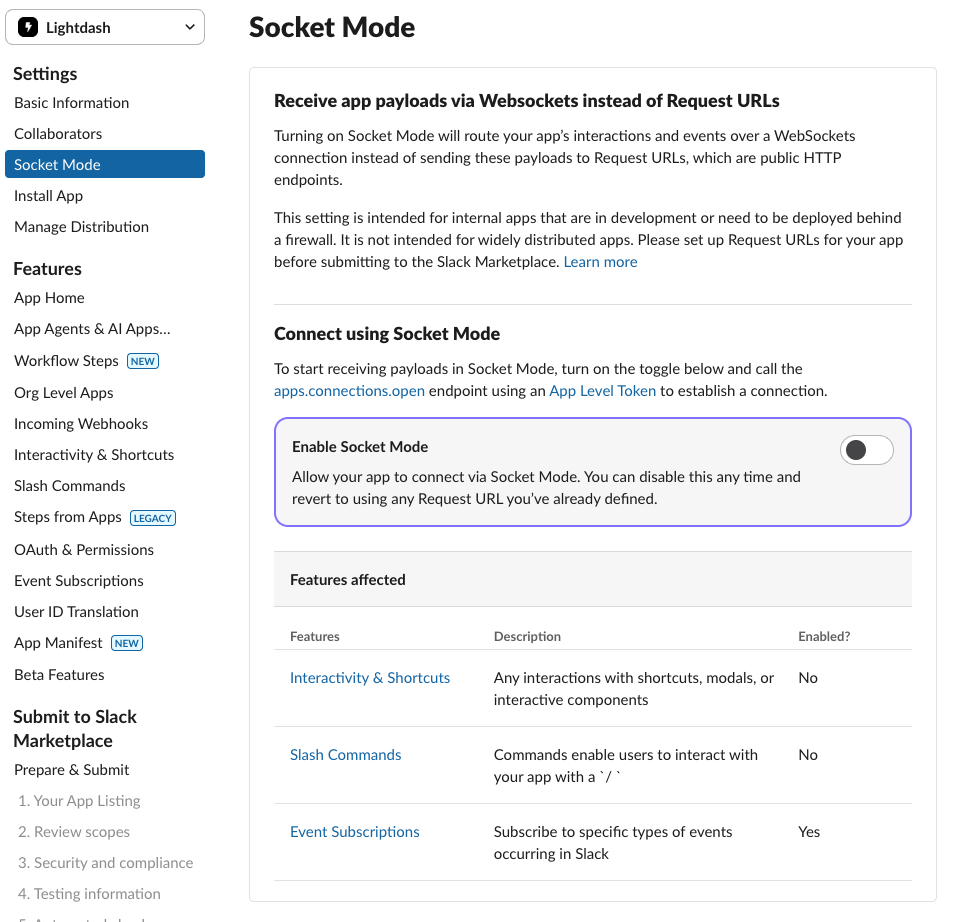 3. After enabling Socket Mode, you'll be prompted to generate an app-level token. Enter a name for your token (e.g., "lightdash-socket-token").
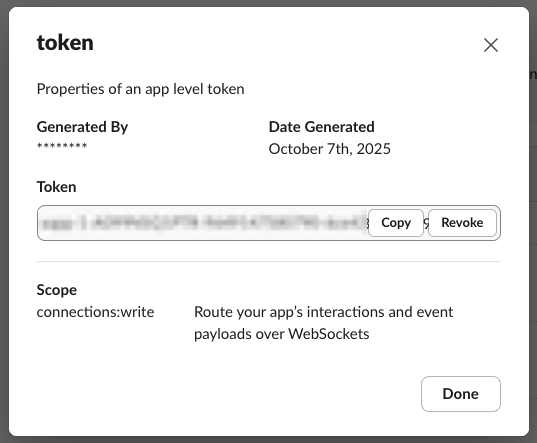
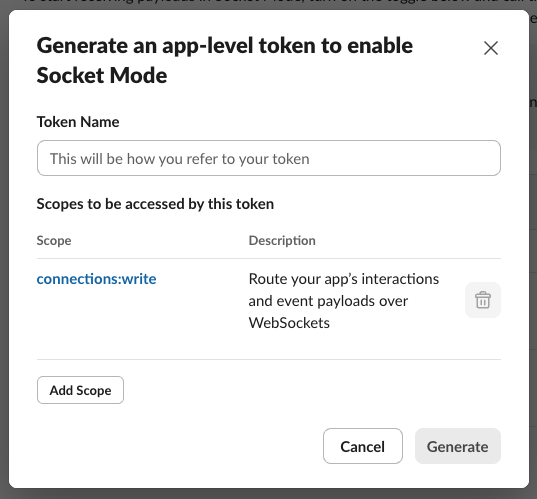 4. Click **Generate** to create the token, then copy the generated token value. You'll need this for the next step.
 #### Step 2: Update Lightdash Environment Variables
Add the following environment variables to your Lightdash server configuration:
* `SLACK_APP_TOKEN`: The app-level token you just generated and copied from Step 1
* `SLACK_SOCKET_MODE`: Set to `"true"` to enable Socket Mode
#### Step 3: Re-install the Slack Integration
After updating your environment variables, restart your Lightdash service, then re-install the Slack integration in your Lightdash instance to complete the Socket Mode setup. Your Slack integration will now use Socket Mode to communicate with Slack instead of HTTP webhooks.
#### Step 2: Update Lightdash Environment Variables
Add the following environment variables to your Lightdash server configuration:
* `SLACK_APP_TOKEN`: The app-level token you just generated and copied from Step 1
* `SLACK_SOCKET_MODE`: Set to `"true"` to enable Socket Mode
#### Step 3: Re-install the Slack Integration
After updating your environment variables, restart your Lightdash service, then re-install the Slack integration in your Lightdash instance to complete the Socket Mode setup. Your Slack integration will now use Socket Mode to communicate with Slack instead of HTTP webhooks.