> ## Documentation Index
> Fetch the complete documentation index at: https://docs.lightdash.com/llms.txt
> Use this file to discover all available pages before exploring further.
# Adding and managing Tables
 In Lightdash, everything you need for BI is written as code in your dbt project. You use dbt to transform all of the data from your data warehouse, then you use Lightdash to explore it.
So, to add and manage Tables in Lightdash, we use dbt.
We'll walk you through the steps of installing + using the Lightdash CLI and generating the YAML you need to add a new table to your dbt project.
**Tag the dbt models you want to appear in Lightdash.** We strongly recommend adding a dbt tag (e.g. `lightdash`) to the models you want to expose as Tables, and configuring your project to only show models with that tag. See [Limiting the Tables in Lightdash using dbt tags](#limiting-the-tables-in-lightdash-using-dbt-tags) below.
## What are Tables?
Tables are the starting point to any data exploration in Lightdash - they're the data in Lightdash that you can query. The beauty of Lightdash is that we're pretty well synced with your dbt project. So, in Lightdash, Tables actually come from dbt models that have been defined in your dbt project's YAML files.
If your dbt model has been defined in a YAML file, it will appear in Lightdash as a Table.
Not sure what a YAML file is? [Check out dbt's docs about model properties](https://docs.getdbt.com/reference/model-properties) to learn more about adding YAML files for your dbt models.
***
## Adding Tables to your Lightdash project using the CLI
Watch this video, or keep reading for a step-by-step guide on how to add Tables to your Lightdash project using the Lightdash CLI.
To get a model in dbt Lightdash-ready, we need to define all of the columns that we want to explore in Lightdash. We've made this really easy to do using our CLI tool and the command:
```bash theme={null}
lightdash dbt run -s my_model
```
This will generate the Table and dimensions for the model you've selected with `dbt run`. It will also document all of the columns in your new model in a `schema.yml` file.
For example, if you just created a new `orders.sql` model and you run `lightdash dbt run -s orders`, an `orders.yml` file will be generated in your dbt project with all columns documented, like this:
```yml theme={null}
models:
- name: orders
columns:
- name: basket_total
- name: browser
```
### Next, preview your changes
You'll be using the `lightdash preview` command for this step.
Once you've generated your Tables and YAML files in dbt, you can test them out in a Lightdash preview environment.
**Developer previews** are temporary Lightdash projects where you can safely experiment with your metrics, dimensions and charts without affecting your production project.
So, let's spin up a developer preview and check out our changes. In your terminal, run the commands:
```bash theme={null}
lightdash preview
```
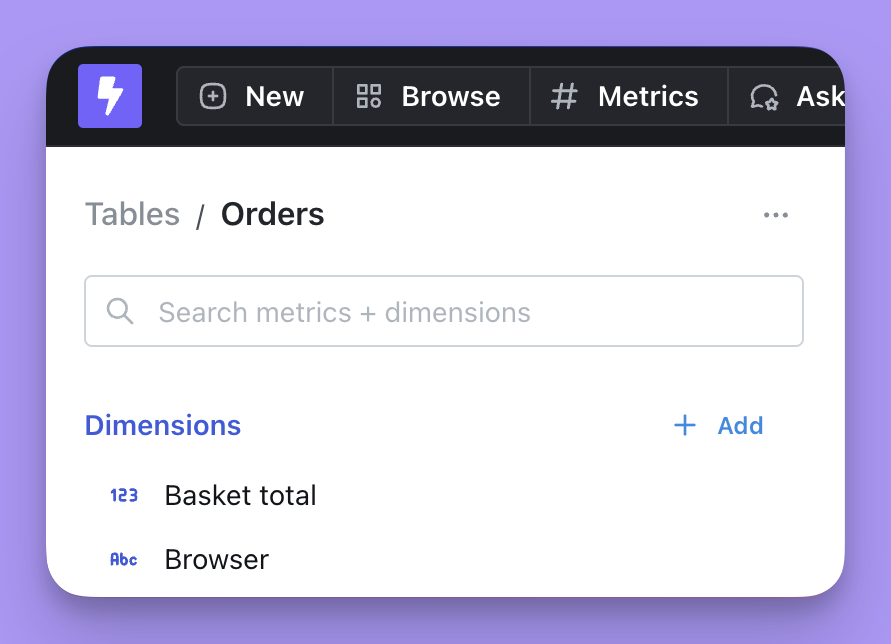
Following our example from Step 2, in Lightdash, you'll see a Table called `Orders` and each column will appear as a dimension:
In Lightdash, everything you need for BI is written as code in your dbt project. You use dbt to transform all of the data from your data warehouse, then you use Lightdash to explore it.
So, to add and manage Tables in Lightdash, we use dbt.
We'll walk you through the steps of installing + using the Lightdash CLI and generating the YAML you need to add a new table to your dbt project.
**Tag the dbt models you want to appear in Lightdash.** We strongly recommend adding a dbt tag (e.g. `lightdash`) to the models you want to expose as Tables, and configuring your project to only show models with that tag. See [Limiting the Tables in Lightdash using dbt tags](#limiting-the-tables-in-lightdash-using-dbt-tags) below.
## What are Tables?
Tables are the starting point to any data exploration in Lightdash - they're the data in Lightdash that you can query. The beauty of Lightdash is that we're pretty well synced with your dbt project. So, in Lightdash, Tables actually come from dbt models that have been defined in your dbt project's YAML files.
If your dbt model has been defined in a YAML file, it will appear in Lightdash as a Table.
Not sure what a YAML file is? [Check out dbt's docs about model properties](https://docs.getdbt.com/reference/model-properties) to learn more about adding YAML files for your dbt models.
***
## Adding Tables to your Lightdash project using the CLI
Watch this video, or keep reading for a step-by-step guide on how to add Tables to your Lightdash project using the Lightdash CLI.
To get a model in dbt Lightdash-ready, we need to define all of the columns that we want to explore in Lightdash. We've made this really easy to do using our CLI tool and the command:
```bash theme={null}
lightdash dbt run -s my_model
```
This will generate the Table and dimensions for the model you've selected with `dbt run`. It will also document all of the columns in your new model in a `schema.yml` file.
For example, if you just created a new `orders.sql` model and you run `lightdash dbt run -s orders`, an `orders.yml` file will be generated in your dbt project with all columns documented, like this:
```yml theme={null}
models:
- name: orders
columns:
- name: basket_total
- name: browser
```
### Next, preview your changes
You'll be using the `lightdash preview` command for this step.
Once you've generated your Tables and YAML files in dbt, you can test them out in a Lightdash preview environment.
**Developer previews** are temporary Lightdash projects where you can safely experiment with your metrics, dimensions and charts without affecting your production project.
So, let's spin up a developer preview and check out our changes. In your terminal, run the commands:
```bash theme={null}
lightdash preview
```
Following our example from Step 2, in Lightdash, you'll see a Table called `Orders` and each column will appear as a dimension:
 You can read more about [Lightdash preview environments here](/guides/cli/how-to-use-lightdash-preview).
### Last, deploy changes to production
If you're working with a version controlled project, make sure to **merge your changes into production**.
If you're working with a local project that isn't version controlled, you don't need to worry about syncing your changes.
Once you've merged your changes, you'll want to deploy them to production. To do this, run this command in your terminal from your dbt project:
```bash theme={null}
lightdash deploy
```
This will deploy the changes in your dbt project to the Lightdash project you set up on your CLI tool earlier.
Lightdash's deploy command will deploy using your **default dbt target** unless you specify to use a different target.
For example, if you've set up a developer profile where it targets a dev dataset (like `dbt_khindson.my_model_names`), then you'll need to pass the production target in your `lightdash deploy` command. Something like: `lightdash deploy --target prod`.
Now your Table is Lightdash-ready!
We don't recommend using `lightdash deploy` from the CLI after initial project setup. It's better to have an [automated process like Github actions](https://docs.lightdash.com/guides/cli/how-to-use-lightdash-deploy#automatically-deploy-your-changes-to-lightdash-using-a-github-action) that push code changes in your dbt projet into Lightdash.
***
## Configuring which Tables appear in your Lightdash project
Sometimes, there are models in our dbt project with YAML files that we might not want to appear in Lightdash (`staging` tables, I'm looking at you 👀). So, we've made it possible for you to configure which Tables you want to appear in Lightdash.
To get to your table settings:
1. Click the ⚙️ gear icon in the top-right navigation bar
2. Choose **Project settings**
3. Click on **Tables configuration** in the left sidebar (if you don't see it you might not have access)
You can read more about [Lightdash preview environments here](/guides/cli/how-to-use-lightdash-preview).
### Last, deploy changes to production
If you're working with a version controlled project, make sure to **merge your changes into production**.
If you're working with a local project that isn't version controlled, you don't need to worry about syncing your changes.
Once you've merged your changes, you'll want to deploy them to production. To do this, run this command in your terminal from your dbt project:
```bash theme={null}
lightdash deploy
```
This will deploy the changes in your dbt project to the Lightdash project you set up on your CLI tool earlier.
Lightdash's deploy command will deploy using your **default dbt target** unless you specify to use a different target.
For example, if you've set up a developer profile where it targets a dev dataset (like `dbt_khindson.my_model_names`), then you'll need to pass the production target in your `lightdash deploy` command. Something like: `lightdash deploy --target prod`.
Now your Table is Lightdash-ready!
We don't recommend using `lightdash deploy` from the CLI after initial project setup. It's better to have an [automated process like Github actions](https://docs.lightdash.com/guides/cli/how-to-use-lightdash-deploy#automatically-deploy-your-changes-to-lightdash-using-a-github-action) that push code changes in your dbt projet into Lightdash.
***
## Configuring which Tables appear in your Lightdash project
Sometimes, there are models in our dbt project with YAML files that we might not want to appear in Lightdash (`staging` tables, I'm looking at you 👀). So, we've made it possible for you to configure which Tables you want to appear in Lightdash.
To get to your table settings:
1. Click the ⚙️ gear icon in the top-right navigation bar
2. Choose **Project settings**
3. Click on **Tables configuration** in the left sidebar (if you don't see it you might not have access)
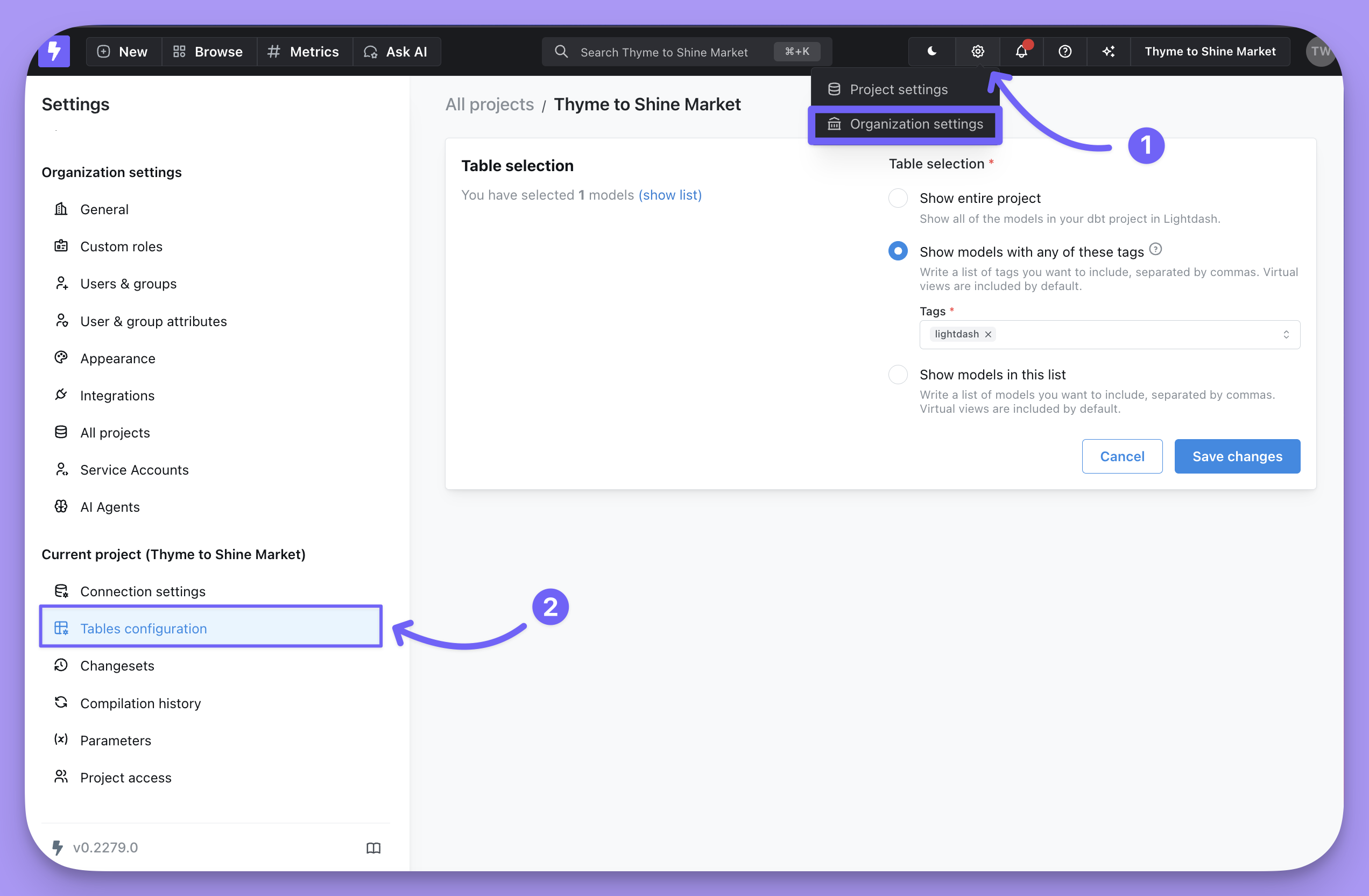 You have three options for configuring the Tables that show up in Lightdash:
1. **Show entire project**: I hope this one isn't too much of a surprise. If you select this option, it shows *all* of the models with YAML files in your dbt project in Lightdash.
2. **Show models with any of these tags**: This option depends on dbt tags. You can learn more about [using tags to manage your project here](#limiting-the-tables-in-lightdash-using-dbt-tags). If you already have a specific model tag (or tags) you want to limit Lightdash to using, this is where you can add them in. For example, all of our production models have the tag `prod`, so we've configured our Tables using that tag.
3. **Show models in this list**: If you're not keen on using tags then you can manually select the models you want to include as Tables in your Lightdash project using this option.
***
## Changing your Table's labels, adding joins, and more
Once you're happy with which Tables are showing up in Lightdash, you can [add configurations to your Tables](/references/tables) like:
* Changing how the Table name appears in Lightdash (using the `labels` config)
* Accessing dimensions and metrics from multiple tables in an explore by [joining your Table to other Tables](/references/tables) (using the `joins` config)
***
## Limiting the Tables in Lightdash using dbt tags
There may be a specific set of models that you want include as Tables in Lightdash. If this is the case, we recommend [using dbt tags](https://docs.getdbt.com/reference/resource-configs/tags) to tag models. You can use sets of existing tags, or you can create a new Lightdash-specific tag.
You can add tags to your YAML file like this:
```yaml theme={null}
models:
- name: model_name
tags: ['lightdash']
```
```yaml theme={null}
models:
- name: model_name
config:
tags: ['lightdash']
```
```yaml theme={null}
type: model
name: model_name
tags: ['lightdash']
```
Or, to your model's SQL file in the config block:
```yaml theme={null}
{{ config(
tags=["lightdash"]
) }}
select ...
```
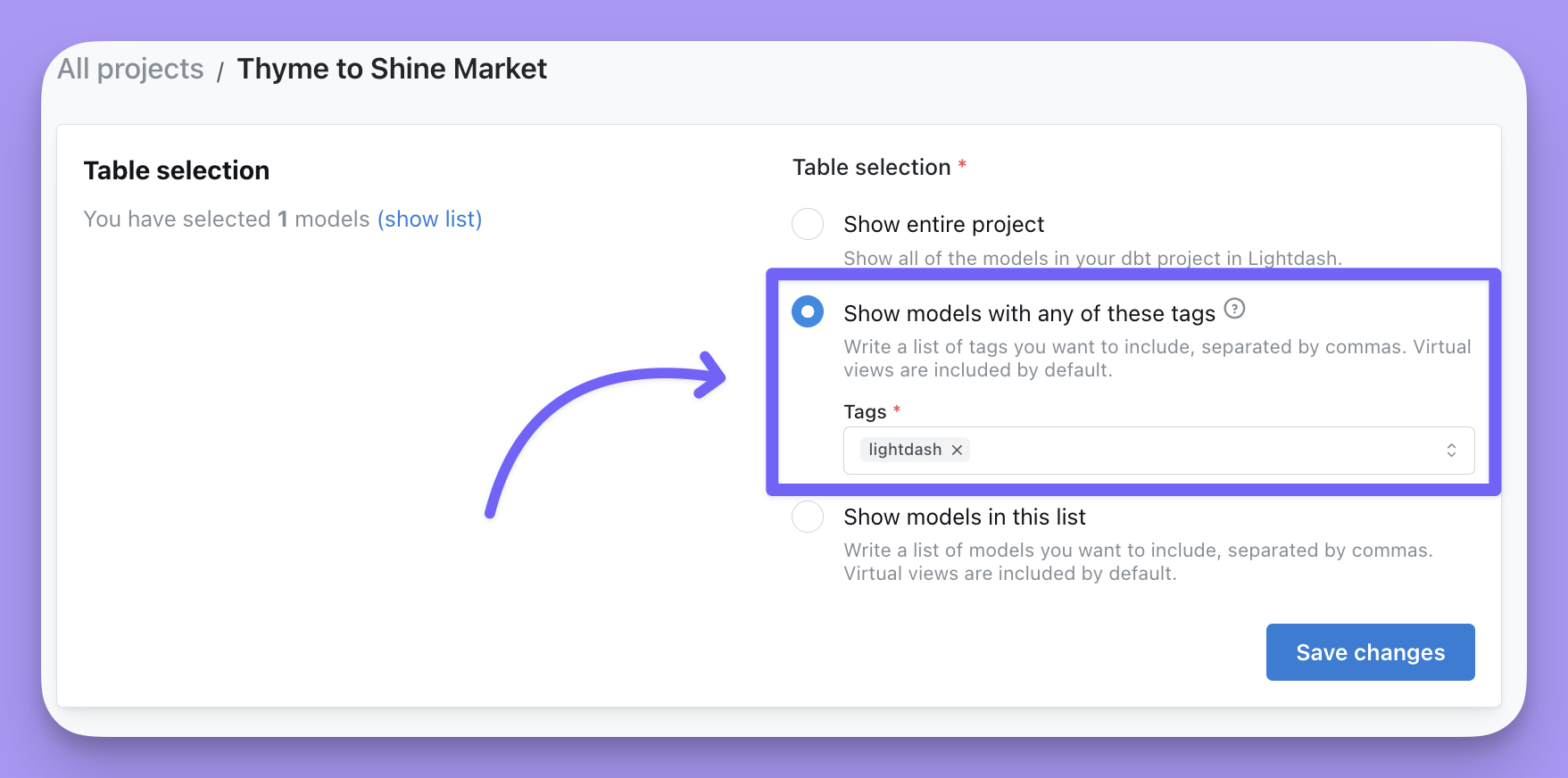
Then, you'll set your [Table Configuration](#configuring-which-tables-appear-in-your-lightdash-project):
You have three options for configuring the Tables that show up in Lightdash:
1. **Show entire project**: I hope this one isn't too much of a surprise. If you select this option, it shows *all* of the models with YAML files in your dbt project in Lightdash.
2. **Show models with any of these tags**: This option depends on dbt tags. You can learn more about [using tags to manage your project here](#limiting-the-tables-in-lightdash-using-dbt-tags). If you already have a specific model tag (or tags) you want to limit Lightdash to using, this is where you can add them in. For example, all of our production models have the tag `prod`, so we've configured our Tables using that tag.
3. **Show models in this list**: If you're not keen on using tags then you can manually select the models you want to include as Tables in your Lightdash project using this option.
***
## Changing your Table's labels, adding joins, and more
Once you're happy with which Tables are showing up in Lightdash, you can [add configurations to your Tables](/references/tables) like:
* Changing how the Table name appears in Lightdash (using the `labels` config)
* Accessing dimensions and metrics from multiple tables in an explore by [joining your Table to other Tables](/references/tables) (using the `joins` config)
***
## Limiting the Tables in Lightdash using dbt tags
There may be a specific set of models that you want include as Tables in Lightdash. If this is the case, we recommend [using dbt tags](https://docs.getdbt.com/reference/resource-configs/tags) to tag models. You can use sets of existing tags, or you can create a new Lightdash-specific tag.
You can add tags to your YAML file like this:
```yaml theme={null}
models:
- name: model_name
tags: ['lightdash']
```
```yaml theme={null}
models:
- name: model_name
config:
tags: ['lightdash']
```
```yaml theme={null}
type: model
name: model_name
tags: ['lightdash']
```
Or, to your model's SQL file in the config block:
```yaml theme={null}
{{ config(
tags=["lightdash"]
) }}
select ...
```
Then, you'll set your [Table Configuration](#configuring-which-tables-appear-in-your-lightdash-project):
 ***
## Advanced tips for managing Tables
### One model per YAML file
We recommend structuring your dbt project with one .yml file per model (or .sql file).
We've found that this makes it easier to navigate through your .yml files and easier to manage your dbt models, especially as your project becomes bigger.
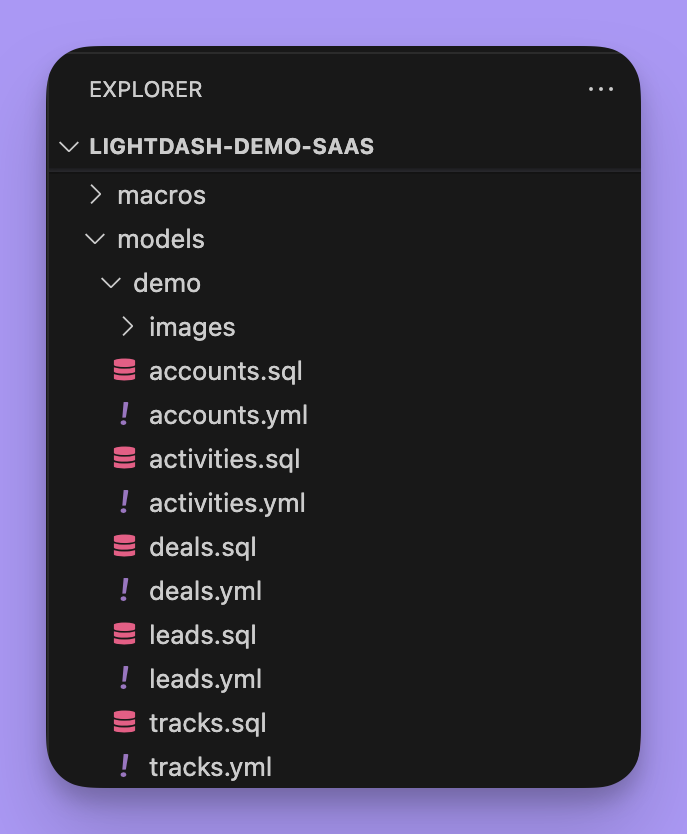
Here's an example of our dbt project at Lightdash too see what that looks like in practice:
* We have one `.sql` file per model (these are the files where all of our models' business logic sits)
* We have one `.yml` file per model (these are the files where all of your Tables' configuration sits)
***
## Advanced tips for managing Tables
### One model per YAML file
We recommend structuring your dbt project with one .yml file per model (or .sql file).
We've found that this makes it easier to navigate through your .yml files and easier to manage your dbt models, especially as your project becomes bigger.
Here's an example of our dbt project at Lightdash too see what that looks like in practice:
* We have one `.sql` file per model (these are the files where all of our models' business logic sits)
* We have one `.yml` file per model (these are the files where all of your Tables' configuration sits)
 **But, in my dbt project, I have a single schema.yml file. Not one for each model. Will that still work?**
Yep! We realize that schema files come in all shapes and sizes.
Some people prefer to write the `schema.yml` details for all of their models in a single YAML file at the directory level, and that's totally fine - it will still work with Lightdash.
But, like we said just above, if you're trying to decide how to setup your dbt project, **we'd recommend having one YAML file per model.**
### Select the models you want to run using dbt selection syntax
The `lightdash dbt run` command supports dbt model selection syntax to generate YAML files for a group of models. This means you can use tags or other model selection syntax to specify which models you want to generate dimensions for in your dbt project.
```bash theme={null}
lightdash dbt run -s tag:lightdash # all models with the lightdash tag
lightdash dbt run -s payments # just payments
lightdash dbt run -s payments+ # payments and all children
lightdash dbt run -s +payments # payments and all parents
```
### Generate Tables and dimensions for your entire dbt project in one command
To do this, you just need to run the following on your command line:
```bash theme={null}
lightdash dbt run
```
This command will run + generate tables for all of the models with YAML files. It will also generate dimensions for all of the columns in your dbt project.
**But, in my dbt project, I have a single schema.yml file. Not one for each model. Will that still work?**
Yep! We realize that schema files come in all shapes and sizes.
Some people prefer to write the `schema.yml` details for all of their models in a single YAML file at the directory level, and that's totally fine - it will still work with Lightdash.
But, like we said just above, if you're trying to decide how to setup your dbt project, **we'd recommend having one YAML file per model.**
### Select the models you want to run using dbt selection syntax
The `lightdash dbt run` command supports dbt model selection syntax to generate YAML files for a group of models. This means you can use tags or other model selection syntax to specify which models you want to generate dimensions for in your dbt project.
```bash theme={null}
lightdash dbt run -s tag:lightdash # all models with the lightdash tag
lightdash dbt run -s payments # just payments
lightdash dbt run -s payments+ # payments and all children
lightdash dbt run -s +payments # payments and all parents
```
### Generate Tables and dimensions for your entire dbt project in one command
To do this, you just need to run the following on your command line:
```bash theme={null}
lightdash dbt run
```
This command will run + generate tables for all of the models with YAML files. It will also generate dimensions for all of the columns in your dbt project.