> ## Documentation Index
> Fetch the complete documentation index at: https://docs.lightdash.com/llms.txt
> Use this file to discover all available pages before exploring further.
# How to promote content
> Copy charts and dashboards from a development or preview project into production
## How promoting works
If you are promoting a chart, from a `development` project to a `production` project, this will happen:
* If the chart exists in both the `development` project and the `production` project, the chart in `production` will be updated with the changes from `development`. You can always revert this chart to a previous version using [version history](/explore/version-history). Lightdash matches charts based on the name used when you first created them. Even if you change the names later, the two charts will still be linked.
* If the chart is new, we will replicate the `development` chart into the `production` project. We will also create a new space if a space does not exist with the same name.
## Configure upstream project
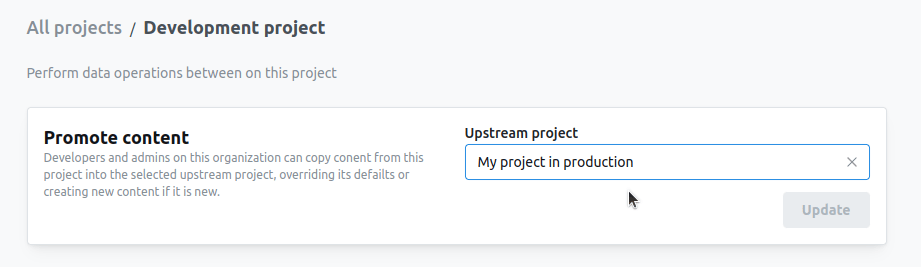
Before you can start promoting content, you need to configure your upstream project. To do this, on your `development` project go to settings > Data ops.
Select the project where you want to copy the content to.
 ## Promote charts
**You must be a `developer` and have access to the chart and space in both the `development project` and the `upstream project`.**
If the chart is in a space that doesn't exist in the `upstream project`, then this space will be created with the same user access and the content will be put in this space. If the chart is in a space that exists in the `upstream project`, the access to this space will not be updated.
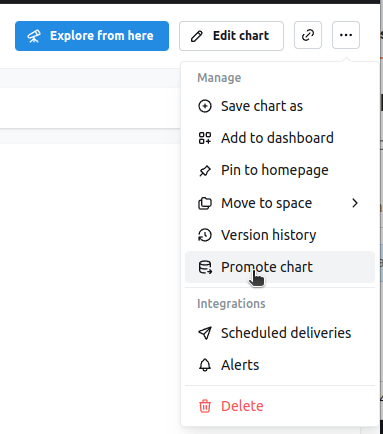
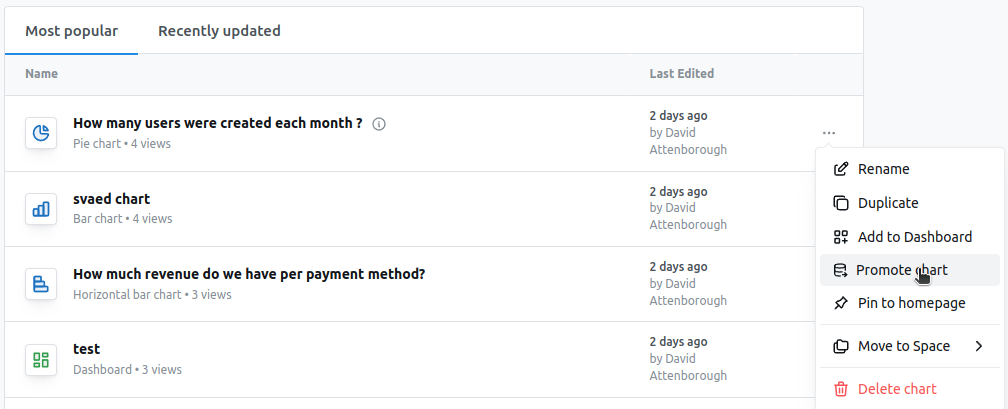
You can promote charts from the `chart` in view mode or from any listing (like home page or all charts), click on the `...` button and then select `promote chart`.
## Promote charts
**You must be a `developer` and have access to the chart and space in both the `development project` and the `upstream project`.**
If the chart is in a space that doesn't exist in the `upstream project`, then this space will be created with the same user access and the content will be put in this space. If the chart is in a space that exists in the `upstream project`, the access to this space will not be updated.
You can promote charts from the `chart` in view mode or from any listing (like home page or all charts), click on the `...` button and then select `promote chart`.
 Once the chart is promoted, you can click on the `success` banner to open a new tab into this chart in the `production project`
## Promote dashboards
**You must be a `developer` and have access to the dashboard and space in both the `development project` and the `upstream project` as well as have access to all the charts in the dashboard.**
If the dashboard is in a space that doesn't exist in the `upstream project`, then this space will be created with the same user access and the content will be put in this space. If the dashboard is in a space that exists in the `upstream project`, the access to this space will not be updated.
You can promote dashboards from the `dashboard` in view mode or from any listing (like home page or all dashboards), click on the `...` button and then select `promote dashboard`.
This will promote the dashboard to the `upstream` project as well as all the charts in this dashboard (for both charts within spaces and charts within this dashboard), any embedded [data app](/data-apps) tiles, and all other non-chart tiles like markdown.
If the dashboard, charts or data apps are in a space that doesn't exist in the upstream project, then these spaces will be created and the content will be put in these spaces.
Once the chart is promoted, you can click on the `success` banner to open a new tab into this chart in the `production project`
## Promote dashboards
**You must be a `developer` and have access to the dashboard and space in both the `development project` and the `upstream project` as well as have access to all the charts in the dashboard.**
If the dashboard is in a space that doesn't exist in the `upstream project`, then this space will be created with the same user access and the content will be put in this space. If the dashboard is in a space that exists in the `upstream project`, the access to this space will not be updated.
You can promote dashboards from the `dashboard` in view mode or from any listing (like home page or all dashboards), click on the `...` button and then select `promote dashboard`.
This will promote the dashboard to the `upstream` project as well as all the charts in this dashboard (for both charts within spaces and charts within this dashboard), any embedded [data app](/data-apps) tiles, and all other non-chart tiles like markdown.
If the dashboard, charts or data apps are in a space that doesn't exist in the upstream project, then these spaces will be created and the content will be put in these spaces.
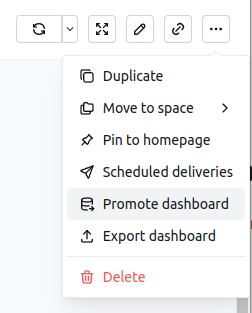
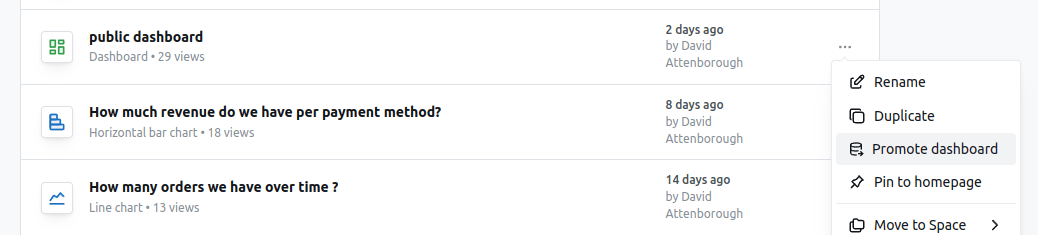 Once the dashboard is promoted, you can click on the `success` banner to open a new tab into this dashboard in the `production project`.
## Promote data apps
You can also promote data apps from a preview project into their upstream project. See [Promoting an app](/data-apps#promoting-an-app) in the data apps guide for details.
Once the dashboard is promoted, you can click on the `success` banner to open a new tab into this dashboard in the `production project`.
## Promote data apps
You can also promote data apps from a preview project into their upstream project. See [Promoting an app](/data-apps#promoting-an-app) in the data apps guide for details.