> ## Documentation Index
> Fetch the complete documentation index at: https://docs.lightdash.com/llms.txt
> Use this file to discover all available pages before exploring further.
# Merge queries
> Combine two explores into one result by joining them on a shared field
Experimental Merge queries are available to design partners behind the `merge-queries` feature flag, and the flow, limits and wording on this page may change between releases. Contact [Lightdash support](mailto:support@lightdash.com) to enable it for your organization. [What Experimental means](/support/feature-maturity-levels).
A merge query puts two explores side by side in one result. You pick the fields you want from each explore, say which field lines them up, and run. The merged result behaves like any other chart: you can configure it, save it, add it to dashboards, schedule it, and filter it from a dashboard.
Use it when a question spans two explores that share a field at the same grain, such as review sentiment next to return rates for the same product, or orders next to payments for the same month.
 ## Before you start
Each side of a merge is a normal explore query with its own metrics, dimensions and filters. Both explores must be in the same project. You need:
* **A shared field.** A dimension that exists on both sides with matching values, such as a product code or a month. This becomes the join key. A merge can join on more than one field.
* **Matching grain.** Every dimension you select from a side must be one of the join keys. This keeps each side to one row per key, so the join never multiplies rows. See [how the join stays honest](#how-the-join-stays-honest).
Anyone who can run queries in the explore can merge. There is nothing to install and no change to your dbt project.
## Merge two explores
Open an explore and pick the fields you want from it. Filters you add here apply to this side only.
## Before you start
Each side of a merge is a normal explore query with its own metrics, dimensions and filters. Both explores must be in the same project. You need:
* **A shared field.** A dimension that exists on both sides with matching values, such as a product code or a month. This becomes the join key. A merge can join on more than one field.
* **Matching grain.** Every dimension you select from a side must be one of the join keys. This keeps each side to one row per key, so the join never multiplies rows. See [how the join stays honest](#how-the-join-stays-honest).
Anyone who can run queries in the explore can merge. There is nothing to install and no change to your dbt project.
## Merge two explores
Open an explore and pick the fields you want from it. Filters you add here apply to this side only.
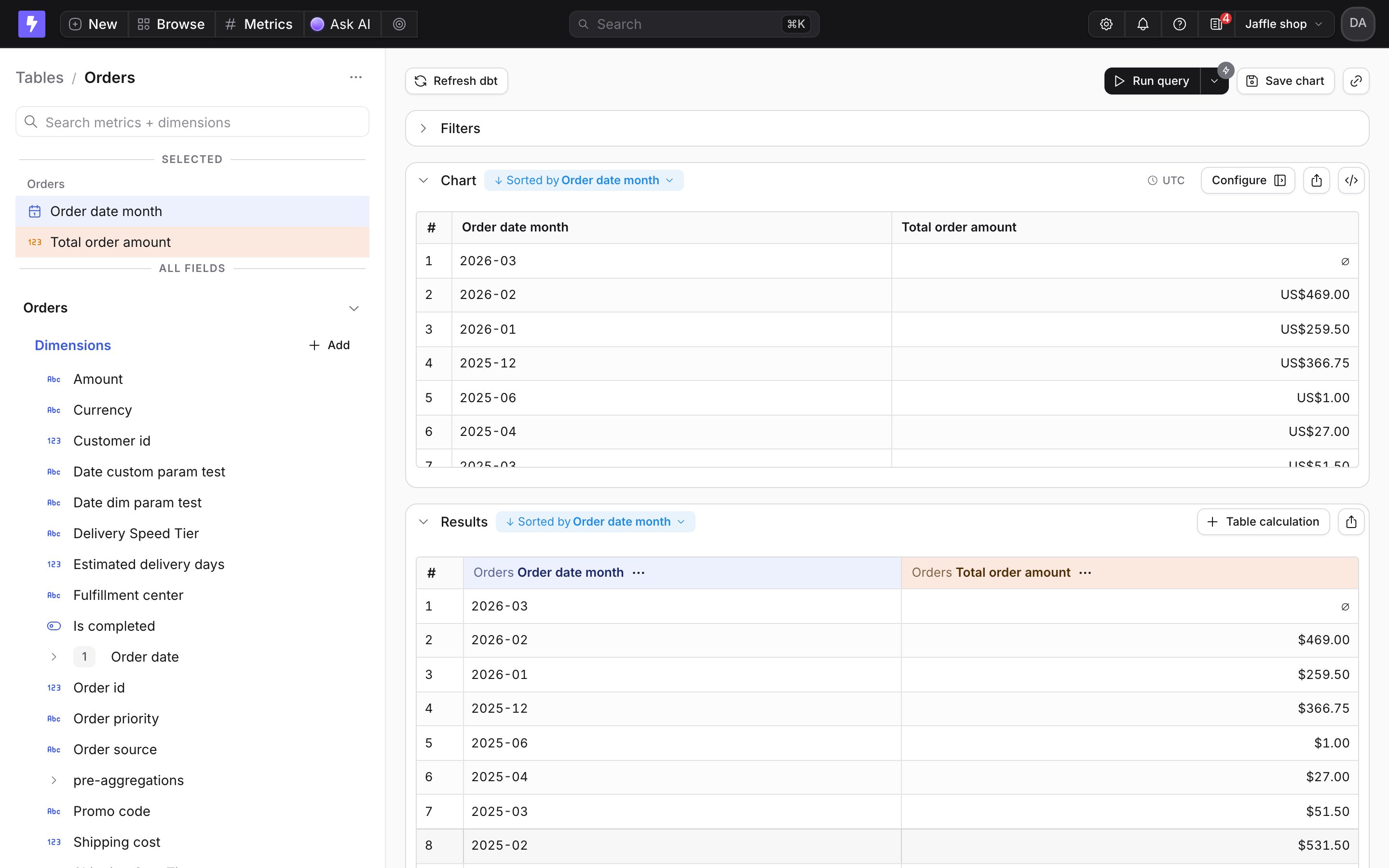
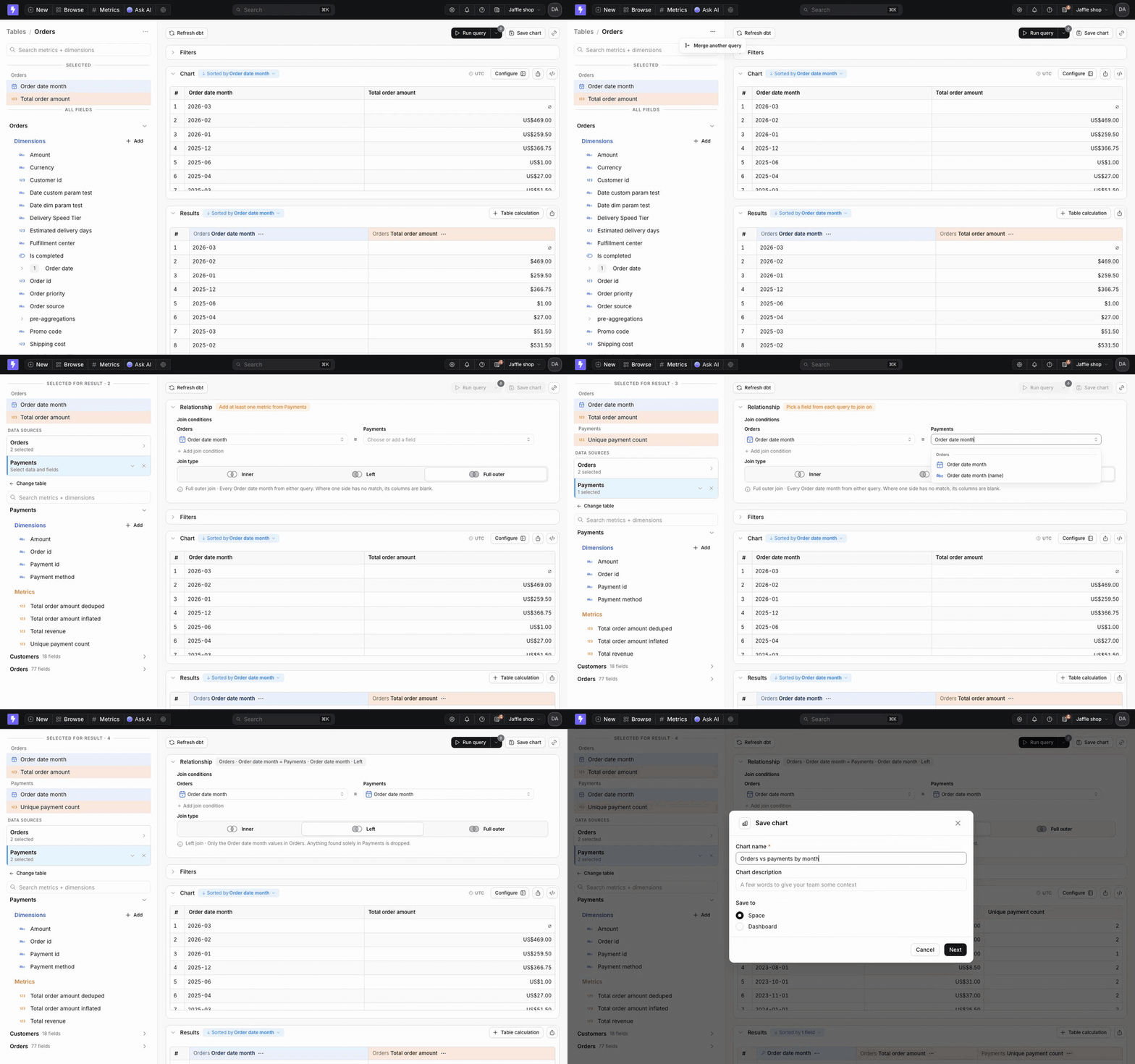
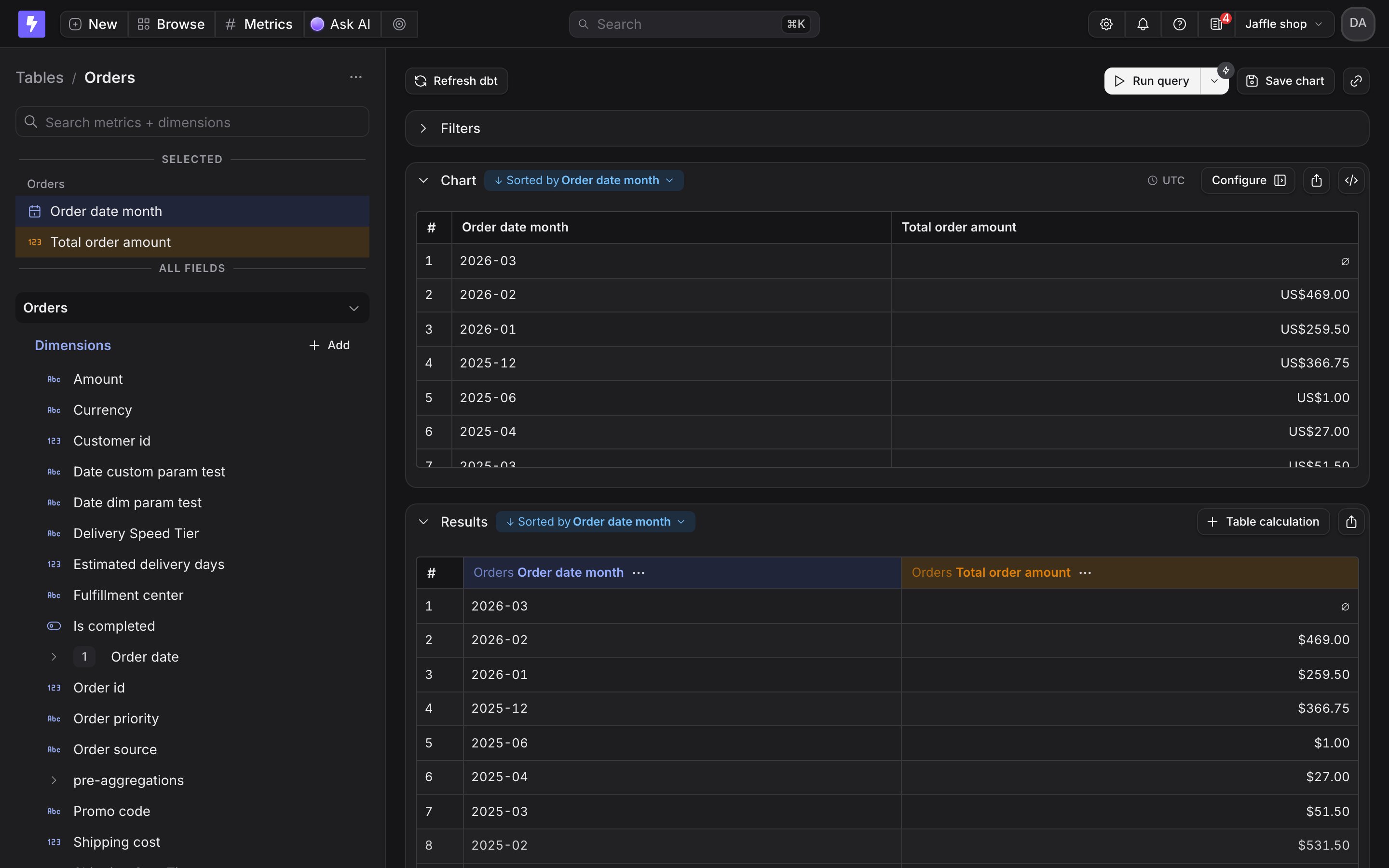 Open the query options menu, the `···` button next to the explore name at the top of the field panel, and choose **Merge another query**.

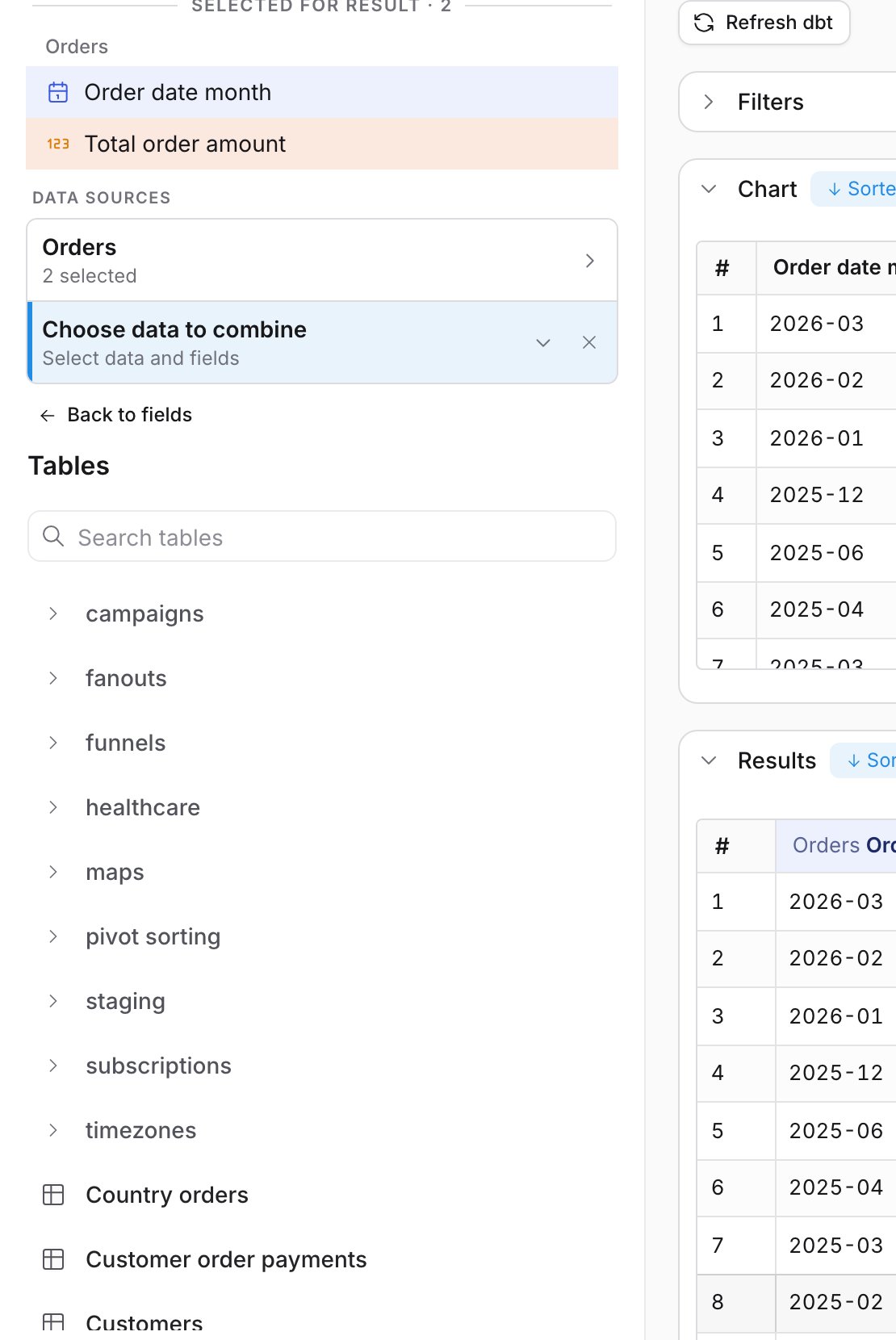
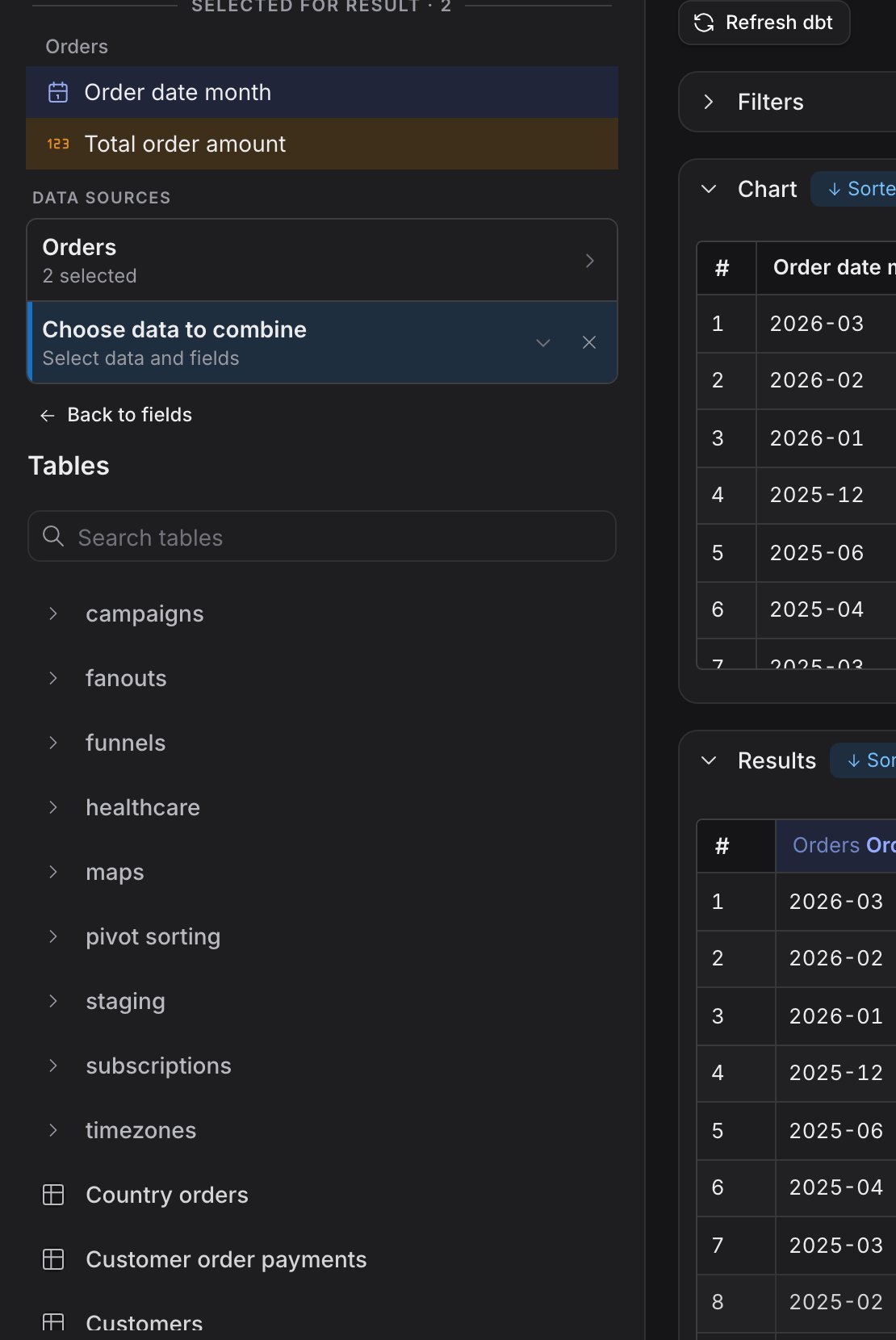
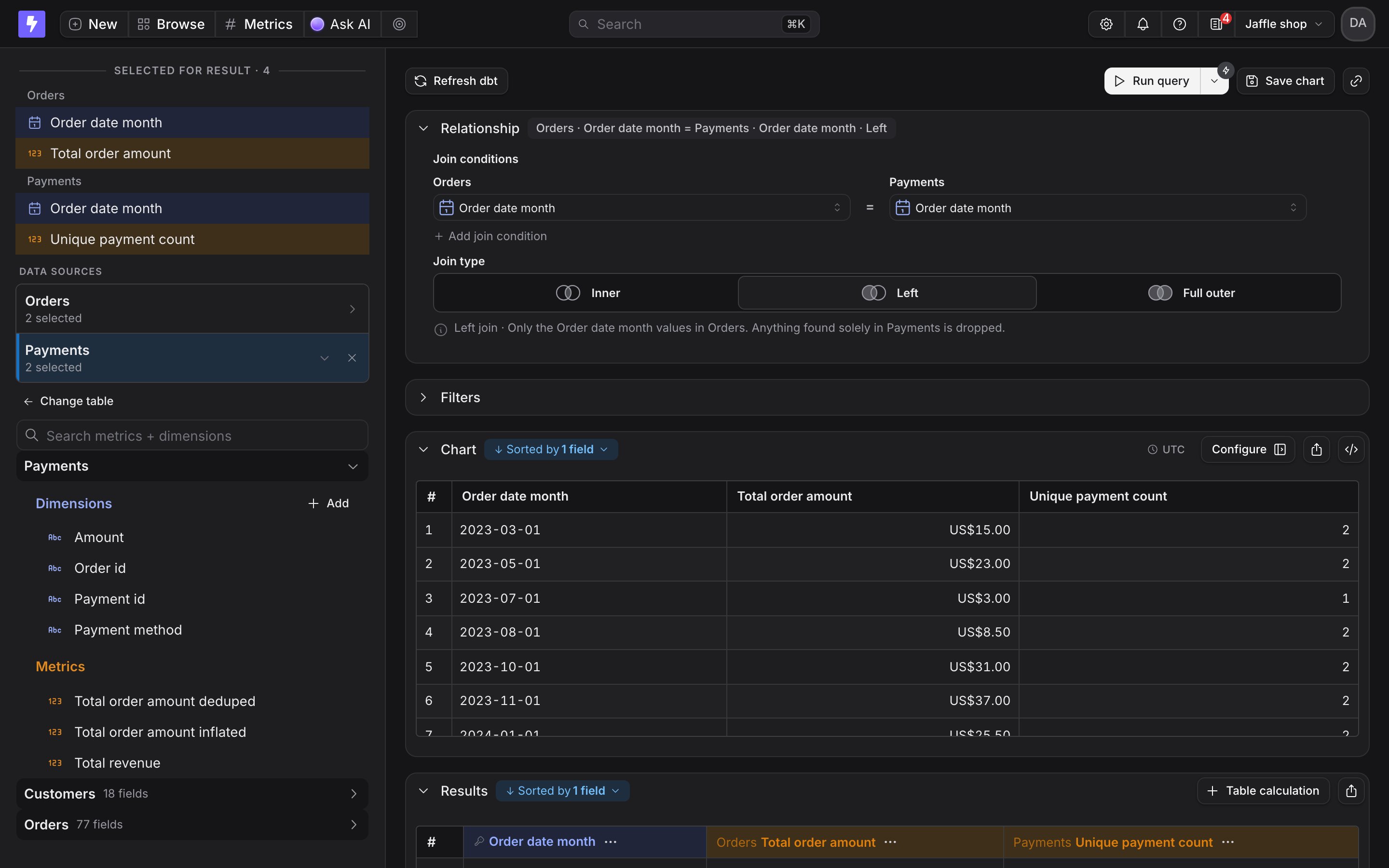
 The field panel switches to a **Data sources** view. Your first explore is listed with its selected fields, and a new card asks you to choose data to combine. Search the table list and pick the second explore.
 You see the second explore's field tree. Add at least one metric. The **Relationship** card tells you what is still missing.
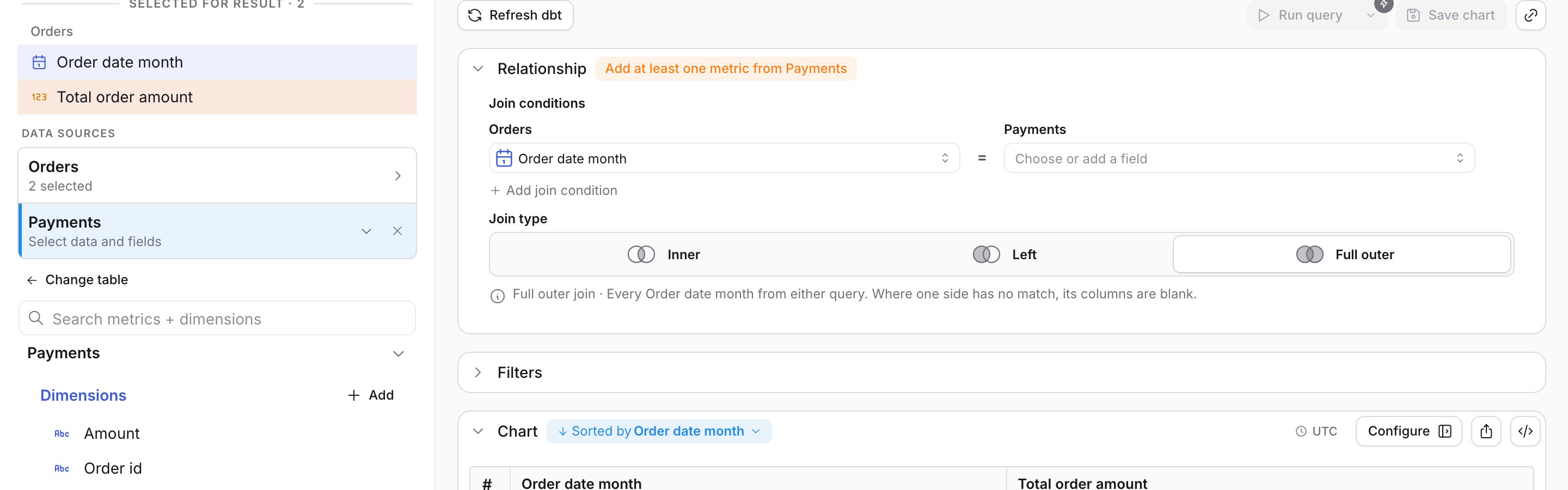
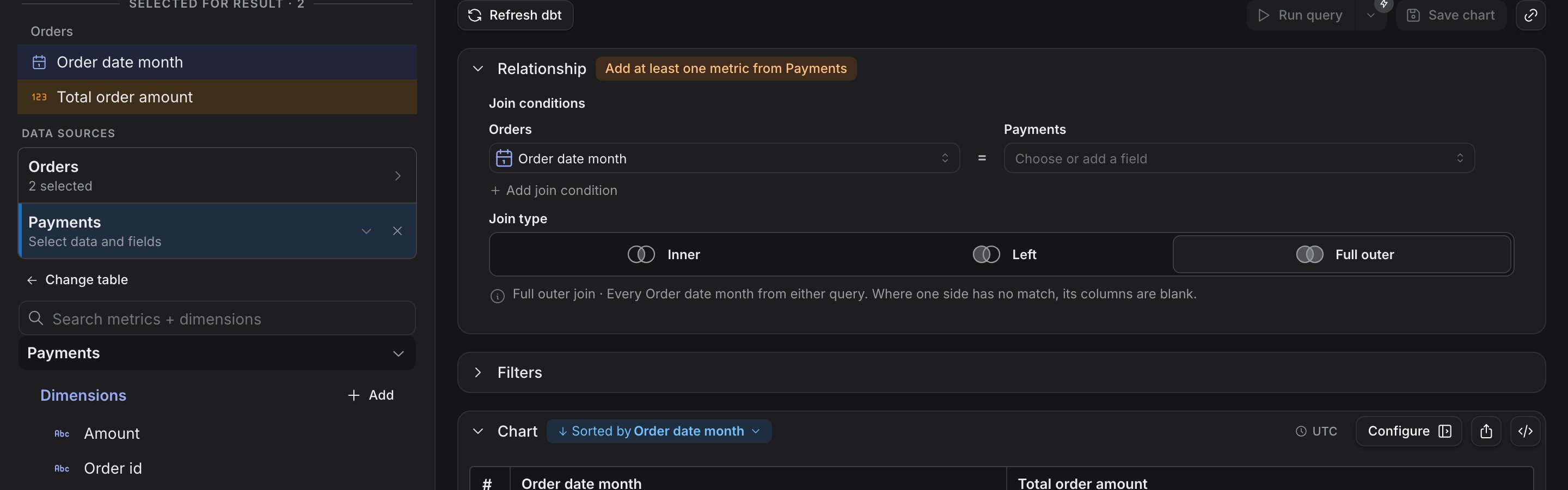 In the **Relationship** card, each side has a field picker that offers dimensions only. The first side is prefilled with the dimension you already selected. Choose the matching field on the second side. Use **Add join condition** when the sides match on more than one field.
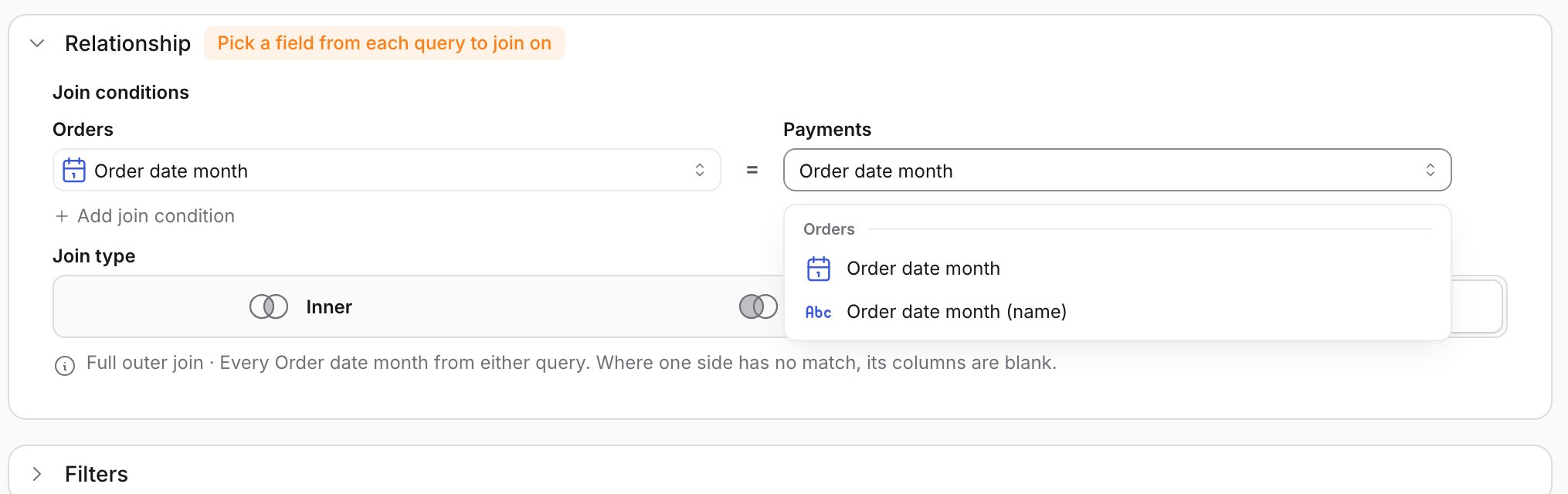
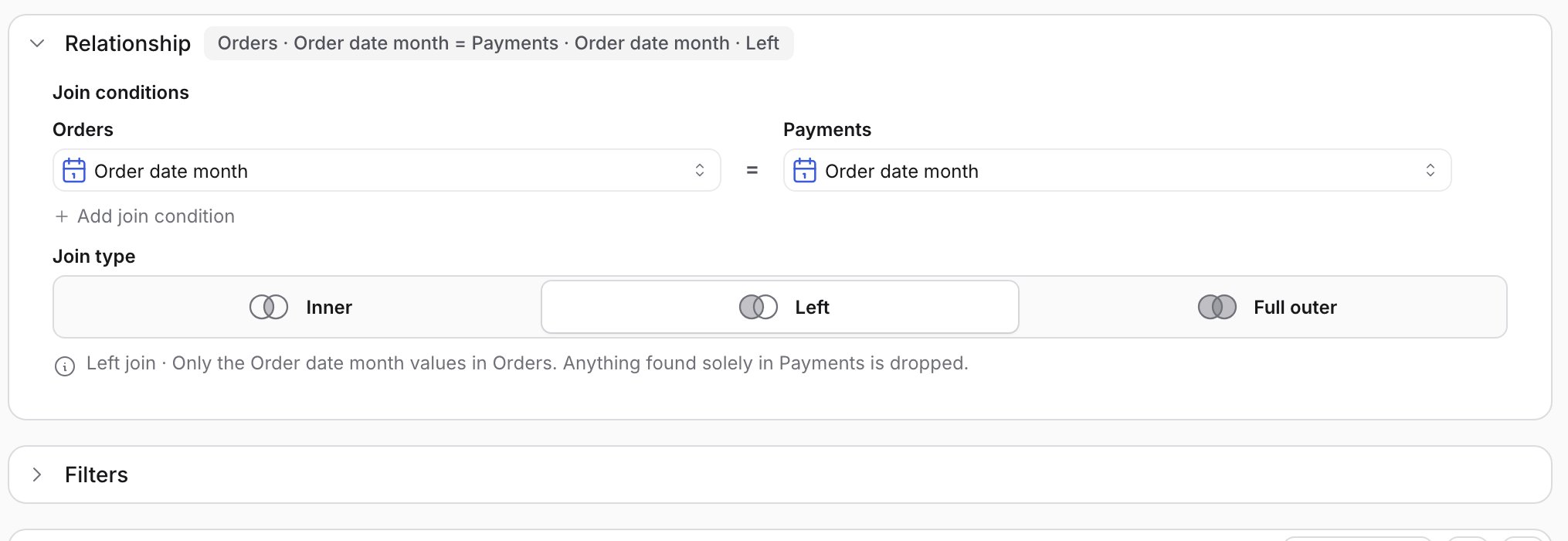
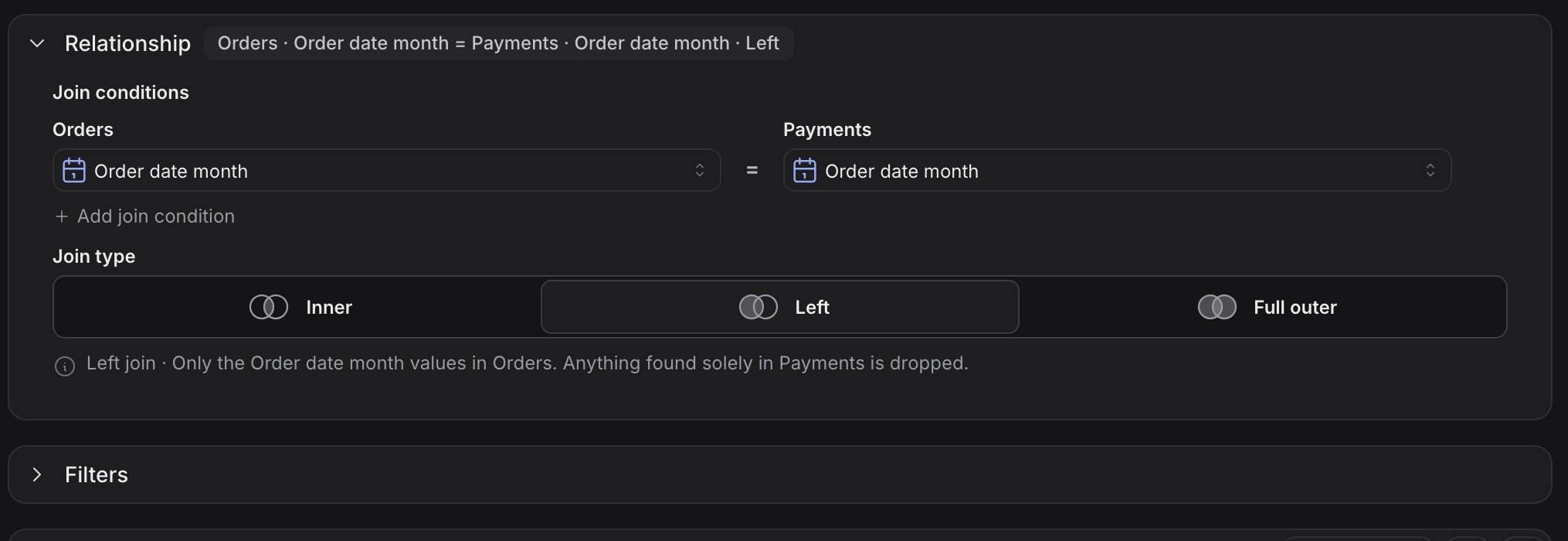
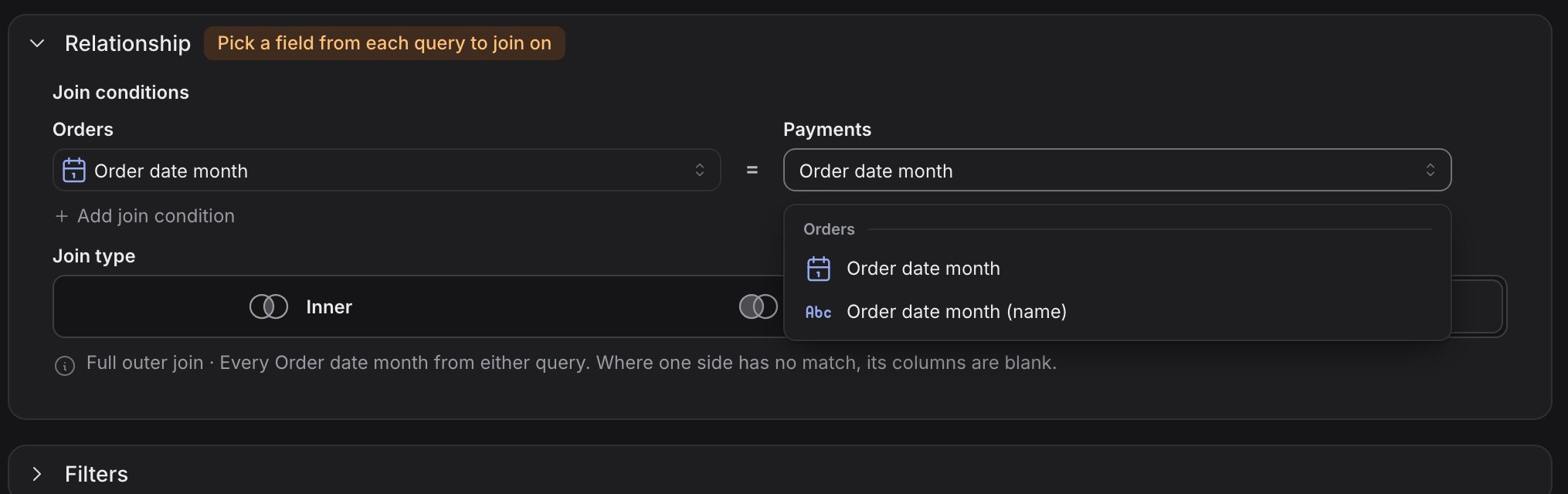 The summary next to **Relationship** reads the join back in words. The default is a full outer join. See [which join type to choose](#which-join-type-to-choose).
 Results arrive as one table. The join key has a key icon, and every other column carries the name of the explore it came from. Configure the chart the way you would for any explore.
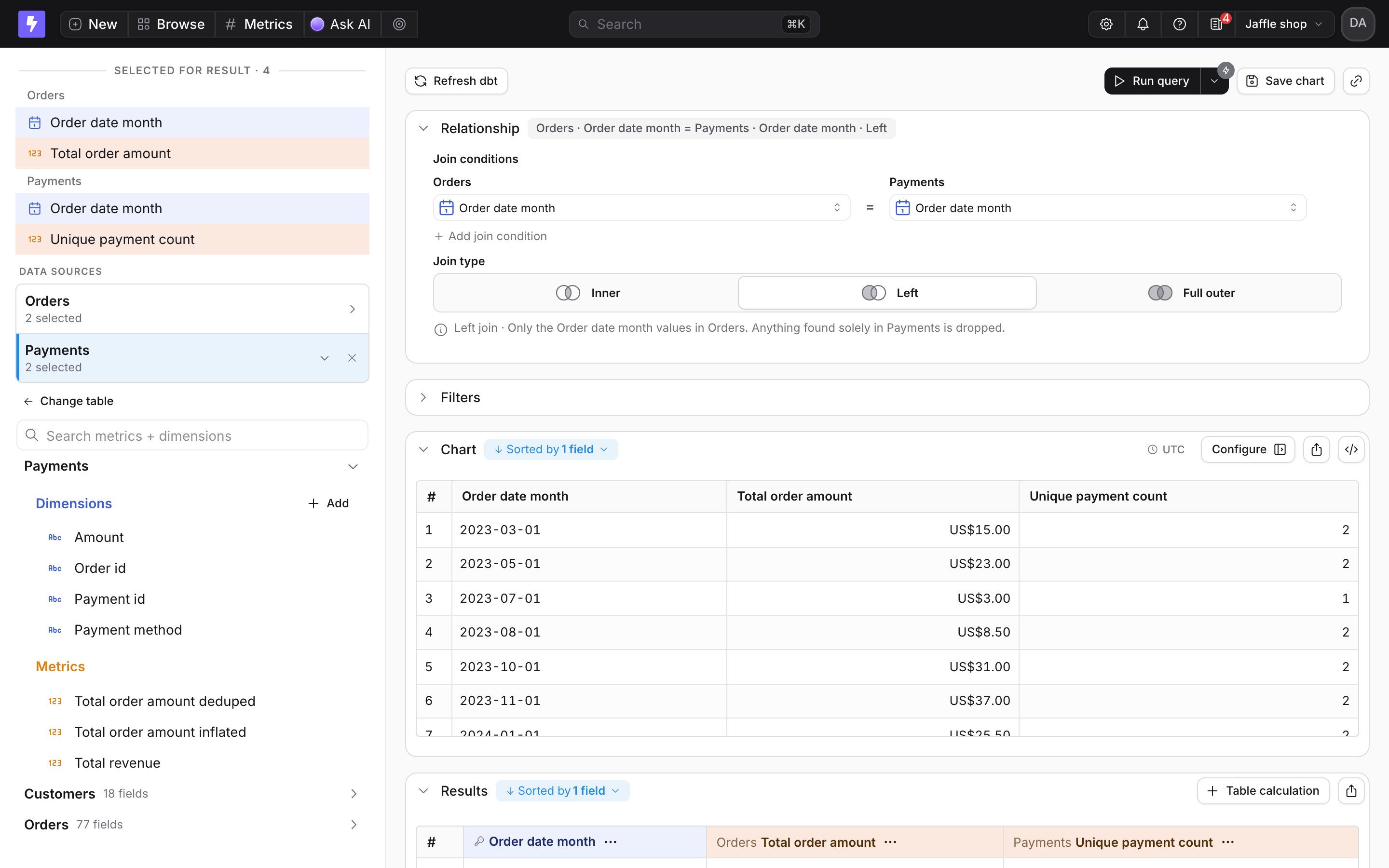
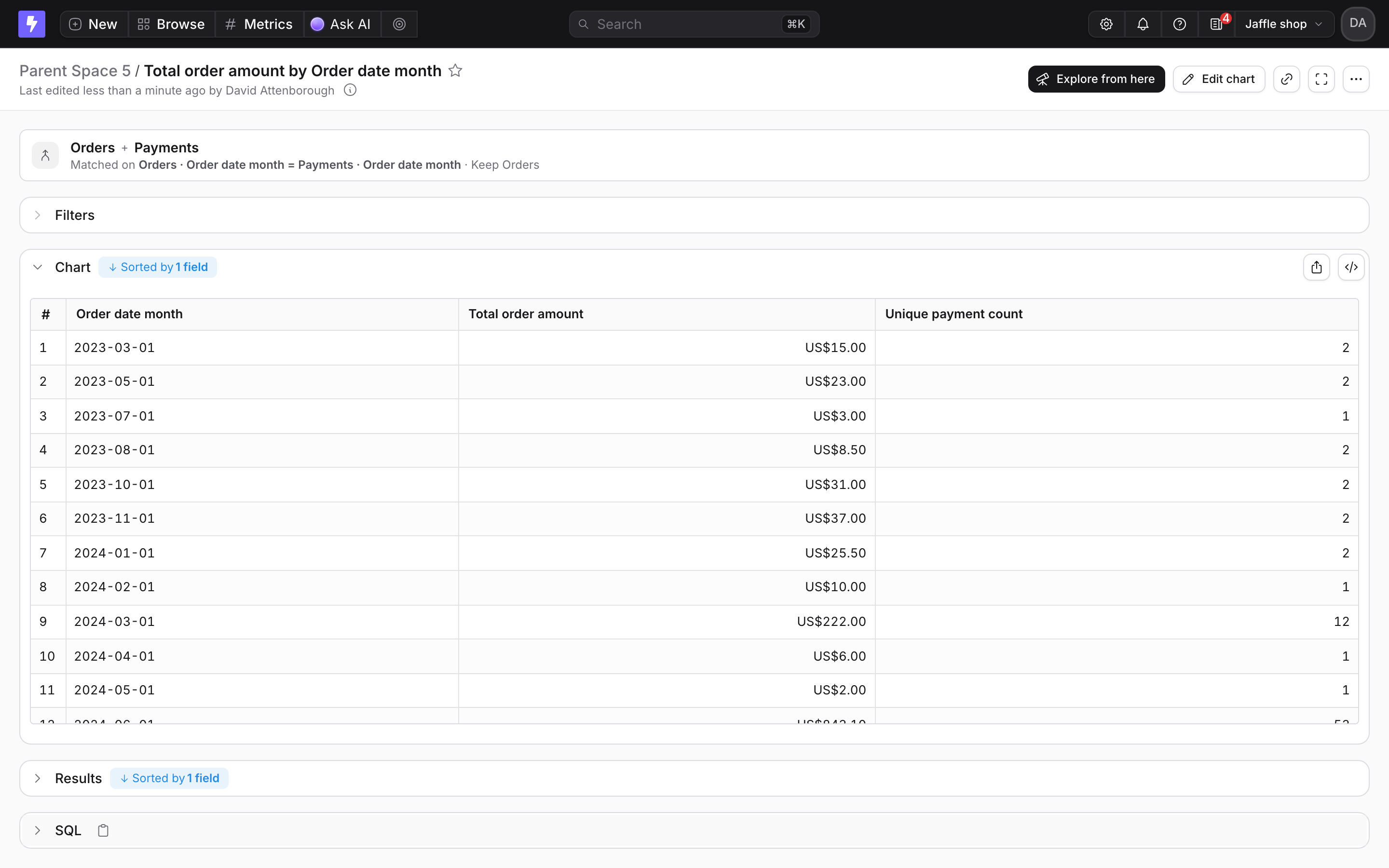
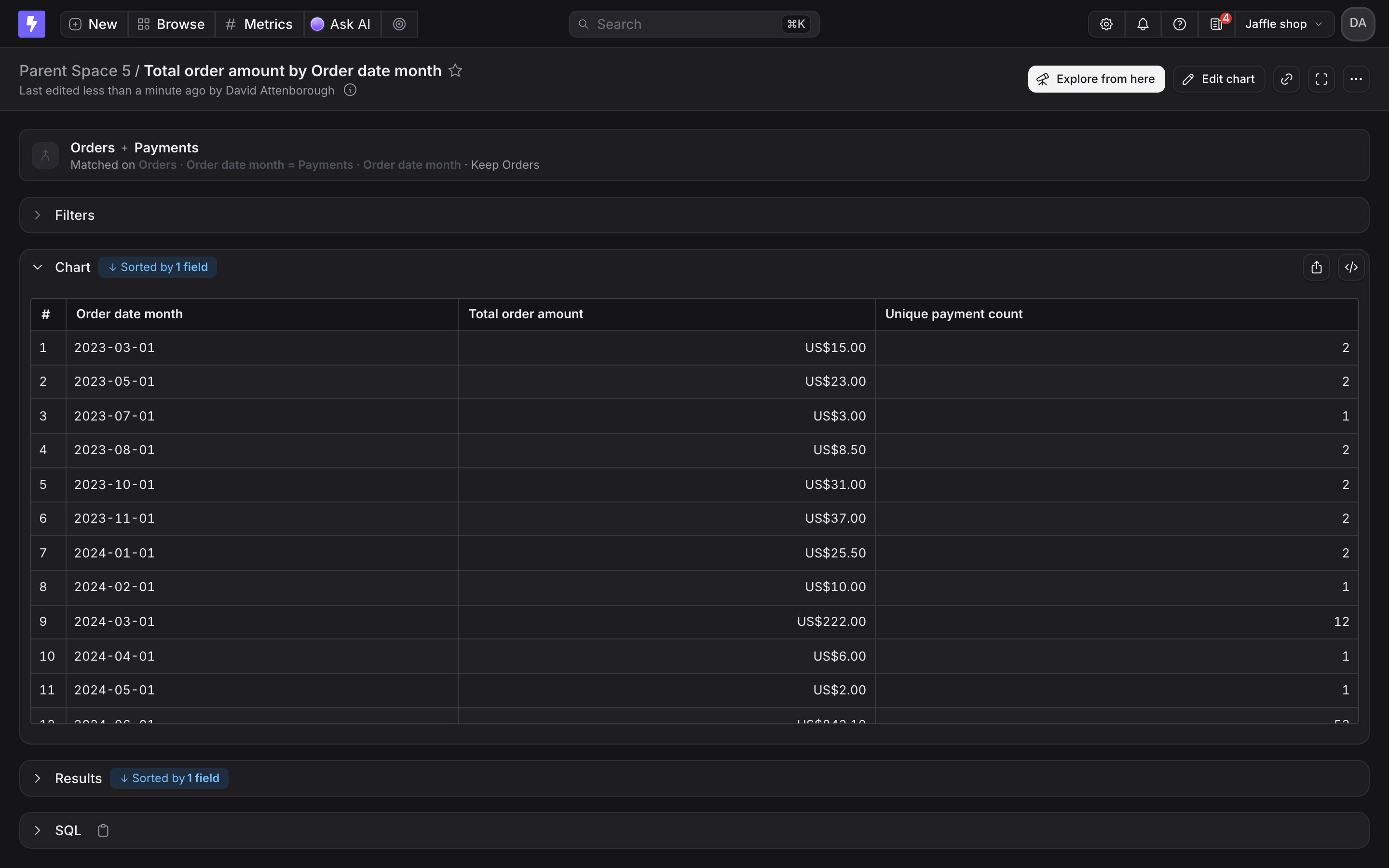
 **Save chart** works as it does for any chart. The saved chart shows the relationship at the top and can be added to dashboards and [scheduled deliveries](/explore/create-scheduled-deliveries).
 ## Which join type to choose
The three options answer one question: when a key exists on only one side, what happens to it?
| Join type | Keeps | Use when |
| -------------- | -------------------------------------------------------------------------------------------- | -------------------------------------------------- |
| **Inner** | Only keys present on both sides. Anything unmatched is dropped. | A row without both measures would be misleading. |
| **Left** | Every key from the first explore. The second side's columns are blank where it has no match. | The first explore is the list you report on. |
| **Full outer** | Every key from either side. Blanks wherever one side has nothing. | You want to spot keys that exist on one side only. |
## How the join stays honest
A merge is only safe when each side has exactly one row per join key. Because an explore query groups by its dimensions, that comes down to one rule: **every dimension you select on a side must be a join key.** Metrics are already one value per key, so any number of them is fine.
When a selection breaks the rule, the query refuses with a message rather than multiplying rows. Either add that dimension as another join condition on both sides, or remove it.
For example, reviews by `product` merged with returns by `product`, joined on product, works. Reviews by `product` and `month` merged with returns by `product`, joined on product only, refuses, because the review side has many rows per product. Add `month` to both sides and to the join conditions and it works again.
## Filters
Filters on either side apply to that side before the join. A [dashboard filter](/explore/dashboards/filter) on a merged chart is pushed into both sides, so a date filter narrows both explores rather than only the merged output.
## Current limits
| Area | Today |
| ------------------- | ------------------------------------------------------------------------------------------------------------------------------------------------------------------------------------- |
| Table calculations | Work on fields from one side. A calculation that mixes fields from both sides is not yet supported. |
| Custom metrics | Available on the first explore. Custom metrics defined on the second side are not yet supported. |
| Join key formatting | The merged key column shows its underlying value. A month key shows as a full date rather than a month label. |
| Row limits | Each side runs with its own row limit. If a side is cut off by its limit, the merge refuses instead of returning a partial answer. Narrow that side with a filter or raise its limit. |
| Sources | Two explores from the same project. |
## Which join type to choose
The three options answer one question: when a key exists on only one side, what happens to it?
| Join type | Keeps | Use when |
| -------------- | -------------------------------------------------------------------------------------------- | -------------------------------------------------- |
| **Inner** | Only keys present on both sides. Anything unmatched is dropped. | A row without both measures would be misleading. |
| **Left** | Every key from the first explore. The second side's columns are blank where it has no match. | The first explore is the list you report on. |
| **Full outer** | Every key from either side. Blanks wherever one side has nothing. | You want to spot keys that exist on one side only. |
## How the join stays honest
A merge is only safe when each side has exactly one row per join key. Because an explore query groups by its dimensions, that comes down to one rule: **every dimension you select on a side must be a join key.** Metrics are already one value per key, so any number of them is fine.
When a selection breaks the rule, the query refuses with a message rather than multiplying rows. Either add that dimension as another join condition on both sides, or remove it.
For example, reviews by `product` merged with returns by `product`, joined on product, works. Reviews by `product` and `month` merged with returns by `product`, joined on product only, refuses, because the review side has many rows per product. Add `month` to both sides and to the join conditions and it works again.
## Filters
Filters on either side apply to that side before the join. A [dashboard filter](/explore/dashboards/filter) on a merged chart is pushed into both sides, so a date filter narrows both explores rather than only the merged output.
## Current limits
| Area | Today |
| ------------------- | ------------------------------------------------------------------------------------------------------------------------------------------------------------------------------------- |
| Table calculations | Work on fields from one side. A calculation that mixes fields from both sides is not yet supported. |
| Custom metrics | Available on the first explore. Custom metrics defined on the second side are not yet supported. |
| Join key formatting | The merged key column shows its underlying value. A month key shows as a full date rather than a month label. |
| Row limits | Each side runs with its own row limit. If a side is cut off by its limit, the merge refuses instead of returning a partial answer. Narrow that side with a filter or raise its limit. |
| Sources | Two explores from the same project. |