> ## Documentation Index
> Fetch the complete documentation index at: https://docs.lightdash.com/llms.txt
> Use this file to discover all available pages before exploring further.
# External sources
> Upload a CSV or connect a Google Sheet, then query it next to your warehouse data
Experimental External sources are available to design partners behind the `external-sources` feature flag, and the flow, limits and wording on this page may change between releases. Contact [Lightdash support](mailto:support@lightdash.com) to enable it for your organization. Self-hosted instances also need an Enterprise license and the [setup below](#self-hosted-setup). [What Experimental means](/support/feature-maturity-levels).
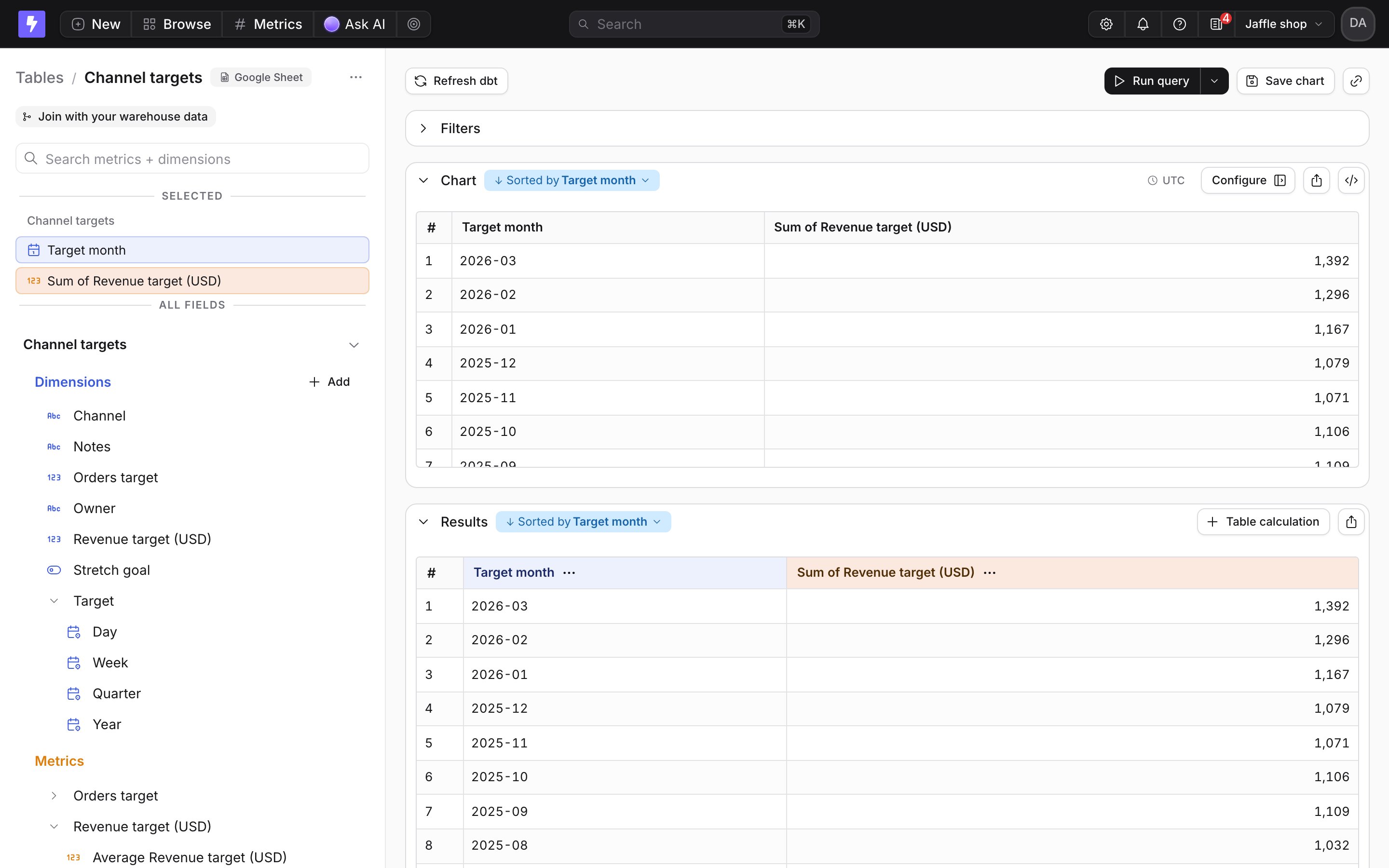
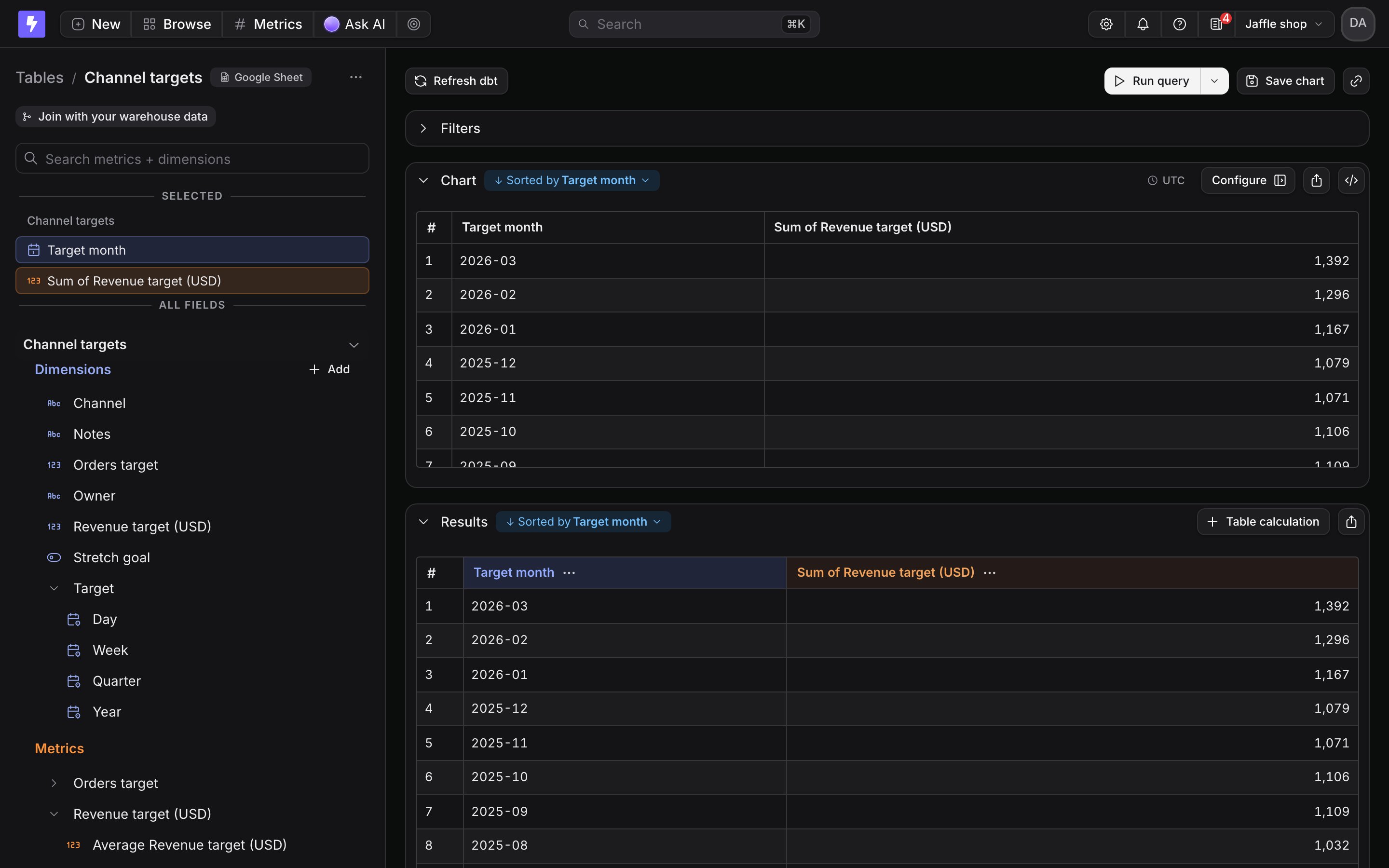
An external source brings data that lives outside your warehouse into a project: an uploaded CSV, or a tab of a Google Sheet. Lightdash reads it once, stores a typed copy, and turns it into a table you can explore, chart, put on dashboards and join to your warehouse data. Nothing changes in your dbt project.
Use it for small, hand-maintained data that never made it into the warehouse, such as monthly targets, a mapping of regions to owners, or a list of accounts to watch.
 ## Before you start
* **Editor role or above.** Editors, developers and admins can add, refresh, rename and delete external sources. Everyone else in the project sees the tables, and the charts built on them follow normal [space permissions](/explore/spaces).
* **A header row.** The first row names the columns. Every following row is data.
* **For Google Sheets, access to the sheet.** The first time you connect a sheet, Lightdash asks your Google account for access to Google Sheets and to the Drive files you pick.
* **Size limits.** Up to 100 MB per file, 1,000,000 rows per table and 5 GB per organization.
Everyone in the project can see an imported table, whatever the Google Sheet's own sharing settings. Lightdash reads the sheet with the Google access of the person who connected it and stores a copy. User attributes and row-level filters don't apply to external sources, so only import data that every project member may see.
## Upload a CSV
In the Tables sidebar, select **Add data**.
## Before you start
* **Editor role or above.** Editors, developers and admins can add, refresh, rename and delete external sources. Everyone else in the project sees the tables, and the charts built on them follow normal [space permissions](/explore/spaces).
* **A header row.** The first row names the columns. Every following row is data.
* **For Google Sheets, access to the sheet.** The first time you connect a sheet, Lightdash asks your Google account for access to Google Sheets and to the Drive files you pick.
* **Size limits.** Up to 100 MB per file, 1,000,000 rows per table and 5 GB per organization.
Everyone in the project can see an imported table, whatever the Google Sheet's own sharing settings. Lightdash reads the sheet with the Google access of the person who connected it and stores a copy. User attributes and row-level filters don't apply to external sources, so only import data that every project member may see.
## Upload a CSV
In the Tables sidebar, select **Add data**.
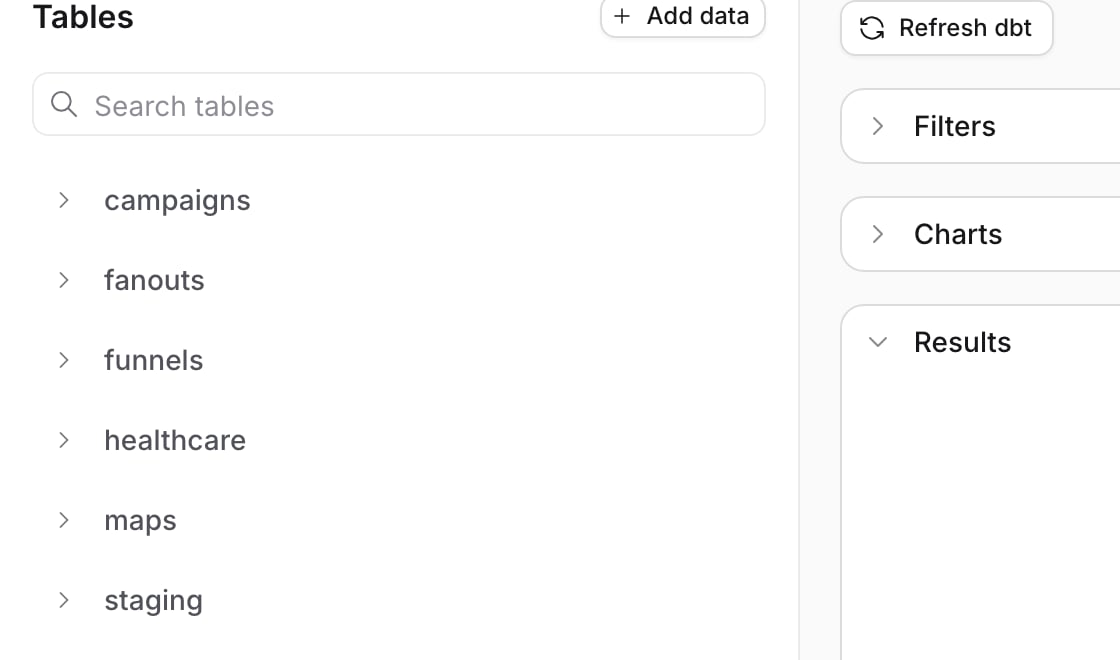
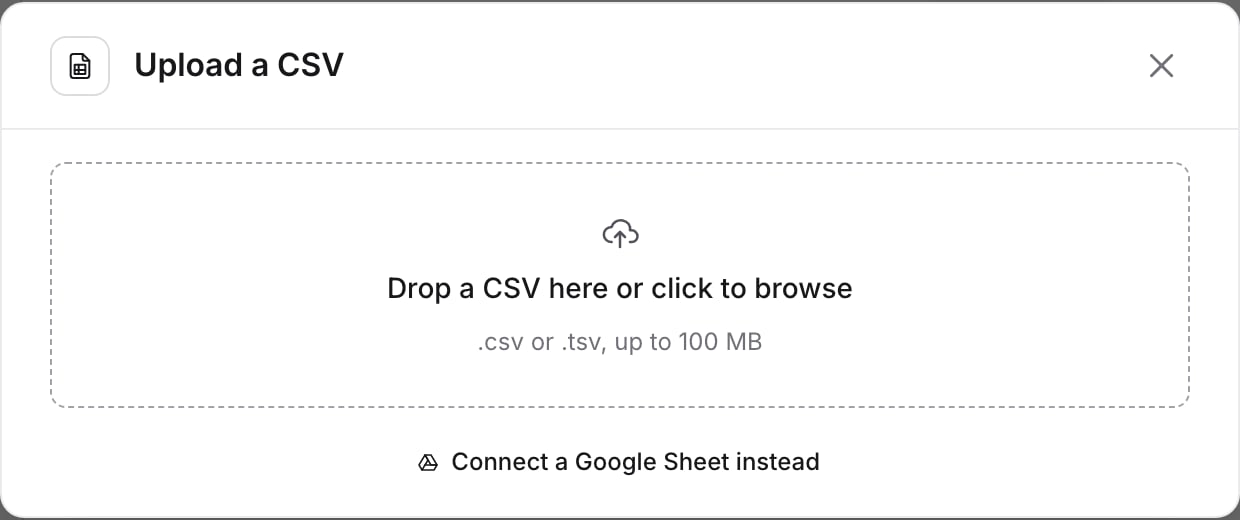
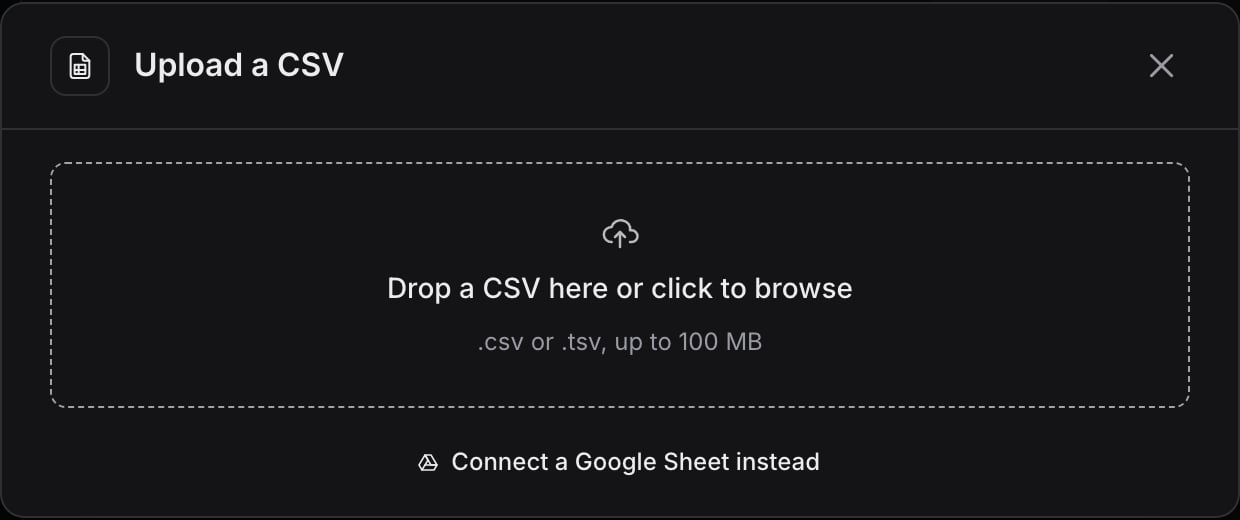
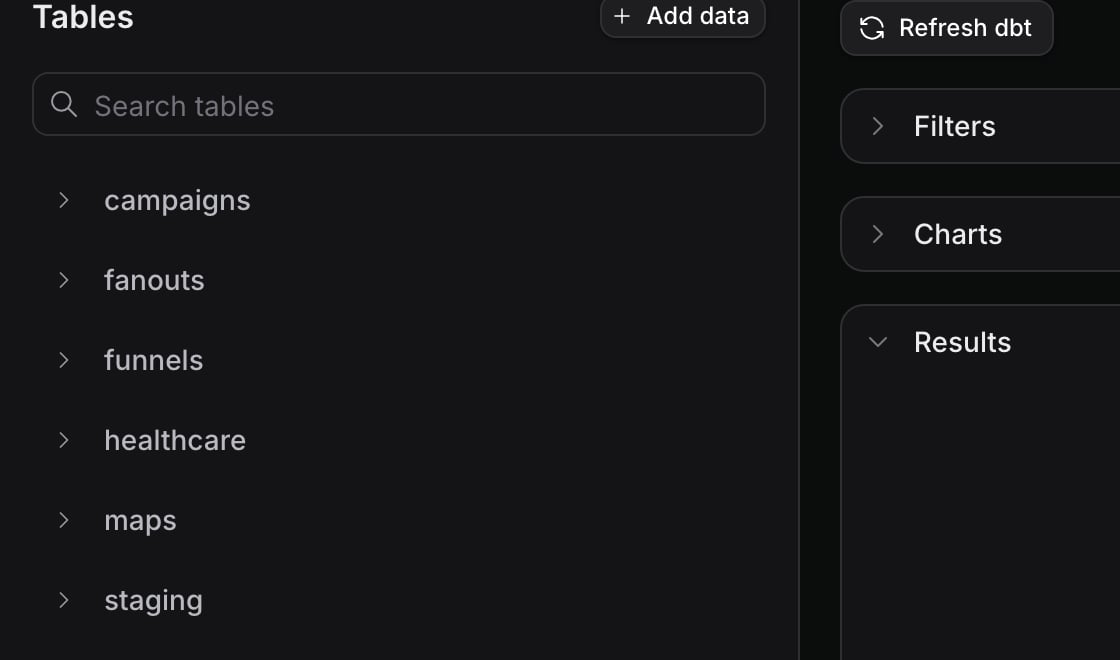 Drop a CSV on the upload area, or click it to pick a file.
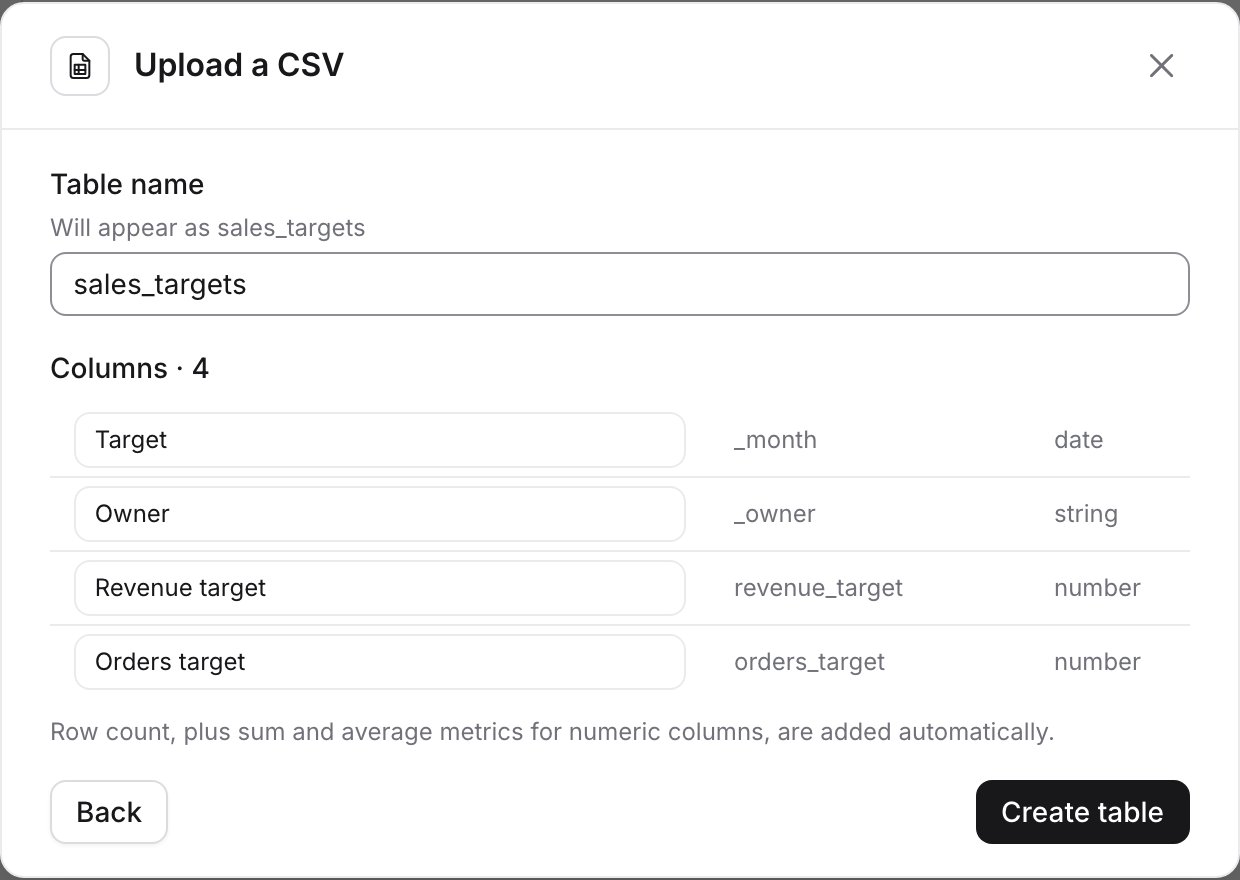
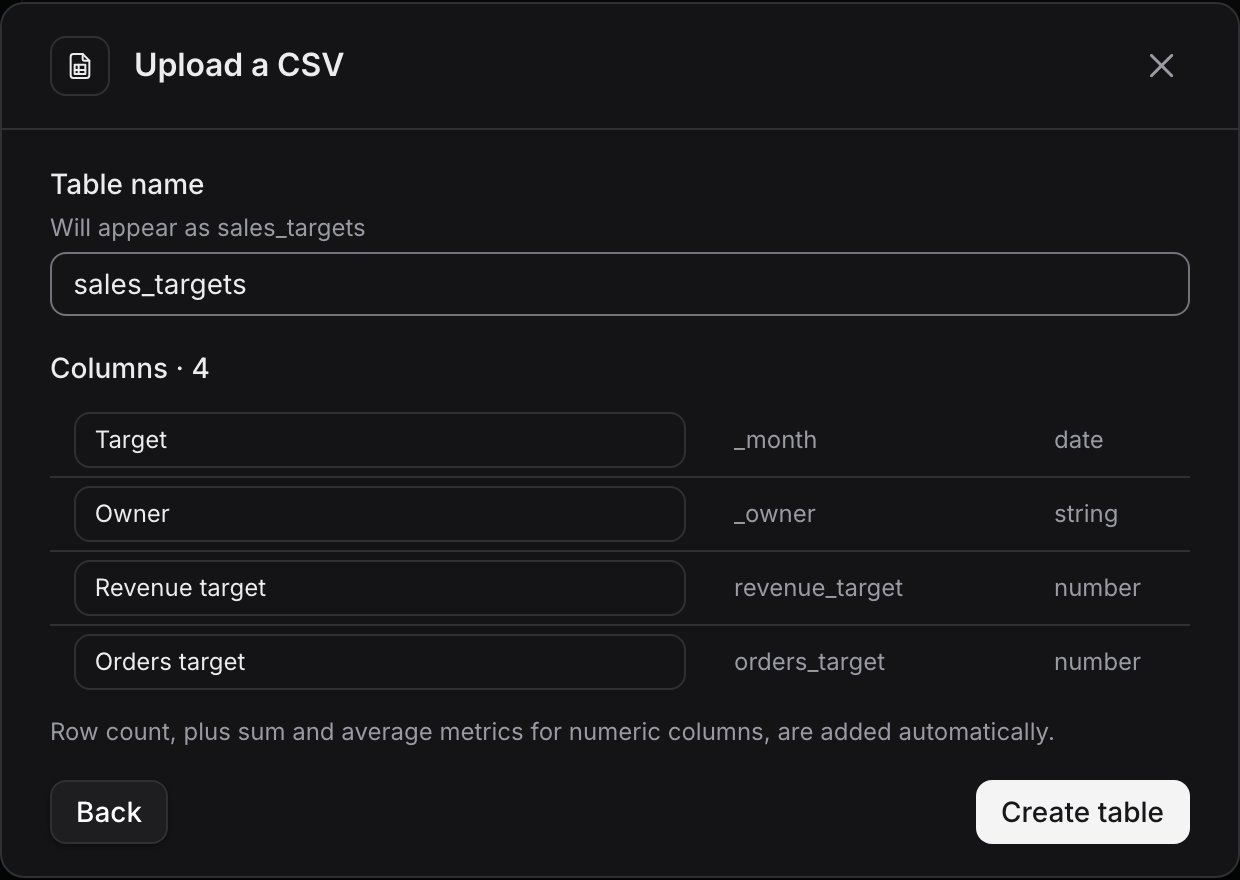
 Give the table a name and check the type detected for each column. Rename any column whose name reads oddly, then select **Create table**. Lightdash opens the new table as soon as it's ready.
 ## Connect a Google Sheet
Select **Add data**, then **Connect a Google Sheet instead**. Paste the sheet's URL from your browser and name the table.
Lightdash reads the tab the link points to. Open the tab you want before copying the URL, so the link ends in `#gid=…`. A link without a tab reads the first tab.
## Connect a Google Sheet
Select **Add data**, then **Connect a Google Sheet instead**. Paste the sheet's URL from your browser and name the table.
Lightdash reads the tab the link points to. Open the tab you want before copying the URL, so the link ends in `#gid=…`. A link without a tab reads the first tab.
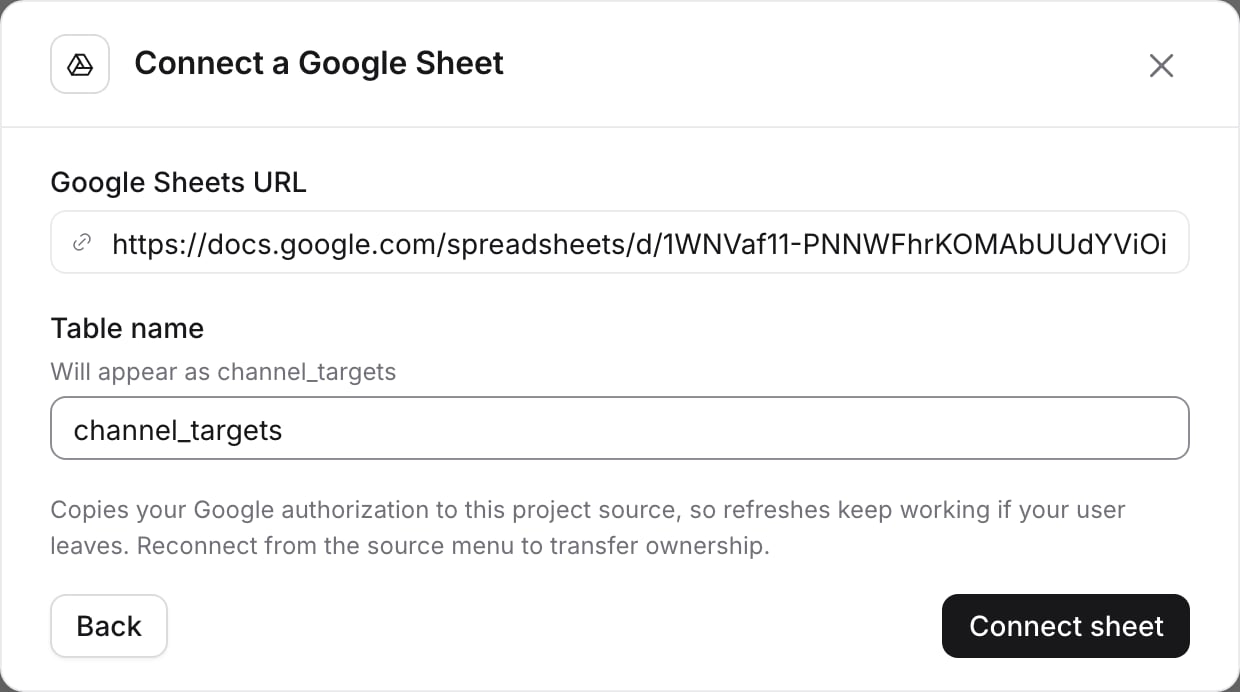
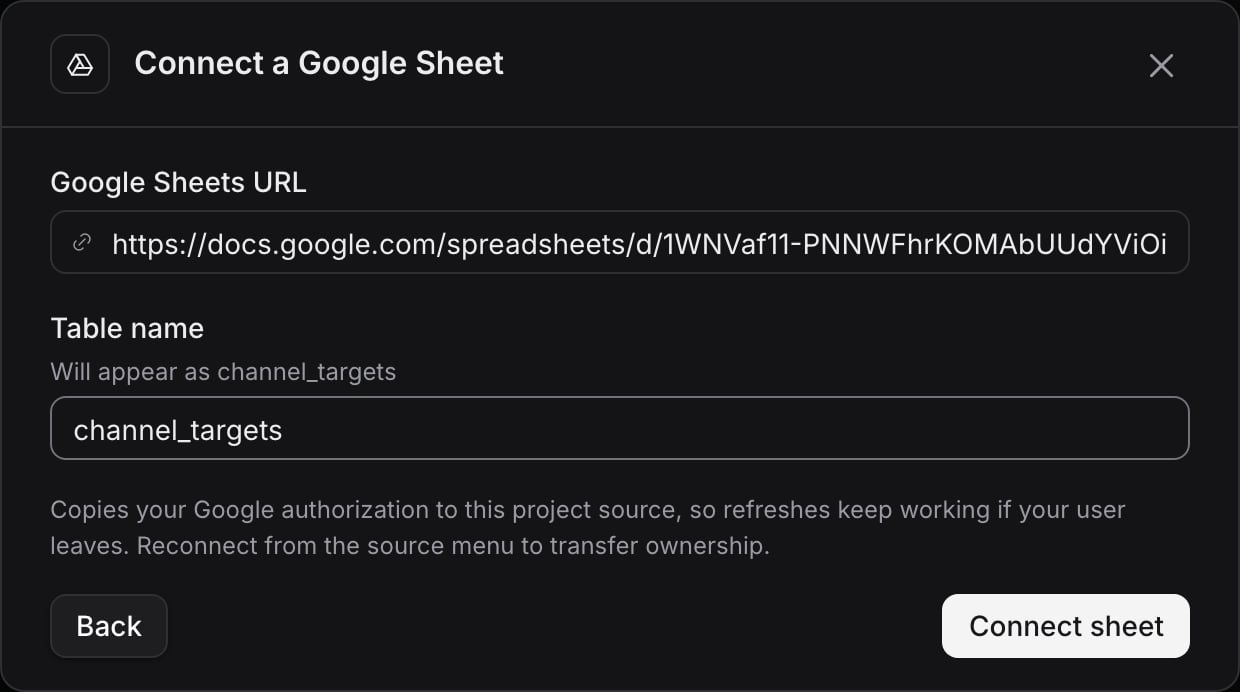 Select **Connect sheet**. If you haven't connected Google before, select **Connect Google account**, approve access in the pop-up, then select **Connect sheet** again.
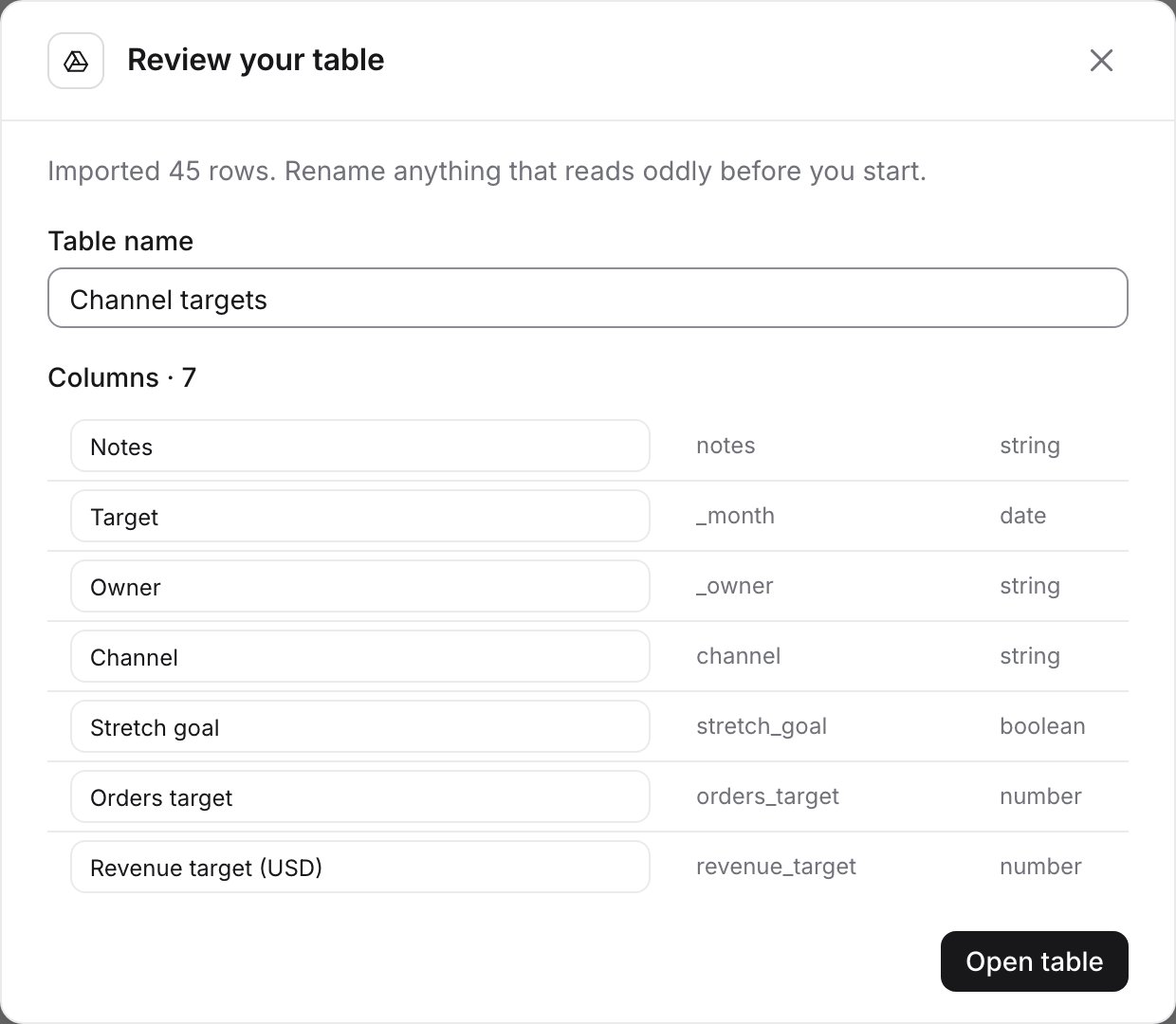
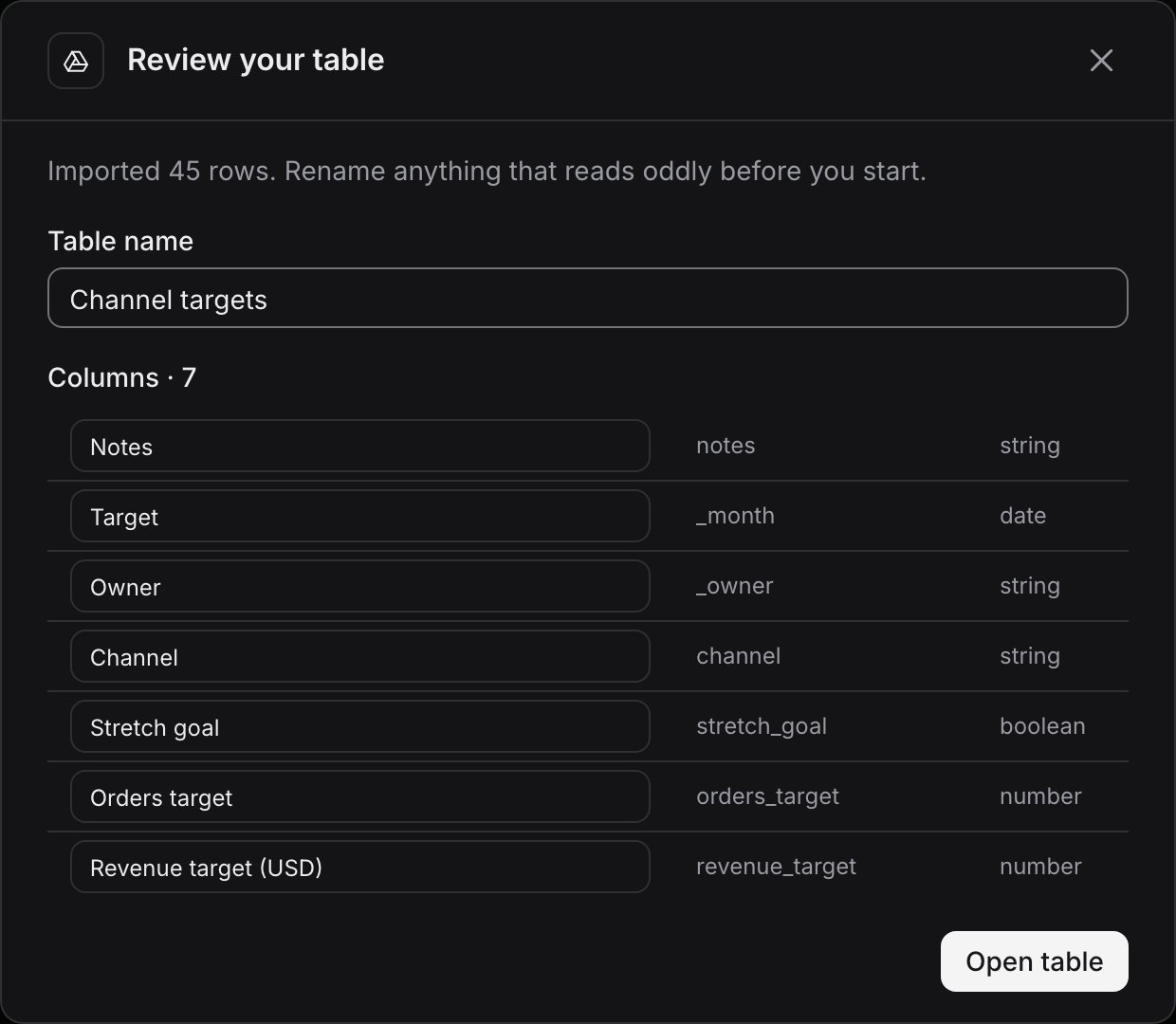
Once the import finishes, rename the table or any column, then select **Open table**.
Select **Connect sheet**. If you haven't connected Google before, select **Connect Google account**, approve access in the pop-up, then select **Connect sheet** again.
Once the import finishes, rename the table or any column, then select **Open table**.
 ## What the table contains
Each column becomes a dimension with a detected type: string, number, date, timestamp or boolean. Date columns also get day, week, month, quarter and year breakdowns. Lightdash adds a **Total rows** metric, plus a sum and an average for every number column.
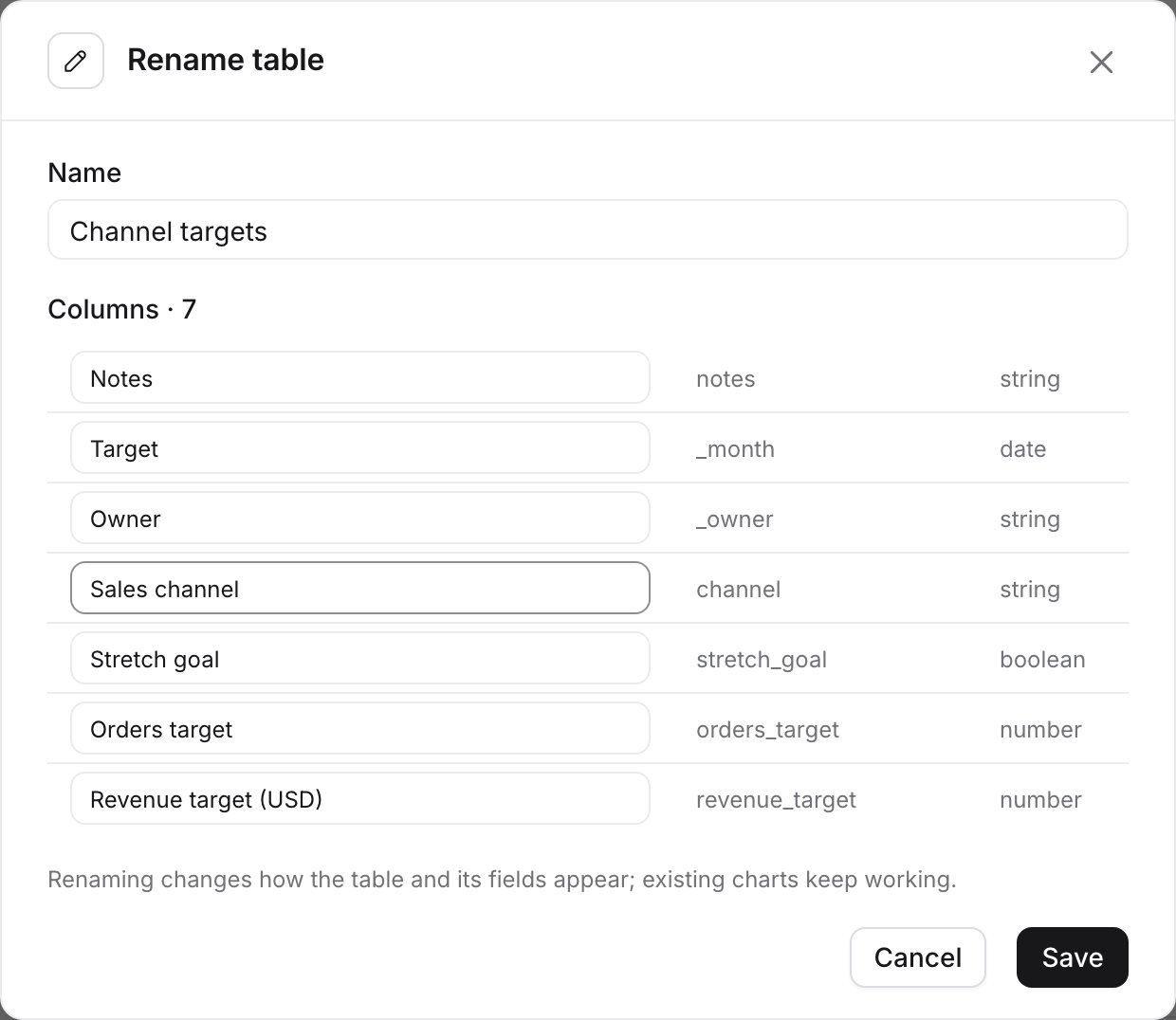
Column names are tidied into SQL-safe names, so `Região` becomes `regiao` and a column called `month` becomes `_month`. The name you see in the sidebar is the one you gave it while importing, or a readable version of the SQL name.
## Join with warehouse data
Select **Join with your warehouse data** under the table name to combine it with an explore from your dbt project, such as targets next to actual orders by month. Lightdash suggests a join on a matching field. The result is a [merge query](/explore/merge-queries), which you can save, add to dashboards and schedule like any other chart.
## What the table contains
Each column becomes a dimension with a detected type: string, number, date, timestamp or boolean. Date columns also get day, week, month, quarter and year breakdowns. Lightdash adds a **Total rows** metric, plus a sum and an average for every number column.
Column names are tidied into SQL-safe names, so `Região` becomes `regiao` and a column called `month` becomes `_month`. The name you see in the sidebar is the one you gave it while importing, or a readable version of the SQL name.
## Join with warehouse data
Select **Join with your warehouse data** under the table name to combine it with an explore from your dbt project, such as targets next to actual orders by month. Lightdash suggests a join on a matching field. The result is a [merge query](/explore/merge-queries), which you can save, add to dashboards and schedule like any other chart.
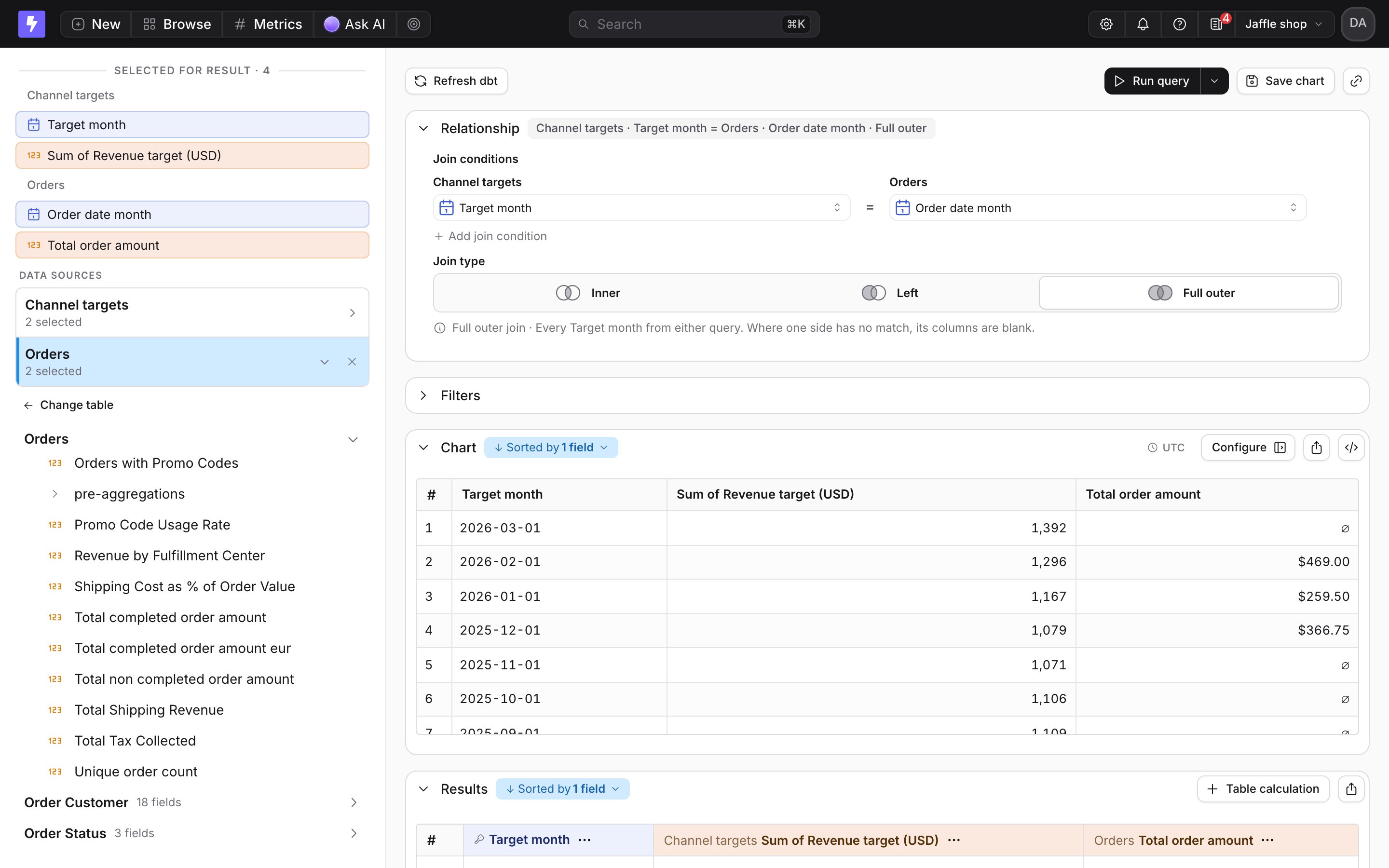
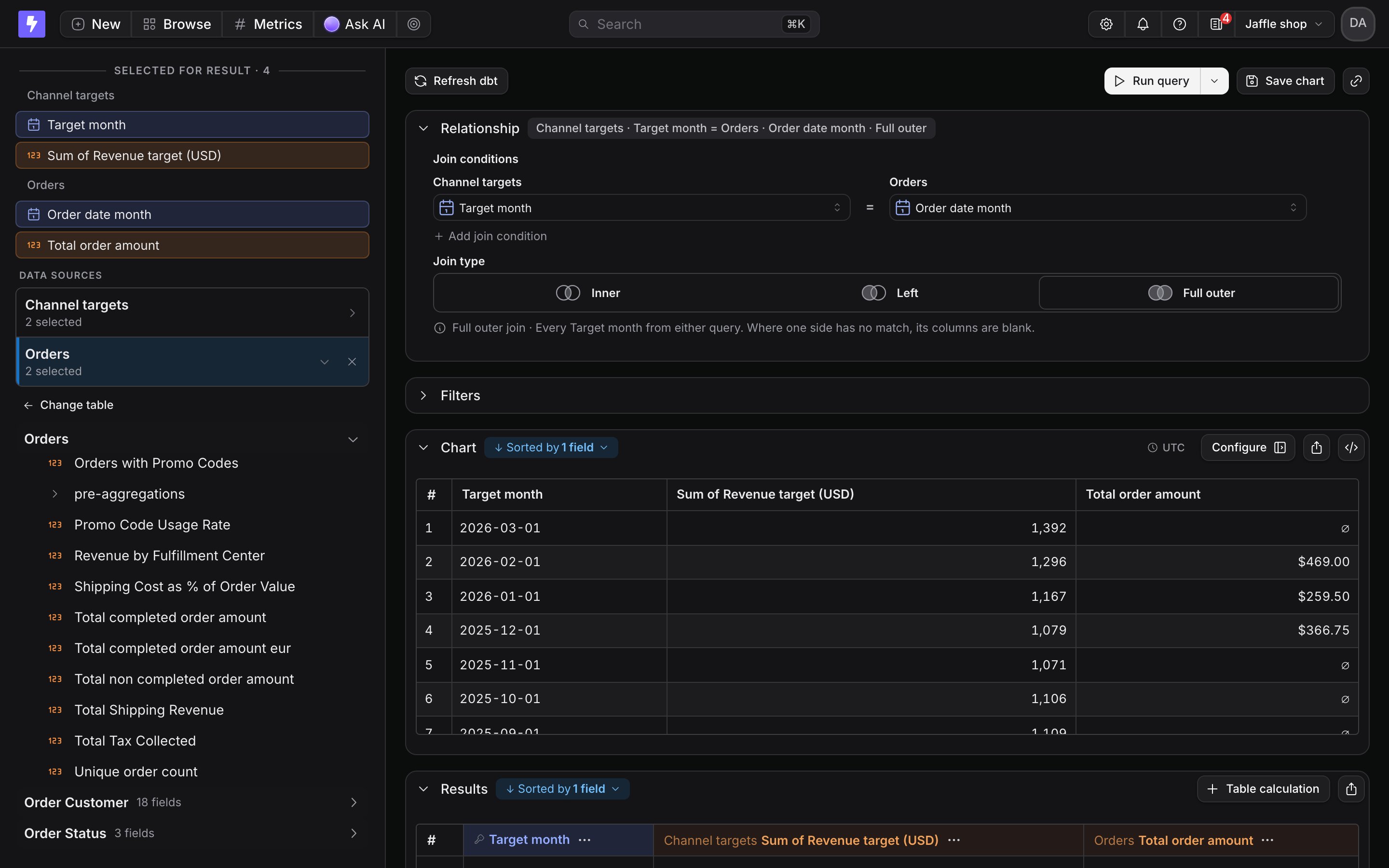 The join belongs to the chart, so each chart that needs targets next to actuals sets it up again.
## Keep the table up to date
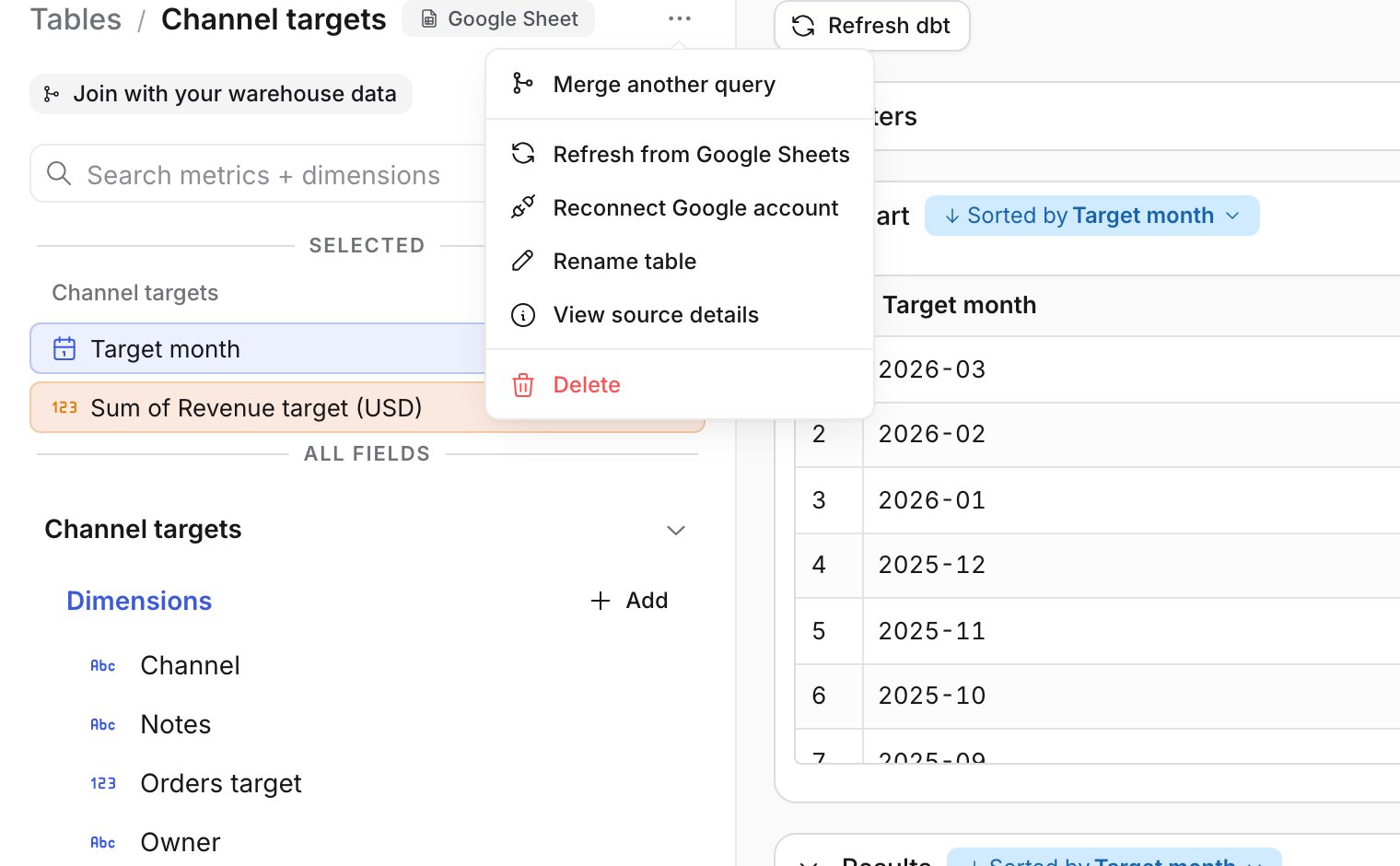
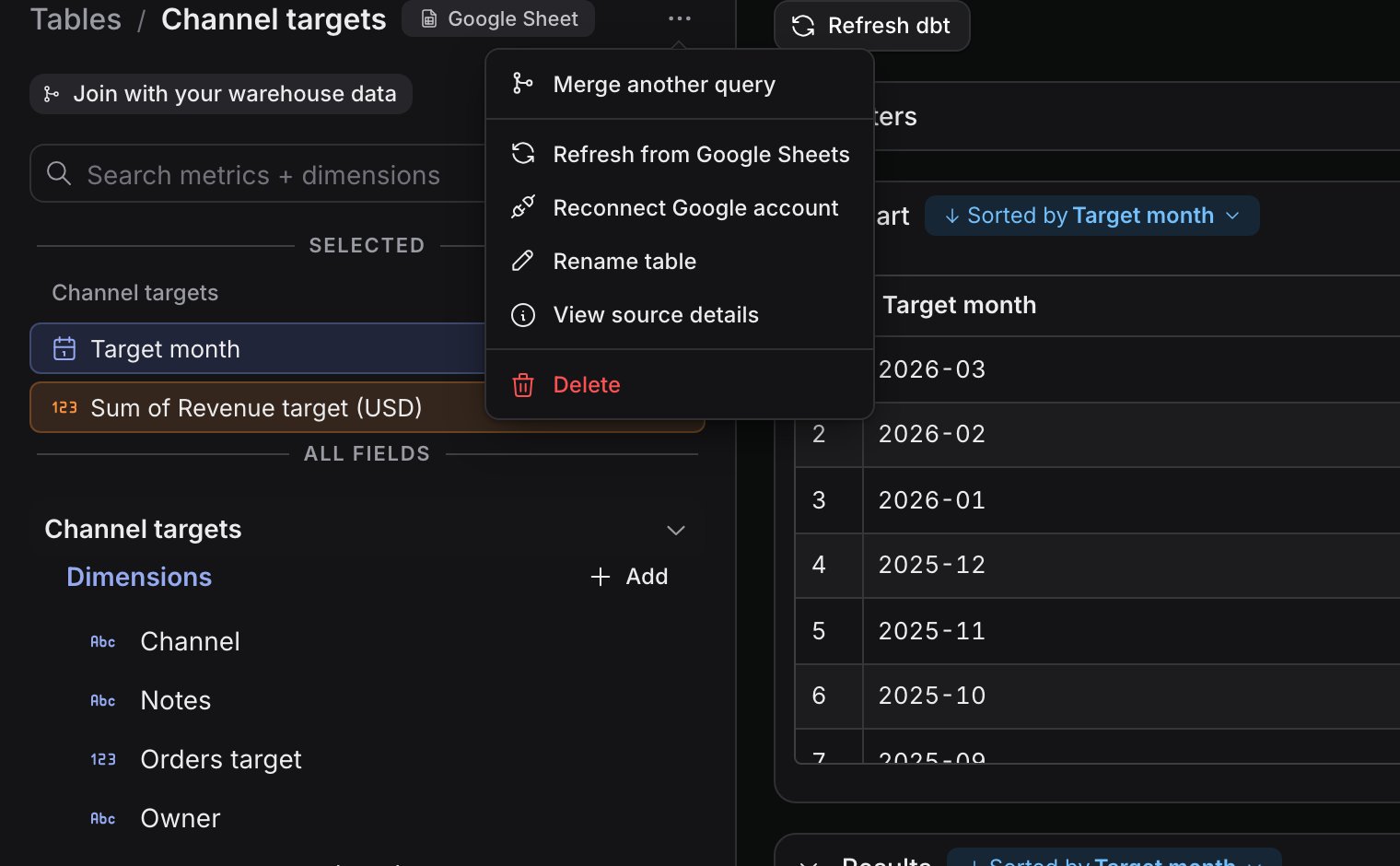
An external source is a copy taken when you import it, and edits to the sheet or file don't show up until you refresh it. The menu next to the table name holds the source actions:
* **Refresh from Google Sheets** reads the sheet again. Column names you set are kept.
* **Replace file** uploads a new version of a CSV.
* **Reconnect Google account** makes your Google access the one used for future refreshes, for example when the person who connected the sheet leaves.
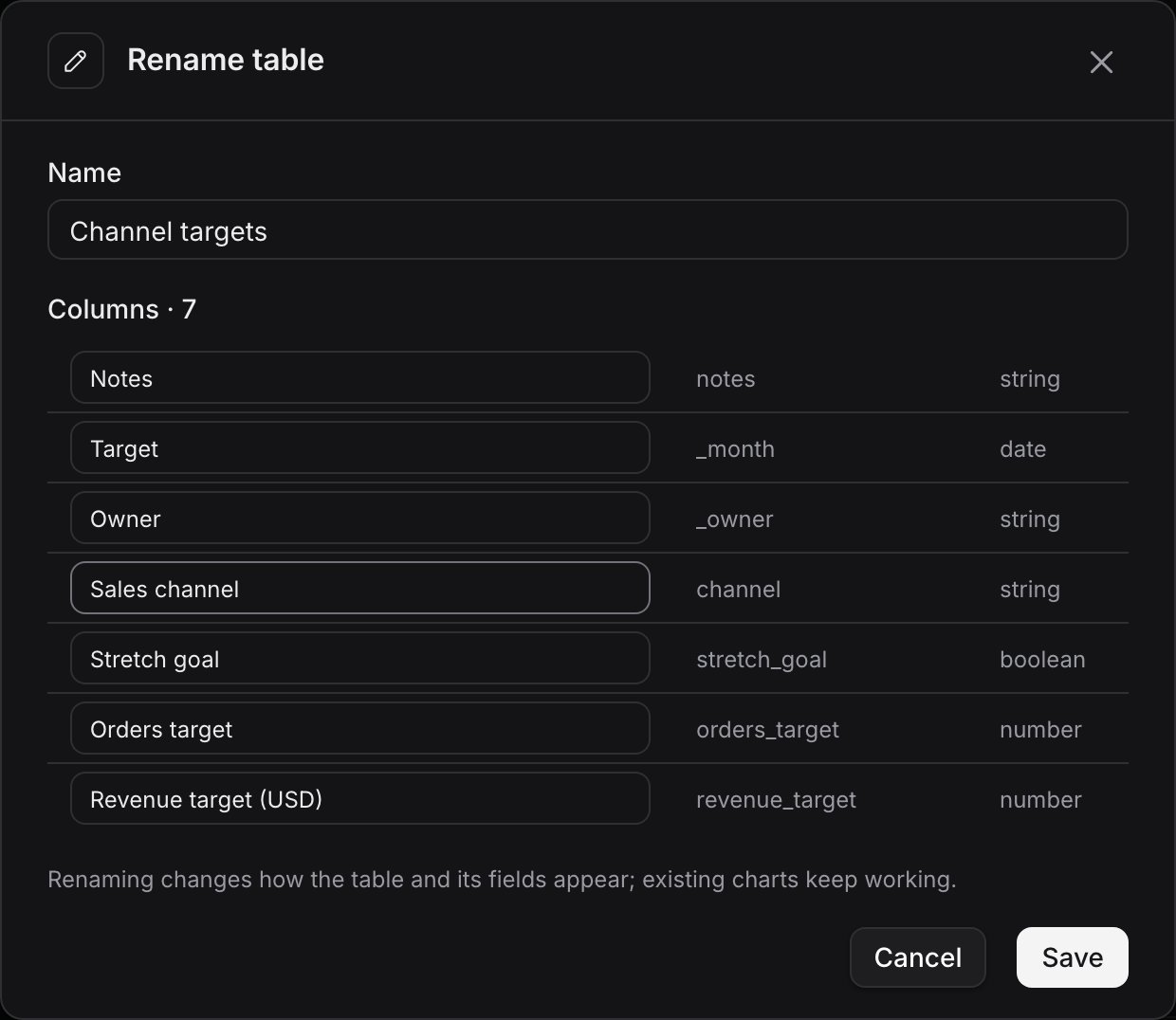
* **Rename table** changes the table and column names. Saved charts keep working.
* **View source details** previews the columns and the first rows.
* **Delete** removes the table. Charts built on it stop working.
The join belongs to the chart, so each chart that needs targets next to actuals sets it up again.
## Keep the table up to date
An external source is a copy taken when you import it, and edits to the sheet or file don't show up until you refresh it. The menu next to the table name holds the source actions:
* **Refresh from Google Sheets** reads the sheet again. Column names you set are kept.
* **Replace file** uploads a new version of a CSV.
* **Reconnect Google account** makes your Google access the one used for future refreshes, for example when the person who connected the sheet leaves.
* **Rename table** changes the table and column names. Saved charts keep working.
* **View source details** previews the columns and the first rows.
* **Delete** removes the table. Charts built on it stop working.
 ## Self-hosted setup
External sources run on the same DuckDB engine and object storage as pre-aggregates, but they don't need pre-aggregate workers or NATS. You need:
* **An Enterprise license.** Set `LIGHTDASH_LICENSE_KEY`. See [enterprise features](/self-host/enterprise-features).
* **A bucket for the imported data.** Set the `PRE_AGGREGATE_RESULTS_S3_*` variables listed under [pre-aggregates](/self-host/customize-deployment/environment-variables#pre-aggregates). Lightdash stores each table under `external-sources/` in that bucket.
* **The feature flag.** Add `external-sources` to `LIGHTDASH_ENABLE_FEATURE_FLAGS`. See [feature flags](/self-host/customize-deployment/environment-variables#feature-flags).
* **For Google Sheets, a Google OAuth client.** Follow [configure a Google Sheets integration](/self-host/customize-deployment/configure-google-sheets-integration). Enable the Google Sheets API and the Google Drive API on the same Google Cloud project, and add `/api/v1/oauth/redirect/google` to the client's authorized redirect URIs.
To change the size limits, set `EXTERNAL_SOURCES_MAX_FILE_SIZE_BYTES`, `EXTERNAL_SOURCES_MAX_ROWS` or `EXTERNAL_SOURCES_MAX_ORGANIZATION_BYTES`.
This documentation is built and hosted on [Mintlify](https://mintlify.com), a developer documentation platform.
## Self-hosted setup
External sources run on the same DuckDB engine and object storage as pre-aggregates, but they don't need pre-aggregate workers or NATS. You need:
* **An Enterprise license.** Set `LIGHTDASH_LICENSE_KEY`. See [enterprise features](/self-host/enterprise-features).
* **A bucket for the imported data.** Set the `PRE_AGGREGATE_RESULTS_S3_*` variables listed under [pre-aggregates](/self-host/customize-deployment/environment-variables#pre-aggregates). Lightdash stores each table under `external-sources/` in that bucket.
* **The feature flag.** Add `external-sources` to `LIGHTDASH_ENABLE_FEATURE_FLAGS`. See [feature flags](/self-host/customize-deployment/environment-variables#feature-flags).
* **For Google Sheets, a Google OAuth client.** Follow [configure a Google Sheets integration](/self-host/customize-deployment/configure-google-sheets-integration). Enable the Google Sheets API and the Google Drive API on the same Google Cloud project, and add `/api/v1/oauth/redirect/google` to the client's authorized redirect URIs.
To change the size limits, set `EXTERNAL_SOURCES_MAX_FILE_SIZE_BYTES`, `EXTERNAL_SOURCES_MAX_ROWS` or `EXTERNAL_SOURCES_MAX_ORGANIZATION_BYTES`.
This documentation is built and hosted on [Mintlify](https://mintlify.com), a developer documentation platform.