> ## Documentation Index
> Fetch the complete documentation index at: https://docs.lightdash.com/llms.txt
> Use this file to discover all available pages before exploring further.
# Documents
> Write up an analysis as a readable report, with live charts placed between your text
Beta Documents are behind the `documents` feature flag. On Lightdash Cloud, ask your Lightdash contact to turn it on for your organization. Self-hosted deployments add `documents` to [`LIGHTDASH_ENABLE_FEATURE_FLAGS`](/self-host/customize-deployment/environment-variables#feature-flags). The editor and layout may still change. [What Beta means](/support/feature-maturity-levels).
A document is a written report with live charts inside it. Use one when the story matters as much as the numbers: a monthly review, the findings of an investigation, or a proposal that needs its evidence next to the argument. Charts in a document run against your data every time someone opens it, so the figures stay current.
Documents live in [spaces](/explore/spaces) alongside charts and dashboards, and follow the same space access.
 ## Read a document
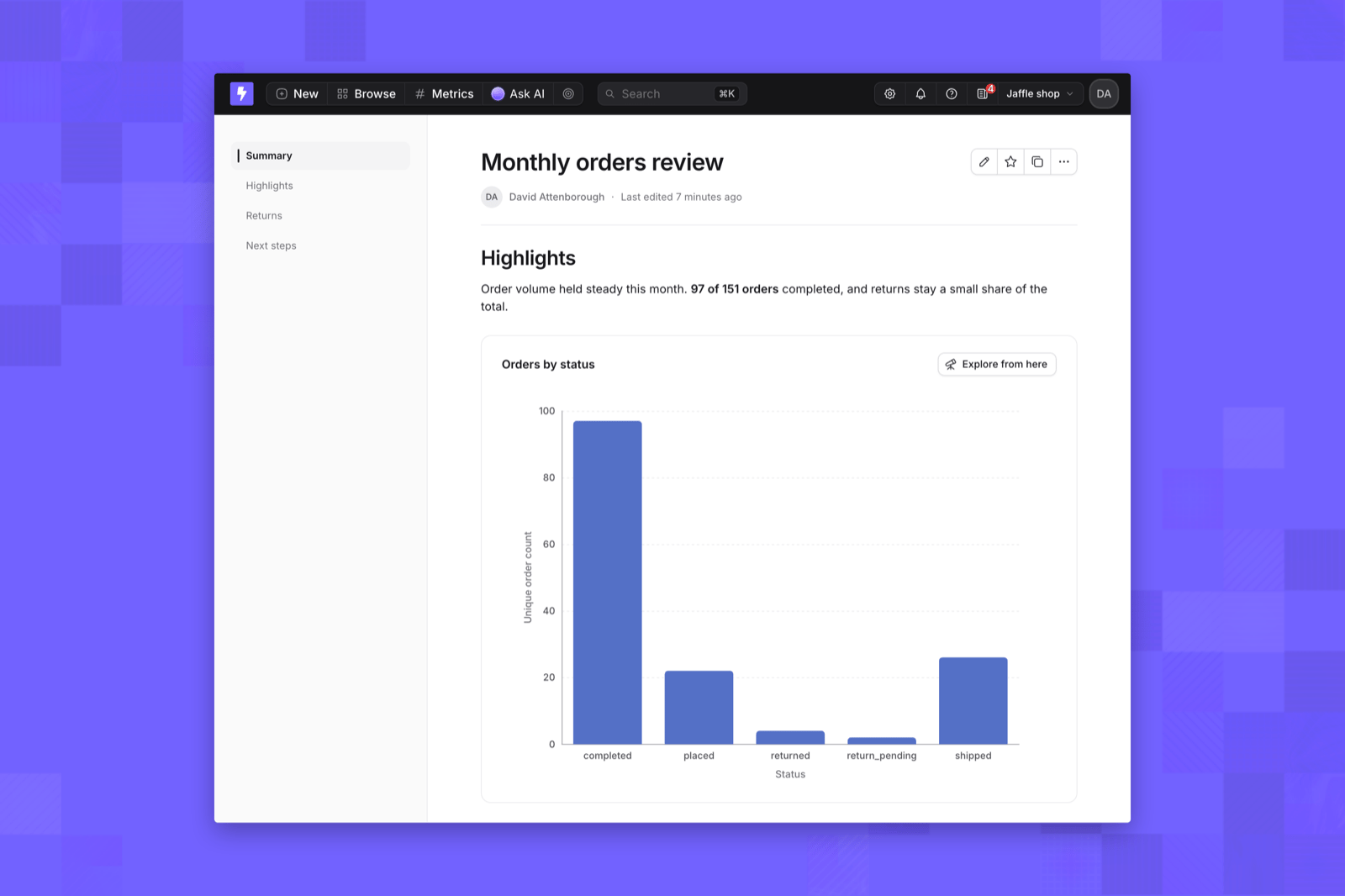
A document opens in its reading view. The rail on the left lists the document's top-level headings; click one to jump to that section. The line under the title shows who created the document and when it was last edited.
Each chart shows live results. Click **Explore from here** on a chart to open its query in the [Explore view](/explore/explore-view), where you can change it without affecting the document.
## Create a document
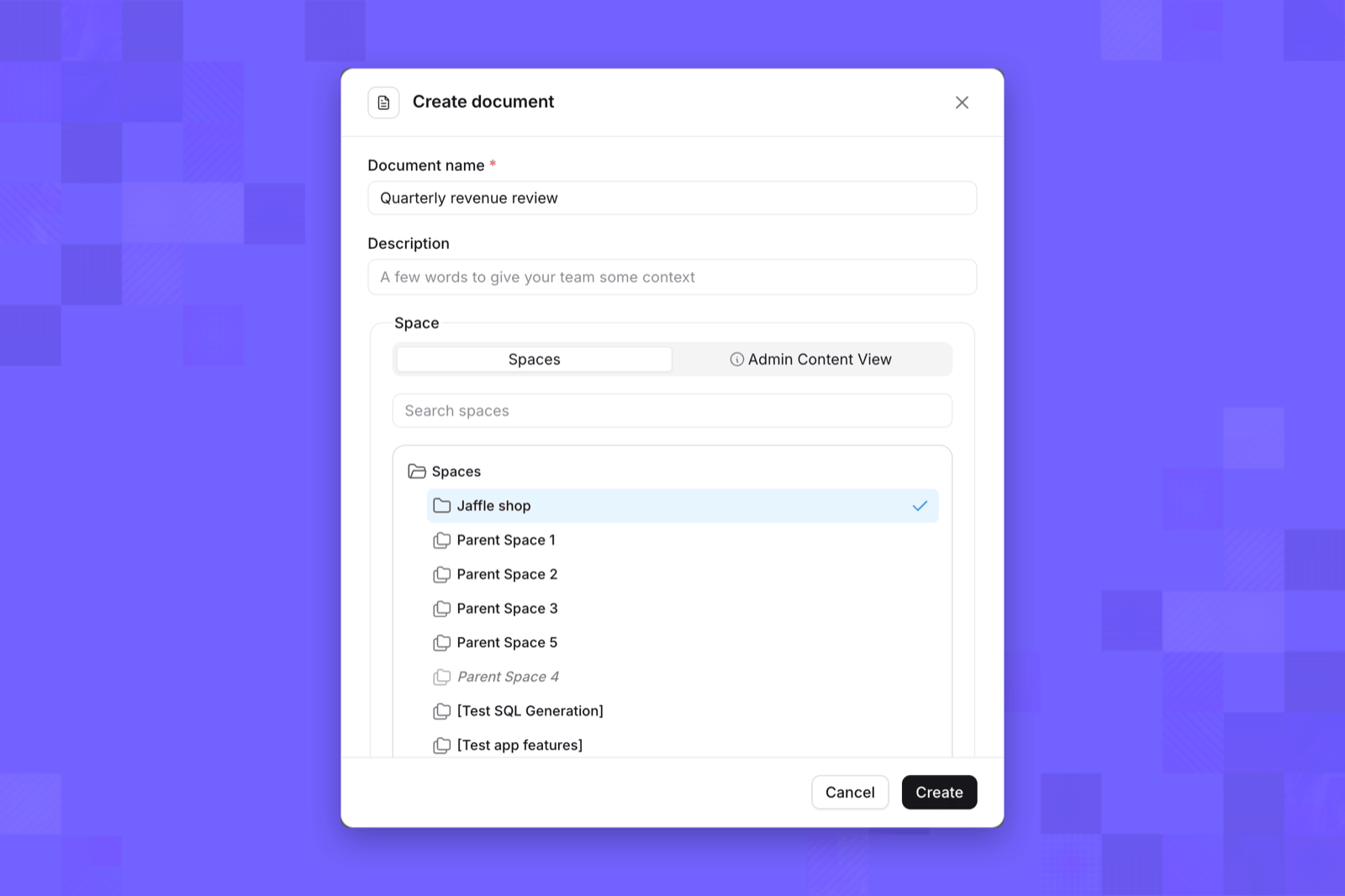
1. On the nav bar, click **New**, then **Document**. You can also use **Add** → **Create new document** in a space, which saves it there, or the **All documents** page under **Browse**.
2. Enter a name, an optional description, and the space to save it in.
3. Click **Create**. The document opens in edit mode, ready for you to write.
## Read a document
A document opens in its reading view. The rail on the left lists the document's top-level headings; click one to jump to that section. The line under the title shows who created the document and when it was last edited.
Each chart shows live results. Click **Explore from here** on a chart to open its query in the [Explore view](/explore/explore-view), where you can change it without affecting the document.
## Create a document
1. On the nav bar, click **New**, then **Document**. You can also use **Add** → **Create new document** in a space, which saves it there, or the **All documents** page under **Browse**.
2. Enter a name, an optional description, and the space to save it in.
3. Click **Create**. The document opens in edit mode, ready for you to write.
 To create a document you need edit access to at least one space.
## Edit a document
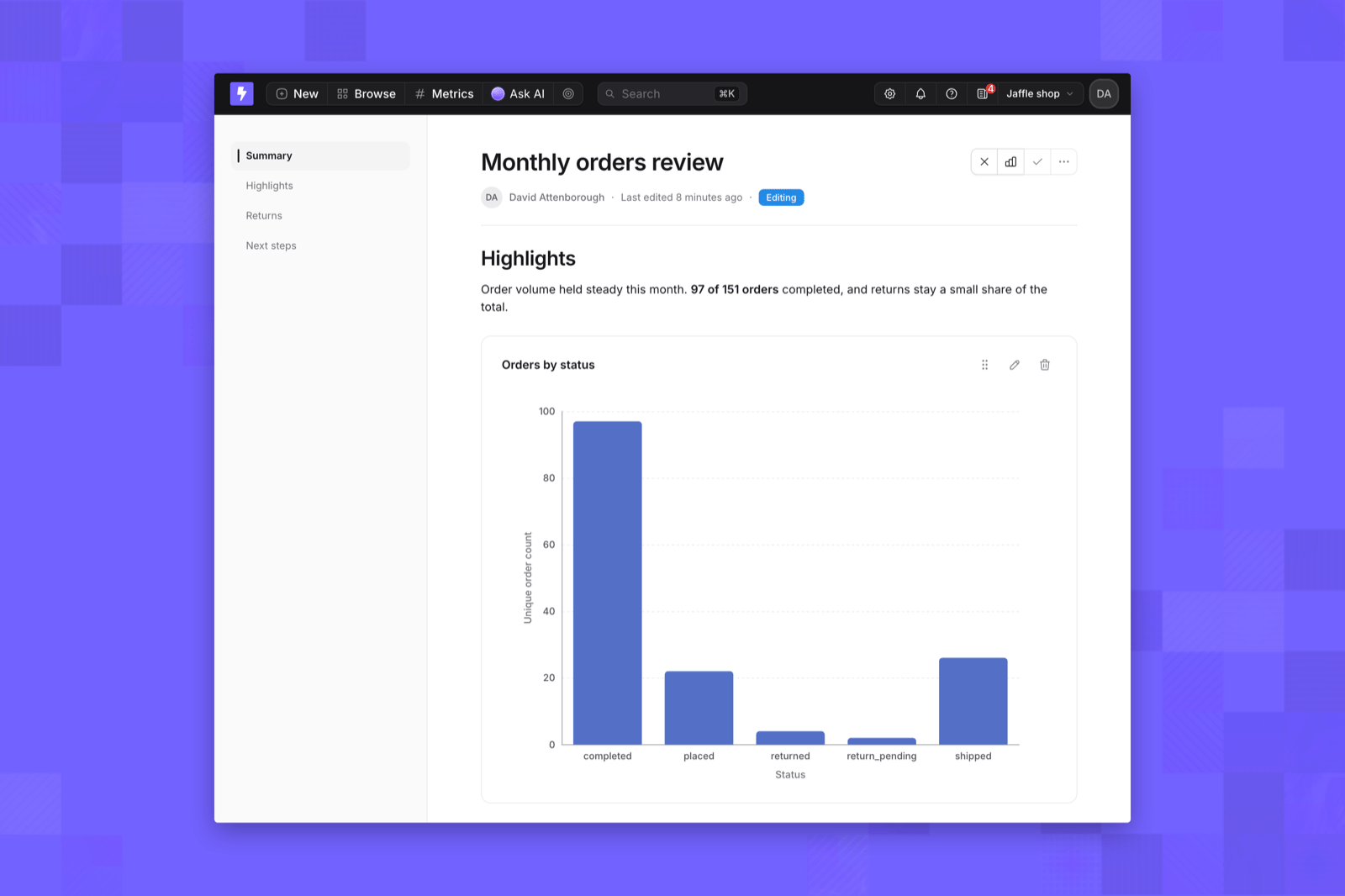
Click the pencil icon next to the title to edit. The document stays in place and an **Editing** badge appears beside the byline. You edit the text and charts exactly where they appear when reading.
To create a document you need edit access to at least one space.
## Edit a document
Click the pencil icon next to the title to edit. The document stays in place and an **Editing** badge appears beside the byline. You edit the text and charts exactly where they appear when reading.
 While editing you can:
* **Rename the document** by clicking its title.
* **Format text** with markdown shortcuts as you type, such as `#` for a heading, `-` for a list, or `**` for bold.
* **Insert blocks** by typing `/` on an empty line, then choosing text, headings, lists, a quote, a code block, a divider, a table, or a chart.
* **Write around charts** by clicking the space above, between, or below charts. You can also move there with the arrow keys.
Click the check icon to save, or the cross to cancel. If someone else saved the document while you were editing, Lightdash keeps your changes on screen and asks you to reopen the editor to load the latest version.
A table cell holds a single line. If you press Enter or add a line break inside a cell, the text is saved on one line with a space in between.
## Add and arrange charts
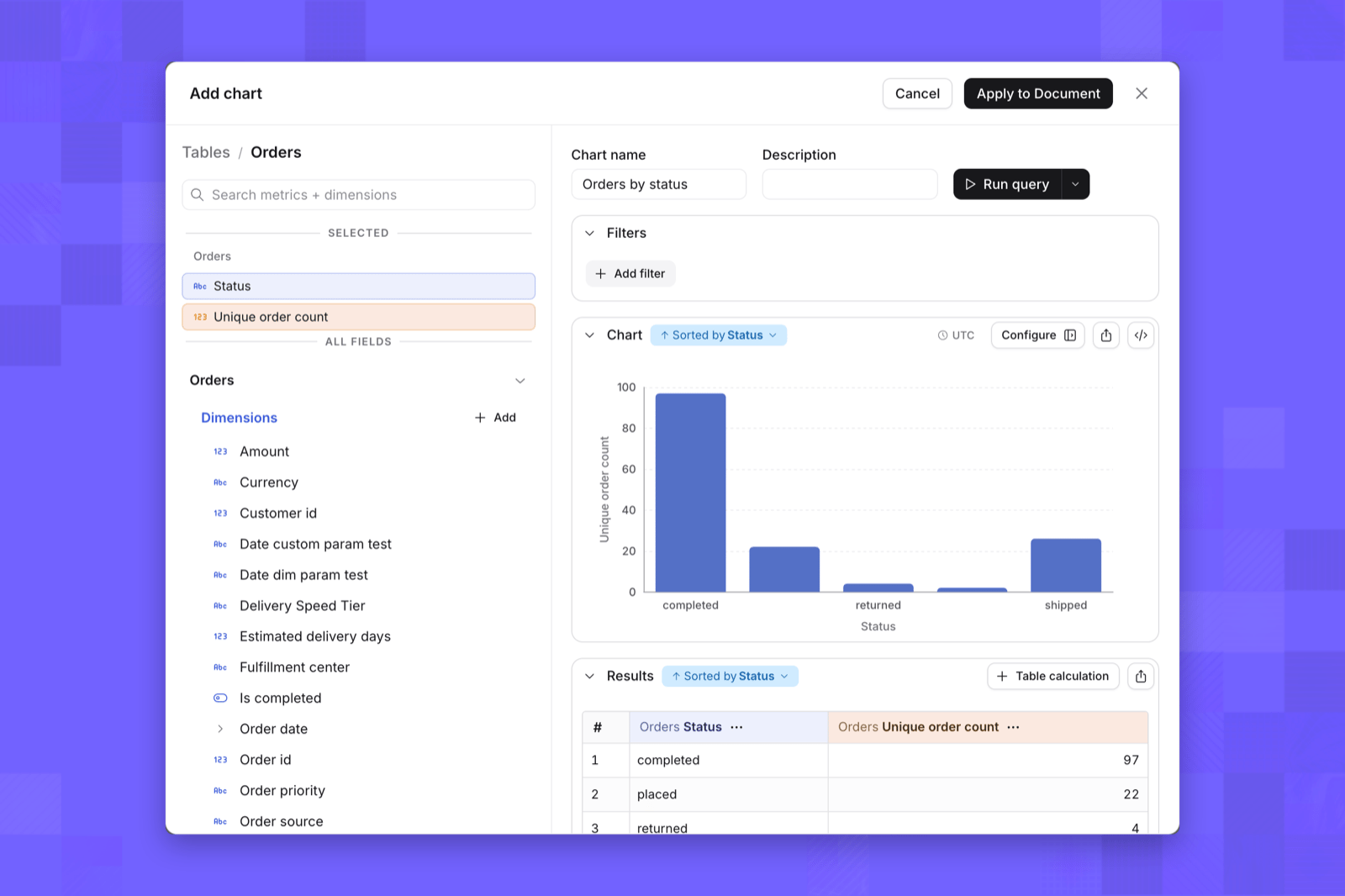
Type `/chart` and press Enter, or click the chart icon next to the title. The **Add chart** dialog is a full [Explore view](/explore/explore-view): pick a table, choose metrics and dimensions, configure the chart, and click **Apply to Document**. The chart is inserted where your cursor was.
While editing you can:
* **Rename the document** by clicking its title.
* **Format text** with markdown shortcuts as you type, such as `#` for a heading, `-` for a list, or `**` for bold.
* **Insert blocks** by typing `/` on an empty line, then choosing text, headings, lists, a quote, a code block, a divider, a table, or a chart.
* **Write around charts** by clicking the space above, between, or below charts. You can also move there with the arrow keys.
Click the check icon to save, or the cross to cancel. If someone else saved the document while you were editing, Lightdash keeps your changes on screen and asks you to reopen the editor to load the latest version.
A table cell holds a single line. If you press Enter or add a line break inside a cell, the text is saved on one line with a space in between.
## Add and arrange charts
Type `/chart` and press Enter, or click the chart icon next to the title. The **Add chart** dialog is a full [Explore view](/explore/explore-view): pick a table, choose metrics and dimensions, configure the chart, and click **Apply to Document**. The chart is inserted where your cursor was.
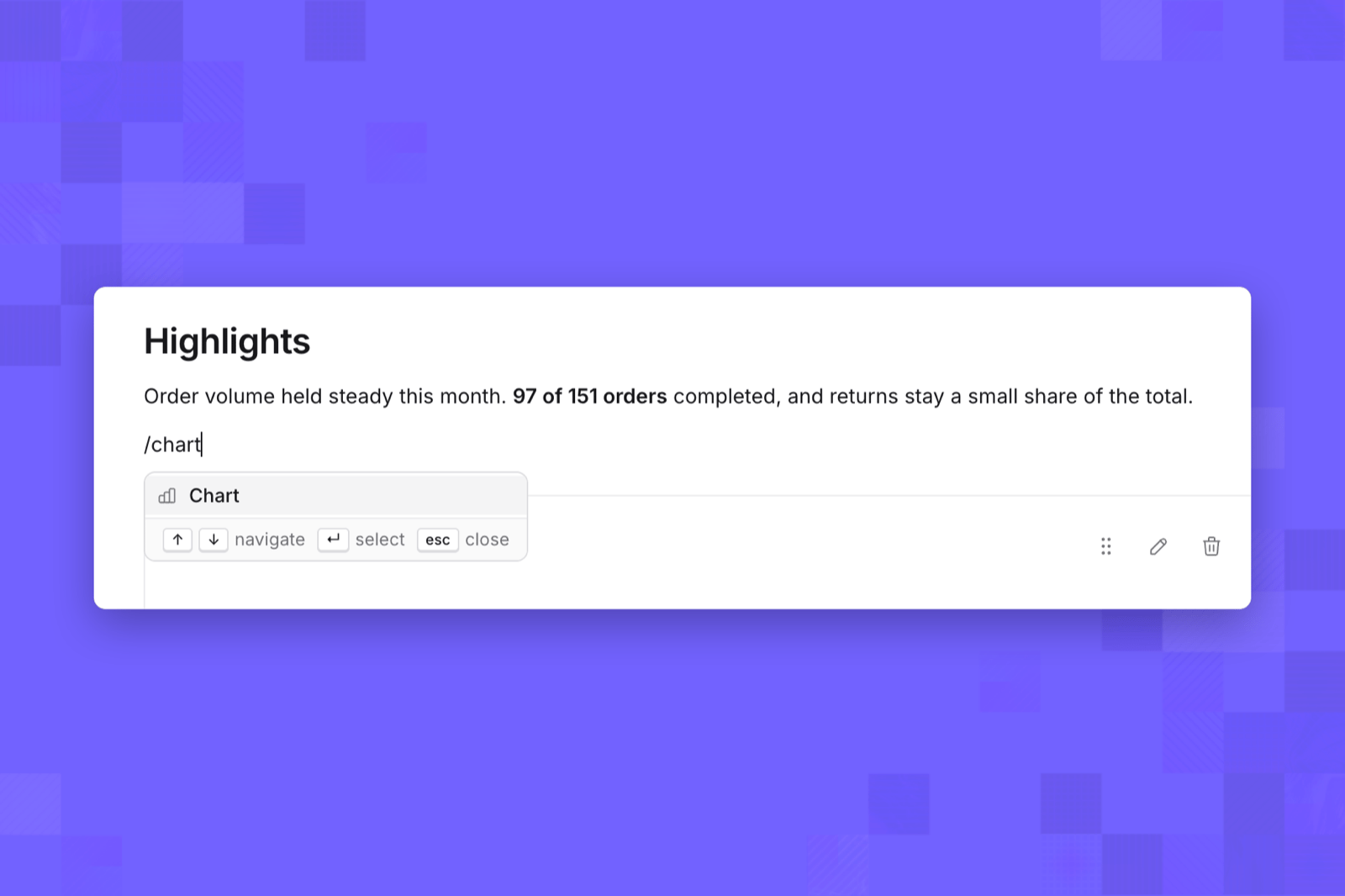
 Each chart in edit mode has three controls:
* **Move**: drag the grip icon to a new position, or focus it and press the up and down arrow keys. With a chart selected, Cmd+Shift+↑ or ↓ (Ctrl on Windows and Linux) also moves it.
* **Edit**: click the pencil icon, or select the chart and press Enter, to reopen it in the chart editor.
* **Remove**: click the trash icon, or select the chart and press Backspace.
Charts sit between blocks of text; they can't be placed inside a list, quote, or table. Adding or editing a chart needs permission to explore data in the project. Editors without it can still move and remove charts.
## Create and edit with AI
[AI agents](/agents/enable-content-tools) with content editing turned on, and [Lightdash MCP](/agents/lightdash-mcp#editing-content) clients such as Claude or Cursor, can write a new document or rewrite an existing one when you ask them to. Their changes are saved as new versions, like edits made in the editor, and appear in the document's [version history](#version-history).
## Manage a document
Use the icons next to the title to add the document to your favorites or copy its link. The **⋯** menu holds the rest:
Each chart in edit mode has three controls:
* **Move**: drag the grip icon to a new position, or focus it and press the up and down arrow keys. With a chart selected, Cmd+Shift+↑ or ↓ (Ctrl on Windows and Linux) also moves it.
* **Edit**: click the pencil icon, or select the chart and press Enter, to reopen it in the chart editor.
* **Remove**: click the trash icon, or select the chart and press Backspace.
Charts sit between blocks of text; they can't be placed inside a list, quote, or table. Adding or editing a chart needs permission to explore data in the project. Editors without it can still move and remove charts.
## Create and edit with AI
[AI agents](/agents/enable-content-tools) with content editing turned on, and [Lightdash MCP](/agents/lightdash-mcp#editing-content) clients such as Claude or Cursor, can write a new document or rewrite an existing one when you ask them to. Their changes are saved as new versions, like edits made in the editor, and appear in the document's [version history](#version-history).
## Manage a document
Use the icons next to the title to add the document to your favorites or copy its link. The **⋯** menu holds the rest:
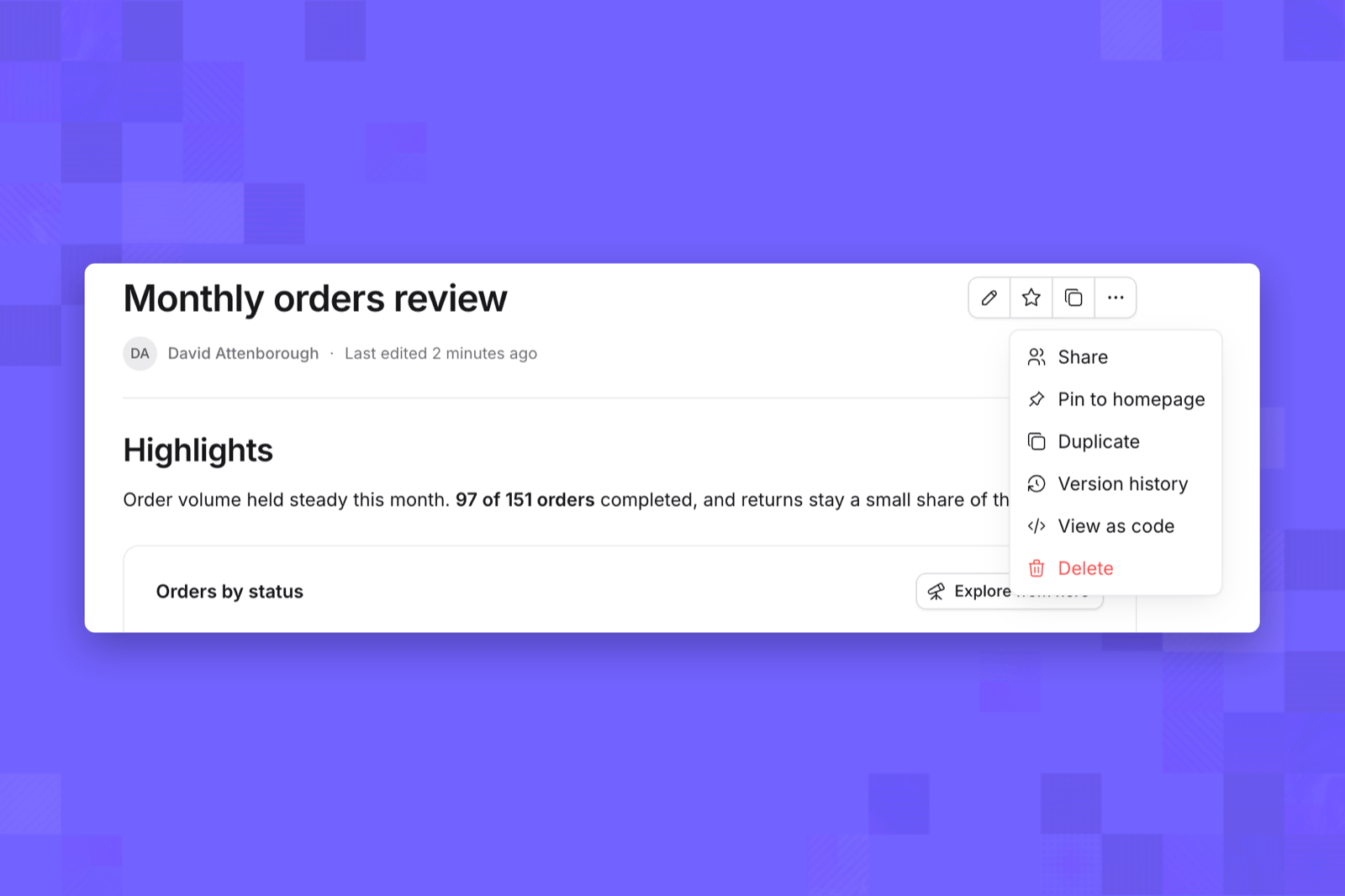 * **Share** gives specific people or groups access to the document through [direct access](/workspace-admin/direct-access), where it's available.
* **Pin to homepage** adds the document to the project [homepage](/explore/homepage).
* **Duplicate** saves a copy, with its current content, into a space you choose.
* **Version history** opens the document's saved versions.
* **View as code** shows the document's content, including every chart's query and configuration, as JSON.
* **Delete** removes the document. When soft delete is enabled, it moves to **Recently deleted** in project settings, where it can be restored.
## Version history
Every save creates a new version. Open **⋯** → **Version history** to see them, newest first, with who saved each one and when. The first entry is the current version.
* **Share** gives specific people or groups access to the document through [direct access](/workspace-admin/direct-access), where it's available.
* **Pin to homepage** adds the document to the project [homepage](/explore/homepage).
* **Duplicate** saves a copy, with its current content, into a space you choose.
* **Version history** opens the document's saved versions.
* **View as code** shows the document's content, including every chart's query and configuration, as JSON.
* **Delete** removes the document. When soft delete is enabled, it moves to **Recently deleted** in project settings, where it can be restored.
## Version history
Every save creates a new version. Open **⋯** → **Version history** to see them, newest first, with who saved each one and when. The first entry is the current version.
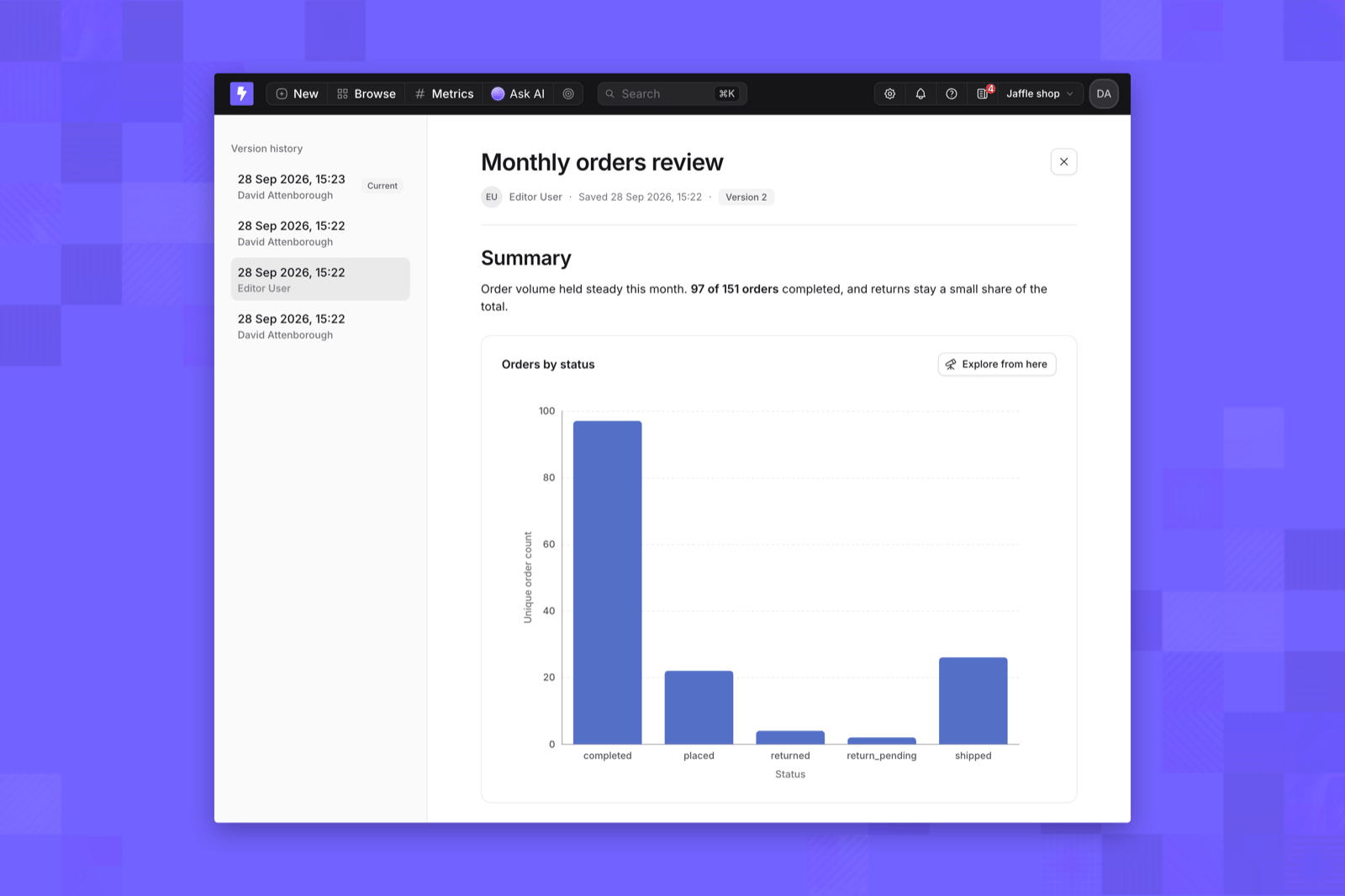 Click a version to preview it read-only, charts included; the charts run their saved queries against current data. The address bar updates, so you can share a link to a specific version. Click the cross next to the title to return to the document.
Version history is for reviewing past versions. To bring back earlier content, copy it from the version preview into the document and save.
Click a version to preview it read-only, charts included; the charts run their saved queries against current data. The address bar updates, so you can share a link to a specific version. Click the cross next to the title to return to the document.
Version history is for reviewing past versions. To bring back earlier content, copy it from the version preview into the document and save.