> ## Documentation Index
> Fetch the complete documentation index at: https://docs.lightdash.com/llms.txt
> Use this file to discover all available pages before exploring further.
# Agent permissions
> Limit what AI agents can do for each role, in which projects, and for which people
Beta Enterprise Agent permissions are behind the `agent-identity` feature flag. On Lightdash Cloud, ask Lightdash support to turn it on for your organization. On a self-hosted instance, [enable the flag](/self-host/enterprise-features/ai-agents#agent-identity). [What Beta means](/support/feature-maturity-levels).
By default, an agent can do what the person who asked can do. Agent permissions let an organization admin limit that: which actions agents may take for each role, in which projects, and for which people. Limits only reduce what agents can do. They never give a person more access than their roles allow.
[Agent identity](/agents/agent-identity) decides who agents run as in the warehouse. Agent permissions decide what agents may do in Lightdash.
## Turn on limits
Agent permissions are in the **Permissions** section of **Organization settings → Agent identity**, after the identity rules.
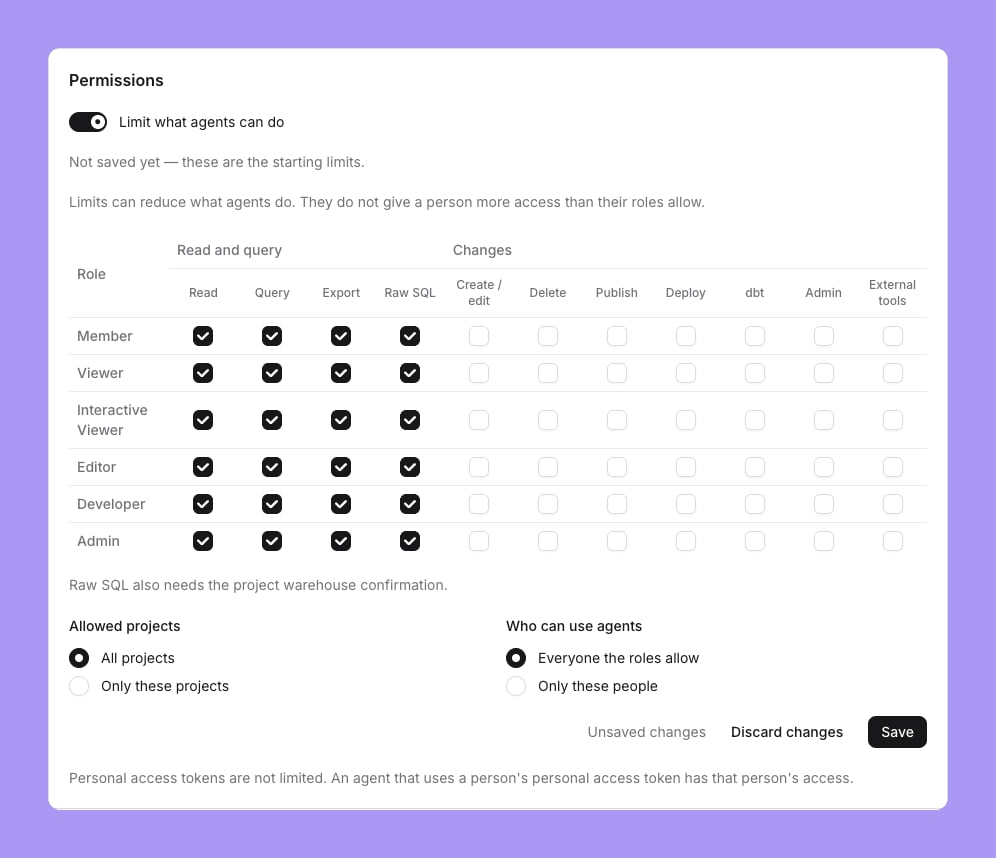
Turn on **Limit what agents can do**. While it is off, agents follow each person's permissions, as before.
The page shows the starting limits before anything is saved: for every role, **Read**, **Query**, **Export** and **Raw SQL** are on, and every change is off.
Change the limits if you need to, then select **Save**.
 To turn the limits off, turn off the switch and confirm **Turn off limits**. Agents then follow each person's permissions again, and the project and people limits no longer apply.
If another admin saves first, the page says so and offers to reload. Lightdash refuses a save made from an out-of-date page.
## What agents can do for each role
The matrix has one row for each role and one column for each capability. An agent can do something only when the person's role allows it and the matrix allows it for that role.
| Group | Capability | What it allows |
| - | - | - |
| Read and query | **Read** | Find and read projects, data models, charts and dashboards. |
| Read and query | **Query** | Run queries through the data models. |
| Read and query | **Export** | Download query results and export content. |
| Read and query | **Raw SQL** | Run SQL directly. Also needs the project warehouse confirmation. |
| Changes | **Create / edit** | Create or change charts, dashboards and spaces. |
| Changes | **Delete** | Delete charts, dashboards and other content. |
| Changes | **Publish** | Publish content, share it and set up deliveries. |
| Changes | **Deploy** | Deploy project changes and upload content. |
| Changes | **dbt** | Write changes back to dbt files. |
| Changes | **Admin** | Use administrative actions available to agents. |
| Changes | **External tools** | Call tools connected through external services. |
### Raw SQL needs the warehouse confirmation
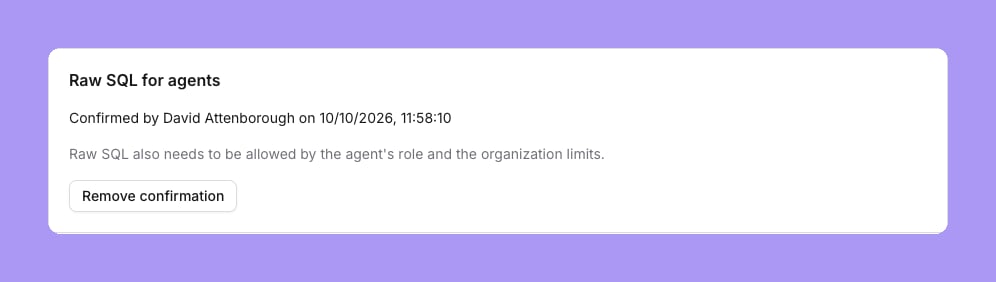
**Raw SQL** lets an agent run SQL outside the data models, so Lightdash also needs a project admin to confirm that the warehouse limits what the agent's identity can read. Each project has a **Raw SQL for agents** card on **Project settings → Agent identity**, for every warehouse:
Make sure the warehouse identity that agents run as can read only what agents may see. See [Agent identity](/agents/agent-identity).
On the **Raw SQL for agents** card, tick **The warehouse limits what the agent's identity can read**, then confirm.
The card shows **Not confirmed**, **Confirmed** with who confirmed and when, or **Expired** when the connection changed after the confirmation. Select **Remove confirmation** to withdraw it. Raw SQL also needs to be allowed by the agent's role and the organization limits.
To turn the limits off, turn off the switch and confirm **Turn off limits**. Agents then follow each person's permissions again, and the project and people limits no longer apply.
If another admin saves first, the page says so and offers to reload. Lightdash refuses a save made from an out-of-date page.
## What agents can do for each role
The matrix has one row for each role and one column for each capability. An agent can do something only when the person's role allows it and the matrix allows it for that role.
| Group | Capability | What it allows |
| - | - | - |
| Read and query | **Read** | Find and read projects, data models, charts and dashboards. |
| Read and query | **Query** | Run queries through the data models. |
| Read and query | **Export** | Download query results and export content. |
| Read and query | **Raw SQL** | Run SQL directly. Also needs the project warehouse confirmation. |
| Changes | **Create / edit** | Create or change charts, dashboards and spaces. |
| Changes | **Delete** | Delete charts, dashboards and other content. |
| Changes | **Publish** | Publish content, share it and set up deliveries. |
| Changes | **Deploy** | Deploy project changes and upload content. |
| Changes | **dbt** | Write changes back to dbt files. |
| Changes | **Admin** | Use administrative actions available to agents. |
| Changes | **External tools** | Call tools connected through external services. |
### Raw SQL needs the warehouse confirmation
**Raw SQL** lets an agent run SQL outside the data models, so Lightdash also needs a project admin to confirm that the warehouse limits what the agent's identity can read. Each project has a **Raw SQL for agents** card on **Project settings → Agent identity**, for every warehouse:
Make sure the warehouse identity that agents run as can read only what agents may see. See [Agent identity](/agents/agent-identity).
On the **Raw SQL for agents** card, tick **The warehouse limits what the agent's identity can read**, then confirm.
The card shows **Not confirmed**, **Confirmed** with who confirmed and when, or **Expired** when the connection changed after the confirmation. Select **Remove confirmation** to withdraw it. Raw SQL also needs to be allowed by the agent's role and the organization limits.
 ## Allowed projects
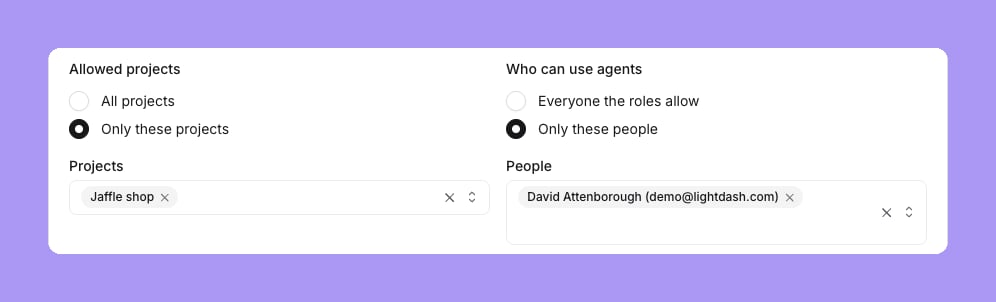
Under **Allowed projects**, choose **All projects**, or **Only these projects** and select the projects. Agents run only in the allowed projects.
## Who can use agents
Under **Who can use agents**, choose:
* **Everyone the roles allow.** Every person's agent can run, within the role limits.
* **Only these people.** Only the agents of the selected people can run, on top of the role limits. A person who leaves the organization drops out of the list.
## Allowed projects
Under **Allowed projects**, choose **All projects**, or **Only these projects** and select the projects. Agents run only in the allowed projects.
## Who can use agents
Under **Who can use agents**, choose:
* **Everyone the roles allow.** Every person's agent can run, within the role limits.
* **Only these people.** Only the agents of the selected people can run, on top of the role limits. A person who leaves the organization drops out of the list.
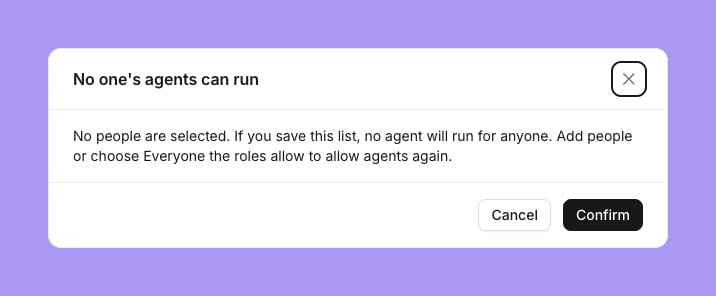
 When you save **Only these people** with no one selected, a warning opens: "No one's agents can run". If you confirm, no agent runs for anyone. **Cancel** keeps the previous list. To allow agents again, add people or choose **Everyone the roles allow**.
 ## Custom roles
Enterprise
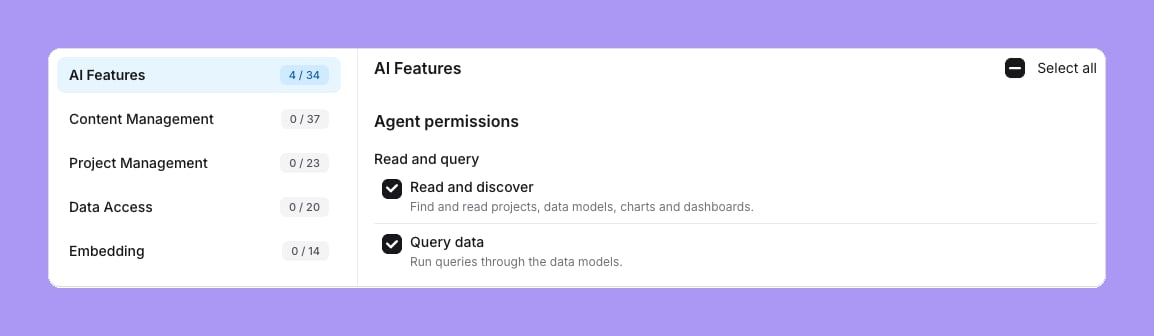
[Custom roles](/workspace-admin/custom-roles) have an **Agent permissions** group in the **AI Features** section of the role editor, with the 11 capabilities above. A new custom role starts with **Read and discover**, **Query data**, **Export results** and **Raw SQL** on.
## Custom roles
Enterprise
[Custom roles](/workspace-admin/custom-roles) have an **Agent permissions** group in the **AI Features** section of the role editor, with the 11 capabilities above. A new custom role starts with **Read and discover**, **Query data**, **Export results** and **Raw SQL** on.
 ## Personal access tokens
Personal access tokens are not limited. An agent that uses a person's personal access token, for example through [MCP](/agents/lightdash-mcp), has that person's access.
This documentation is built and hosted on [Mintlify](https://mintlify.com), a developer documentation platform.
## Personal access tokens
Personal access tokens are not limited. An agent that uses a person's personal access token, for example through [MCP](/agents/lightdash-mcp), has that person's access.
This documentation is built and hosted on [Mintlify](https://mintlify.com), a developer documentation platform.